
Slackで離席中と表示されないようにする方法:4つの原因と対処
Slackには離席中表示をオフにする設定も、10分タイマーを変える設定もありません。離席中にしないためには、手動の切り替え、無操作タイマー、スリープとロック、ほかの端末という原因ごとに直します。それぞれの手順と、各方法がカバーする範囲。
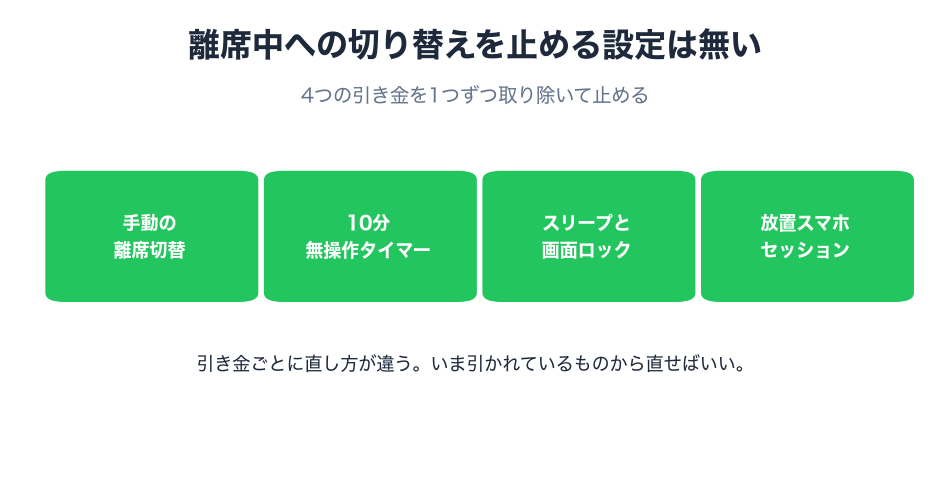
Slackで離席中と表示されないようにするには、あなたを離席中にしている原因を直します。離席中表示をオフにする設定はSlackにないからです。原因は4つあります。自分で離席中に設定していたなら、プロフィール写真をクリックして自分をアクティブに設定を選びます。10分の無操作タイマーが切れる前に、パソコンでキーボードかマウスの入力を続けます。PCのスリープと画面ロックの時間を延ばします。使っていない端末からサインアウトします。多くの人が引っかかるのは無操作タイマーです。デスクトップアプリは、あなたかツールによるパソコンのどこでの入力でもこれをリセットします(Slackデスクトップ版4.52.178のコードで2026年10月7日に確認)。
どの原因かわからないときは、作業中なのにSlackが離席中になる理由で、点が灰色になった時刻から原因を絞り込めます。
対処1:「離席中に設定」を解除する
手動の離席中は、解除するまで続きます。再起動しても消えません。
デスクトップ:
- サイドバーのプロフィール写真をクリックします。
- メニューに自分をアクティブに設定があれば、クリックします。
- プロフィール写真をタップします。
- 自分をアクティブに設定をタップします。
モバイル:
どのメッセージ欄で /active と入力しても同じです。Slackの組み込みコマンド一覧では「Mark yourself as active」と説明されています。メニューには今の状態ではない方の切り替えだけが出るので、アクティブなアカウントには Set yourself as away (自分を離席中に設定)が表示されます。
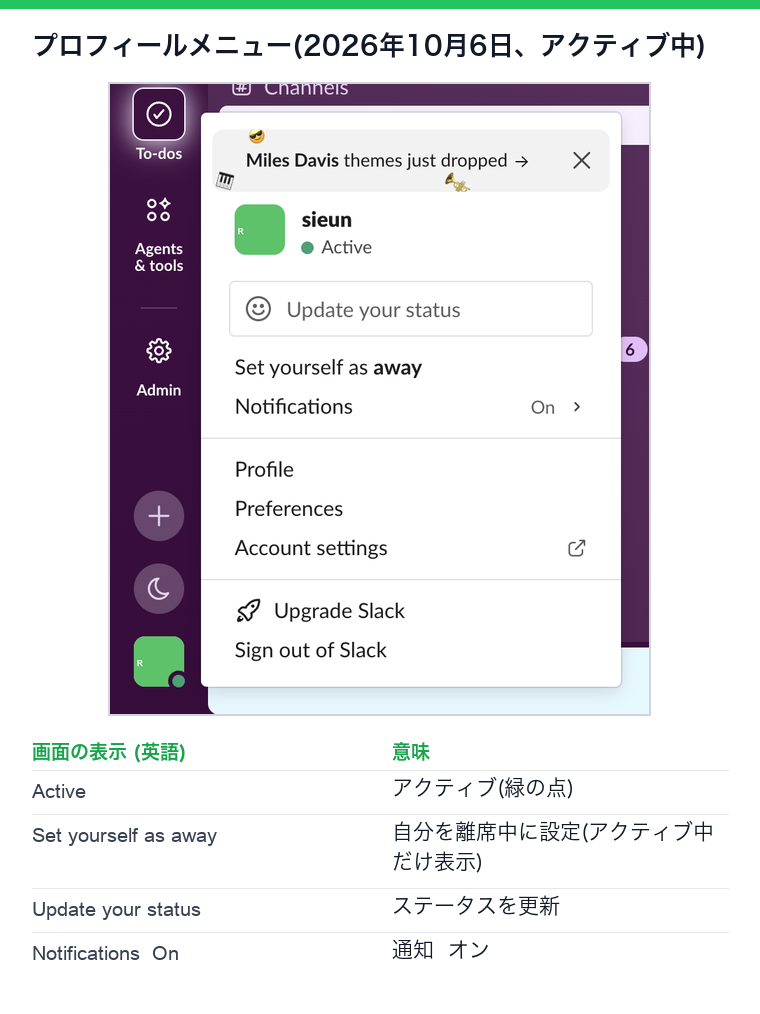
これで直るのは手動の設定だけです。無操作タイマーは止まらないので、パソコンでの最後の入力から10分たてば、また離席中になります。
これ以上のことをする設定やAPI呼び出しはありません。2026年10月6日に、テスト用ワークスペースのオーナーアカウントから users.setPresence を送った結果です。
users.setPresence presence=active   -> invalid_arguments
users.setPresence presence=online   -> invalid_arguments
このメソッドが受け付けるのは auto と away だけなので、アプリでもアクティブに固定することはできません。
対処2:10分の無操作タイマーを止める
PCでは、Slackのデスクトップアプリは、どのアプリでも最後のクリック、キー入力、マウスの動きから10分であなたを離席中にします。パソコンのアイドル時間を10秒ごとに読んでいます。このタイマーは変更もオフもできません。理由はSlackの離席時間は変更できるかで説明しています。変えられるのは、10分たつ前に入力があるかどうかです。
端末ごとの正確な時間はSlackはどれくらいアクティブのままかにあります。
対処3:スリープと画面ロックで離席中にならないようにする
PCがスリープするかロックされると、Slackはほぼすぐにあなたを離席中にします。どちらも、ふだんの休憩より長く待つように設定します。この切り替えがなぜこれほど早いのかはSlackがすぐ離席中になる理由にあります。
Mac: システム設定のロック画面を開きます。使用していない場合はディスプレイをオフにするとスクリーンセーバの開始後またはディスプレイがオフになったあとにパスワードを要求を長めにします。ノートPCでは、バッテリーと電源アダプタの設定も確認してください。
Windows 11: 設定、システム、電源とバッテリー、画面とスリープ(新しいビルドでは画面、スリープ、休止状態のタイムアウト)の順に開き、電源接続時の時間を延ばします。
スリープ防止アプリなら設定を変えずに同じことができます。Macのターミナルで caffeinate -d を実行するか、Amphetamineを使います。これで防げるのはスリープによる即時の離席中だけです。対処2の10分タイマーは動き続けます。CaffeineでSlackはアクティブのままかで試した結果のとおりです。会社のノートPCでは、IT部門がこれらの設定を固定していることがあります。
対処4:使っていない端末からサインアウトする
サインイン中の端末はそれぞれ自分の状態を送り、Slackはそれをまとめて判断します。古いブラウザのタブ、2台目のノートPC、スマホがあると、点がでたらめに変わるように見えます。my.slack.com/account のアクセスログでセッションを確認し、使っていないものからサインアウトしてください。スマホでは、アプリが画面に表示されているあいだだけアクティブというルールを覚えておきます。詳しくはスマホでSlackをアクティブに保つにあります。
どの方法がどの原因に効くか
| 方法 | 無操作タイマー | スリープとロック | ノートPCを閉じる | 費用 |
|---|---|---|---|---|
| 「離席中に設定」を解除 | 不可 | 不可 | 不可 | 無料 |
| ふだんどおりキーやマウスを使う | 可 | 不可 | 不可 | 無料、何も触らない時間は効かない |
| スリープとロックの時間を延ばす | 不可 | 可 | 不可 | 無料 |
| スリープ防止アプリ | 不可 | 可 | 不可 | 無料 |
| マウスジグラー | 起きていてロックされていないあいだ | 可 | 不可 | 25〜35ドル |
| サーバー側の在席スケジュール | 可 | 可 | 可 | 無料枠あり、Pro月3.99ドル |
ノートPCを閉じても緑を保てるのは、サーバー側の方法だけです。PC上で動く方法はどれも、PCが起動中でロックされていないことが前提だからです。すべての方法の比較はSlackをアクティブに保つ方法に、デスクトップ向けの手順はデスクトップでSlackを常にアクティブに保つ方法にあります。
離席中表示を止められない方法
逆に、アクティブに見せずにSlackを使いたいなら、Slackでオフラインに見せる方法を参照してください。
Slackでアクティブ表示をオフにする方法
プロフィール写真をクリックして自分を離席中に設定を選ぶか、どのメッセージ欄でも /away と入力すると、自分でアクティブに戻すまで、どの端末でも点は灰色のままです。PCとスマホでの手順はSlackでオフライン表示にできるかにあります。
よくある質問
Slackが自動で離席中になるのを止めるには?
10分タイマーが切れる前にパソコンで入力を続けるか、在席状況をアクティブに保つツールを使います。タイマーを変えるSlackの設定はありません。
Slackの離席中をオフにするには?
自分で離席中に設定したなら、プロフィール写真をクリックして自分をアクティブに設定を選びます。自動の離席中をオフにする設定はありません。
Slackが離席中になるまでの時間は?
PCでは、キーボードやマウスの入力がないまま10分です。スマホでは、アプリを離れるとすぐです。スリープや画面ロックではすぐに離席中になります。
管理者はワークスペース全体で自動離席をオフにできますか?
できません。離席タイマーを変えたりオフにしたりする管理者向けの設定はありません。
「自分をアクティブに設定」で緑のままになりますか?
次に入力のない10分が過ぎるまでです。手動の離席中を解除するだけで、タイマーは止まりません。
スマホで離席中表示を止められますか?
アプリを画面に表示し続ける以外にありません。アプリを離れると数秒で離席中になります。スマホをロックしたまま緑でいられるのは、サーバー側の在席維持ツールだけです。
Related Articles
How to See All Your DMs in Slack, Including the Hidden Ones
The DMs tab lists your direct messages with people. App DMs, Slackbot and DMs with deleted accounts sit elsewhere. We compared the tab with the full list the Slack API returned.
Slack Images Not Showing? 5 Causes We Reproduced
We uploaded images to a Slack test channel and then switched each image setting off, ran /collapse, and posted from a bot that was not in the channel. Five causes, each reproduced.
How to Message Yourself on Slack (and What It Notifies)
Your own name under Direct messages opens a private DM with yourself. We sent it a note, a file, a scheduled message and a reminder, and checked which ones raised a badge.