
Slackのステータスを常にアクティブに保つ方法:PCとスマホ、6つの方法
Slackのデスクトップアプリは、どのアプリでも最後のキーボードやマウスの入力から10分で離席中にし、それを変える設定はありません。Slackをアクティブに保つ6つの方法と、それぞれがカバーする範囲、よく勧められるのに効かない方法をまとめました。
Slackのステータスをアクティブに保つには、PCならSlackのデスクトップアプリが動いているコンピューターに少なくとも10分に1回はキーボードかマウスの入力があること、スマホならSlackアプリが画面に表示され続けていることが必要です。離席タイマーを止めたり延ばしたりする設定はありません。SlackのAPIでもできません。2026年10月5日に試すと、presence=active は invalid_arguments で拒否されました。ですから、効く方法はどれも次の3つのどれかをしています。PC上で入力を作る、スマホにSlackを表示し続ける、サーバーから在席状況をアクティブに保つ。
Slackが「アクティブ」と判断するルール
Slackのデスクトップアプリはコンピューターのアイドル時間を10秒ごとに読むので、どのアプリでのクリック、キー入力、マウスの動きも10分のタイマーをリセットします(Slackデスクトップ版4.52.178のコードで2026年10月7日に確認)。タイマーが切れると点は空の丸になり、ほかの人からは離席中に見えます。エディタでタイピングしていればデスクトップアプリはアクティブのままですが、10分の読み物、長い通話、閉じたノートPCではそうなりません。スリープ防止アプリを動かして画面をつけたままにしても、点は10分の時点まで緑で、そこで離席中に変わりました。測定の詳細はCaffeineでSlackはアクティブのままかにあります。デスクトップアプリはマウスの行き先を記録せず、コンピューターがどれだけアイドルだったかだけを読みます。Slackはマウスの動きを追跡するかをご覧ください。
タイマーより早く離席中になる出来事が3つあります。
- • スリープと画面ロック。 PCがスリープするかロックされると、Slackはほぼすぐに離席中にします。
- • スマホアプリから離れる。 iPhoneとAndroidでは、Slackが画面に表示されているあいだだけアクティブです。ほかのアプリに切り替えるかスマホをロックすると、数秒で離席中になります。
- • 自分で離席中に設定する。 手動の離席中は、解除するまで続きます。
- サイドバー左下のプロフィール写真をクリックします(古いバージョンでは右上)。
- Set yourself as active(自分をアクティブに設定)をクリックします。手動で離席中にしていないときは、同じ行が Set yourself as away(自分を離席中に設定)になっています。2026年10月5日のSlackウェブ版のメニューはこうでした。
- • Mac: システム設定の「ロック画面」で、使用していない場合はディスプレイをオフにするとスクリーンセーバの開始後またはディスプレイがオフになったあとにパスワードを要求の時間を延ばします。ターミナルで
caffeinate -dを実行する方法もあり、Macのcaffeinateコマンドで解説しています。 - • Windows 11: 設定、システム、電源とバッテリー、画面とスリープの順に開きます。PowerToys AwakeやPowerShellのスリープ防止スクリプトも使えます。
Slackはサインインしているすべての端末をまとめて判断します。どれか1台がアクティブなら、あなたはアクティブと表示されます。だから、ノートPCを閉じていてもスマホやサーバーで緑を保てるのです。端末ごとの時間はSlackはどれくらいアクティブのままかに、切り替わりがなぜこれほど早く感じるかはSlackがすぐ離席中になる理由にあります。10分は変えられません。ワークスペースの設定でも変えられない理由はSlackの離席時間は変更できるかで説明しています。
Slackをアクティブに保つ6つの方法を比較
| 方法 | 10分タイマーに勝てるか | スリープ・ロック後も続くか | ノートPCを閉じても使えるか | 費用 |
|---|---|---|---|---|
| 自分をアクティブに設定 | 不可 | 不可 | 不可 | 無料 |
| スリープ防止アプリ、スリープ設定の延長 | 不可 | 可 | 不可 | 無料 |
| マウスジグラー | 可、起きていてロックされていないあいだ | 可 | 不可 | 10〜35ドル |
| Slackのブラウザタブで動くスクリプト | そのタブだけ | 不可 | 不可 | 無料 |
| Slackを表示したスマホ | 可 | 可 | 可 | バッテリー、予備のスマホ |
| サーバー側の在席維持ツール | 可 | 可 | 可 | 月額料金(無料体験つきが多い) |
傾向ははっきりしています。PC上で動く方法はどれも、PCが起動していてスリープもロックもしておらず、Slackに入力が届いていることが前提です。PCがオフのときに緑を保てるのは、スマホかサーバーだけです。
1. 自分をアクティブに設定する
以前に自分を離席中に設定していると、Slackはそのまま離席中にしておきます。解除するには次のようにします。
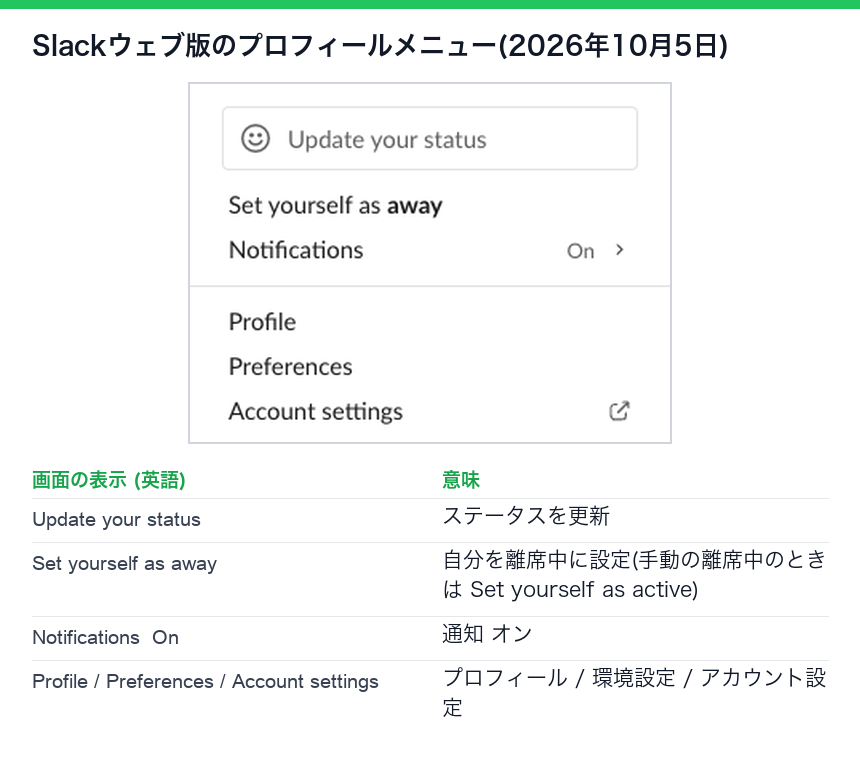
スマホアプリでは、プロフィール写真をタップしてから自分をアクティブに設定をタップします。
これは手動の離席中を解除するだけです。10分タイマーは動き続けるので、入力がないまま10分たてば、また離席中になります。メニューと自動で切り替わる状態についてはSlackの離席中ステータスの意味を参照してください。
2. PCをスリープさせず、ロックさせない
スリープとロックはすぐに離席中を引き起こすので、どちらもふだんの休憩より長く待つようにします。
これで、PCがスリープした瞬間に離席中になることは防げます。ただしキーボードやマウスの入力は生まれないので、10分タイマーは動いたままです。人気のアプリで実際に試した結果はCaffeineでSlackはアクティブのままかとAmphetamineでSlackはアクティブのままかにあります。会社のノートPCではIT部門がこれらの設定を固定していることが多く、その場合でも使える方法は管理者権限なしでPCをスリープさせない方法にまとめています。
3. マウスジグラー
USB型のジグラーはPCにマウスとして認識され、数秒ごとにカーソルを動かします。ソフトウェア型はアプリで同じことをします。Slackのデスクトップアプリは、カーソルがどこにあってもこの動きを数えるので、PCが起きていてロックされていないあいだはジグラーでアクティブのままです。スリープ、画面ロック、閉じたふた、スマホのSlack、一定時間で画面をロックする会社のポリシーには効きません。
管理されたノートPCでは、ジグラーは痕跡を残します。ソフトウェア型は実行中のアプリとして表示され、USB型はデバイスのログに2台目のマウスとして残ります。詳しくはマウスジグラーは検出されるかに、法的な面はマウスジグラーは違法かに、OS別の設定はWindows向けマウスジグラーとMac向けマウスジグラーにあります。種類と価格で選ぶならおすすめのマウスジグラーを、直接の比較はサーバー側の在席ツールとマウスジグラーの比較を参照してください。
4. Slackのブラウザタブで動くスクリプト
app.slack.com でSlackを使っているなら、ユーザースクリプトや拡張機能がそのタブの中で操作を発生させられます。狙うウィンドウは正しいのですが、Slackがページを更新したとき、ブラウザがメモリ節約のためにタブを休止したとき、画面がロックされたときに止まります。SlackのAPIを呼ぶスクリプトでは、アクティブを強制することはまったくできません。users.setPresence が受け付けるのは auto と away だけだからです。2026年10月5日に、私たちのアカウントから両方の値を送ってみました。
curl -X POST https://slack.com/api/users.setPresence \
  -H "Authorization: Bearer $SLACK_USER_TOKEN" \
  -d presence=active
{"ok":false,"error":"invalid_arguments","response_metadata":{"messages":["[ERROR] must be a valid enum value [json-pointer:/presence]"]}}同じ呼び出しを presence=auto で送ると {"ok":true} が返り、users.getPresence の結果は前後で同じ presence: active、manual_away: false、connection_count: 1 でした。auto は在席状況をSlack自身のタイマーに戻すだけで、アクティブにはしません。スクリプトの種類と今も動くものの一覧はSlackをアクティブに保つスクリプトに、ブラウザ特有の落とし穴はブラウザでSlackをアクティブに保つとSlackのChrome拡張機能にあります。
5. Slackを画面に表示したスマホ
Slackは端末をまとめて判断するので、Slackを開いて画面をつけたままのスマホがあれば、ノートPCを閉じていてもアクティブのままです。スマホの自動ロックを「なし」にし、充電器につなぎ、Slackを前面に出しておきます。iPhoneでは低電力モードが30秒で画面をロックさせるので、この方法が崩れます。設定手順はiPhoneでSlackをアクティブに保つ、AndroidでSlackをアクティブに保つに、全体像はスマホでSlackをアクティブに保つにあります。
代償は、ほかに何も使えないスマホ1台と、何時間もつきっぱなしの画面です。
6. サーバーから在席状況をアクティブに保つ
サーバー側のツールは、Slackのウェブクライアントと同じようにあなた自身のセッションとしてSlackにサインインし、そのセッションをアクティブに保ちます。Slackからはアクティブな端末が1台あるように見えるので、点は緑のままです。PCでは何も動かず、何もつなぎません。ノートPCは閉じていても、スリープでも、電源オフでもかまいません。
Slack Green はこの方式です。勤務時間を選ぶと、ノートPCを閉じたままでもその時間は点を緑に保ち、時間外はSlackが離席中と表示するのに任せます。Slackのステータスを予約する方法と同じ考え方です。この種のツールが使うのはあなた自身のセッショントークン、xoxcとxoxdのペアです。ボットトークンはボット自身の在席状況を持つので、あなたの点を緑にはできません。トレードオフは、セッショントークンをサービスに預けることです。管理者に見えるものと見えないものは在席維持ツールでバレるかに、トークンを自分のディスクに置いたまま同じエンジンを動かす方法はセルフホスト版CLIにあります。同じ種類のほかのツールはSlackのステータスを緑に保つツールとIdle Pilotとの比較で比べています。
あなたの1日に合う方法
OS別のガイド:Mac、Windows、Linux、Chromebook。Teamsも使っているならTeamsとSlackを両方アクティブに保つを参照してください。
Slackをアクティブに保てない方法
掲示板や動画でよく見かける対処法ですが、どれも確かめられる理由で失敗します。
Slackで入力している最中に離席中と表示されるなら、原因は別です。作業中なのにSlackが離席中になる理由で点が変わったタイミングから原因を絞り込み、Slackで離席中と表示されないようにする方法で原因ごとの対処を確認してください。
よくある質問
Slackを「常にアクティブ」に設定できますか?
できません。Slackに常にアクティブにする設定はなく、users.setPresence も presence=active を拒否します。Set yourself as active(自分をアクティブに設定)は手動の離席中を解除するだけで、そのあとも10分タイマーは動き続けます。
緑の点は、その人が席にいるという意味ですか? いいえ。サインインしているSlackのクライアントのどれかが直近10分以内に入力を受けたか、スマホでSlackが画面に出ているか、サーバーがセッションをアクティブに保っているという意味です。点とステータスの文字は別物で、Slackのアクティブステータスの仕組みで説明しています。
アクティブを保つツールを使っていることは上司にわかりますか?
Slackが上司に見せるのは点であって、その理由ではありません。管理者が分析やログで見られるもの、会社のノートPCの監視ソフトが見るものは、在席維持ツールでバレるかとマウスジグラーは検出されるかにあります。
Related Articles
How to See All Your DMs in Slack, Including the Hidden Ones
The DMs tab lists your direct messages with people. App DMs, Slackbot and DMs with deleted accounts sit elsewhere. We compared the tab with the full list the Slack API returned.
Slack Images Not Showing? 5 Causes We Reproduced
We uploaded images to a Slack test channel and then switched each image setting off, ran /collapse, and posted from a bot that was not in the channel. Five causes, each reproduced.
How to Message Yourself on Slack (and What It Notifies)
Your own name under Direct messages opens a private DM with yourself. We sent it a note, a file, a scheduled message and a reminder, and checked which ones raised a badge.