
Cómo mantener Slack activo: todos los métodos que funcionan
Slack te marca como ausente tras 10 minutos sin actividad y no hay ningún ajuste para cambiarlo. Todos los métodos que mantienen tu estado activo, lo que cuesta cada uno y los trucos que fallan en silencio.
Slack te pasa a ausente tras 10 minutos sin actividad dentro de la aplicación. No existe ningún ajuste para cambiar ese temporizador. Si lees documentos, pasas horas en llamadas de Zoom o piensas para ganarte la vida, tu punto se apaga mientras trabajas.
Esta página cubre todos los métodos que la gente usa de verdad para mantener Slack activo, lo que cuesta cada uno y los trucos que parecen funcionar pero no lo hacen.
Qué cuenta como actividad en Slack
La app de escritorio de Slack lee el tiempo de inactividad del equipo cada 10 segundos, así que un clic, una tecla o un movimiento del ratón en cualquier app reinicia su temporizador de 10 minutos (código de Slack desktop 4.52.178, revisado el 7 de octubre de 2026). Cuando el temporizador se agota, tu punto pasa a un círculo vacío y los demás te ven ausente. Teclear en tu editor mantiene activa la app de escritorio; diez minutos leyendo, una llamada larga o un portátil cerrado, no.
El temporizador es por sesión, y cualquiera de tus dispositivos conectados puede mantenerte en verde. La actividad en el escritorio reinicia el reloj de 10 minutos. En el móvil solo estás activo mientras Slack está en pantalla. Los números exactos por dispositivo están en cuánto tiempo permanece activo Slack, y la lógica de detección en por qué Slack pasa a inactivo tan rápido.
Los trucos que no funcionan
La mitad de los consejos que aparecen al buscar esto fallan en silencio. Ahórrate las pruebas:
- • "Fijarte como activo" en el menú. Cambia tu estado una vez. La cuenta atrás de 10 minutos sigue corriendo y lo vuelve a cambiar.
- • Dejar un vídeo de YouTube. Reproducir contenido no es actividad en Slack. A los diez minutos estás ausente con el vídeo aún sonando.
- • Mantener el portátil despierto. Herramientas como caffeinate o Amphetamine evitan que la máquina duerma, lo que previene la ausencia instantánea por suspensión, pero no generan actividad en Slack.
- • Un emoji o texto de estado. El texto de estado y el punto de presencia son sistemas separados. Poner "En una reunión" no toca el punto.
- • Un jiggler con la pantalla bloqueada. El bloqueo te marca ausente al instante, haga lo que haga el jiggler. La app de escritorio no registra adónde va tu ratón, solo cuánto tiempo lleva inactivo el equipo; mira ¿Slack rastrea el ratón?.
Los métodos que funcionan, comparados
| Método | Coste | Ordenador encendido | Funciona con el portátil cerrado | Resiste una revisión de IT |
|---|---|---|---|---|
| Jiggler de ratón (hardware) | 10-20 € | Necesario | No | Casi siempre |
| Jiggler de ratón (software) | Gratis | Necesario | No | El más débil |
| Extensión del navegador | Gratis | Necesario | No | Depende |
| Segundo dispositivo | Gratis | No | A medias | Sí |
| Huddle en solitario | Gratis | Necesario | No | Llama la atención |
| Servicio de servidor | De pago | No | Sí | Sí |
Jigglers de ratón
Un jiggler de hardware se hace pasar por un ratón y mueve el cursor. La app de escritorio de Slack cuenta ese movimiento esté donde esté el cursor, así que un jiggler la mantiene activa mientras el ordenador está despierto y desbloqueado. No cubre la suspensión, el bloqueo de pantalla, la tapa cerrada, Slack en el teléfono ni una política de empresa que bloquea la pantalla tras un tiempo fijo.
Los jigglers de software hacen lo mismo con un script. Son gratis, y también son lo primero que detecta la monitorización corporativa. La comparación completa está en una herramienta de presencia en servidor contra los jigglers de ratón.
Extensiones del navegador
Si usas Slack en una pestaña del navegador, una extensión puede simular actividad dentro de la pestaña. Apunta al lugar correcto, actividad dentro de Slack, pero las extensiones viven y mueren por la política de la Chrome Web Store. La más popular fue retirada en 2024. Y el navegador tiene que quedarse abierto en una máquina desbloqueada.
El truco del segundo dispositivo
Slack comprueba la presencia en todas tus sesiones, así que un móvil con la aplicación abierta y la pantalla siempre encendida te mantiene en verde. Gasta batería, la pantalla no puede bloquearse y iOS suspende la aplicación cuando quiere. Los detalles están en mantener Slack activo en el móvil.
Huddles en solitario
Estar en un huddle cuenta como activo durante toda la llamada. Abrir un huddle contigo mismo funciona hasta que un compañero nota que llevas tres horas "en una llamada" solo.
Presencia desde un servidor
Una herramienta de servidor inicia sesión con tu propia sesión de Slack y refresca tu presencia desde un servidor. Nada corre en tu máquina. Puedes cerrar el portátil y seguir en verde hasta que tu horario diga lo contrario.
Slack Green funciona así: eliges tu horario laboral y mantiene tu punto verde durante esas horas con el portátil cerrado, y fuera de ellas deja que Slack te muestre ausente, como en programar el estado de Slack. Las herramientas de este tipo se autentican con tus propios tokens de sesión, el mismo par xoxc y xoxd que usa el cliente web de Slack, porque un token de bot no puede fijar tu presencia personal. Si prefieres guardar los tokens tú mismo, existe una CLI autoalojada. La desventaja es que confías un token de sesión a un servicio, así que lee las notas de seguridad antes de elegir cualquier herramienta de esta categoría.
Nunca más aparezcas como "ausente" en Slack
Basado en la nube. Sin descargas. Funciona 24/7 incluso con tu laptop apagada.
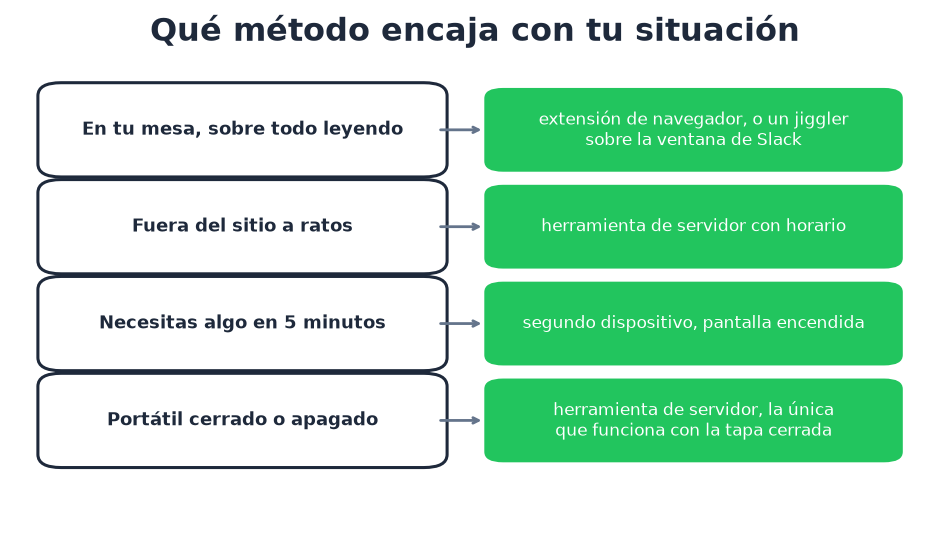
Qué método encaja con tu situación
Preguntas frecuentes
¿Cómo mantengo mi estado de Slack activo todo el tiempo? O el ordenador sigue recibiendo entrada de teclado o ratón, o usas una herramienta que lo haga por ti. Nada en los ajustes de Slack hace esto.
¿Se puede configurar Slack para estar siempre activo? No dentro del producto. No hay ningún ajuste de siempre activo, y "Fijarte como activo" reinicia tu estado una vez sin parar el temporizador. Todos los enfoques que funcionan vienen de fuera de Slack.
¿Cómo mantengo el punto verde sin tocar el ratón? Las dos opciones que no necesitan nada de ti son el segundo dispositivo y un servicio de servidor. Todo lo demás simula actividad en alguna parte.
¿Mantener Slack abierto me mantiene activo? No. Una ventana abierta sin actividad pasa a ausente a los diez minutos en el escritorio. En el móvil, dejar la aplicación en segundo plano te cambia en segundos.
¿Algo de esto va contra las normas de Slack? Automatizar tu propia sesión está en una zona gris que Slack nunca ha perseguido contra individuos, y la política de tu empresa suele importar más. La versión realista está en ¿me pillarán?.
La versión corta
El temporizador de 10 minutos de Slack no ha cambiado en años y ningún ajuste lo apaga. La actividad simulada funciona mientras la máquina está encendida. Un segundo dispositivo funciona hasta que el móvil se duerme. Una herramienta de servidor es el único método que funciona con el portátil cerrado.
Deja de Mover el Ratón.
Cientos de trabajadores remotos ya no se preocupan por su estado de Slack. Configúralo una vez, mantente verde para siempre.
Related Articles
How to See All Your DMs in Slack, Including the Hidden Ones
The DMs tab lists your direct messages with people. App DMs, Slackbot and DMs with deleted accounts sit elsewhere. We compared the tab with the full list the Slack API returned.
Slack Images Not Showing? 5 Causes We Reproduced
We uploaded images to a Slack test channel and then switched each image setting off, ran /collapse, and posted from a bot that was not in the channel. Five causes, each reproduced.
How to Message Yourself on Slack (and What It Notifies)
Your own name under Direct messages opens a private DM with yourself. We sent it a note, a file, a scheduled message and a reminder, and checked which ones raised a badge.