
How to Stop Slack From Showing You as Away or Going Idle
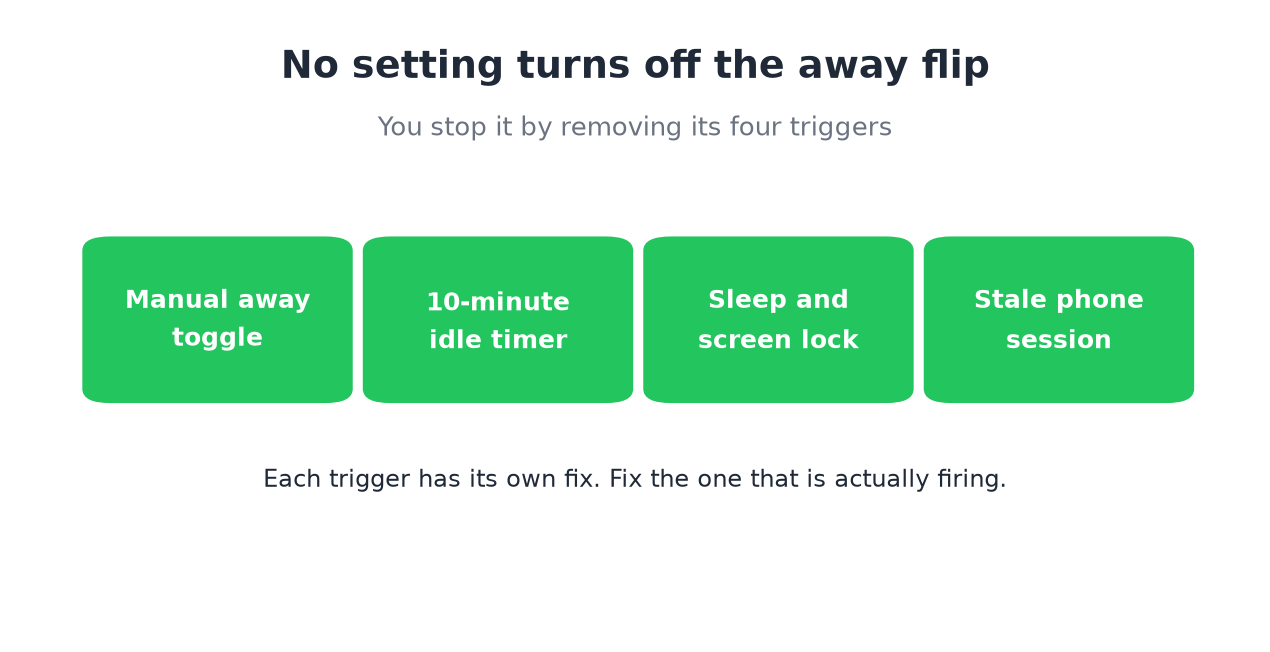
No Slack setting turns the away status off or changes the 10-minute timer. You stop Slack from showing you as away by fixing each trigger: the manual toggle, the idle timer, sleep and lock, and extra devices. Steps for each, and what each method covers.
To stop Slack from showing you as away, fix the trigger that sets you away, because no Slack setting turns the away status off. There are four triggers. Click your profile picture and choose Set yourself as active if you set yourself away by hand. Keep some keyboard or mouse input on the computer before the desktop app's 10-minute idle timer runs out. Lengthen your computer's sleep and screen-lock settings. Sign out of devices you do not use. The idle timer is the one most people hit. The desktop app resets it on input anywhere on the computer, from you or from a tool (Slack desktop 4.52.178 code, checked 7 Oct 2026).
Not sure which trigger is yours? Why Slack keeps showing you as away matches the time your dot went grey to the cause.
Fix 1: undo "Set yourself as away"
A manual away stays on until you undo it, across restarts.
On desktop:
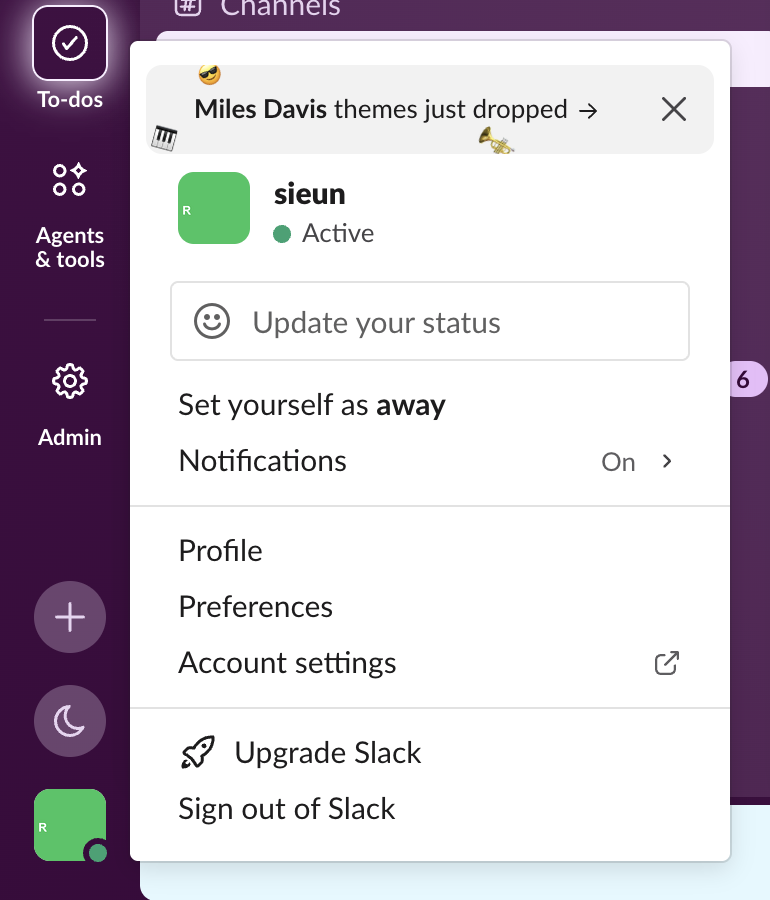
- Click your profile picture in the sidebar.
- If the menu shows Set yourself as active, click it.
- Tap your profile picture.
- Tap Set yourself as active.
On mobile:
Typing /active in any message box does the same; Slack's built-in command list describes it as "Mark yourself as active". The menu shows only the switch you are not in, so an active account sees Set yourself as away:
This only undoes the manual setting. It does not pause the idle timer, so you still go away 10 minutes after your last input on the computer.
No setting or API call does more than that. We sent users.setPresence from the owner account of our test workspace on 6 October 2026:
users.setPresence presence=active   -> invalid_arguments
users.setPresence presence=online   -> invalid_arguments
The method takes only auto and away, so even an app cannot pin you to active.
Fix 2: stop the 10-minute idle timer
On a computer, the Slack desktop app sets you away 10 minutes after your last click, keystroke or mouse move in any app. It reads the computer's idle time every 10 seconds. You cannot change or turn off that timer; can you change Slack's away time covers why. What you can change is whether there is input before minute 10:
Exact times per device are in how long does Slack stay active.
Fix 3: stop sleep and screen lock from setting you away
When your computer sleeps or locks, Slack sets you away almost at once. Make both wait longer than your usual break. Why this flip is so fast is in why Slack goes idle so quickly.
On a Mac: open System Settings, then Lock Screen. Set Turn display off when inactive and Require password after screen saver begins or display is turned off to longer times. On a laptop, check the battery and power adapter settings too.
On Windows 11: open Settings, then System, then Power & battery, then Screen and sleep (Screen, sleep, & hibernate timeouts in newer builds), and raise the times for when plugged in.
A keep-awake app does the same without changing settings: caffeinate -d in the Mac Terminal, or Amphetamine. This stops the instant away on sleep and nothing more. The 10-minute idle timer from Fix 2 still runs, as we tested in does Caffeine keep Slack active. On a company laptop, IT may lock these settings.
Fix 4: sign out of devices you do not use
Each signed-in device reports its own state, and Slack combines them. An old browser tab, a second laptop or a phone makes your dot change in ways that look random. Check your sessions at my.slack.com/account under Access Logs, and sign out of the ones you do not use. On a phone, remember the rule: you are active only while the app is on screen. The details are in keep Slack active on mobile.
Never appear "away" on Slack again
Cloud-based. No downloads. Works 24/7 even when your laptop is off.
Which method covers which trigger
| Method | Idle timer | Sleep and lock | Laptop closed | Cost |
|---|---|---|---|---|
| Undo "Set yourself away" | No | No | No | Free |
| Touch Slack every few minutes | Yes | No | No | Free, costs focus |
| Longer sleep and lock settings | No | Yes | No | Free |
| Keep-awake app | No | Yes | No | Free |
| Mouse jiggler | While awake and unlocked | Yes | No | $25 to 35 |
| Server-side presence schedule | Yes | Yes | Yes | Free tier, Pro $3.99 a month |
Only a server-side method keeps you green with the laptop closed, because every local method needs the computer on and unlocked. The full comparison of every method is in how to keep Slack active, and desktop-specific steps are in how to keep Slack always active on desktop.
What does not stop Slack from showing away
How to turn off your active status on Slack
Click your profile picture and choose Set yourself as away, or type /away in any message box, and your dot stays grey on every device until you set yourself active again. The steps for desktop and phone are in how to appear offline on Slack.
FAQ
How do I stop Slack from going idle?
Keep input going on the computer before the 10-minute timer runs out, or use a tool that keeps your presence active for you. No Slack setting changes the timer.
How do I turn off away on Slack?
If you set yourself away, click your profile picture and choose Set yourself as active. There is no setting to turn off the automatic away status.
What is the Slack away status timeout?
10 minutes without keyboard or mouse input on a computer. On a phone you go away as soon as you leave the app. Sleep or screen lock sets you away at once.
Can my admin turn off auto away for the workspace?
No. Slack offers no admin setting to change or turn off the away timer.
Does "Set yourself as active" keep me green?
Only until the next 10 minutes without input. It undoes a manual away. It does not stop the timer.
Can I stop Slack showing away on my phone?
Only by keeping the app open on screen. Leaving the app sets you away within seconds. A server-side presence tool is the only way to stay green with the phone locked.
Stop Jiggling Your Mouse.
Join hundreds of remote workers who never worry about their Slack status. Set it up once, stay green forever.
Related Articles
How to See All Your DMs in Slack, Including the Hidden Ones
The DMs tab lists your direct messages with people. App DMs, Slackbot and DMs with deleted accounts sit elsewhere. We compared the tab with the full list the Slack API returned.
Slack Images Not Showing? 5 Causes We Reproduced
We uploaded images to a Slack test channel and then switched each image setting off, ran /collapse, and posted from a bot that was not in the channel. Five causes, each reproduced.
How to Message Yourself on Slack (and What It Notifies)
Your own name under Direct messages opens a private DM with yourself. We sent it a note, a file, a scheduled message and a reminder, and checked which ones raised a badge.