
Slack Status Not Updating? How to Fix a Stuck Status
A Slack status that will not update is usually a status you set yourself blocking the calendar, an app that has not synced, a status set in another workspace, automatic statuses turned off, or a stale client. How to tell which one, fix it, and tell a stuck status from a stuck dot.
A Slack status that will not update usually has one of five causes. A status you set by hand blocks the calendar app, which never overrides your own status. The mobile or desktop app has not synced yet. You changed the status in a different workspace, since status is set per workspace. Automatic statuses for huddles, focus mode or working hours are turned off in Preferences. Or the app is stale and needs a reload. Start with Cmd+R or Ctrl+R, then clear your status and set it again; that fixes most cases.
First make sure it is the status and not the dot. The status is the emoji and text; the dot is presence, which Slack sets from your activity. A dot that goes grey while you work is not a bug: it happens 10 minutes after your last input in Slack. Slack Green keeps the dot active during the working hours you set, from the cloud.
Why a Slack status does not update
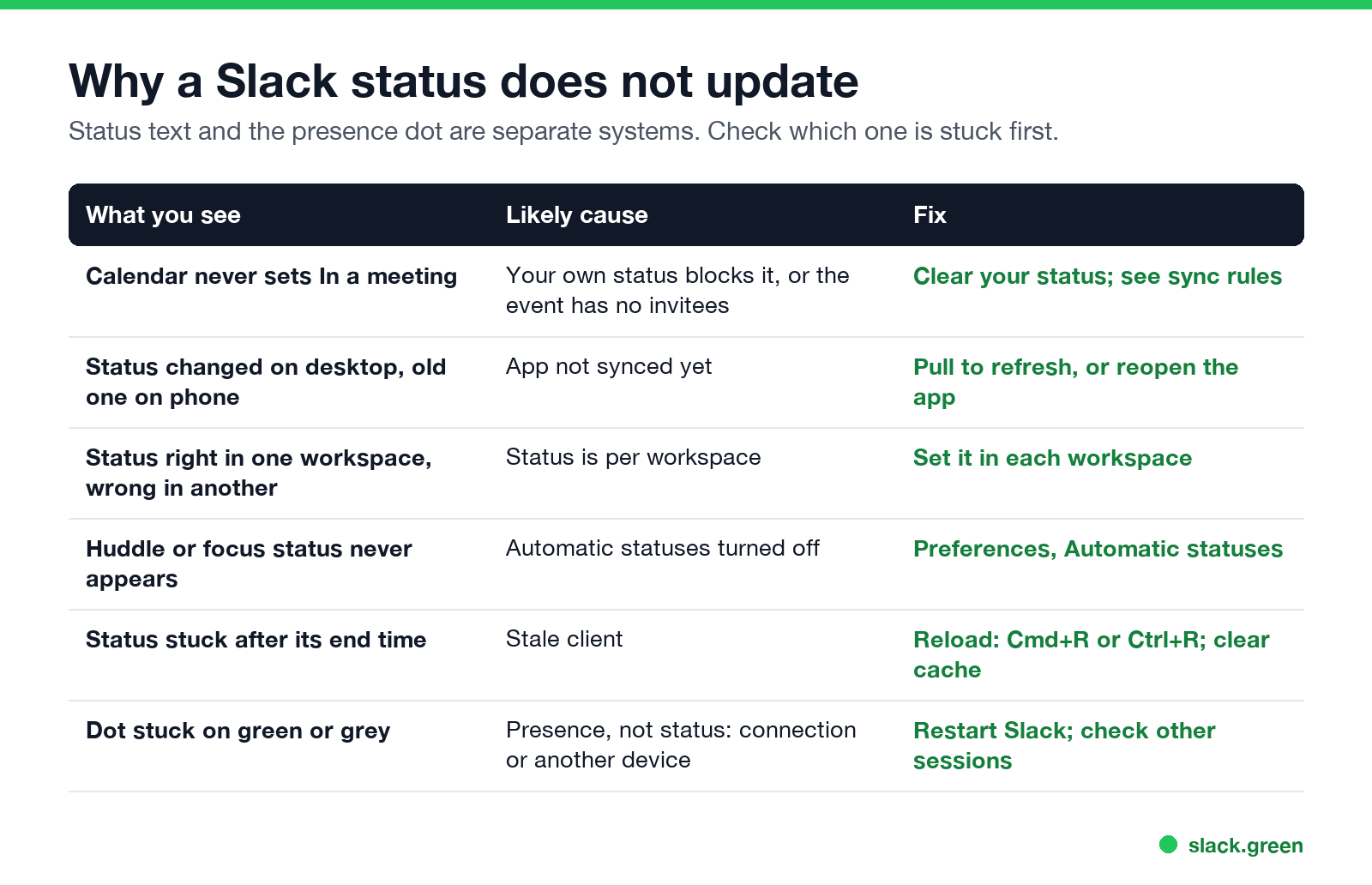
| What you see | Likely cause | Fix |
|---|---|---|
| Calendar never sets In a meeting | Your own status blocks it, or the event has no other invitees | Clear your status; check the sync rules |
| New status on desktop, old one on phone | App not synced | Refresh or reopen the app |
| Right in one workspace, wrong in another | Status is per workspace | Set it in each workspace |
| Huddle or focus status never appears | Automatic statuses turned off | Preferences, Automatic statuses |
| Status still there after its end time | Stale client | Reload; clear the cache |
| Dot stuck green or grey | Presence, not status | Restart Slack; check other sessions |
How to fix a stuck Slack status
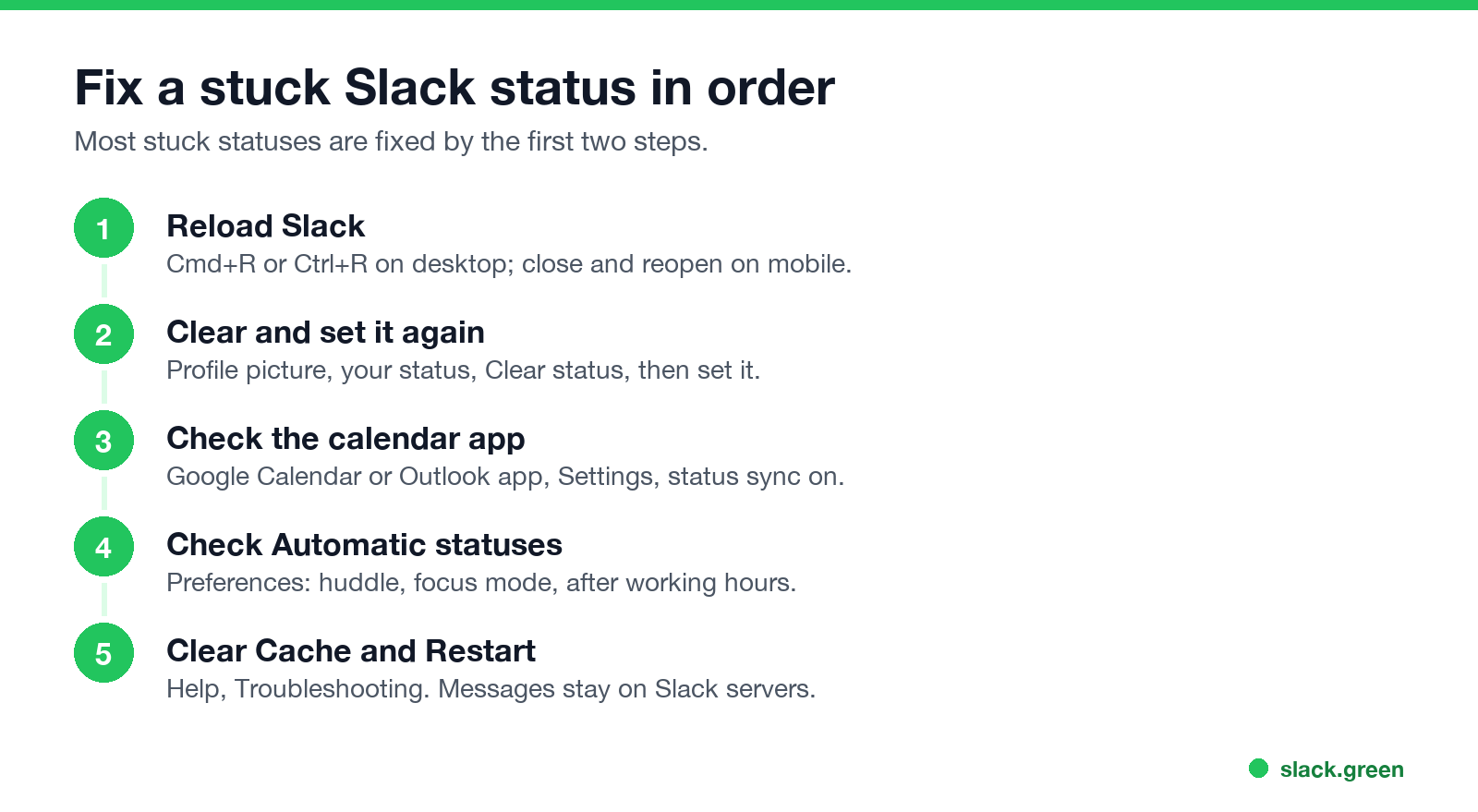
- Reload Slack. Press Cmd+R (Mac) or Ctrl+R (Windows). On mobile, close the app fully and reopen it.
- Clear the status and set it again. Click your profile picture, click your status, click Clear status, then set the new one. Steps are in how to change your status on Slack.
- Check the calendar app. Open the Google Calendar or Outlook Calendar app in Slack, go to Settings, and make sure status syncing is on.
- Check automatic statuses. In Preferences, under Automatic statuses, tick huddle, focus mode or after working hours.
- Clear the cache. Help, Troubleshooting, Clear Cache and Restart. Messages and settings stay on Slack's servers. On phones and browsers, see how to clear the Slack cache.
Slack status not syncing with Google Calendar
لا تظهر أبداً كـ "غائب" على Slack
يعمل على السحابة. بدون تنزيلات. يعمل 24/7 حتى عندما يكون الكمبيوتر مغلقاً.
The Google Calendar app follows strict rules, from Slack's help center:
Most "not syncing" reports are the fourth rule: an old manual status, sometimes with no end time, blocks every calendar update. Clear it. The full setup and a 7-point checklist are in sync Slack status with Google Calendar.
Slack status not showing to others
If your status keeps disappearing on its own, that is a different problem: Slack keeps clearing my status.
Your dot is stuck, not your status
If the dot stays green when you are gone or grey when you are working:
my.slack.com/account, Access Logs. More in Slack shows me active when I am not.How Slack decides the dot is in how Slack decides when you are away.
FAQ
لا تظهر أبداً كـ "غائب" على Slack
يعمل على السحابة. بدون تنزيلات. يعمل 24/7 حتى عندما يكون الكمبيوتر مغلقاً.
Why is my Slack status not updating?
Usually a manual status blocks the calendar, the app has not synced, or you changed it in another workspace. Reload Slack, then clear and set the status again.
Why does my Slack status not change when I am in a meeting?
The calendar app only sets In a meeting for accepted events with other invitees, and never over a status you set yourself.
Why is my Slack status stuck?
A stale client. Reload with Cmd+R or Ctrl+R, or clear the cache.
Why is my Slack status wrong on mobile?
The app has not synced. Close it fully and reopen it.
Is my status the same in every workspace?
No. Set it in each workspace. Everything else that is separate per workspace is in Slack multiple workspaces.
توقف عن تحريك الماوس.
مئات العاملين عن بعد لم يعودوا قلقين بشأن حالة Slack. قم بالإعداد مرة واحدة، ابقَ أخضر للأبد.
Related Articles
Slack Red Dot Won't Go Away? What It Counts and How to Clear It
A red dot on the Slack icon means unread activity somewhere; a red number means DMs, mentions, keywords or followed thread replies. Press Shift+Esc to mark all read, check Threads, Activity, Later and other workspaces, then clear the cache or reset the OS badge.
How to Keep Your Outlook Status Green (It Comes From Teams)
Your Outlook status shows your Microsoft Teams presence, so to keep Outlook green you keep Teams Available: Teams signed in and running, input on the computer, no lock or sleep, and no leftover status. What sets you Away, and what you can change.
Slack Multiple Workspaces: Use, Switch and Stay Active in Each
You can sign in to several Slack workspaces in one app and switch with Ctrl+Tab or Cmd/Ctrl plus a number. Each workspace has its own account, status, presence and Do Not Disturb, so you can be active in one and away in another. How to add, switch and manage them.