
Slack Away Status Meaning: What the Grey Dot Tells You
Away on Slack means the person has no active Slack session right now. What the hollow grey dot means, the five ways people end up away, how it differs from offline and Do Not Disturb, and how to switch it off.
Away on Slack means that person has no active Slack session right now. Their dot is a hollow grey circle instead of a filled green one. Slack shows it when none of their devices saw input in Slack for 10 minutes, when their phone app is closed, when their computer sleeps, when they sign out, or when they chose Set yourself as away. All of these look the same.
Away does not mean busy, blocked, or gone for the day. Messages still arrive and notifications still fire. The one exception is @here, which notifies only members who are active, so an away person misses it; see @here vs @channel vs @everyone. Away only says "not at Slack at this moment". People who write "AFK" are saying the same thing on purpose; see what does AFK mean in Slack.
We build Slack Green, a cloud service that keeps your Slack presence active during the working hours you set, with nothing installed on your laptop. So we test these rules every day. This page covers the icon and the word. For the timer itself, read how Slack decides when you are away.
What the away icon looks like
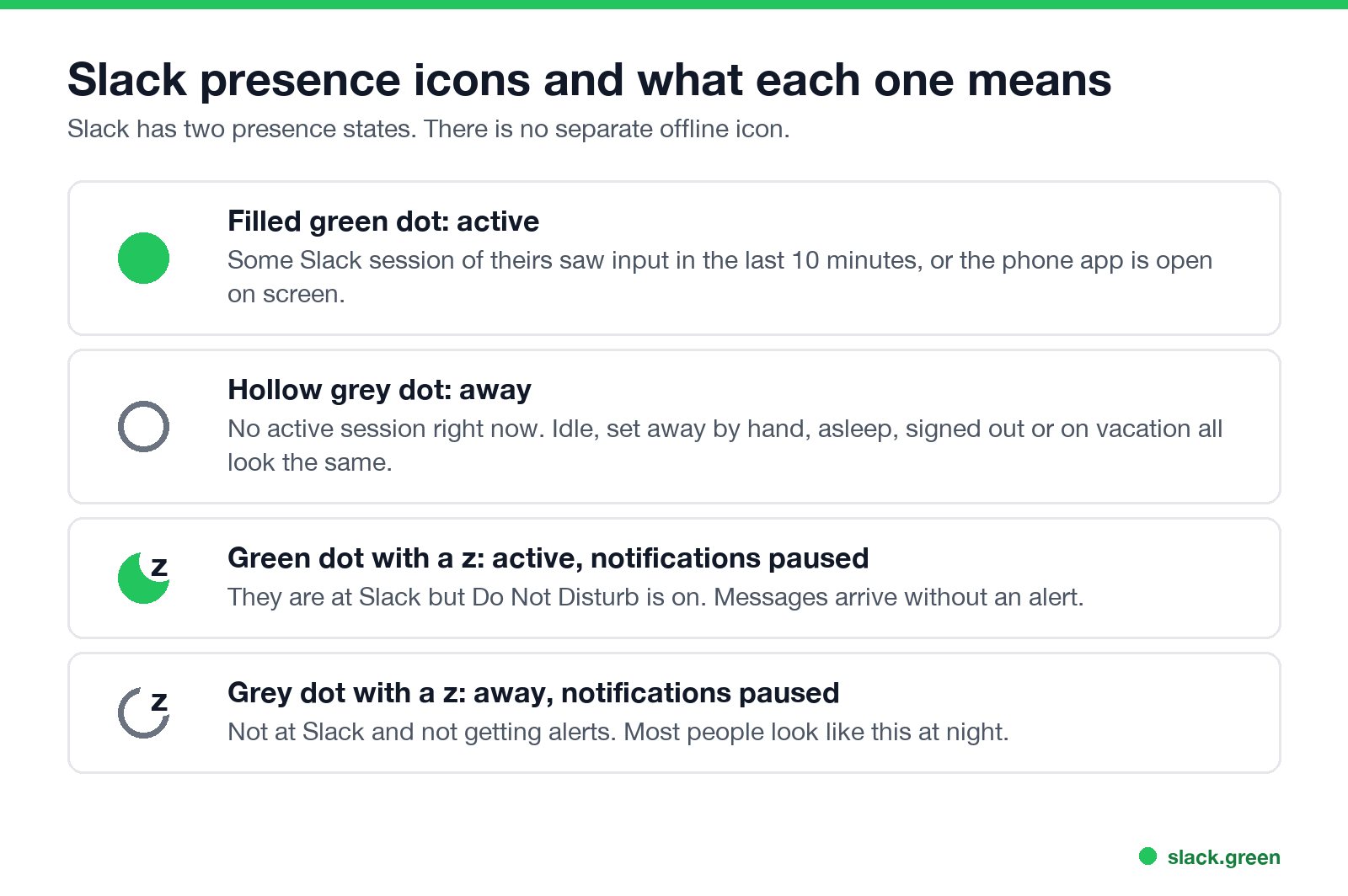
Slack has two presence states: active and away. The dot next to a name shows which one applies, and a small z on top shows paused notifications.
| Icon | Meaning |
|---|---|
| Filled green dot | Active. Some session of theirs saw Slack input in the last 10 minutes, or the phone app is open on screen. |
| Hollow grey dot | Away. No active session right now. |
| Green dot with a z | Active, with notifications paused (Do Not Disturb). |
| Grey dot with a z | Away, with notifications paused. |
Slack's help center puts it in one sentence: you are set to active when Slack is open on your desktop or mobile device, and to away after 10 minutes of desktop inactivity or when you leave or close the app on your phone. If the z is what confused you, our guide to the Slack green dot with a z covers every combination.
Five ways someone ends up away
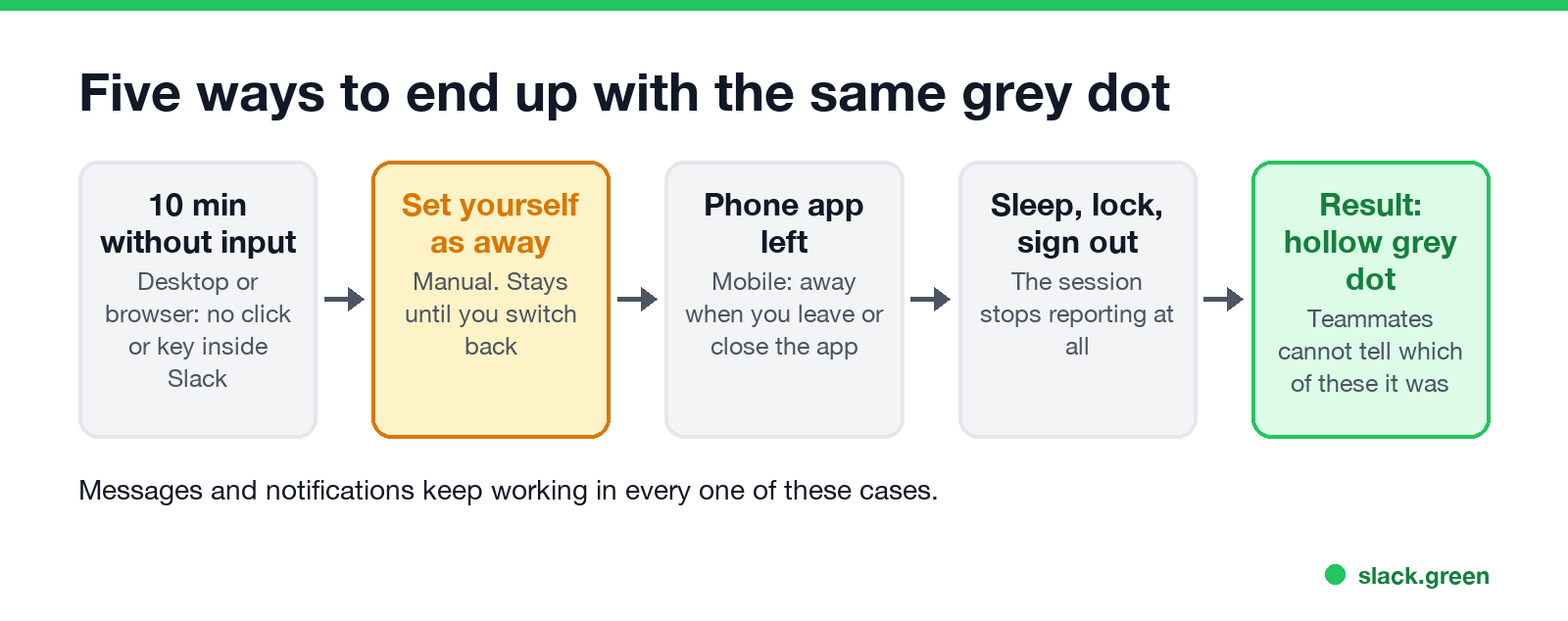
- Ten minutes without input in Slack. On desktop and in the browser, Slack counts only clicks, keys, and scrolls inside its own window. Work in other apps does not count, so a person writing a document for 10 minutes goes grey. The per-device numbers are in how long Slack stays active.
- They set themselves away. Manual away sticks. Slack keeps them grey until they choose Set yourself as active, even if they type and send messages.
- They left the phone app. On mobile you are active only while Slack is on screen. Switching apps or locking the phone sets you away.
- The computer slept or locked. The session stops reporting, so presence goes grey soon after.
- They signed out or have Slack closed. A person on vacation looks the same as a person who stepped away two minutes ago.
Because every route ends in the same dot, you cannot tell from the outside which one happened. Slack also shows no "last seen" time. We checked that in does Slack show last seen.
Away vs offline on Slack
Nunca más aparezcas como "ausente" en Slack
Basado en la nube. Sin descargas. Funciona 24/7 incluso con tu laptop apagada.
There is no separate offline state. Slack draws idle, manually away, and signed out with one hollow grey dot. Some people and some older guides call it "offline", but the Slack menu and the Slack API only know active and away.
This is also why you can appear offline on Slack with one click: setting yourself away gives you the same dot as a person whose laptop is closed.
Away vs active vs Do Not Disturb vs status
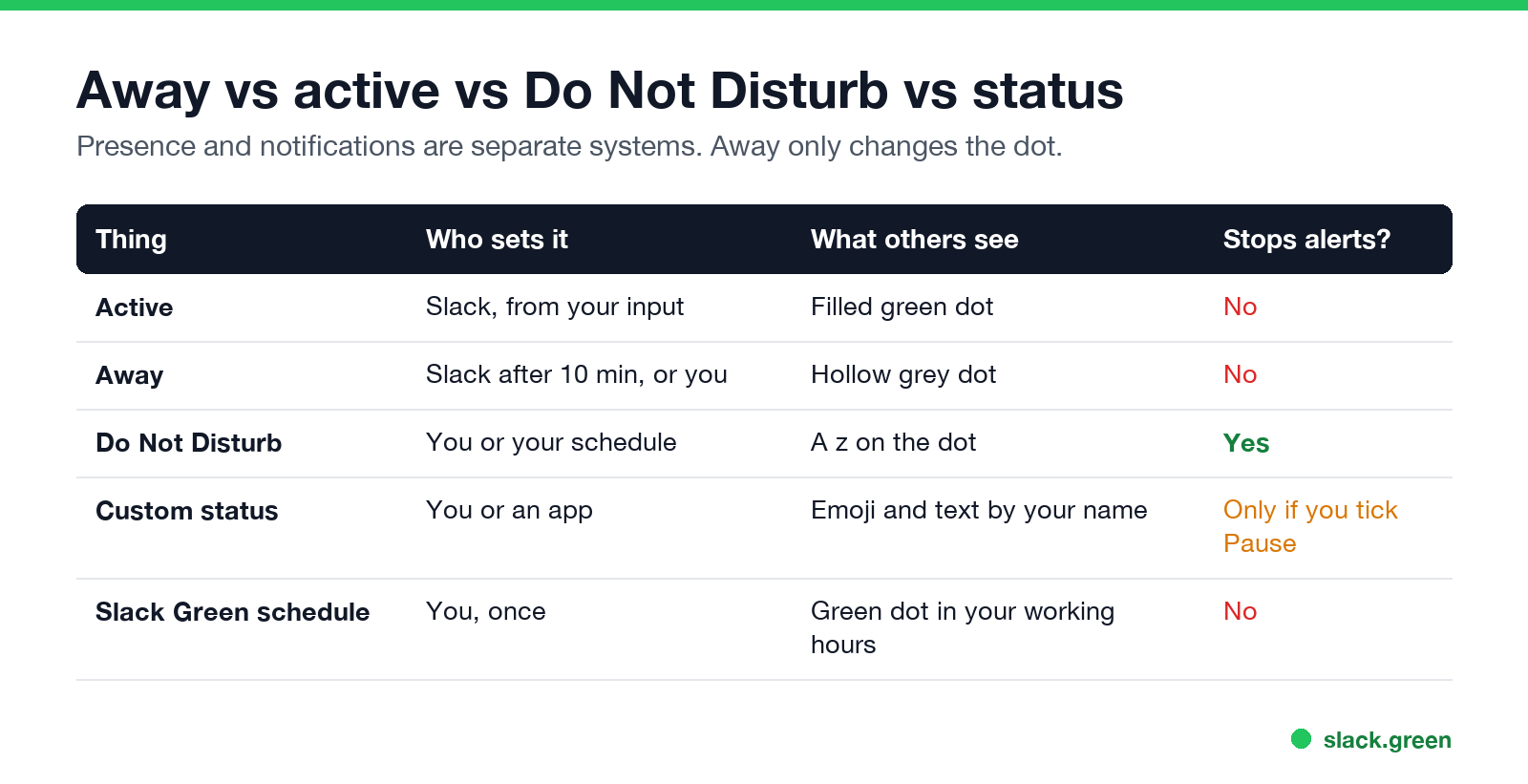
People mix these up because they all sit next to your name. They are separate systems:
| Setting | Who sets it | What others see | Stops your alerts? |
|---|---|---|---|
| Active | Slack, from your input | Filled green dot | No |
| Away | Slack after 10 minutes, or you | Hollow grey dot | No |
| Do Not Disturb | You or your notification schedule | A z on the dot | Yes |
| Custom status | You or a connected app | Emoji and text by your name | Only if you tick Pause notifications |
A custom status such as "In a meeting" does not make you away, and being away does not clear your status text. The two only look related. Slack active status explained shows how the dot and the text stay apart.
Other symbols people mistake for away
To set any of these for yourself, follow how to change your status on Slack.
How to set yourself away, or turn away off
Nunca más aparezcas como "ausente" en Slack
Basado en la nube. Sin descargas. Funciona 24/7 incluso con tu laptop apagada.
Desktop and browser:
Mobile:
If you did not set yourself away and the dot still turns grey while you work, the cause is the 10-minute timer, a second device, or a sleeping machine. The cause-by-cause guide is Slack keeps showing me away while working, and the fixes are in how to stop Slack from showing away.
Keeping your dot green while you work elsewhere
Slack has no setting that changes the 10-minute timer or pins your dot green. Every option feeds the timer from outside: moving your mouse inside Slack, keeping the phone app open, or a server that holds your session. Slack Green does the last one on a schedule you pick, so you look active from 9 to 6 and normal Slack rules apply after that. The options side by side are in how to keep Slack active.
FAQ
What does away mean on Slack?
It means the person has no active Slack session right now. They were idle in Slack for 10 minutes, closed the phone app, let the computer sleep, signed out, or set themselves away by hand.
Is away the same as offline on Slack?
Yes, for anyone looking at the dot. Slack has only active and away. Idle, manually away, and signed out all show the same hollow grey dot.
Can you still message someone who is away?
Yes. The message arrives, and they get a notification as usual unless they paused notifications (a z on the dot). Away changes only the dot.
How long until Slack shows me as away?
After 10 minutes without input inside Slack on desktop or in a browser. On a phone, as soon as you leave or close the app.
Why does a coworker never show as away?
They probably have another active session, such as the phone app open on their desk, or they use a tool that keeps their presence active. One active session anywhere keeps the dot green.
Does Slack tell people I set myself away?
No. Manual away looks the same as being idle or signed out. There is no label and no timestamp.
Deja de Mover el Ratón.
Cientos de trabajadores remotos ya no se preocupan por su estado de Slack. Configúralo una vez, mantente verde para siempre.
Related Articles
Slack Saved for Later: Where the Later Tab Is and How It Works
Saved messages in Slack live in the Later tab, which replaced stars and Saved items in 2023. Hover a message and click Save for later, or press A. Add a reminder, mark items complete, and find them with is:saved. Where Later is on desktop and mobile, and what changed.
Slack Multiple Workspaces: Use, Switch and Stay Active in Each
You can sign in to several Slack workspaces in one app and switch with Ctrl+Tab or Cmd/Ctrl plus a number. Each workspace has its own account, status, presence and Do Not Disturb, so you can be active in one and away in another. How to add, switch and manage them.
Microsoft Teams Status Icons Meaning: Every Colour and Symbol
In Microsoft Teams, a green check means Available, red means Busy, In a meeting or In a call, red with a white bar means Do not disturb or Presenting, a yellow clock means Away or Be right back, a grey circle with an x means Offline, and a purple arrow means Out of office. Which ones Teams sets for you, and which wins.