
How Long Before Teams Shows You as Away? About 5 Minutes
Microsoft Teams sets you to Away after a few minutes without keyboard or mouse input on your computer, about 5 minutes in practice, at once when you lock the computer, and when the phone app goes to the background. Sleep shows Offline. Every Teams timer, and how it differs from Slack.
Microsoft Teams shows you as Away after a few minutes without keyboard or mouse input on your computer, about 5 minutes in most reports. Microsoft's admin documentation puts it as "inactive for a few minutes". Teams also switches to Away at once when you lock the computer, and when the Teams app on your phone goes to the background. When the computer goes to sleep, Teams shows you as Offline. Unlike Slack, Teams counts activity anywhere on the computer, not only inside Teams. What admins can see from that activity is in does Microsoft Teams track your activity.
If you use Slack as well, its rule is stricter: 10 minutes, and only input inside the Slack window counts. Slack Green keeps your Slack dot green during the working hours you set, from the cloud. For keeping Teams itself green, see how to keep Teams status available.
When Teams changes your status
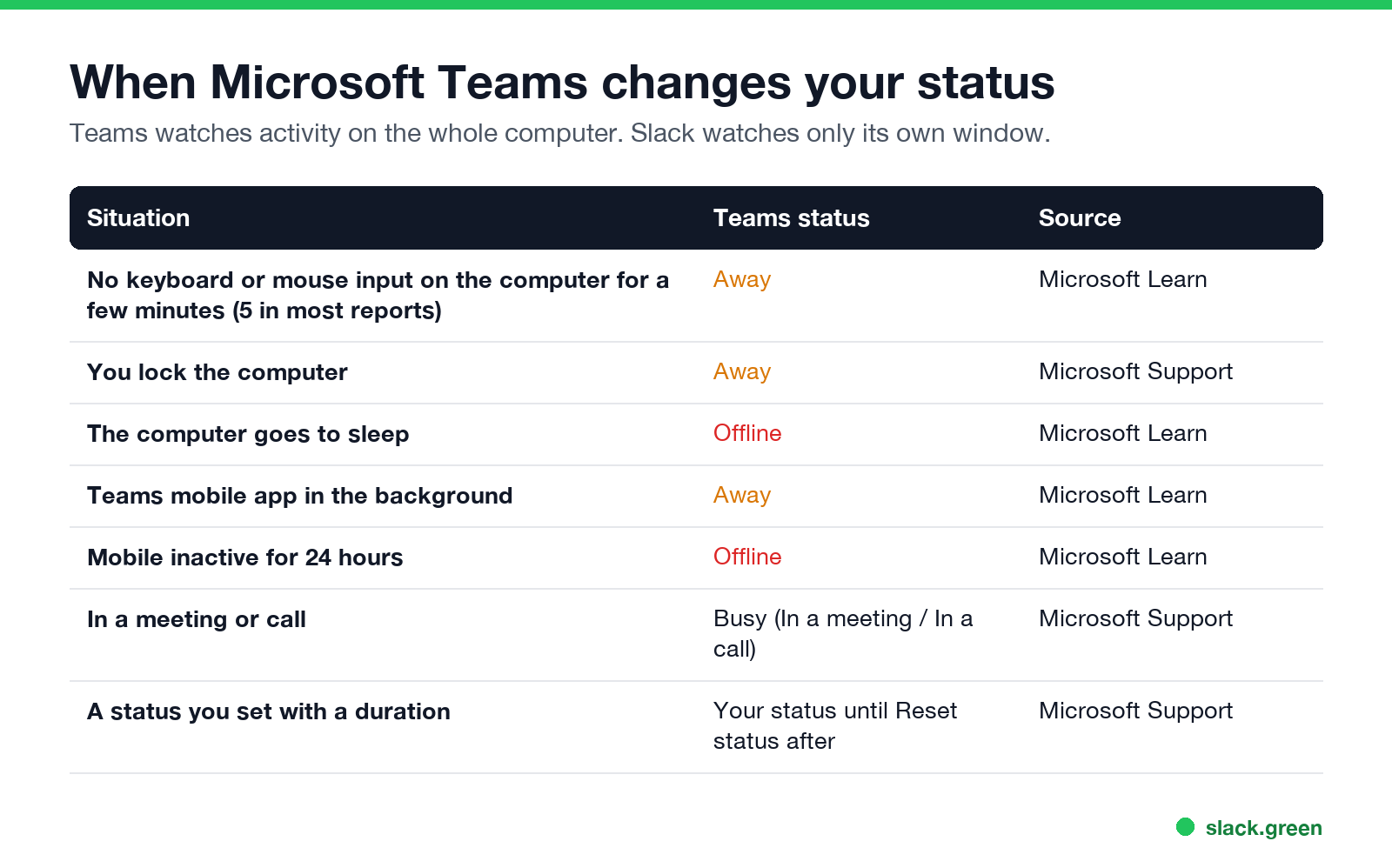
| Situation | Teams status |
|---|---|
| No input on the computer for a few minutes (about 5) | Away |
| Computer locked | Away |
| Computer asleep | Offline |
| Mobile app in the background | Away |
| Mobile inactive for 24 hours | Offline |
| In a meeting or call | In a meeting / In a call (Busy) |
| A status you set with a duration | That status until it resets |
Microsoft Learn describes the computer and mobile rules: on a computer, presence becomes Away if you are inactive for a few minutes or the computer is locked, and Offline when it enters sleep mode; on a mobile device it becomes Away whenever the app is in the background, then Offline after 24 hours of inactivity.
How long does Teams stay green?
As long as there is keyboard or mouse input somewhere on your computer, and for about 5 minutes after the last input. Working in Word, a browser or another app keeps Teams green, because Teams reads the computer's idle state. Reading a document without touching anything does not.
On a phone, Teams is green only while the app is open on screen.
Can you change the Teams away timer?
Ne jamais plus apparaître "absent" sur Slack
Basé sur le cloud. Sans téléchargement. Fonctionne 24/7 même avec votre PC éteint.
Not directly. Teams has no setting for the timeout, and admins cannot change it. Microsoft's own advice is to change your device's sleep or idle settings so it takes longer before your status switches to Away, and those settings only help with sleep and lock. Two other controls exist:
- • Set a status with a duration. Select your profile picture, your current status, then Duration, pick a status and a Reset status after time. It works for any status except Available, and Microsoft notes that a more available status does not override a less available one, so a Busy duration will not stop an Away.
- • Teams on the web. Under Settings, Notifications and activity, Presence, turn on the option to keep your current status when you are active outside Teams, and allow the browser's idle detection permission.
- • Screen lock. A lock set by your IT policy after 2 or 3 minutes switches Teams to Away at once.
- • Phone in your pocket. If you last used Teams on your phone, the phone app in the background shows Away.
- • A status you set. "Appear away" stays until you change it.
Teams vs Slack: how long you stay green
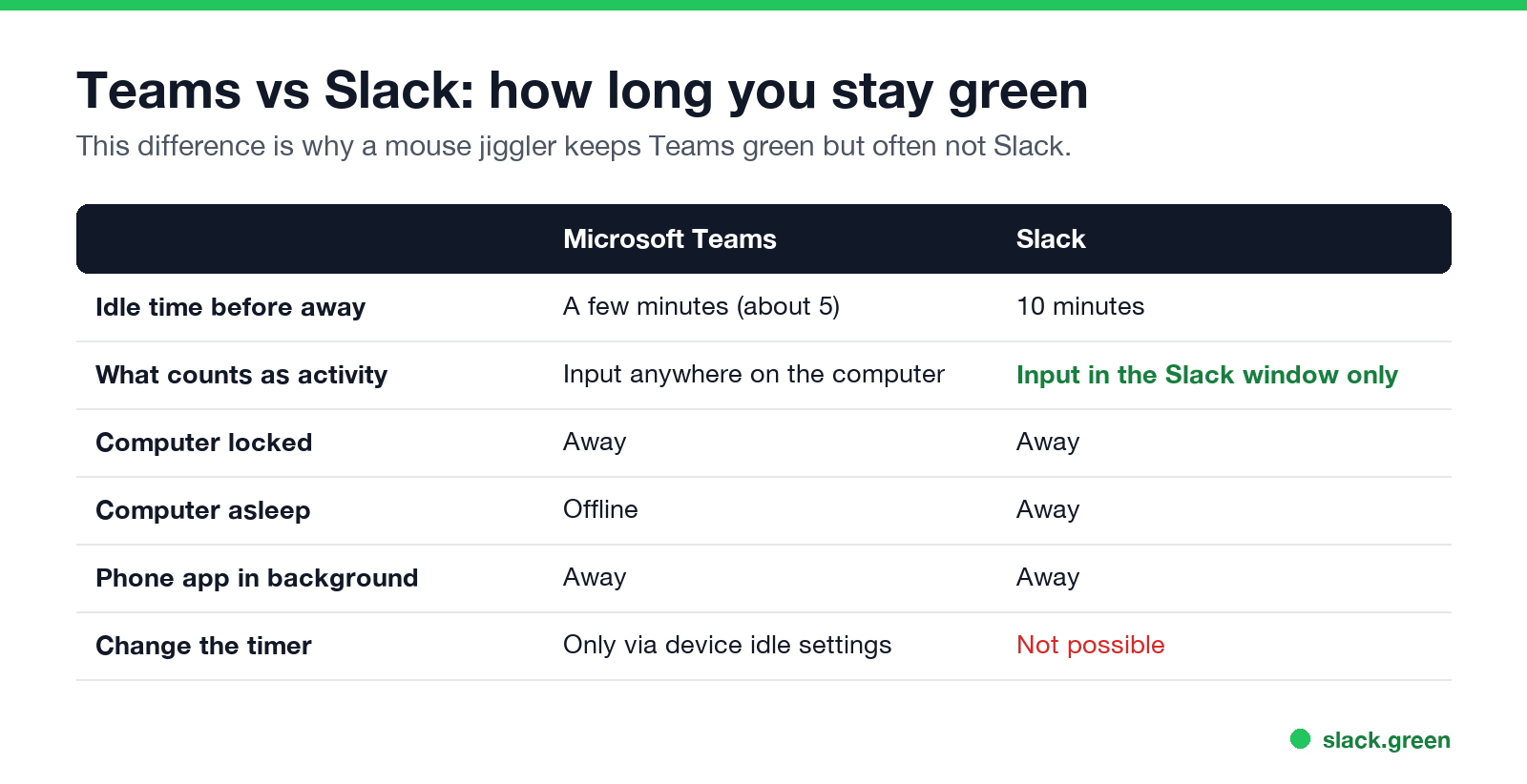
| Microsoft Teams | Slack | |
|---|---|---|
| Idle time before away | A few minutes, about 5 | 10 minutes |
| What counts as activity | Input anywhere on the computer | Input in the Slack window only |
| Computer locked | Away | Away |
| Computer asleep | Offline | Away |
| Phone app in background | Away | Away |
That is why a mouse jiggler usually keeps Teams green but often not Slack. Google Chat has a third rule: Idle after 5 minutes and Away after 10; see how to keep Google Chat active. The Slack timings are in how long does Slack stay active, and keeping both green is covered in keep Teams and Slack active.
Why Teams turns yellow so quickly
Yellow is Away. If you turn yellow faster than 5 minutes, one of these is usually the reason:
If Teams stays yellow while you are working, see Teams status stuck on Away.
FAQ
Ne jamais plus apparaître "absent" sur Slack
Basé sur le cloud. Sans téléchargement. Fonctionne 24/7 même avec votre PC éteint.
How long before Teams shows Away?
After a few minutes of inactivity on the computer, about 5 minutes. At once if you lock the computer.
Does Teams go Away if I am working in another app?
No, on the desktop app. Teams reads activity on the whole computer. It goes Away when you stop using the computer.
How long does Teams stay Available on mobile?
Only while the app is open on screen. In the background it shows Away.
How long until Teams shows Offline?
On a computer, when it goes to sleep or you sign out. On mobile, after 24 hours of inactivity.
Can admins change the Teams idle timeout?
No. There is no admin setting for it. Outlook shows the same status, so the same timings apply there; see how to keep your Outlook status green.
Arrêtez de Bouger la Souris.
Des centaines de télétravailleurs ne se soucient plus de leur statut Slack. Configurez une fois, restez vert pour toujours.
Related Articles
How to Keep Your Outlook Status Green (It Comes From Teams)
Your Outlook status shows your Microsoft Teams presence, so to keep Outlook green you keep Teams Available: Teams signed in and running, input on the computer, no lock or sleep, and no leftover status. What sets you Away, and what you can change.
Slack Multiple Workspaces: Use, Switch and Stay Active in Each
You can sign in to several Slack workspaces in one app and switch with Ctrl+Tab or Cmd/Ctrl plus a number. Each workspace has its own account, status, presence and Do Not Disturb, so you can be active in one and away in another. How to add, switch and manage them.
Microsoft Teams Status Icons Meaning: Every Colour and Symbol
In Microsoft Teams, a green check means Available, red means Busy, In a meeting or In a call, red with a white bar means Do not disturb or Presenting, a yellow clock means Away or Be right back, a grey circle with an x means Offline, and a purple arrow means Out of office. Which ones Teams sets for you, and which wins.