
How to See the Exact Time a Slack Message Was Sent
On desktop, hover over the time next to the sender's name and Slack shows the full date and time. On a phone, open the message or thread. For the exact second, copy the message link: the digits after p are a Unix timestamp. Plus the 24-hour clock setting and time zones.
To see the exact time a Slack message was sent, hover over the time next to the sender's name on desktop. Slack shows a tooltip with the day, the date and the time. The short time in the channel, such as 3:44 PM, is when the message was posted, in your own time zone. On iPhone and Android, the time sits next to the name; if a thread or the Activity tab shows "2 hours ago", open the message to see the clock time.
For the exact second, copy the message link. The digits after the letter p in the link are a Unix timestamp, down to the microsecond. Put a dot after the first 10 digits and paste the number into our free Slack timestamp converter to get the date and time, or follow the steps below.
We build Slack Green, which keeps your Slack status green from our servers during the hours you set, so Slack timestamps and time zones are our daily work. Our free Slack timezone converter turns a time into your coworkers' local times.
Where Slack shows when a message was sent
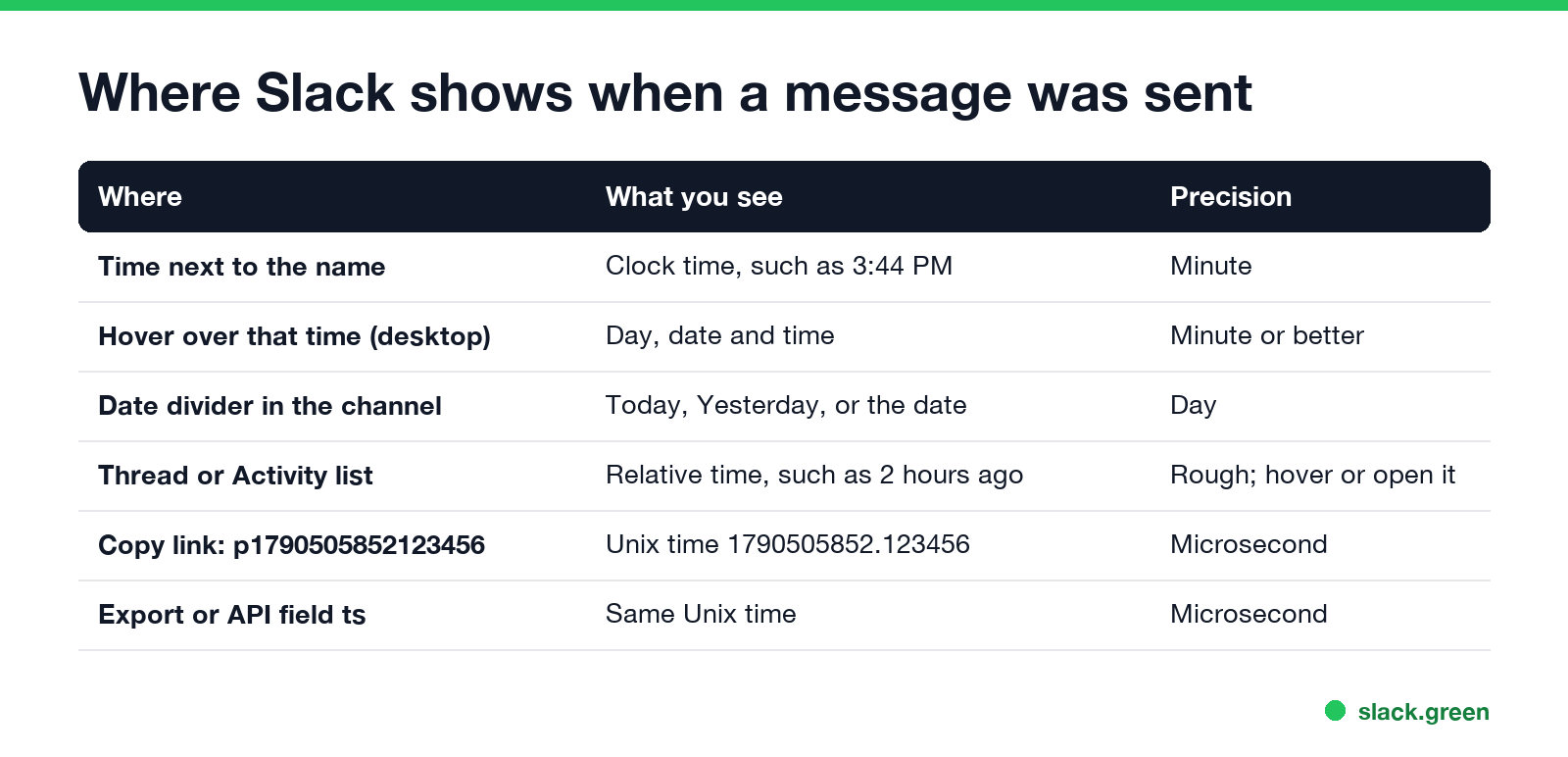
| Where | What you see | How exact |
|---|---|---|
| Time next to the sender's name | Clock time, such as 3:44 PM | Minute |
| Hover over that time, desktop | Day, date and time | Minute or better |
| Date divider in the channel | Today, Yesterday, or a date | Day |
| Threads view or Activity | Relative time, such as 2 hours ago | Rough, hover it or open it |
| Message link, after the p | Unix time 1790505852.123456 | Microsecond |
Export file or API field ts | The same Unix time | Microsecond |
Slack groups messages from the same person sent a few minutes apart. The later messages in a group show no name and no time until you hover over them. Hover over the left edge of the message and the time appears.
See the full date and time on desktop
- Find the message in the channel, DM or thread.
- Move your mouse over the time next to the sender's name. For a grouped message with no name, hover over the space to the left of the text.
- Read the tooltip. It shows the day and date as well as the time.
- Older messages show a date divider above them, so you can also scroll up to the nearest divider.
Clicking the time opens the message's own link, which is how you get the exact second in the next section.
Find the exact second from the message link
Never appear "away" on Slack again
Cloud-based. No downloads. Works 24/7 even when your laptop is off.
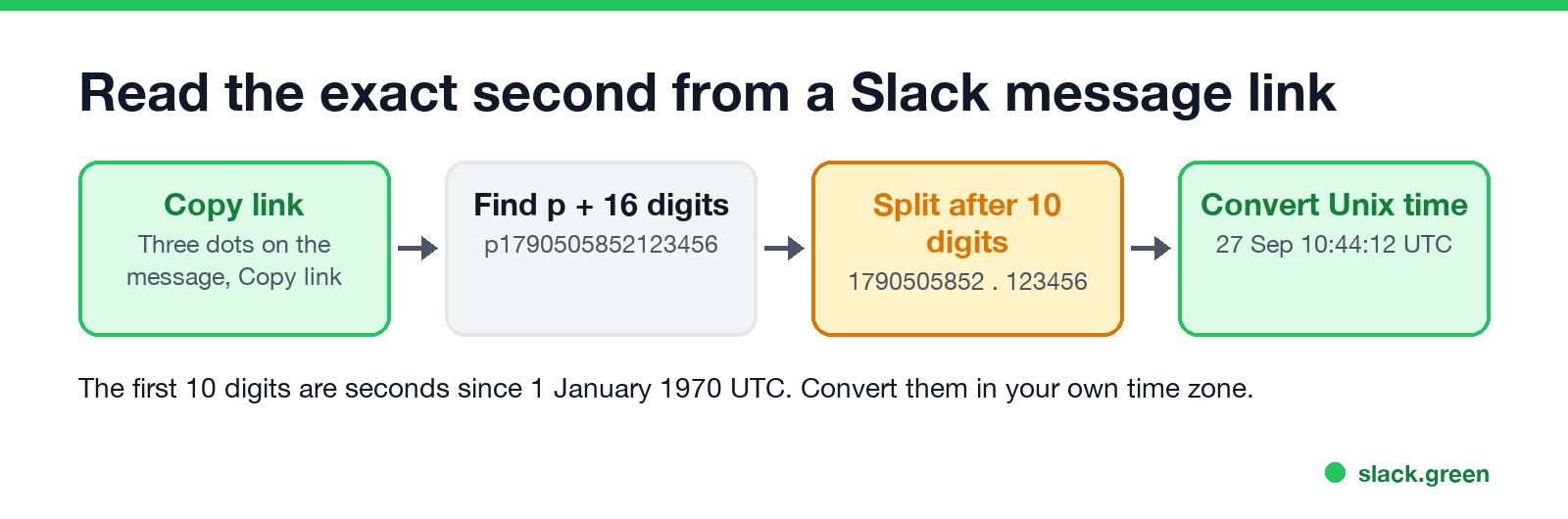
Every Slack message has a link, and the link carries the time the message was sent:
https://acme.slack.com/archives/C024BE91L/p1790505852123456.1790505852.123456.# macOS
date -r 1790505852
# Linux
date -d @1790505852
# Any system with Python
python3 -c "import datetime; print(datetime.datetime.fromtimestamp(1790505852))"In PowerShell on Windows:
[DateTimeOffset]::FromUnixTimeSeconds(1790505852).ToLocalTime()That example is 27 September, 10:44:12 UTC. The Slack timestamp converter does the same in the browser, in your own time zone, and turns a date back into a message ts. The same number is the message's ts value in the Slack API and in workspace exports, where Slack uses it as the message ID. If the link ends in ?thread_ts=..., that second number is the time of the thread's parent message.
Show Slack times in a 24-hour clock
Slack shows AM and PM by default. To switch, click your profile picture, choose Preferences, then Messages & media. Under Additional options, check Show times with 24-hour clock. The setting is only on desktop. On a phone, Slack follows the clock format of the device.
Time zones: whose time is Slack showing?
Every timestamp in Slack is shown in your own time zone, not the sender's. A message a coworker in London sent at 9:00 their time shows as 4:00 AM for someone in New York. Your zone is set under Preferences, Language & region, and Slack can set it from your computer automatically.
To see what time it was for the sender, open their profile. It shows their local time. Or paste the time into our Slack timezone converter. If a timestamp looks hours off, check your own time zone setting first.
What else Slack records about a message
Never appear "away" on Slack again
Cloud-based. No downloads. Works 24/7 even when your laptop is off.
FAQ
How do I see the date of a Slack message? Hover over the time next to the name on desktop, or look at the date divider above the message.
Can Slack show seconds in timestamps? Not as a display setting. Copy the message link; the 10 digits after the p give the second.
How do I convert a Slack timestamp to a date?
Take the part before the dot, such as 1790505852, and convert it as Unix time with date -r on macOS or date -d @ on Linux.
Why does Slack say 2 hours ago instead of a time? Some lists, such as threads and Activity, use relative times. Hover over it on desktop, or open the message on a phone.
Why is the Slack timestamp wrong? Slack shows times in your own time zone. Check Preferences, Language & region.
Stop Jiggling Your Mouse.
Join hundreds of remote workers who never worry about their Slack status. Set it up once, stay green forever.
Related Articles
Slack Emoji for Announcements, Updates and Reminders
The standard Slack emoji for an announcement is 📣 :mega: or 📢 :loudspeaker: at the start of the post. Use 🚨 :rotating_light: only for real emergencies, 🆕 :new: for updates, ⏰ :alarm_clock: for reminders, and ask readers to react with ✅ :white_check_mark: once they have read it. Templates and a custom emoji idea.
Slack Status for a Doctor Appointment: 24 Statuses and Emoji
A Slack status for a doctor appointment says you are out and when you are back, such as 🏥 'At an appointment, back at 2 PM.' You do not have to say what kind. 24 statuses for doctor, dentist and other appointments, the emoji codes, and how to schedule the status so it clears by itself.
Slack Status for Limited Availability: 30 Statuses to Copy
A Slack status for limited availability says you are around but slow, until when, and how to reach you if it is urgent, such as ⏳ 'Limited availability today, replies after 3 PM. Urgent: @mention me.' 30 statuses for busy days, slow replies and catching up, the emoji to use, and when to pause notifications too.