
How to Delete Your Slack Account (Deactivate It)
To delete your Slack account, deactivate it in each workspace: go to my.slack.com/account, scroll to Deactivate account, confirm your password, and click Yes, deactivate my account. Your messages stay. What else to know, and how to delete a whole workspace.
To delete your Slack account, deactivate it. Open my.slack.com/account in a browser while signed in to the workspace, scroll to Deactivate account, click Deactivate your account, enter your password, and click Yes, deactivate my account. It takes effect at once. A Slack account belongs to one workspace, so repeat this in every workspace you want to leave. Your messages and files are not deleted; if your workspace allows it, delete them first. To remove your name and photo, ask the workspace's Primary Owner after you deactivate.
If you are leaving Slack because of how it treats your presence, for example the dot turning grey while you work, there is a smaller fix: Slack Green keeps your dot green during the working hours you set, from the cloud.
How to deactivate your Slack account
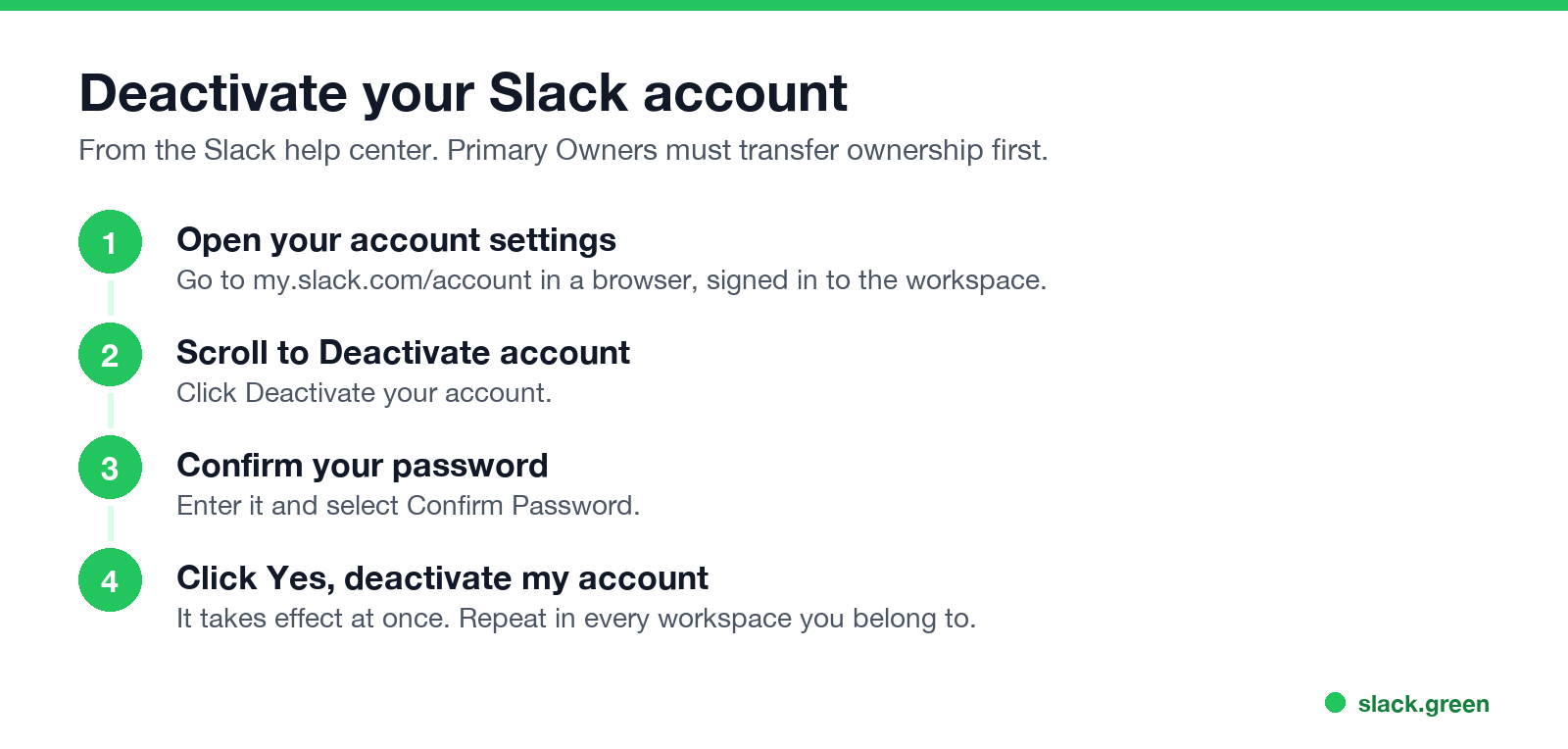
From Slack's help center:
- On a computer, go to my.slack.com/account.
- Scroll down to Deactivate account and click Deactivate your account.
- Enter your password and select Confirm Password.
- Click Yes, deactivate my account.
If you sign in through your company's single sign-on, IT may handle deactivation for you; see the limits below.
How to delete your Slack account on your phone
The Slack mobile app has no deactivate button. Open a mobile browser, sign in at your workspace's Slack address, then go to my.slack.com/account and follow the same steps. Deleting the app from your phone does not delete your account.
What happens when you deactivate
Slack에서 다시는 '자리 비움'으로 표시되지 마세요
클라우드 기반. 다운로드 불필요. 노트북이 꺼져 있어도 24시간 작동.
When you cannot deactivate your account
Sign out, leave, deactivate or delete
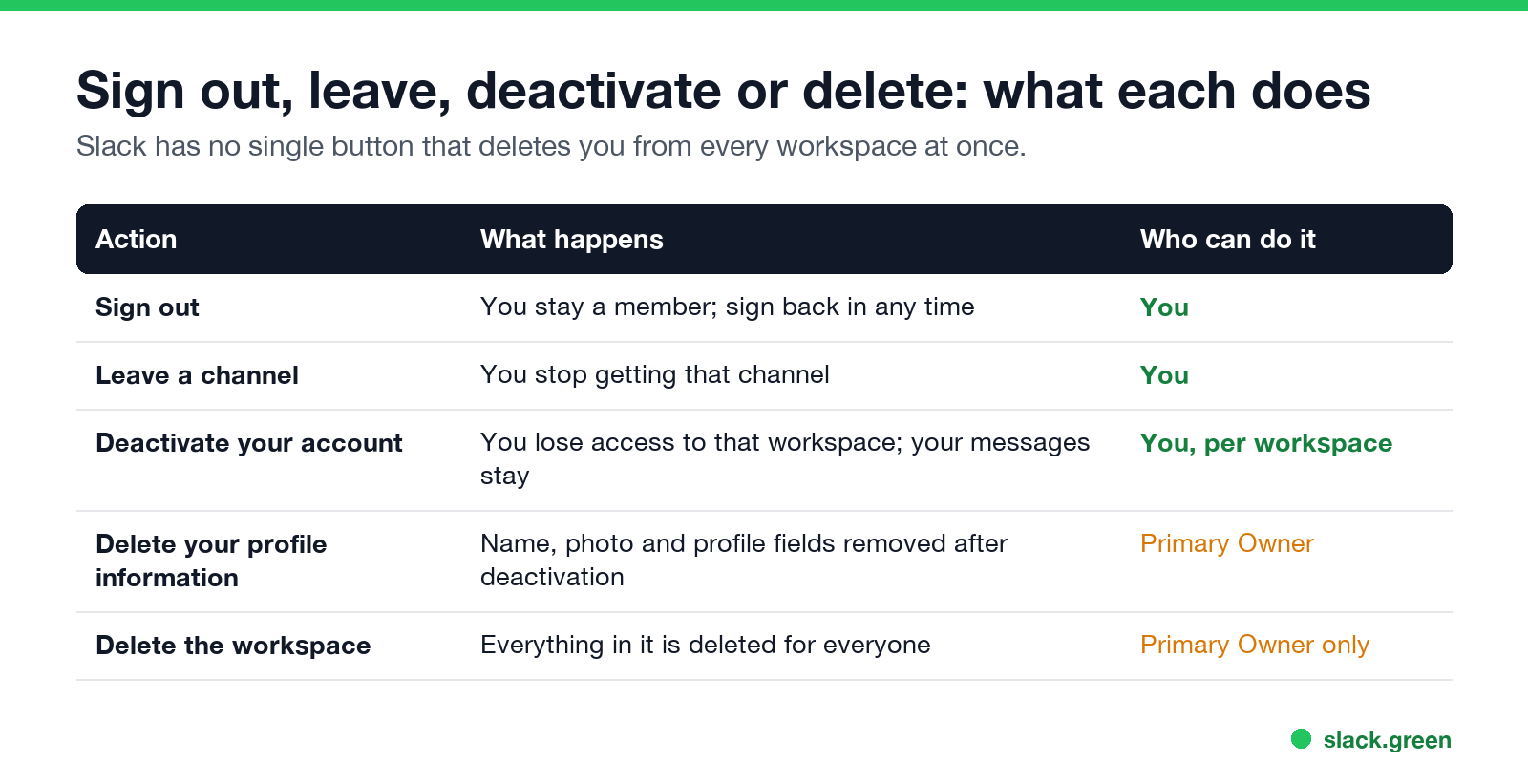
| Action | What happens | Who can do it |
|---|---|---|
| Sign out | You stay a member | You |
| Leave a channel | You stop getting that channel | You |
| Deactivate your account | No more access to that workspace; messages stay | You |
| Delete profile information | Name, photo and fields removed | Primary Owner |
| Delete the workspace | Everything deleted for everyone | Primary Owner only |
How to leave a Slack workspace: deactivate your account in it, as above. Signing out only removes it from that device. If you only want fewer channels, leave those instead, or tidy the sidebar; see Slack channels disappeared from the sidebar for how the sidebar filters work.
How to delete a whole Slack workspace
Slack에서 다시는 '자리 비움'으로 표시되지 마세요
클라우드 기반. 다운로드 불필요. 노트북이 꺼져 있어도 24시간 작동.
Only the workspace's Primary Owner can delete it, and it removes all messages and files for everyone. Export anything you need first. The setting is in the workspace admin settings; if you are not the Primary Owner, ask them.
Before you leave
FAQ
Can I permanently delete my Slack account?
You can deactivate it in each workspace. Removing your profile information needs the workspace's Primary Owner, who can also ask Slack for deletion help.
Does deactivating Slack delete my messages?
No. Messages and files you sent stay in the workspace unless you delete them first.
How do I delete my Slack account on iPhone or Android?
Use a mobile browser, not the app: sign in and open my.slack.com/account, then deactivate.
Can I reactivate my Slack account?
Yes, if a workspace owner or admin reactivates it.
Why can't I deactivate my Slack account?
You are the Primary Owner, a guest, or in an Enterprise organization where membership is required. Ask an owner or admin.
Related Articles
Slack Saved for Later: Where the Later Tab Is and How It Works
Saved messages in Slack live in the Later tab, which replaced stars and Saved items in 2023. Hover a message and click Save for later, or press A. Add a reminder, mark items complete, and find them with is:saved. Where Later is on desktop and mobile, and what changed.
Slack Multiple Workspaces: Use, Switch and Stay Active in Each
You can sign in to several Slack workspaces in one app and switch with Ctrl+Tab or Cmd/Ctrl plus a number. Each workspace has its own account, status, presence and Do Not Disturb, so you can be active in one and away in another. How to add, switch and manage them.
Microsoft Teams Status Icons Meaning: Every Colour and Symbol
In Microsoft Teams, a green check means Available, red means Busy, In a meeting or In a call, red with a white bar means Do not disturb or Presenting, a yellow clock means Away or Be right back, a grey circle with an x means Offline, and a purple arrow means Out of office. Which ones Teams sets for you, and which wins.