
Why Does Slack Pause My Notifications? Six Causes and Fixes
Slack pauses your notifications on its own outside the hours in your notification schedule, and that schedule can start at weekdays 9 to 5. The six causes of paused or snoozed notifications, how to tell which one you have, and how to turn it off.
Slack pauses your notifications on its own because of your notification schedule. Outside the hours you allow, Slack pauses every alert and shows a small z next to your name. Many people never set a schedule and still have one: on r/Slack, several users found theirs set to weekdays 9 AM to 5 PM. To fix it, click your profile picture, open Preferences, find Working hours, and widen Allow notifications to cover the hours you want alerts.
If the schedule looks right, five other things pause notifications: an admin default schedule, a status with Pause notifications ticked, a forgotten /dnd command, focus mode, and your phone's own Focus or Do Not Disturb.
We build Slack Green, a cloud service that keeps your Slack presence green during your working hours. Paused notifications and presence are separate in Slack, and we get asked about both, so this page covers the pausing side.
Six reasons Slack pauses your notifications
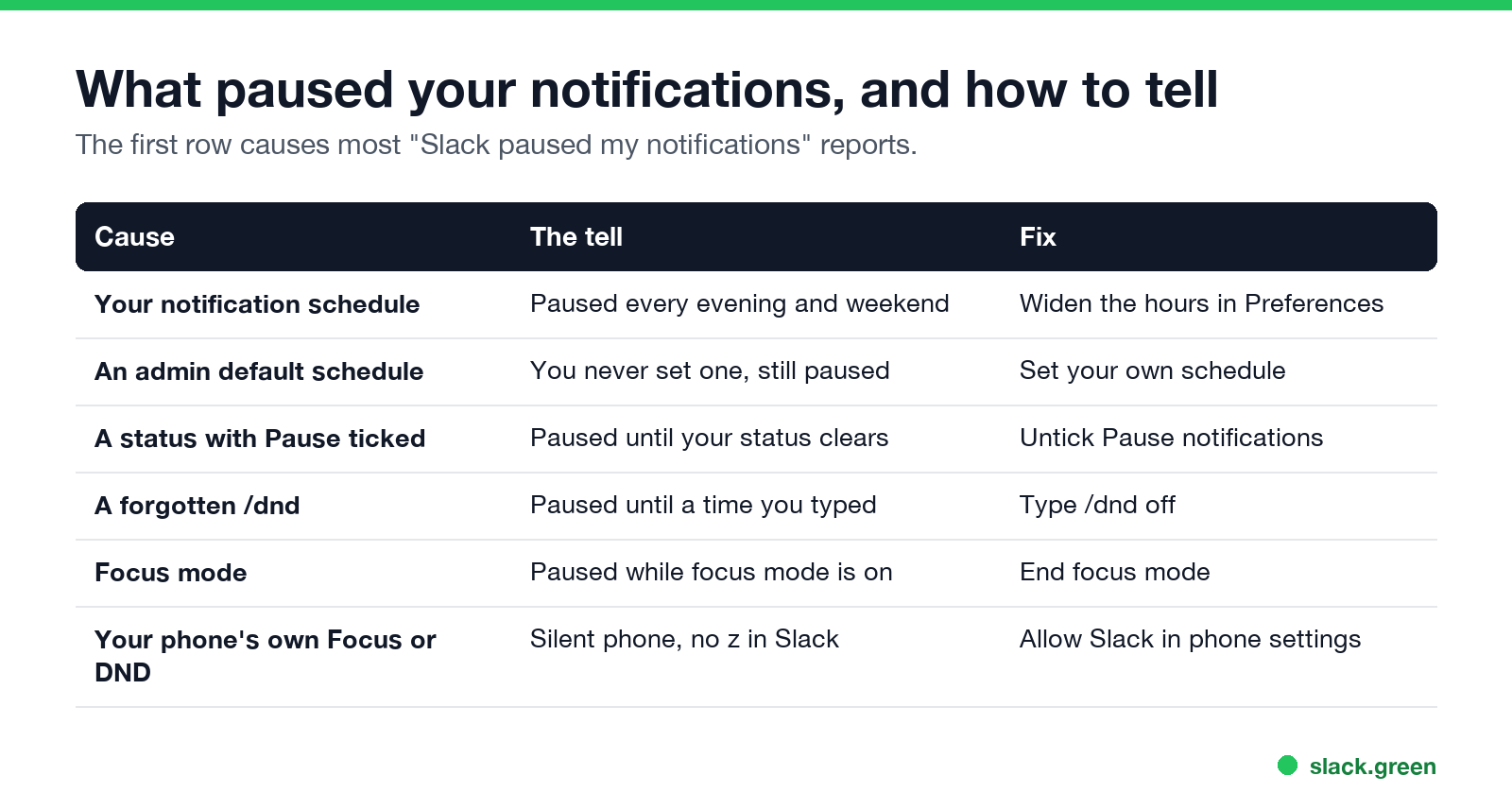
| Cause | The tell | Fix |
|---|---|---|
| Your notification schedule | Paused every evening and weekend | Widen the hours in Preferences |
| An admin default schedule | You never set a schedule, and it still pauses | Set your own schedule. It overrides the default |
| A status with Pause notifications ticked | Paused until your status clears | Untick it when you set the status |
A forgotten /dnd | Paused until a time you once typed | Type /dnd off |
| Focus mode | Paused while focus mode is on | End focus mode |
| Your phone's Focus or Do Not Disturb | Silent phone, but no z next to your name | Allow Slack in your phone settings |
1. Your notification schedule
Slack's help center says: "With a schedule in place, you'll only receive notifications on days you choose during certain hours. Outside of those times, notifications will be paused." One r/Slack user fixed a daily pause by opening Allow notifications and finding "the automatic setup was weekdays 9AM-5PM". Another replied that theirs paused at 5 PM every day for the same reason.
Desktop: click your profile picture, choose Preferences, find Working hours, and open Allow notifications. Choose Every day, Weekdays, or Custom, then set the start and end time.
Mobile: tap your profile picture, tap Notifications, then Allow notifications below Notification schedule.
2. An admin set default hours
Workspace owners and admins can set a default notification schedule for everyone. Slack says your own schedule overrides it. If you never touched the setting and still see a pause at the same time each day, set your own hours once.
3. Your status paused them
When you set a status, Slack offers a Pause notifications checkbox. If you tick it, notifications stay paused until the status clears. A "Lunch" status that you forget to clear, or one set to clear at the end of the day, keeps you paused all afternoon. Our guide to Slack keeps clearing my status covers how status timers work.
4. A /dnd you forgot
/dnd until tomorrow morning or /dnd for 8 hours pauses notifications until that time. Type /dnd off in any message box to resume. The full command list is in our Slack Do Not Disturb guide.
5. Focus mode
Slack's focus mode pauses notifications and hides sidebar distractions. It ends at the time you picked. If you started it and walked away, it can still be on.
6. Your phone, not Slack
iOS Focus and Android Do Not Disturb silence Slack on that phone only. Slack does not know about them, so you see no z next to your name, and resuming notifications in Slack changes nothing. Allow Slack in your phone's Focus or Do Not Disturb exceptions. On Android, also check that Slack's notification channels are on in the app settings.
How to stop Slack from pausing notifications
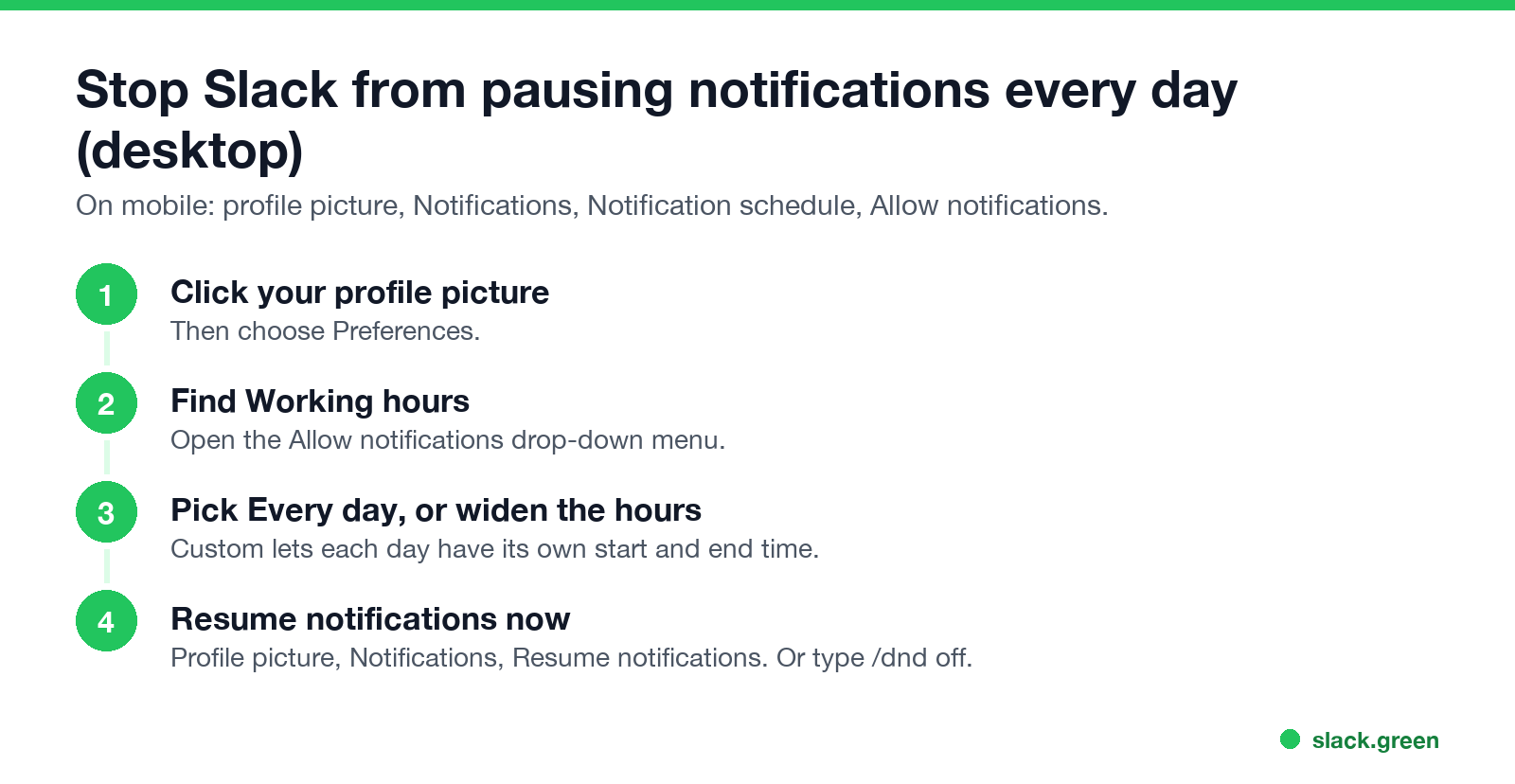
- Click your profile picture and choose Preferences.
- Below Working hours, open Allow notifications.
- Choose Every day, or widen the hours so they cover your whole working day.
- Resume now: click your profile picture, hover over Notifications, and click Resume notifications. Or type
/dnd off.
On mobile, tap your profile picture, tap Pause notifications, then Resume notifications.
What "Active, notifications snoozed" means
Slack에서 다시는 '자리 비움'으로 표시되지 마세요
클라우드 기반. 다운로드 불필요. 노트북이 꺼져 있어도 24시간 작동.
If your profile, or a coworker's, says active with notifications snoozed or paused, the person is at Slack right now and their notifications are paused. Their dot is green with a small z on it. Messages still arrive. They get no banner or sound until notifications resume. Every combination of dot and z is in the Slack green dot with a z.
The pause does not change presence. You can have notifications paused and a green dot, or notifications on and a grey dot. What the grey dot means is in Slack away status meaning.
When alerts are not paused but still do not arrive
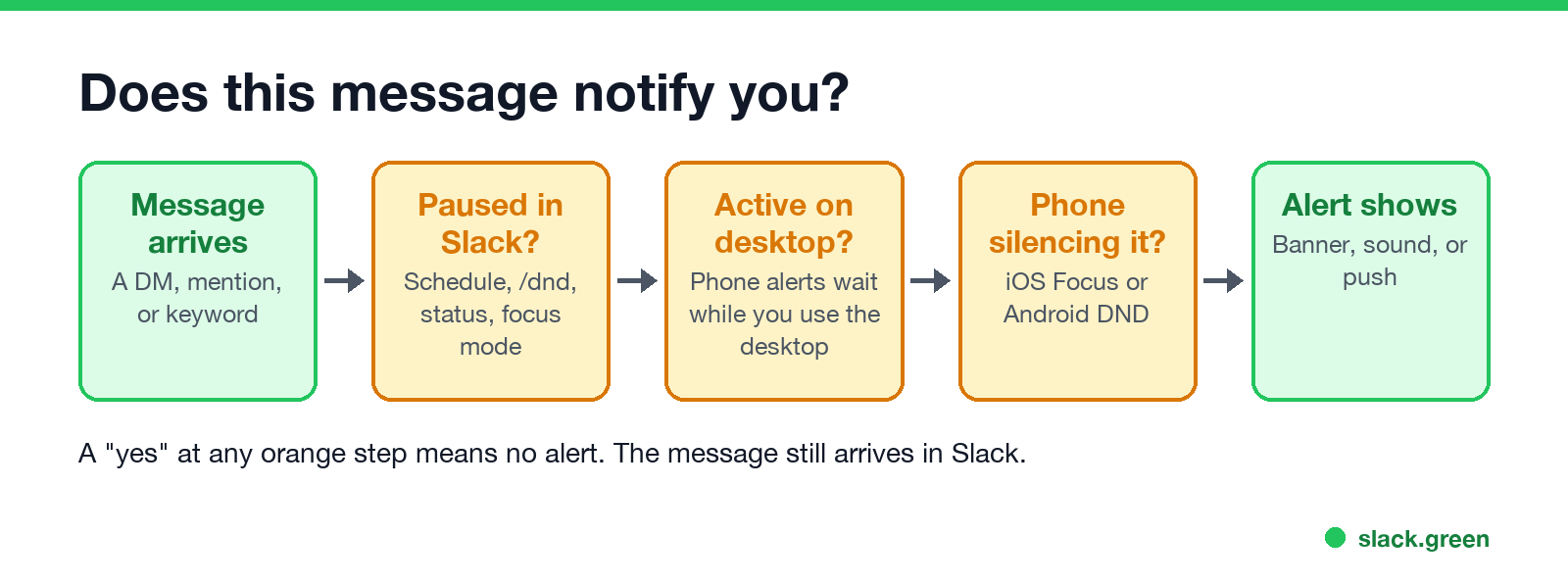
If Slack shows no pause and you still miss alerts, the problem is somewhere else:
These cases are covered step by step in Slack notifications not working.
FAQ
Why does Slack keep pausing my notifications?
Your notification schedule pauses them outside the hours you allow. Open Preferences, find Working hours, and widen Allow notifications. If you never set a schedule, your admin may have set a default.
Why are my notifications snoozed on Slack?
Snoozed and paused mean the same thing. A schedule, a /dnd command, a status with Pause notifications ticked, or focus mode turned them off for a while.
How do I keep Slack notifications on all the time?
Set Allow notifications to Every day and set the hours to cover your whole day. Do not tick Pause notifications when you set a status.
How do I unpause notifications on Slack mobile?
Tap your profile picture, tap Pause notifications, then tap Resume notifications.
Can someone reach me while my notifications are paused?
Yes. When they send you a DM, Slack lets them notify you anyway, once per day. People on your VIP list also get through on paid plans.
Does pausing notifications make me look away?
No. Others see a z next to your name, but your dot stays green while you are active.
Related Articles
Slack Red Dot Won't Go Away? What It Counts and How to Clear It
A red dot on the Slack icon means unread activity somewhere; a red number means DMs, mentions, keywords or followed thread replies. Press Shift+Esc to mark all read, check Threads, Activity, Later and other workspaces, then clear the cache or reset the OS badge.
Slack Thread Notifications Not Working? How Following Works
Slack only notifies you about thread replies when you follow the thread: you started it, replied, or were mentioned, or it is in a one-to-one DM. Follow any thread from its menu, or get every reply in a channel from its notification options. The other settings that silence threads.
@here vs @channel vs @everyone in Slack: Who Gets Notified
@everyone notifies everyone in the general channel, @channel notifies every member of a channel, and @here notifies only members who are active right now. None of them work in threads or reach people with paused notifications. Which to use, and how admins restrict them.