
The Best Mouse Jiggler for Remote Work, by Type
The best mouse jiggler depends on the computer. A free app for your own PC, a USB dongle for a personal laptop, a mechanical mover for a managed one. Picks per type, what IT sees, and what each does for Slack.
The best mouse jiggler depends on whose computer it is. On your own computer, use a free app: Mouse Jiggler by Arkane Systems on Windows, or Jiggler by Stick Software on a Mac. On a personal laptop where you cannot install software, a plug-and-play USB dongle for $8 to $25 does the job. On a company laptop, the choice most people land on is a mechanical mover, a small turntable that moves your real mouse, because nothing connects to the computer. All of them need the computer on and unlocked.
One catch decides whether a jiggler works for Slack. Slack counts only input inside its own window, so a jiggler keeps Slack green only while the cursor sits over Slack. If a green Slack dot is the whole goal, Slack Green keeps it green from the cloud during the hours you set, with nothing plugged in or installed. We build it, and it is in the comparison at the end with the same columns as the jigglers.

Mouse jiggler types compared
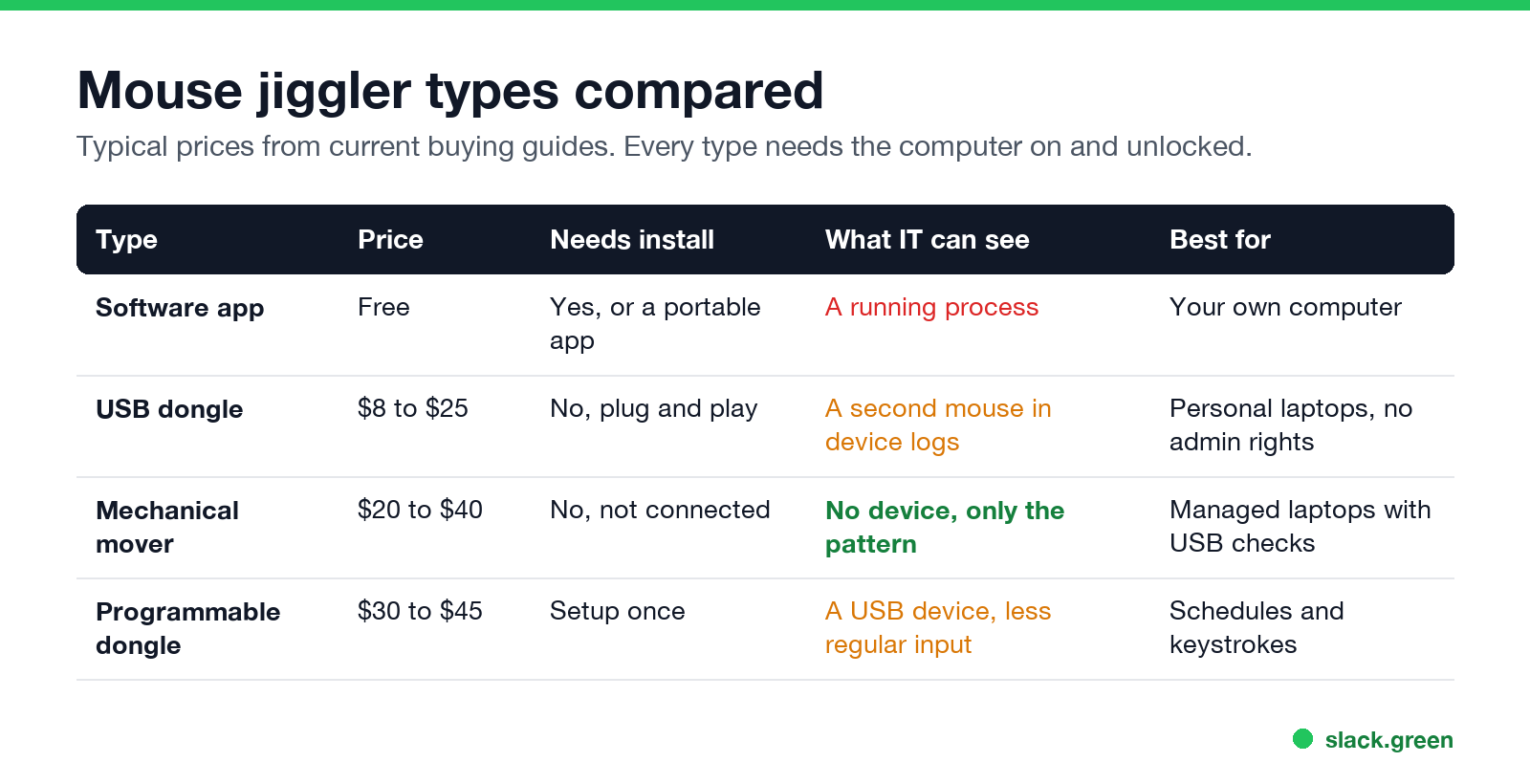
| Type | Price | Install | What IT can see | Best for |
|---|---|---|---|---|
| Software app | Free | Yes, or a portable app | A running process | Your own computer |
| USB dongle | $8 to $25 | No, plug and play | A second mouse in device logs | A personal laptop without admin rights |
| Mechanical mover | $20 to $40 | No, not connected | No device, only the movement pattern | A managed laptop with USB checks |
| Programmable dongle | $30 to $45 | One-time setup | A USB device with less regular input | Schedules and keystrokes |
Prices are typical ranges from current buying guides and retailer listings. They change often, so check the listing before you buy.
Best free mouse jiggler: a software app
A software jiggler is an app that moves the pointer with system calls. It costs nothing and it is the easiest to start and stop. It is also the easiest to find: it runs as a process, and on Windows its movement carries an "injected" flag that monitoring agents can read.
Windows: Mouse Jiggler by Arkane Systems. Free and open source on GitHub. Install it with one command:
winget install ArkaneSystems.MouseJigglerThen start it jiggling and minimised, every 60 seconds:
MouseJiggler -j -m -s 60It pauses when you move the mouse yourself. Its Zen mode fakes input without moving the pointer, which Slack never sees, so use Normal mode for Slack. Its own README says it "is easily detectable by any decent monitoring software." Every mode and flag is in mouse jiggler for Windows.
Mac: Jiggler by Stick Software. Free and open source. Install it with Homebrew:
brew install --cask jigglerIt needs Accessibility permission, which macOS lists in System Settings under Privacy & Security, and which MDM tools can report. It can jiggle only after the Mac has been idle for a set time. The Mac App Store alternatives are in mouse jiggler for Mac.
No install allowed. A PowerShell script or an Office macro can move the pointer or press a harmless key on a locked-down PC. See keep your computer awake with PowerShell and keep your computer awake without admin rights.
A keep-awake app is not a jiggler. caffeinate, Amphetamine and PowerToys Awake stop sleep, but they move nothing, so apps that watch input still mark you idle. We tested that in does Caffeine keep Slack active.
Best USB mouse jiggler: a plug-and-play dongle
Nunca mais apareça como "ausente" no Slack
Na nuvem. Sem downloads. Funciona 24/7 mesmo com seu notebook desligado.
A USB jiggler tells the computer it is a mouse and moves the pointer by a few pixels on a timer. No software, no drivers, no admin rights. Most have an on/off switch and two or three modes. Vaydeer is the brand with the most reviews in this category, and many no-name dongles use the same design.
What to look for:
- • An on/off switch. Cheap models without one must be unplugged to stop.
- • The right port. Most are USB-A. A USB-C laptop needs a C model or an adapter.
- • An invisible mode. Some move the pointer by one pixel, so it does not wander across your screen while you read.
- • The pattern. The mouse moves in the same small circle every few seconds, and the keyboard is silent for hours. Monitoring software that scores activity can flag that.
- • It needs an optical mouse on it all day. A laptop trackpad does not work with it.
- • No schedule. You switch it on and off by hand.
The downside is the device log. The computer now has a second mouse, and a managed laptop reports new devices to IT. Sellers call some models "undetectable" because they copy the vendor ID of a common mouse maker. That hides the name. It does not hide that a device was plugged in. The IT side is in can a mouse jiggler be detected.
Best undetectable mouse jiggler: a mechanical mover
A mechanical mover is a small platform that turns or nudges your real mouse. It plugs into a wall socket or a power strip, not the computer. The computer sees normal input from a normal mouse, so there is no new device, no process and no injected flag. This is the answer that comes up most in the r/overemployed thread on "best undetectable mouse jiggler": plug it into power, never into the work computer.
It still has limits:
Programmable dongles sit between the two. They add schedules, random movement and sometimes keystrokes, at two to three times the price of a basic dongle. They still connect to the computer as a USB device.
What a mouse jiggler does for Slack and Teams
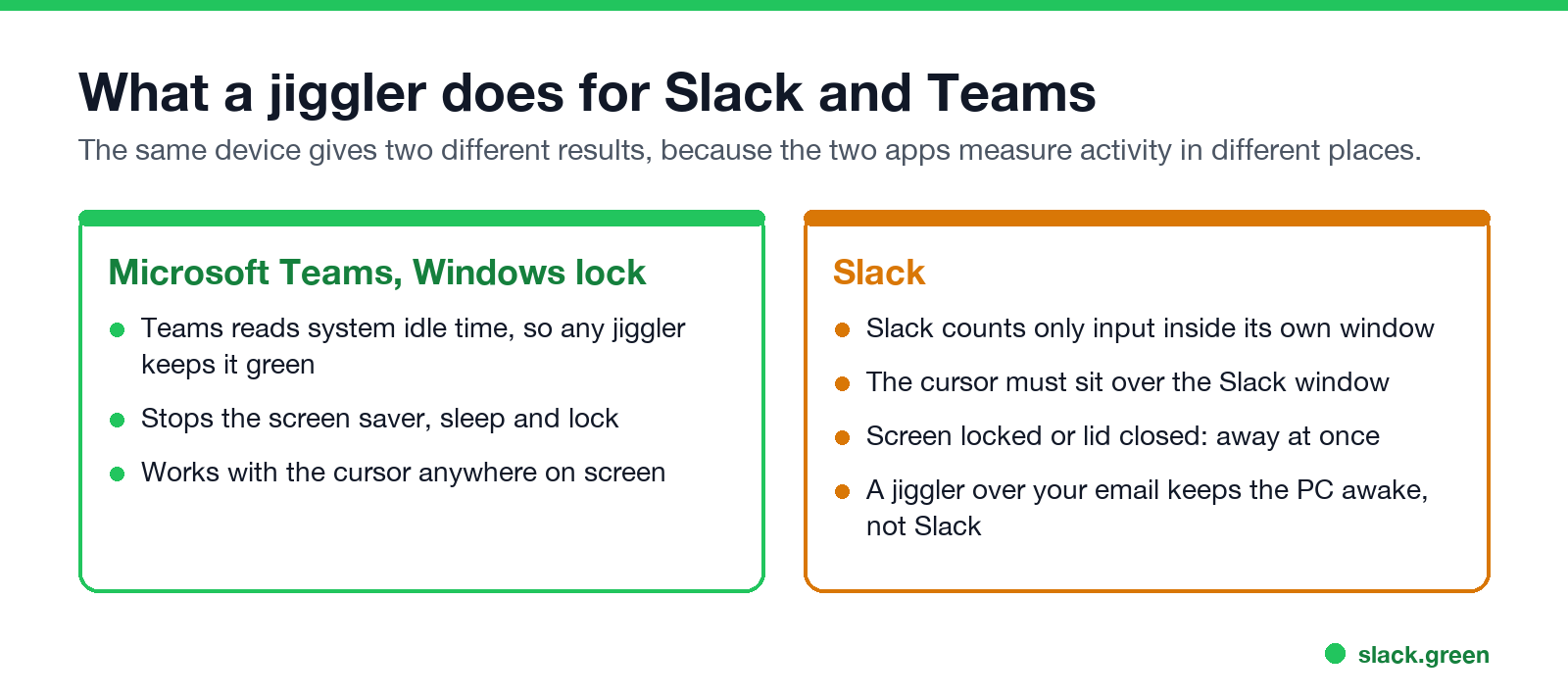
Most people buy a jiggler to keep a chat app green. The same device gives two different results.
Microsoft Teams reads the system idle time. Any jiggler that keeps Windows from counting you idle keeps Teams available, with the pointer anywhere on screen. Details in how long before Teams shows away.
Slack counts only input inside its own window. It sets you away 10 minutes after your last input in Slack, whatever the rest of the computer does. A jiggler keeps Slack active only when the pointer sits over the Slack window and the screen stays unlocked. Park it over your email and the computer stays awake while your Slack dot still turns grey. We explain the rule in does Slack track mouse movement and the timer in how long does Slack stay active.
Every jiggler also stops at the lid. Close the laptop, or let the screen lock, and both apps set you away.
Which mouse jiggler should you buy?
Nunca mais apareça como "ausente" no Slack
Na nuvem. Sem downloads. Funciona 24/7 mesmo com seu notebook desligado.
A mouse jiggler alternative for Slack
A jiggler makes the computer look busy so that Slack sees input. Slack Green skips the computer. It keeps your own Slack session active from its servers during the working hours you set, and lets Slack show you away after them. Nothing plugs into the laptop and nothing runs on it, so it works with the lid closed.
| Mouse jiggler | Slack Green | |
|---|---|---|
| Keeps Slack green | Only with the pointer over Slack | Yes |
| Laptop closed or locked | No | Yes |
| Schedule | Manual, or a $30+ dongle | Your working hours |
| Trace on a company laptop | A process or a USB device | None on the laptop |
| Cost | Free to $45 | Free trial, then $3.99 a month |
Another cloud tool that does this for Slack or Teams is compared in Slack Green vs Idle Pilot. The full head-to-head is in Slack Green vs mouse jiggler, and every other method is compared in how to keep Slack active. Browser-based jigglers are a separate case: a jiggler in a browser tab does not keep Slack active, because the movement never reaches the Slack window.
FAQ
What is the best mouse jiggler?
A free app like Mouse Jiggler (Windows) or Jiggler (Mac) on your own computer. A USB dongle if you cannot install software. A mechanical mover on a company laptop, because it does not connect to the computer.
Is a USB or software mouse jiggler better?
A software jiggler is free and easy to control, and it is the easiest to detect. A USB jiggler needs no install and leaves a device record instead of a process. A mechanical mover leaves neither.
Is there an undetectable mouse jiggler?
No type hides the activity pattern. A mechanical mover leaves no device or process on the computer, which is why people call it undetectable. Monitoring software that looks at behavior can still flag a pointer that moves on a timer with no typing.
Does a mouse jiggler keep Slack active?
Only when the pointer sits over the Slack window and the screen is unlocked. Slack counts only input inside its own window.
Does a mouse jiggler keep Teams active?
Yes, while the computer is on and unlocked. Teams reads the system idle time, so the pointer can be anywhere.
Can my employer tell if I use a mouse jiggler?
Often, on a managed laptop. See can a mouse jiggler be detected for what each type leaves behind, and can Slack be used to monitor employees for what Slack itself shows them.
Pare de Mexer o Mouse.
Centenas de trabalhadores remotos não se preocupam mais com o status do Slack. Configure uma vez, fique verde para sempre.
Related Articles
Slack Lists Tutorial: Create, Organize and Share a List
Slack lists are tables of tasks inside Slack, with fields, assignees, due dates, a board view and a comment thread on every item. How to create a list from scratch or a template, set up fields, turn it into a kanban board, add messages to it, share it, and what the plan limits are.
Slack Jira Integration: Setup, /jira Commands and Notifications
Install the Jira Cloud for Slack app, type /jira connect in a channel to send a Jira space's updates there, /jira notify for personal notifications as DMs, and create work items from any message with More actions. Every /jira command, Jira automation to Slack, and fixes when previews or notifications stop.
How to Create a Slack Workspace, on Desktop or Phone
Go to slack.com/get-started, enter your email, type the confirmation code, and click Create a Workspace. It is free to start, you become the Primary Owner, and it takes about five minutes. Steps for desktop, iPhone and Android, and what to set up next.