
Slack Timer: How to Set a Countdown, Pomodoro or Focus Timer in Slack
Slack has no built-in timer, but four built-in tools act like one: /remind me to ... in 25 minutes, a status that clears itself, /dnd for a focus block, and Workflow Builder for dated countdowns. For a live countdown in a channel, use a Marketplace app or a 15-line bot script.
Slack has no timer or stopwatch button. The fastest way to set a timer in Slack is the /remind command: type /remind me to take a break in 25 minutes in any message box and Slackbot pings you when the time is up. To show the timer to your team, set a status and pick a Remove status after time, and it clears itself. To mute pings for a focus block, type /dnd for 25 minutes. For a countdown that other people can watch in a channel, use a countdown app from the Slack Marketplace or post one with a short bot script, both shown below.
One timer Slack always runs is on you. Your dot turns grey 10 minutes after your last input in the Slack window, even in the middle of a focus block. Slack Green keeps it green during the working hours you set, from the cloud, so a 50-minute deep-work session does not read as "away".
Ways to run a timer in Slack
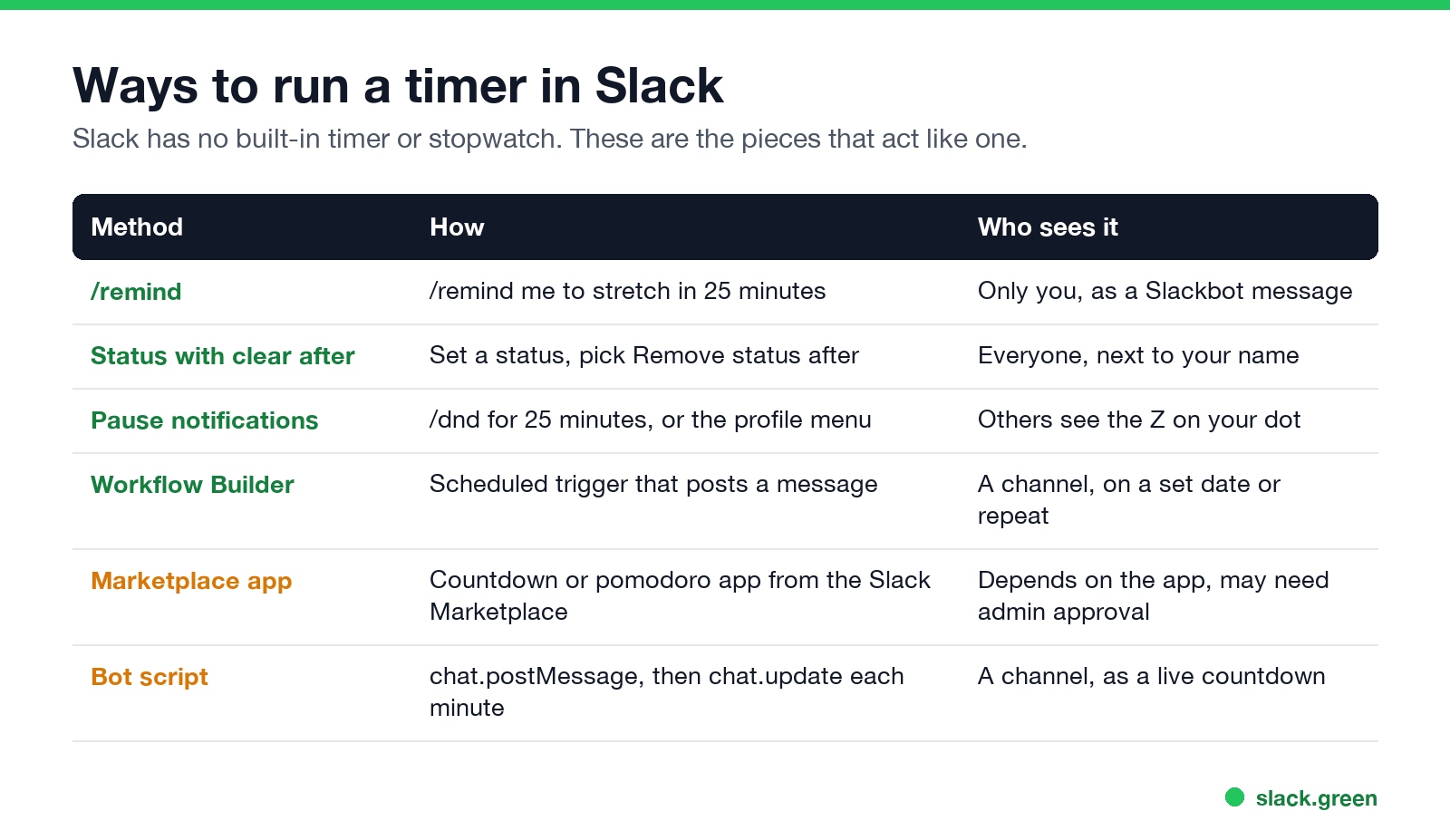
| Method | How | Who sees it | Needs an app |
|---|---|---|---|
/remind | /remind me to stretch in 25 minutes | Only you, as a Slackbot message | No |
| Status that clears itself | Set a status, choose Remove status after | Everyone, next to your name | No |
| Pause notifications | /dnd for 25 minutes | Others see a Z on your dot | No |
| Workflow Builder | A scheduled workflow posts a message | A channel, at a date or on repeat | No |
| Marketplace app | A countdown or pomodoro app | Depends on the app | Yes, may need admin approval |
| Bot script | chat.postMessage, then chat.update each minute | A channel, as a live countdown | A bot token |
Slack timer command: /remind
/remind is the closest thing Slack has to a timer command. It follows the pattern /remind [me or #channel] [what] [when], and the "when" can be a delay:
/remind me to take a break in 25 minutes
/remind me to check the build in 10 minutes
/remind me "Stand up and stretch" in 1 hour
/remind #team to wrap up the retro in 15 minutes
Slack confirms what it understood right after you send it, so check the time in the confirmation. When the time is up, Slackbot sends you the reminder with buttons to mark it complete or snooze it. A channel reminder posts in the channel instead. /remind list shows every pending reminder and lets you delete one you set by mistake. More patterns, including repeats, are in Slack /remind command examples.
A reminder has two limits as a timer. It shows no running countdown, only the ping at the end. And it cannot repeat more often than once a day, so an every-30-minutes timer needs several reminders or an app.
Show a timer on your status
Больше никогда не показывать "отошёл" в Slack
Облачное решение. Без загрузок. Работает 24/7 даже при выключенном ноутбуке.
A status is the way to tell your team "back in 30 minutes" without anyone doing the math. When you set a custom status, open Remove status after (called Clear after on mobile) and pick 30 minutes, 1 hour, 4 hours, Today, This week, or Choose date and time. The emoji and text disappear on time. Check Pause notifications in the same dialog and your notifications stay paused until the status clears. Every option is covered in Slack status clear after.
For a fixed daily block, such as focus time every morning, schedule the status instead of setting it by hand.
Focus timer: pause notifications for a set time
/dnd pauses notifications for a length of time you type:
/dnd for 25 minutes
/dnd for 2 hours
/dnd until 3pm
/dnd off
The same choices are in the menu under your profile picture, Pause notifications, with a Custom option. While notifications are paused, a small Z shows on your dot, and people who message you are told you have paused notifications. They can still choose to notify you if it is urgent. How that works, and how a daily schedule can pause Slack on its own, is in Slack Do Not Disturb.
Slack pomodoro timer with built-in tools
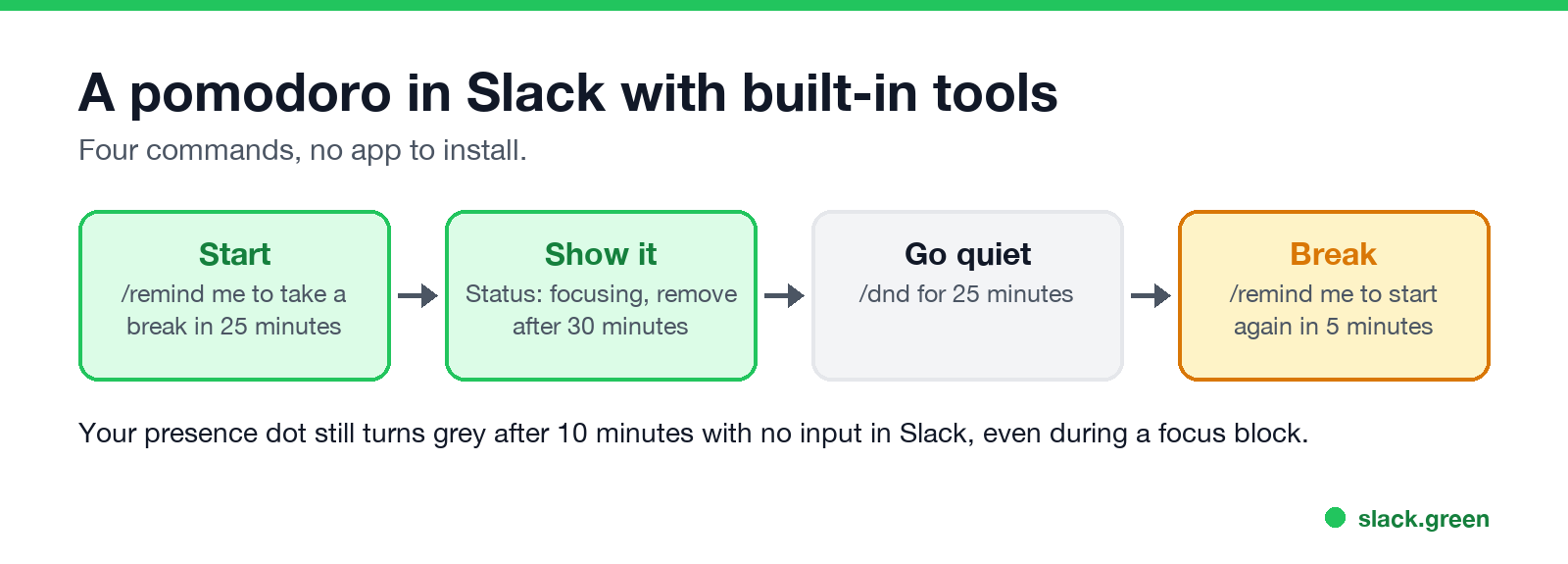
A pomodoro is 25 minutes of focus and a 5-minute break. You can run one with four commands and no app:
/remind me to take a break in 25 minutes- Set a status such as "Focusing" with Remove status after, 30 minutes.
/dnd for 25 minutes- When the reminder fires:
/remind me to start again in 5 minutes
If you run pomodoros all day, a Marketplace pomodoro app saves the typing. Search the Slack Marketplace for "pomodoro" or "timer". An app your workspace has not approved may need an admin to approve it.
Countdown timer in a channel
Больше никогда не показывать "отошёл" в Slack
Облачное решение. Без загрузок. Работает 24/7 даже при выключенном ноутбуке.
For a countdown people can see, such as time left in a workshop exercise or days to a launch, you have three options.
Days to a date. A countdown app from the Marketplace can post the days left on a schedule. Workflow Builder can also post a message on a schedule you pick, though it will not count the days for you. Recurring posts are in how to schedule a recurring message in Slack.
Minutes left, live. Post one message and edit it every minute with a bot. This script uses the official Python SDK (pip install slack_sdk) and a bot token with the chat:write scope. Invite the bot to the channel first. Tokens are explained in Slack bot token.
import os
import time

from slack_sdk import WebClient

client = WebClient(token=os.environ["SLACK_BOT_TOKEN"])
channel = "C0123456789"  # the channel ID
minutes = 25

msg = client.chat_postMessage(channel=channel, text=f":hourglass: {minutes} min left")
for left in range(minutes - 1, -1, -1):
    time.sleep(60)
    text = f":hourglass: {left} min left" if left else ":bell: Time is up"
    client.chat_update(channel=channel, ts=msg["ts"], text=text)
Editing the same message keeps the channel clean, and people see the number change in place. Keep the interval at a minute or more; there is no reason to hit Slack's rate limits for a countdown.
The Slack inactivity timer
Many people who search for a Slack timer mean the one that turns them away. On desktop and in a browser, Slack marks you away after 10 minutes with no mouse or keyboard input in the Slack window. That timer is fixed; you cannot change it in preferences. The details, and what resets it, are in how long Slack stays active. If your day is full of focus blocks with Slack in the background, Slack Green keeps your status active on the schedule you set.
FAQ
Does Slack have a built-in timer?
No. /remind with a delay, a status with Remove status after, and /dnd for a set time cover most timer needs without an app.
How do I set a 5-minute timer in Slack?
Type /remind me to check in 5 minutes and send it. Slackbot pings you in five minutes.
Can I add a pomodoro timer to Slack?
Yes, with a Marketplace app, or with the four built-in commands in the pomodoro section above.
Can other people see my Slack timer?
A /remind me reminder is private. A status, a paused-notifications Z and a channel countdown are visible to others.
How do I cancel a Slack timer?
Type /remind list and delete the reminder. For a paused-notifications timer, type /dnd off.
Хватит Двигать Мышкой.
Сотни удалённых работников больше не беспокоятся о статусе Slack. Настройте один раз, оставайтесь зелёными навсегда.
Related Articles
Slack Huddles vs Zoom: Which to Use for Team Calls
Slack huddles are quick calls inside Slack: 1:1 on the free plan, up to 50 people on paid plans, no recording. Zoom is built for scheduled, recorded and large meetings, with a free plan of 100 people for 40 minutes. Limits, cost, recording and privacy side by side.
How to Work Two Remote Jobs at the Same Time
Working two remote jobs at once takes four things: contracts that allow it, fully separate devices and accounts, a calendar that protects both jobs, and a chat status that stays believable in both. The practical setup, and the risks.
How Do Employers Monitor Remote Workers? What Each Tool Sees
Employers monitor remote workers through five layers: work apps like Slack and Teams, laptop management, monitoring software, the network, and your output. What each one sees, how to check your own laptop, and what the law says.