
Slack Presence API: users.getPresence and setPresence With Code
Slack's presence API is two Web API methods: users.getPresence reads whether a user is active or away, and users.setPresence sets you away or back to auto. Presence changes stream only over RTM. Scopes, rate limits, the fields you get, and working curl and Python code.
The Slack presence API is two Web API methods. users.getPresence returns whether a user is active or away and needs the users:read scope. users.setPresence sets the calling user's presence to away or back to auto, and needs users:write. There is no value that forces a user to active. To be told when presence changes, you need an RTM connection with a presence_sub subscription, because the Events API sends no presence events.
Everything on this page comes from Slack's developer docs, with code you can run. We build Slack Green, which keeps a person's Slack presence active on a schedule from a server, so we work with these methods every day. If you only want your own dot green during working hours, that is the finished tool; if you want to build or measure, read on.
Presence methods, scopes and rate limits
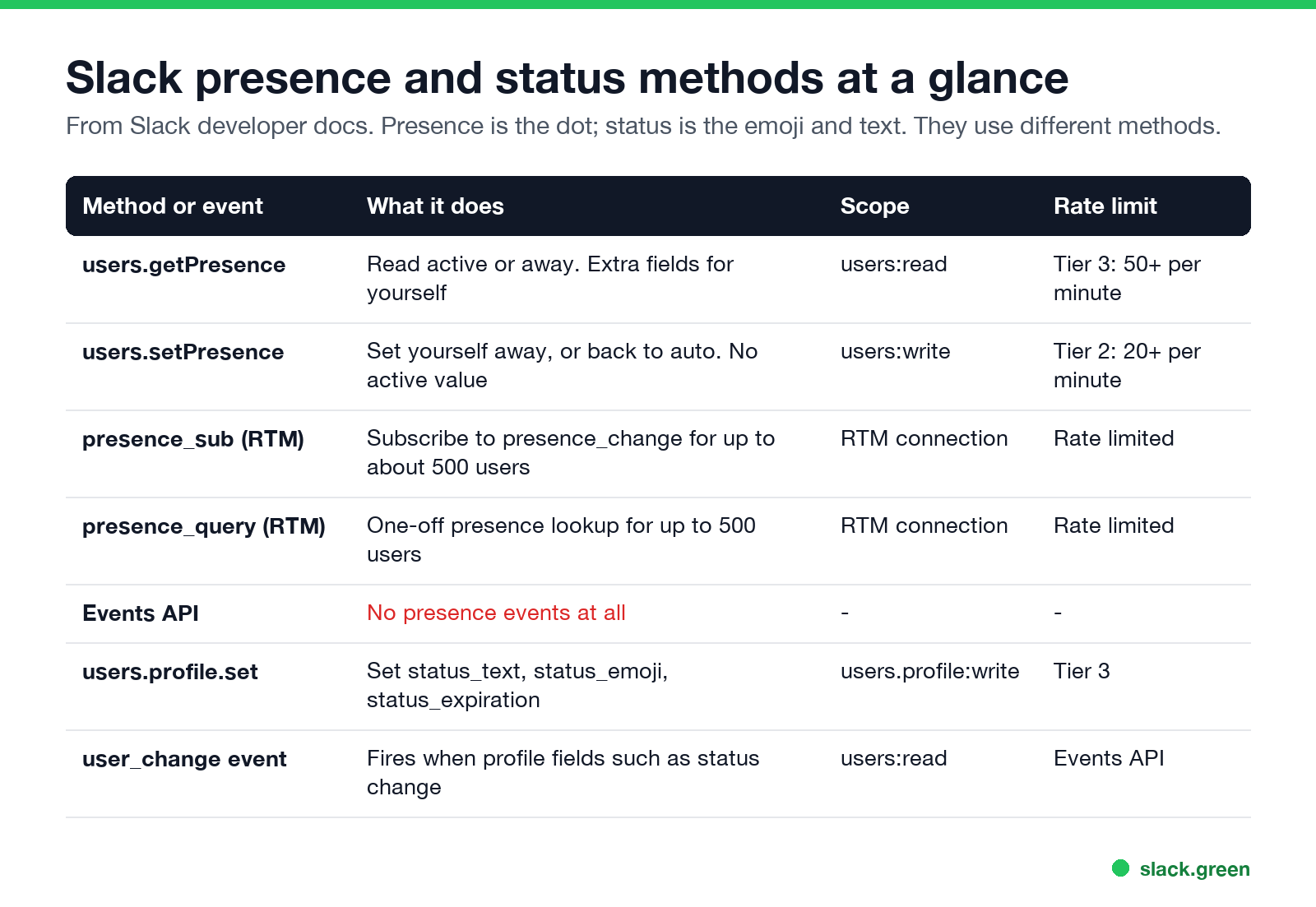
| Method or event | What it does | Scope | Rate limit |
|---|---|---|---|
users.getPresence | Read active or away. More fields when you ask about yourself | users:read | Tier 3, 50+ per minute |
users.setPresence | Set yourself away, or back to auto | users:write | Tier 2, 20+ per minute |
presence_sub (RTM) | Subscribe to presence_change events for listed users | RTM connection | Rate limited |
presence_query (RTM) | One-off lookup for up to 500 users | RTM connection | Rate limited |
| Events API | No presence events | none | none |
users.profile.set | Set status text, emoji and expiry | users.profile:write | Tier 3, 50+ per minute |
Presence and status are different things. To get a token first, see Slack bot token: how to get one. Presence is the green or grey dot. Status is the emoji and text next to a name. The difference is explained in Slack active status explained.
Get a user's presence with users.getPresence
With curl and a bot or user token that has users:read:
curl -s -H "Authorization: Bearer $SLACK_TOKEN" \
  "https://slack.com/api/users.getPresence?user=U0123ABCD"
For another user you get the presence only:
{"ok": true, "presence": "away"}Leave out user and the method answers for the owner of the token, with the details of how Slack computed it:
{
  "ok": true,
  "presence": "active",
  "online": true,
  "auto_away": false,
  "manual_away": false,
  "connection_count": 1,
  "last_activity": 1419027078
}- •
onlineis true if the user has a client connected to Slack. - •
auto_awayis true if Slack saw no activity from the user in the last 10 minutes. - •
manual_awayis true if the user set themselves away. - •
connection_countcounts connected clients. - •
last_activityis the last activity Slack's servers saw. It is missing when no client is connected.
How Slack decides active or away
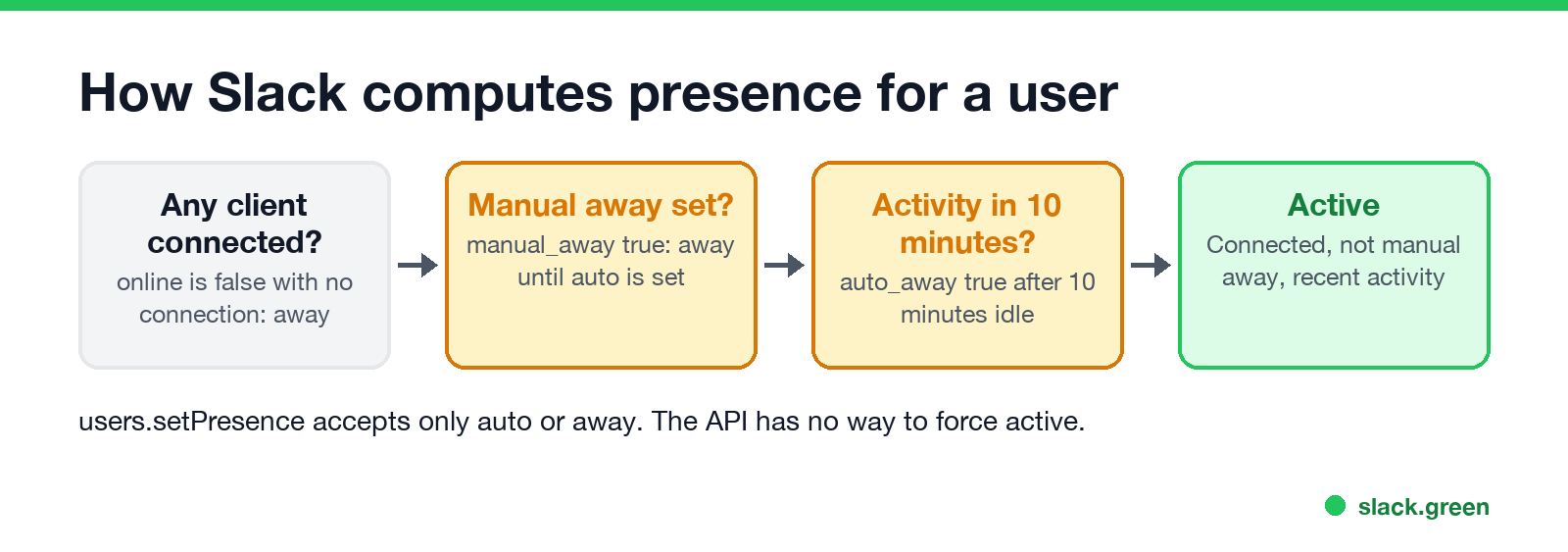
Slack's docs define it in one line: a user is active if they have at least one client connected to Slack and they are not marked away. They are marked away in two ways. Automatic away happens after 10 minutes with no activity in the client. Manual away comes from the user or from users.setPresence, persists between connections, and overrides the automatic value. Bot users are exempt from auto-away.
"Activity" means input in the Slack client, not on the computer. That is why a person can work all day in other apps and show away. The device-level rules are in how Slack decides when you are away, and the timings are in how long does Slack stay active.
Get presence in Python with slack_sdk
Install the official SDK with pip install slack_sdk, then:
import os
from slack_sdk import WebClient
from slack_sdk.errors import SlackApiError

client = WebClient(token=os.environ["SLACK_TOKEN"])

try:
    res = client.users_getPresence(user="U0123ABCD")
    print(res["presence"])  # "active" or "away"
except SlackApiError as e:
    print("Slack error:", e.response["error"])  # e.g. missing_scope, invalid_auth
To check a team, loop over members from users.list and respect the Tier 3 limit. Slack answers with HTTP 429 and a Retry-After header when you go too fast:
import time

members = client.users_list()["members"]
people = [m for m in members if not m["is_bot"] and not m["deleted"] and m["id"] != "USLACKBOT"]

for m in people:
    while True:
        try:
            p = client.users_getPresence(user=m["id"])["presence"]
            print(m["name"], p)
            break
        except SlackApiError as e:
            if e.response.status_code == 429:
                time.sleep(int(e.response.headers.get("Retry-After", 30)))
            else:
                raise
    time.sleep(1.2)  # stay under about 50 calls a minute
Polling every person every few minutes is how "online hours" apps build a timesheet out of the dot. What that means for employees is in can Slack be used to monitor employees.
Set presence with users.setPresence
users.setPresence changes the calling user's manual presence. It accepts two values:
away: mark yourself away until you set auto again.auto: hand the decision back to Slack's automatic rules.curl -s -X POST -H "Authorization: Bearer $SLACK_USER_TOKEN" \
-H "Content-Type: application/json; charset=utf-8" \
-d '{"presence": "away"}' \
https://slack.com/api/users.setPresenceclient.users_setPresence(presence="auto")There is no active value. Slack's docs say it directly: there is no way to force a user status to active. Why that breaks most keep-active scripts is in script to keep Slack active. auto only clears a manual away. If nothing is connected, or the client has been idle for 10 minutes, the user stays away. A green dot needs a connected client with activity, which is why tools that keep Slack active either feed input to a real client or hold a connected session. The session tokens that make a server-side client possible are covered in Slack xoxc and xoxd tokens.
Bot presence
Bots are different. A bot on the Events API cannot set itself active with the API. You turn Always Show My Bot as Online on in the app's settings, and the bot's profile then carries always_active: true. Its presence field still reads away, but Slack clients show it green. A bot on RTM is active while its websocket is connected and can set itself away.
Track presence changes in real time
The Events API has no presence events. For live changes you need the RTM API, which Slack now limits to classic apps:
rtm.connect and batch_presence_aware=1.presence_sub message listing every user ID you want, in each request:{"type": "presence_sub", "ids": ["U123456", "W123456"]}presence_change events. With batching, one event carries a users array.Slack's limits: subscriptions last only as long as the websocket, you must send the full list each time, and about 500 users is a sensible maximum. For a one-off lookup of up to 500 users, send presence_query instead. For new apps that cannot use RTM, polling users.getPresence is the only option.
Read and set custom status
Status lives in the user profile, not in presence:
profile = client.users_profile_get(user="U0123ABCD")["profile"]
print(profile["status_emoji"], profile["status_text"], profile["status_expiration"])

client.users_profile_set(profile={
    "status_text": "Focus time",
    "status_emoji": ":headphones:",
    "status_expiration": int(time.time()) + 2 * 3600,
})
status_text holds up to 100 characters, and status_expiration is a Unix timestamp; 0 means it never clears. Setting status needs a user token with users.profile:write. Admins on paid plans can set another user's status by passing user. To hear about status changes, subscribe to user_change in the Events API. Scheduling status without code is covered in how to schedule a Slack status. More status examples, reading and clearing, are in set a Slack status with the API.
FAQ
What scope does users.getPresence need?
users:read, with either a bot token or a user token.
Can the Slack API set a user to active?
No. users.setPresence accepts only auto and away. Active needs a connected client with recent activity.
Does the Slack Events API send presence_change?
No. Presence events are available only over RTM with a presence_sub subscription.
Why does users.getPresence say away when the person is working?
Slack counts only activity in the Slack client. After 10 minutes without it, auto_away turns true. See why Slack keeps showing you as away.
How do I keep my own Slack presence active on a schedule?
The API cannot force active. Slack Green keeps your presence active from a server during the hours you set. If you prefer to run it yourself, see the self-hosted Slack Green CLI.
Related Articles
Slack Jira Integration: Setup, /jira Commands and Notifications
Install the Jira Cloud for Slack app, type /jira connect in a channel to send a Jira space's updates there, /jira notify for personal notifications as DMs, and create work items from any message with More actions. Every /jira command, Jira automation to Slack, and fixes when previews or notifications stop.
How to Create a Slack Workspace, on Desktop or Phone
Go to slack.com/get-started, enter your email, type the confirmation code, and click Create a Workspace. It is free to start, you become the Primary Owner, and it takes about five minutes. Steps for desktop, iPhone and Android, and what to set up next.
Slack Sidebar Sections: Create, Sort, Share and Fix Them
Slack sidebar sections are custom groups of channels, DMs and apps in your sidebar. Only you see them, and they need a paid plan. How to create one on desktop and mobile, move many channels at once, sort and filter each section, share a section with your team, and get disappeared sections back.