
Script to Keep Slack Active: Why Most Stopped Working, What Works
Most scripts that promise to keep Slack active no longer work. Slack's API cannot force a user to active, bot tokens have their own presence, and OS keypress scripts miss the Slack window. What still works is a session-based client. How to test any script with users.getPresence.
Most scripts that promise to keep Slack active do not work today, for three reasons from Slack's own docs. First, users.setPresence accepts only auto and away; there is no way to force a user to active. Second, a bot token has its own presence, so a bot script cannot keep your dot green. Third, scripts that press keys or move the mouse at the operating-system level only count if the Slack window receives the input, because Slack counts only input inside its own window. What still works is a script that acts as your own Slack client from a session, the way the web app does, and keeps producing activity.
That is what Slack Green does, on a schedule, from its servers; if you want to run it yourself, the self-hosted Slack Green CLI runs the same engine on your own machine with your tokens on your own disk.
Why most keep-Slack-active scripts stopped working
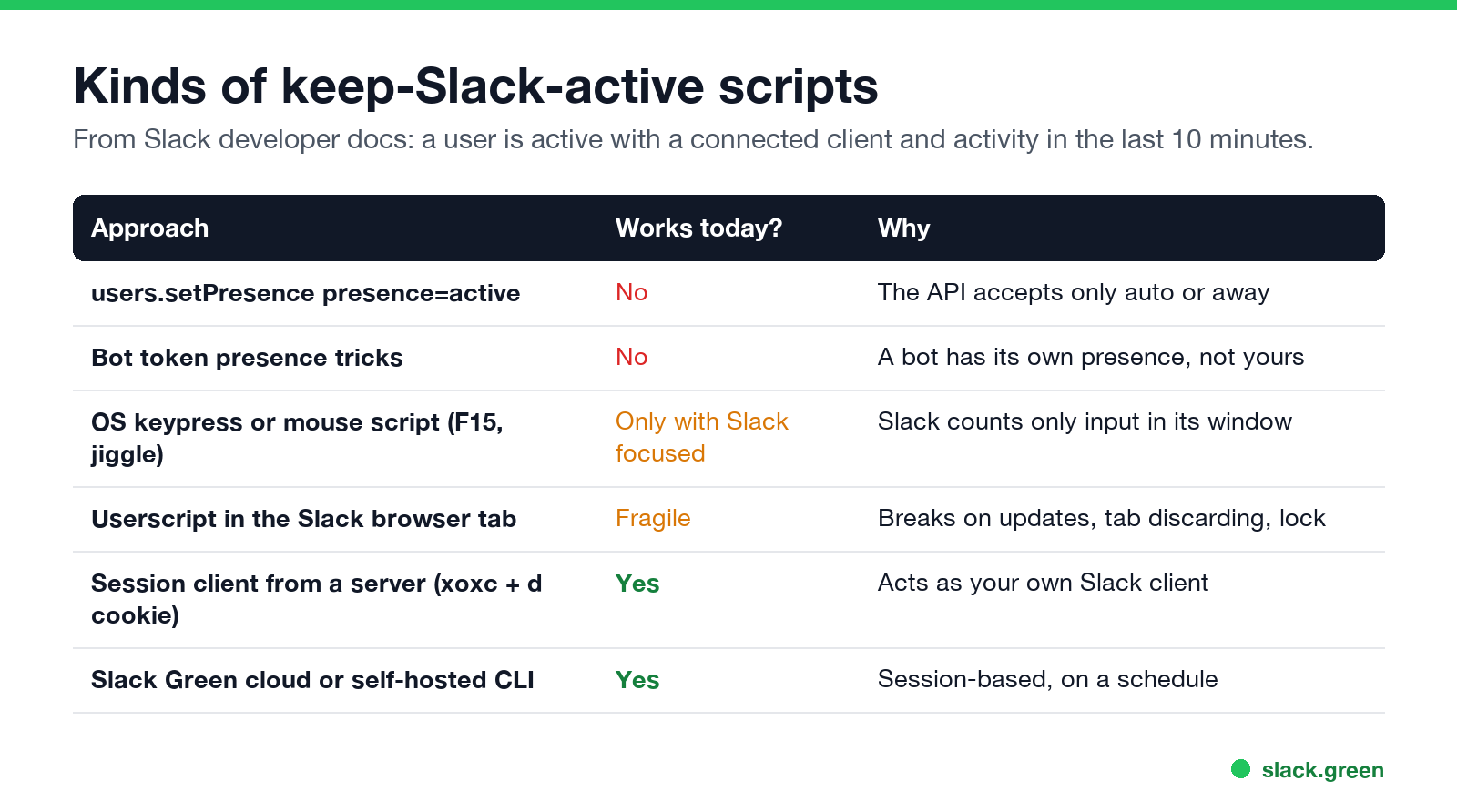
| Approach | Works today? | Why |
|---|---|---|
users.setPresence with active | No | Only auto or away are accepted |
| Bot token tricks | No | A bot has its own presence |
| OS keypress or mouse script | Only with Slack focused | Slack counts only input in its window |
| Userscript in the Slack tab | Fragile | Breaks on updates, tab discarding, screen lock |
| Session client from a server | Yes | Acts as your own client |
Slack's developer docs define presence plainly: a user is active if they have at least one client connected and are not marked away, and after 10 minutes with no activity Slack marks them away automatically. Many old GitHub scripts set presence=auto and assumed that meant green. auto only removes a manual away; without activity you are still away 10 minutes later. Details and code are in our Slack presence API guide.
OS-level scripts: PowerShell, AutoHotkey, Python pyautogui
Scripts that press F15 or nudge the mouse keep Windows or macOS awake, and keep Microsoft Teams green, because those watch the whole computer. Slack does not. The input has to land in the Slack window, which means Slack in front, the screen unlocked and the lid open. The PowerShell versions, and what they do for Teams, are in keep a Windows PC awake with PowerShell; the same limits apply to mouse jigglers.
Userscripts in the Slack browser tab
لا تظهر أبداً كـ "غائب" على Slack
يعمل على السحابة. بدون تنزيلات. يعمل 24/7 حتى عندما يكون الكمبيوتر مغلقاً.
A Tampermonkey-style script can fire events inside app.slack.com so the tab sees activity. It works only while that tab stays loaded and the computer stays awake, and a Slack web update can break it overnight. Browser memory savers can unload the tab; see keep Slack active in the browser. Browser extensions built on this idea have also been removed from the Chrome Web Store; see Slack Chrome extensions.
Session-based scripts: what still works
A client that signs in as you, with the same session the web app uses (the xoxc token and d cookie), counts as a connected client and can keep producing activity from any machine, with your laptop closed. That is how the web app itself stays active. How those tokens work, and the security trade-off of storing them anywhere, is in Slack xoxc and xoxd tokens. Tokens end when you sign out or your workspace's session duration expires, so any script needs to notice authentication errors.
Building and maintaining this yourself means handling reconnects, token expiry, schedules and time zones. The Slack Green CLI is that engine packaged for your own Mac, Linux box or server; Slack Green runs it for you in the cloud.
How to test any keep-active script
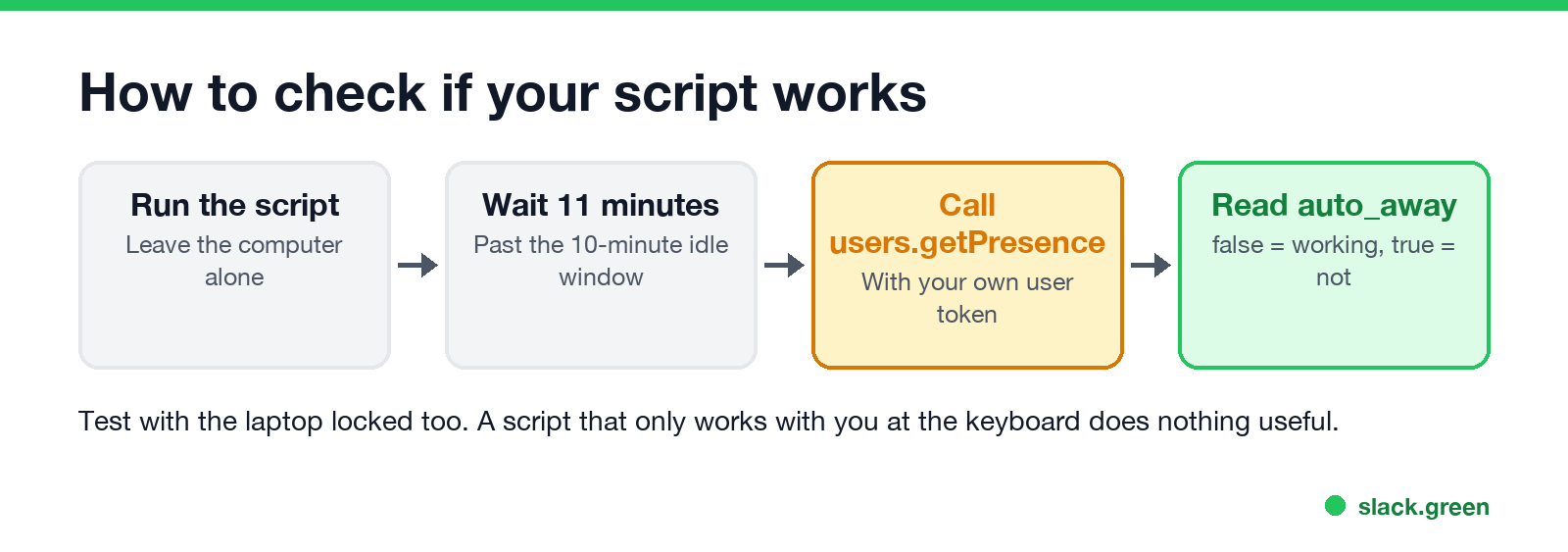
- Start the script and leave the computer alone. Lock it too.
- Wait 11 minutes, past Slack's 10-minute idle window.
- Ask Slack about yourself with a user token:
curl -s -H "Authorization: Bearer $SLACK_USER_TOKEN" https://slack.com/api/users.getPresence"presence": "active" with "auto_away": false means it works. "auto_away": true means Slack saw no activity.Is a keep-active script allowed?
لا تظهر أبداً كـ "غائب" على Slack
يعمل على السحابة. بدون تنزيلات. يعمل 24/7 حتى عندما يكون الكمبيوتر مغلقاً.
Slack's terms and your employer's policy both apply, and a script that signs in as you appears in your access logs. What an employer can see is covered in will I get caught using Slack Green and can Slack be used to monitor employees.
FAQ
Is there a script to keep Slack always active?
Only session-based ones still work reliably. API calls cannot force active, and OS scripts only help with Slack in focus.
Why does my Slack keep-active GitHub script not work anymore?
It probably calls users.setPresence, which accepts only auto or away, or uses a bot token, which has its own presence.
Can a Python script keep Slack green?
A pyautogui script only works with the Slack window focused. A session-based client can, with the trade-offs above.
Does a PowerShell script keep Slack active?
No, unless Slack is the focused window. It does keep Windows and usually Teams active.
How do I check if I am active on Slack from a script?
Call users.getPresence without a user ID and read presence and auto_away.
توقف عن تحريك الماوس.
مئات العاملين عن بعد لم يعودوا قلقين بشأن حالة Slack. قم بالإعداد مرة واحدة، ابقَ أخضر للأبد.
Related Articles
Slack User Groups: How to Create, Mention and Manage Them
A Slack user group is a named list of people with one @handle, like @designers, that notifies all of them and can add them to up to 100 default channels. How to create one, who can, how to mention it, and how it differs from a channel.
How to Contact Slack Support: Form, Chat, Email and /feedback
To contact Slack support, open slack.com/help/requests/new and click Contact support, or use Help > Contact us inside Slack, or type /feedback in any message box. Email feedback@slack.com if you cannot sign in. Slack lists no support phone line. Response times by plan and what to include.
How to Make a Private Slack Channel Public, and Who Can
Open the channel, click its name, go to Settings, and choose Change to a public channel. By default only Workspace Owners, Org Owners and Org Admins can do it. The whole history and every file become visible to the workspace.