
Slack Canvas vs Lists: Which One to Use, and How They Work Together
A Slack canvas is a document for briefs, notes and how-tos; a Slack list is a table of items with owners, due dates, fields, board views and a thread per item. Use a canvas to explain, a list to track. Who can see each, what happens on the free plan, and how to use both in one channel.
A Slack canvas is a document: headings, text, checklists, callouts, images and embedded files, for things like a project brief, meeting notes or a channel's home page. A Slack list is a tracker: rows of items with an assignee, a due date, a completion box and any fields you add, shown as a table or a board, with a thread on every item. Use a canvas when people need to read something, and a list when people need to do things and see their status. Most project channels use both: a canvas tab that explains the project and a list tab that tracks the work. Both are private to you until you share them, and both need a paid plan to create; after a downgrade to free, existing canvases and lists become read-only.
Canvases and lists organize the work. They do not show whether you are at your desk; your presence dot does, and it goes grey 10 minutes after your last input in the Slack window. Slack Green keeps it green during the working hours you set, from the cloud.
Slack canvas vs lists, side by side
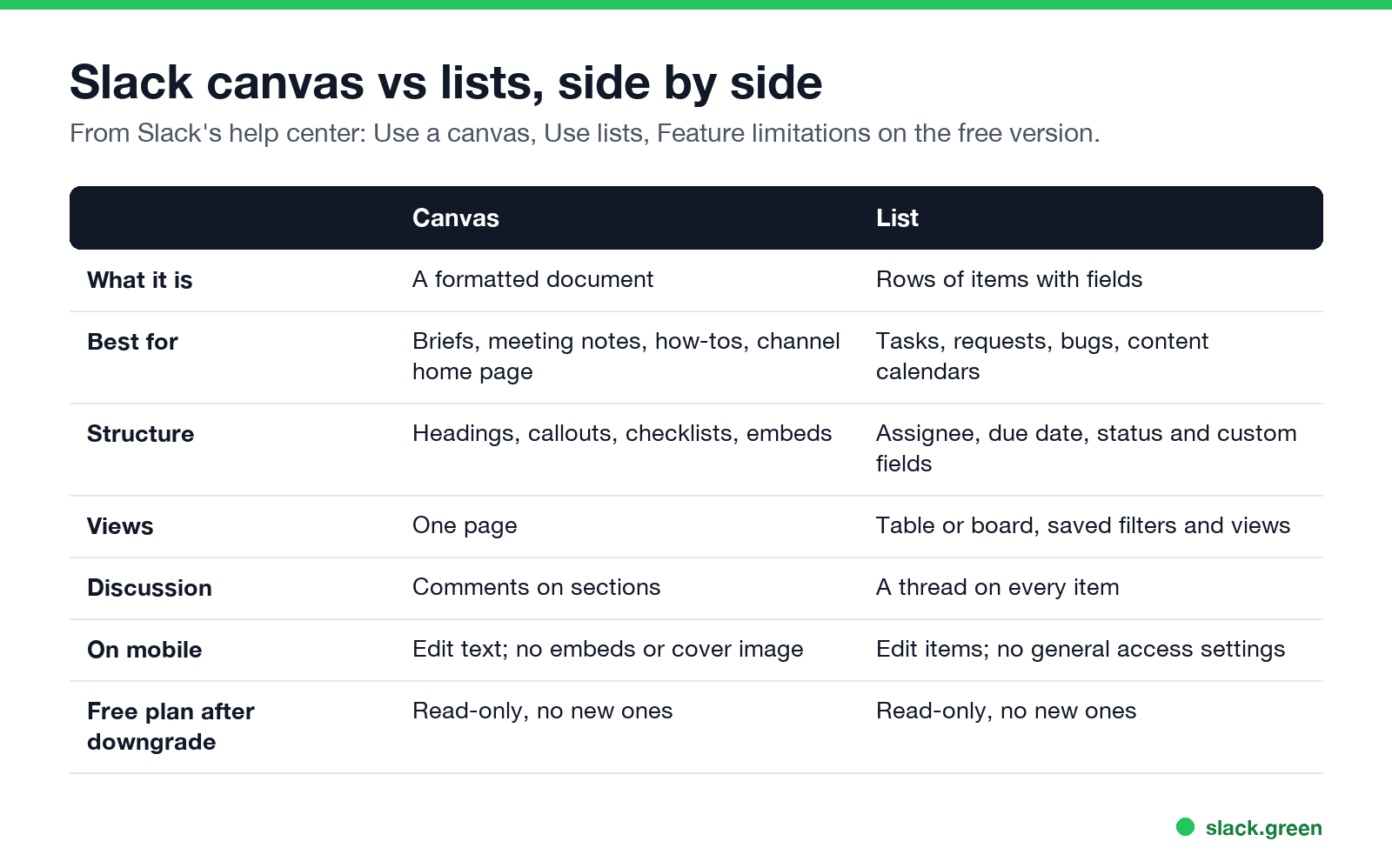
| Canvas | List | |
|---|---|---|
| What it is | A formatted document | Rows of items with fields |
| Best for | Briefs, meeting notes, how-tos, a channel home page | Tasks, requests, bugs, content calendars |
| Structure | Headings, callouts, checklists, embedded files and media | Assignee, due date, completion and custom fields; subtasks |
| Views | One page | Table or board layout, filters, saved views |
| Discussion | Comments | A thread on every item and subtask |
| Data in and out | Share like a file | Import a CSV, Download CSV |
| On mobile | Edit text; no embeds or cover image | Edit items; no general access settings |
| Free plan after a downgrade | Read-only, no new ones | Read-only, no new ones |
Everything in this table comes from Slack's help articles Use a canvas in Slack, Use lists in Slack and Feature limitations on the free version.
What a Slack canvas is used for
A canvas holds information that does not fit in a message and should not scroll away. Common uses:
- • A channel's home page. Add a canvas as a tab with the plus sign in the channel header. Right-click the tab and choose Show canvas by default, and it opens the first time someone visits and whenever it changes.
- • Meeting notes. Every huddle comes with its own canvas, and AI huddle notes land in one too; see how to record a Slack huddle.
- • Onboarding and how-tos, with headings, callouts and embedded clips.
- • Project briefs with goals, owners and links.
To create one, click Files in the sidebar, then the plus button, then Canvas. On mobile, search, tap Canvases, then Create a canvas.
What Slack lists are used for
لا تظهر أبداً كـ "غائب" على Slack
يعمل على السحابة. بدون تنزيلات. يعمل 24/7 حتى عندما يكون الكمبيوتر مغلقاً.
A list tracks things that have an owner and a state. Every new list starts with four fields: Completion, Name, Assignee and Due Date. You add more: priority, status, links, drop-downs. Then:
To create one, click Files, the plus button, then List, or pick a template under Lists, Templates, See all. A full walkthrough, from fields to board views and sharing, is in the Slack lists tutorial.
Slack lists vs canvas for project management
For a project, use a list as the tracker and a canvas as the brief. A canvas checklist is fine for five to-dos in a meeting note, but it has no assignee field, no due dates, and no board. Once work has owners and deadlines, move it to a list.
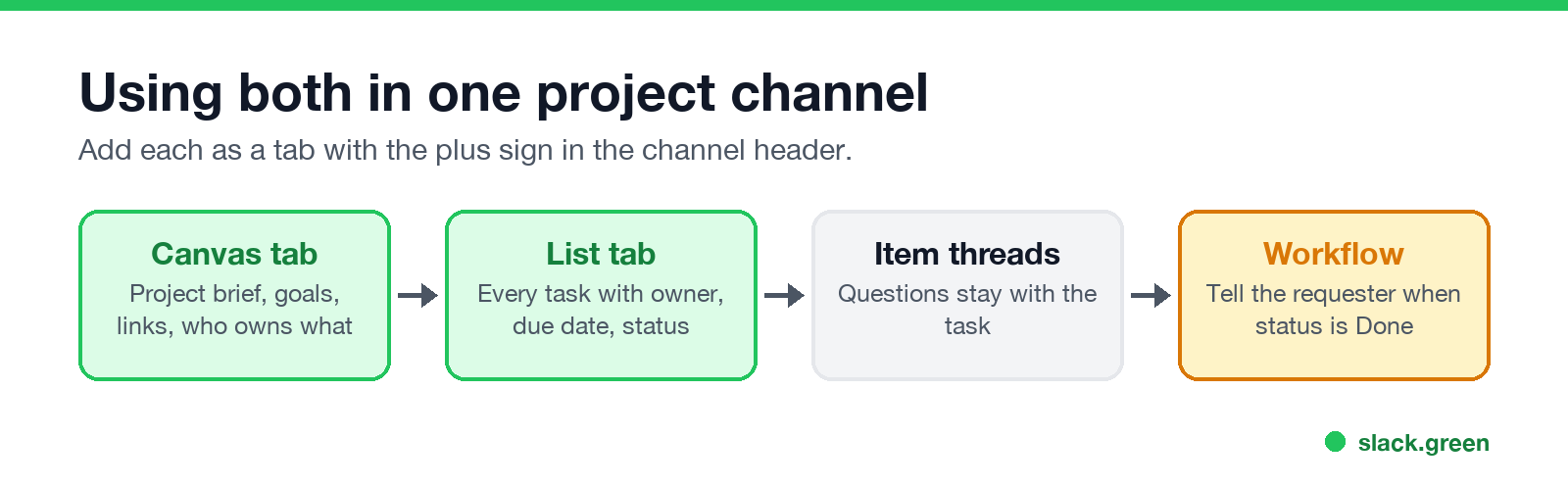
A setup that works:
Are Slack lists and canvases private?
Yes, until you share them. Slack's lists help page says lists "are only visible to people or channels you share them with directly." You can then open general access to Anyone in [organization] can view or can edit, on desktop. Canvases work the same way: a canvas you create in Files is yours until you share it, and a canvas you add to a channel follows the access you set when you share it. With general access on, people who find a list in search can view or edit it, depending on the setting.
Are Slack canvases and lists free?
لا تظهر أبداً كـ "غائب" على Slack
يعمل على السحابة. بدون تنزيلات. يعمل 24/7 حتى عندما يكون الكمبيوتر مغلقاً.
Not fully. Slack's free-version page says that when a workspace downgrades to free, canvases and lists become read-only and you cannot create new ones. If your team relies on either, plan for a paid plan.
Canvas and list templates
Slack ships templates for both. For lists, go to Files, Lists, Templates, See all, pick one and click Use Template. Lists are also part of Slack's channel templates, which set up a channel for a purpose such as managing a project. For canvases, Slack's website keeps a templates gallery, or you can copy a canvas you already like and edit it.
FAQ
What is the difference between a canvas and a list in Slack?
A canvas is a document to read. A list is a table of items to track, with owners, dates and a status.
Can a canvas contain a list?
A canvas can hold checklists and bulleted lists. A Slack list is a separate object; link it from the canvas or add both as tabs.
Can I export a Slack list?
Yes. Open the list, click the three dots, and choose Download CSV.
Who can see a Slack list?
Only people and channels you share it with, unless you open general access to your organization.
Can I use lists on my phone?
Yes, to view and edit items. Setting general access is desktop only.
توقف عن تحريك الماوس.
مئات العاملين عن بعد لم يعودوا قلقين بشأن حالة Slack. قم بالإعداد مرة واحدة، ابقَ أخضر للأبد.
Related Articles
Slack Lists Tutorial: Create, Organize and Share a List
Slack lists are tables of tasks inside Slack, with fields, assignees, due dates, a board view and a comment thread on every item. How to create a list from scratch or a template, set up fields, turn it into a kanban board, add messages to it, share it, and what the plan limits are.
Slack Jira Integration: Setup, /jira Commands and Notifications
Install the Jira Cloud for Slack app, type /jira connect in a channel to send a Jira space's updates there, /jira notify for personal notifications as DMs, and create work items from any message with More actions. Every /jira command, Jira automation to Slack, and fixes when previews or notifications stop.
How to Create a Slack Workspace, on Desktop or Phone
Go to slack.com/get-started, enter your email, type the confirmation code, and click Create a Workspace. It is free to start, you become the Primary Owner, and it takes about five minutes. Steps for desktop, iPhone and Android, and what to set up next.