
How to Schedule a Recurring Message in Slack: /remind and Workflows, Tested
Schedule send only sends once. /remind repeats on every plan, but it misread 'every month on the last Friday' in our test. Workflow templates were locked on Free.
Slack's own schedule send has no repeat option: a scheduled message goes out once. For a message that repeats, you have two built-in choices. A workflow with the Scheduled message template posts the same message every day or week, but on the Free plan Slack locks workflow templates. A channel reminder such as /remind #team "Post your weekly update" every Monday at 9am repeats on any plan, including Free.
We tested both in our own Free Slack workspace on 3 October 2026: the Workflows screen, and seven /remind schedules in a test channel, including one that Slack quietly got wrong.
Recurring messages with /remind (works on Free)
Type this in any message box, with the channel, the message in quotes, and the schedule:
/remind #team "Post your weekly update in this thread" every Monday at 9amSlackbot answered "I will remind #channel ... at 9AM every Monday" with Delete and View Reminders buttons, visible only to us. Slack also posted a notice that everyone in the channel can see: "set up a reminder ... in this channel at 9AM every Monday, Korea Standard Time." The time zone is the one of the person who set it up, so check it before you set a reminder for a team spread over several zones.

What Slack did with each schedule we typed:
| You type | What Slack set up |
|---|---|
| every Monday at 9am | Weekly, Monday 9:00 AM |
| every weekday at 9:20am | Monday to Friday, 9:20 AM |
| every other Friday at 3pm | Every other Friday, next occurrence shown |
| every 2 weeks on Tuesday at 4pm | Every other Tuesday, next occurrence shown |
| every month on the last Friday at 10am | Misread: one reminder on the next Friday, with "every month on the last" in the message text |
| every hour | Rejected: "Sorry, I didn't quite get that." |
The last-Friday case is the one to watch. Slack did not show an error. It accepted the command, saved a one-time reminder, and moved part of the schedule into the message. Read Slackbot's reply every time; if it does not say "every", the reminder will not repeat. Reminders repeat by day, week, month or year, never by the hour. Our earlier tests also found every month on the 15th accepted and every 15 minutes rejected; more patterns are in Slack /remind command examples, and the Slack /remind builder builds the command for you.
For a repeating note to yourself rather than to a channel, use /remind me with the same schedule words; our message yourself on Slack test shows which self-reminders raise a badge. To see or delete a channel reminder, type /remind list in that channel. Slackbot lists every reminder "In this channel", each with a Delete link. That is the only place we found to remove a channel reminder.
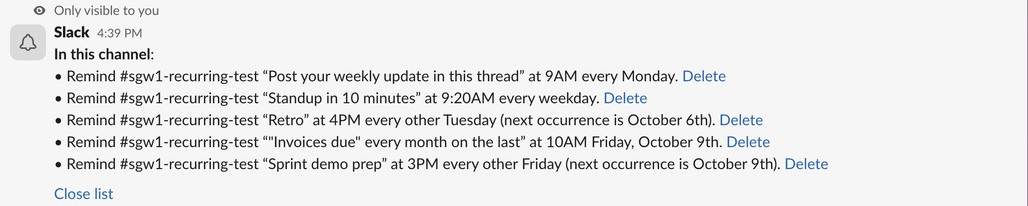
Slack's help center says the reminder posts in the channel from Slackbot, not under your name; we did not wait for one to fire. If the post has to come from you or from an app, use one of the options below.
Recurring messages with Workflow Builder (paid plans)
On our Free workspace, Agents & tools > Workflows showed New Workflow with a PRO label and the note "Free teams do not have access to workflow templates." The template for this job is called Scheduled message: "Schedule a recurring message to ask for status or project updates". Weekly check in is a variant that asks the team for updates each week. On Free, clicking either did nothing.
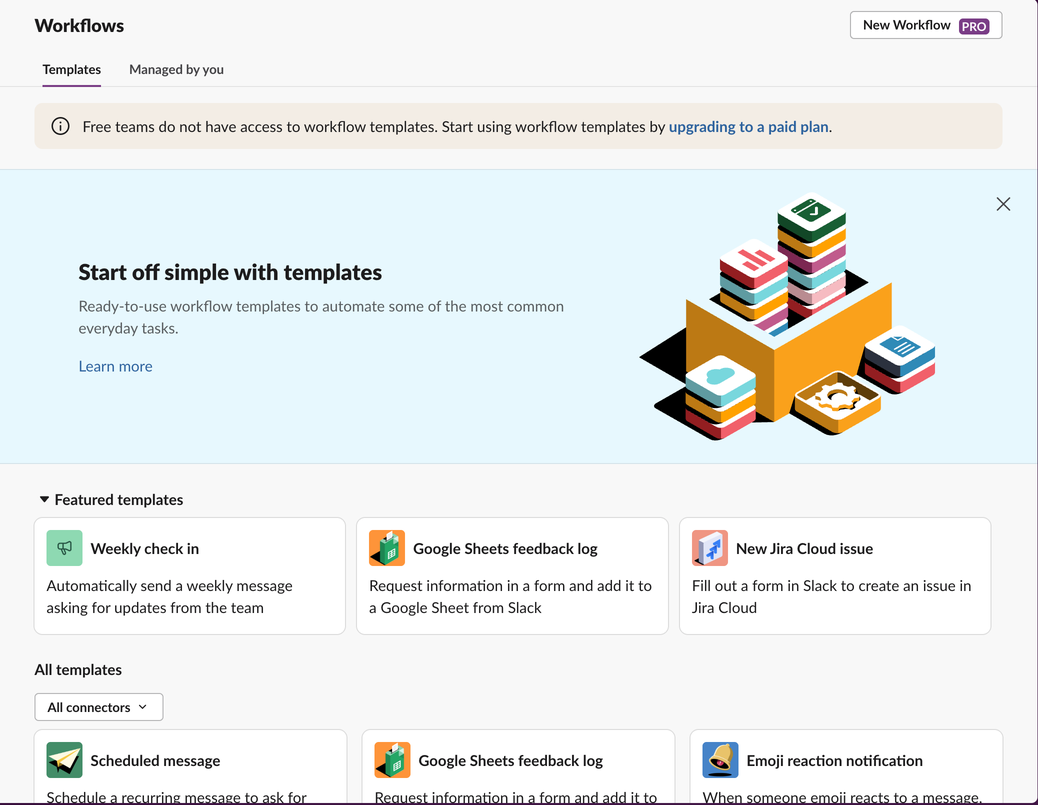
On Pro and above, Slack's help center describes the steps: open Workflows, pick the Scheduled message template, set the start date, time and frequency, choose the channel and write the message, then publish. The message posts from the workflow, and you pause or edit it later under Workflows. We could not run those steps on Free. Other workflow ideas are in Slack Workflow Builder examples.
Never appear "away" on Slack again
Cloud-based. No downloads. Works 24/7 even when your laptop is off.
Schedule send is one-time only
Next to the green Send button, the arrow opens the schedule menu: two suggested times and Custom time. Neither has a repeat setting. Scheduled messages wait under Drafts & sent, on the Scheduled tab, until they go out. Our test of that menu, with screenshots, is in how to delay and schedule Slack messages.
Every other week, last Friday and other custom schedules
/remind handles every other week. For the last Friday of the month, which /remind misread in our test, or for a message that must post as you or as an app, call Slack's chat.scheduleMessage API from a script on a schedule. It accepts a post time up to about 120 days ahead; the limits we measured and a Python example are in Slack chat.scheduleMessage.
| Method | Repeats | Posts as | Plan |
|---|---|---|---|
| Schedule send | No | You | Any |
/remind #channel | Day, week, month, year | Slackbot reminder | Any, including Free |
| Workflow, Scheduled message template | Daily, weekly and other options | The workflow | Paid (locked on our Free workspace) |
chat.scheduleMessage from a script | Whatever your script runs | Your app or your token | Any |
Frequently asked questions
Can I schedule a recurring message in Slack for free?
Yes, with a channel reminder: /remind #channel "message" every weekday at 9am. Workflow templates were locked on our Free workspace.
How do I edit a recurring channel reminder?
We found no edit option. Delete it from /remind list in the channel and create it again.
Do recurring reminders send if my computer is off? Yes. Slack sends them from its side at the set time; your computer and app do not need to be open.
Stop Jiggling Your Mouse.
Join hundreds of remote workers who never worry about their Slack status. Set it up once, stay green forever.
Related Articles
How to Edit a Slack Reminder (and Why Some Only Let You Delete)
One-time Slack reminders can only be moved to a new time from the To-dos tab, called Later until October 2026. Recurring and channel reminders cannot be edited at all: delete them from /remind list and set them again.
Slack Canvas vs Lists: Which One to Use, and What the Free Plan Allows
A Slack canvas is a document for briefs and notes; a Slack list tracks items with owners, due dates, board views and a thread per item. We tested the Free plan: one canvas per conversation works, standalone canvases and lists need Pro.
How to Record a Slack Huddle: AI Notes, Transcripts and Screen Recording
Slack has no record button for huddles. On paid plans, turn on AI notes to keep a summary and transcript in a canvas; Slack tells everyone. For audio and video, use a screen recorder such as Xbox Game Bar, Snipping Tool or OBS, and ask everyone first. Steps for Windows, Mac and mobile.