
How to Schedule a Recurring Message in Slack
Slack's schedule send only sends a message once. For a recurring message, use Workflow Builder's Send a scheduled message template and pick a frequency, or a channel reminder with /remind. How to set each up, see scheduled messages, and schedule on mobile.
Slack's built-in schedule send only sends a message once. To send the same message every day or every week, use Workflow Builder: open Agents & tools (or Tools) in the sidebar, go to Workflows, Templates, choose Send a scheduled message, set the start time and frequency, write the message, pick the channel, and publish. For a simple nudge, a channel reminder such as /remind #team "Post your update" every weekday at 9am also repeats. Messages you schedule yourself are listed under Drafts & sent, Scheduled.
A recurring message goes out whether you are at your desk or not. Your Slack dot does not: it turns grey 10 minutes after your last input in Slack. Slack Green keeps your dot on a schedule too, active during the working hours you set, from the cloud.
Ways to send a Slack message on a schedule
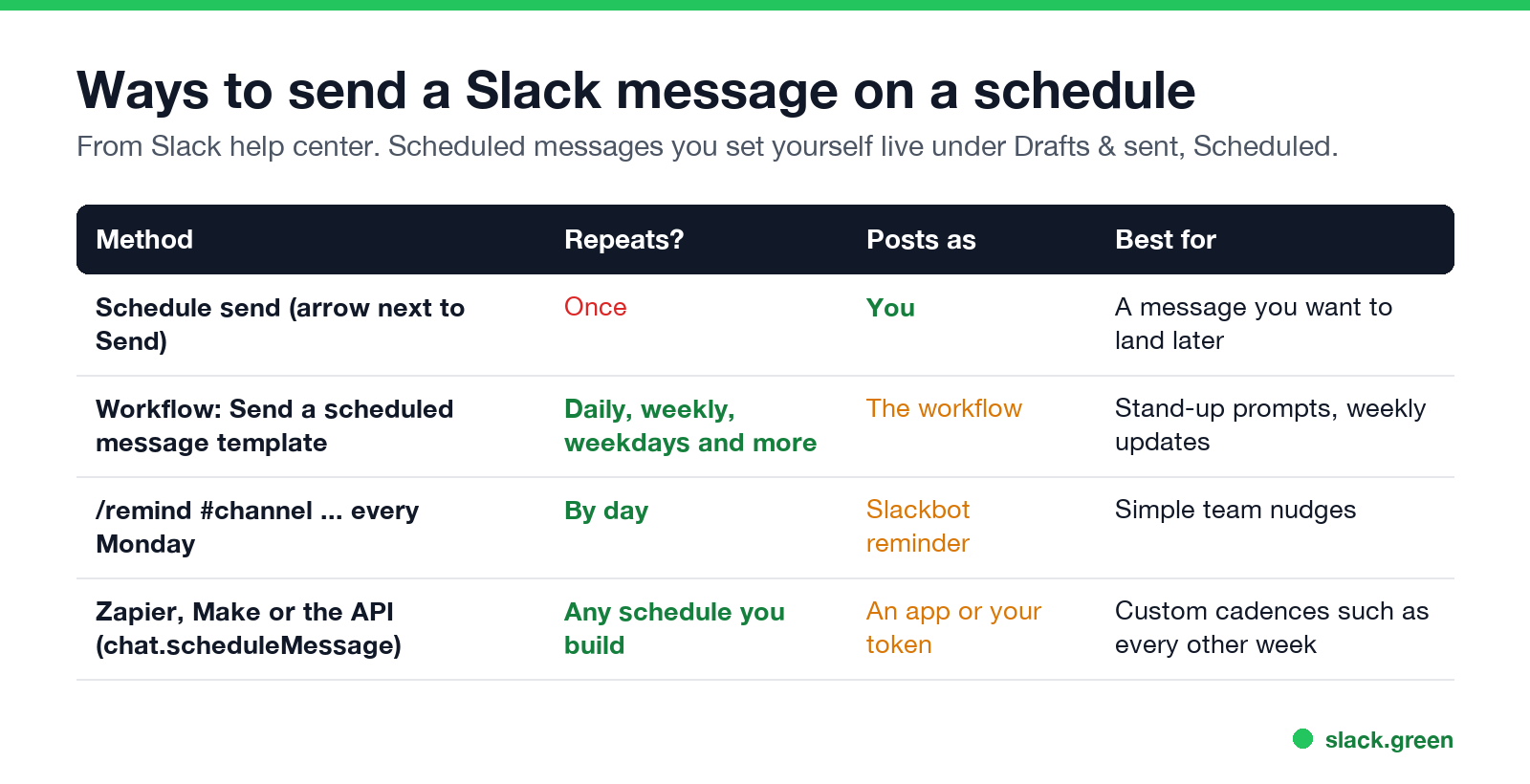
| Method | Repeats | Posts as | Best for |
|---|---|---|---|
| Schedule send | Once | You | A message that should land later |
| Workflow: Send a scheduled message | Daily, weekly, weekdays and more | The workflow | Stand-up prompts, weekly updates |
/remind #channel ... every Monday | By day | A Slackbot reminder | Simple team nudges |
| Zapier, Make, or the API | Any schedule you build | An app or your token | Custom cadences |
How to schedule a recurring message with Workflow Builder
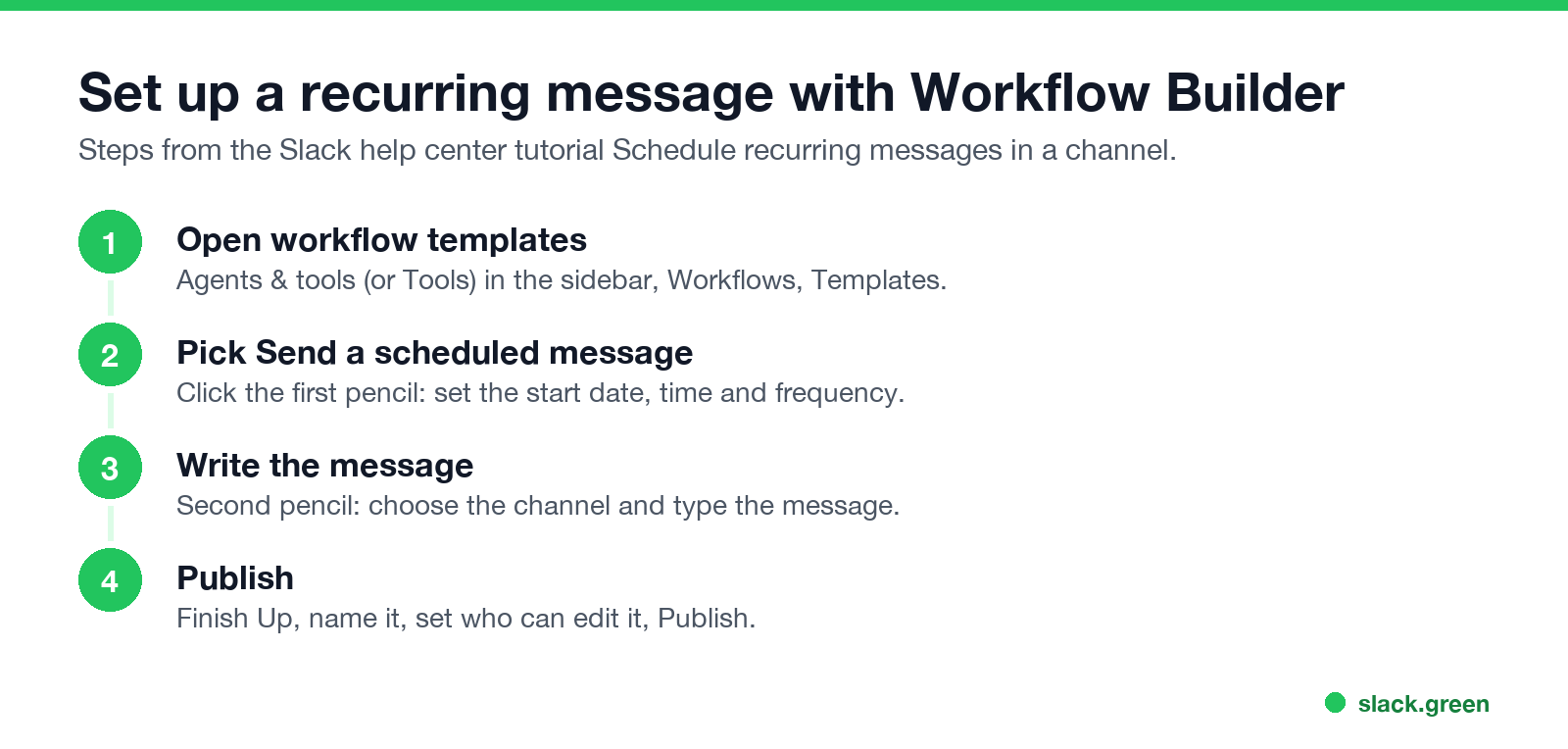
This is Slack's own recommended way, from its help center tutorial "Schedule recurring messages in a channel":
- On desktop, click Agents & tools in the sidebar (older versions show Tools).
- From Workflows, select Templates, then Send a scheduled message.
- Click the first pencil icon. Set the date and time to start and choose a frequency, then Save.
- Click the second pencil icon. Pick the channel and write the message, then Save.
- Click Finish Up, name the workflow, add managers if you like, and click Publish.
The message posts from the workflow, not from your account. Edit or pause it later from Workflows. If you do not see Workflow Builder, your plan or your admin may not allow it. Standups, approvals, welcome messages and other workflows beyond a scheduled post are in Slack Workflow Builder examples.
How to schedule a message every day with /remind
Slack पर फिर कभी "away" न दिखें
क्लाउड-आधारित। कोई डाउनलोड नहीं। लैपटॉप बंद होने पर भी 24/7 काम करता है।
For a short, repeating nudge, a channel reminder is quicker:
/remind #team "Standup in 10 minutes, post blockers in the thread" every weekday at 9:20am
/remind #marketing "Weekly metrics are due" every Friday at 3pm
Reminders repeat by the day, not by the hour, and channel reminders cannot be edited, only deleted with /remind list. More examples in Slack /remind command examples.
How to schedule a single message
On mobile, tap and hold the send button to schedule. Full steps and time-zone tips are in how to delay and schedule Slack messages.
How to see scheduled messages in Slack
Recurring workflow messages are not in this list. Find them under Workflows.
Every other week and other custom schedules
Slack पर फिर कभी "away" न दिखें
क्लाउड-आधारित। कोई डाउनलोड नहीं। लैपटॉप बंद होने पर भी 24/7 काम करता है।
The workflow's frequency list covers common repeats. For a cadence it does not offer, such as every other week or the last Friday of the month, use an automation tool (Zapier, Make, n8n) to trigger the workflow or post the message, or call Slack's chat.scheduleMessage API method from a script. Our Slack presence API guide shows how to call Slack's Web API from Python with slack_sdk; chat.scheduleMessage works the same way.
FAQ
Can you schedule recurring messages in Slack?
Yes, with Workflow Builder's Send a scheduled message template. Schedule send by itself sends only once.
How do I schedule a Slack message every day?
Create a workflow from Send a scheduled message and set the frequency to daily or weekdays. For a short nudge, use /remind #channel "..." every weekday at 9am.
Where are my scheduled messages in Slack?
Under Drafts & sent, in the Scheduled tab, on desktop and mobile.
Can I schedule a message on Slack mobile?
Yes. Tap and hold the send button, then choose a time.
Do scheduled messages send if my computer is off?
Yes. Slack's servers send them at the time you picked. See Slack offline mode for what else works without a connection.
माउस हिलाना बंद करें।
सैकड़ों रिमोट वर्कर्स अब Slack स्टेटस की चिंता नहीं करते। एक बार सेटअप करें, हमेशा के लिए हरे रहें।
Related Articles
Slack Jira Integration: Setup, /jira Commands and Notifications
Install the Jira Cloud for Slack app, type /jira connect in a channel to send a Jira space's updates there, /jira notify for personal notifications as DMs, and create work items from any message with More actions. Every /jira command, Jira automation to Slack, and fixes when previews or notifications stop.
How to Create a Slack Workspace, on Desktop or Phone
Go to slack.com/get-started, enter your email, type the confirmation code, and click Create a Workspace. It is free to start, you become the Primary Owner, and it takes about five minutes. Steps for desktop, iPhone and Android, and what to set up next.
Slack Sidebar Sections: Create, Sort, Share and Fix Them
Slack sidebar sections are custom groups of channels, DMs and apps in your sidebar. Only you see them, and they need a paid plan. How to create one on desktop and mobile, move many channels at once, sort and filter each section, share a section with your team, and get disappeared sections back.