
How to Keep Your Outlook Status Green (It Comes From Teams)
Your Outlook status shows your Microsoft Teams presence, so to keep Outlook green you keep Teams Available: Teams signed in and running, input on the computer, no lock or sleep, and no leftover status. What sets you Away, and what you can change.
Your status dot in Outlook is your Microsoft Teams presence, shown in Outlook. Outlook does not decide it; Teams does, and Microsoft 365 shares one status across its apps. So to keep Outlook green, keep Teams Available: Teams signed in and running, keyboard or mouse input on the computer in any app, the computer unlocked and awake, and no status you set by hand, such as Appear away, left on. Teams sets you to Away after a few minutes without input or when you lock the computer, and Offline when the computer sleeps. There is no setting that pins the status to Available.
If your team uses Slack too, its presence works differently, counting only input inside Slack. Slack Green keeps the Slack dot green during your working hours, from the cloud.
Where your Outlook status comes from
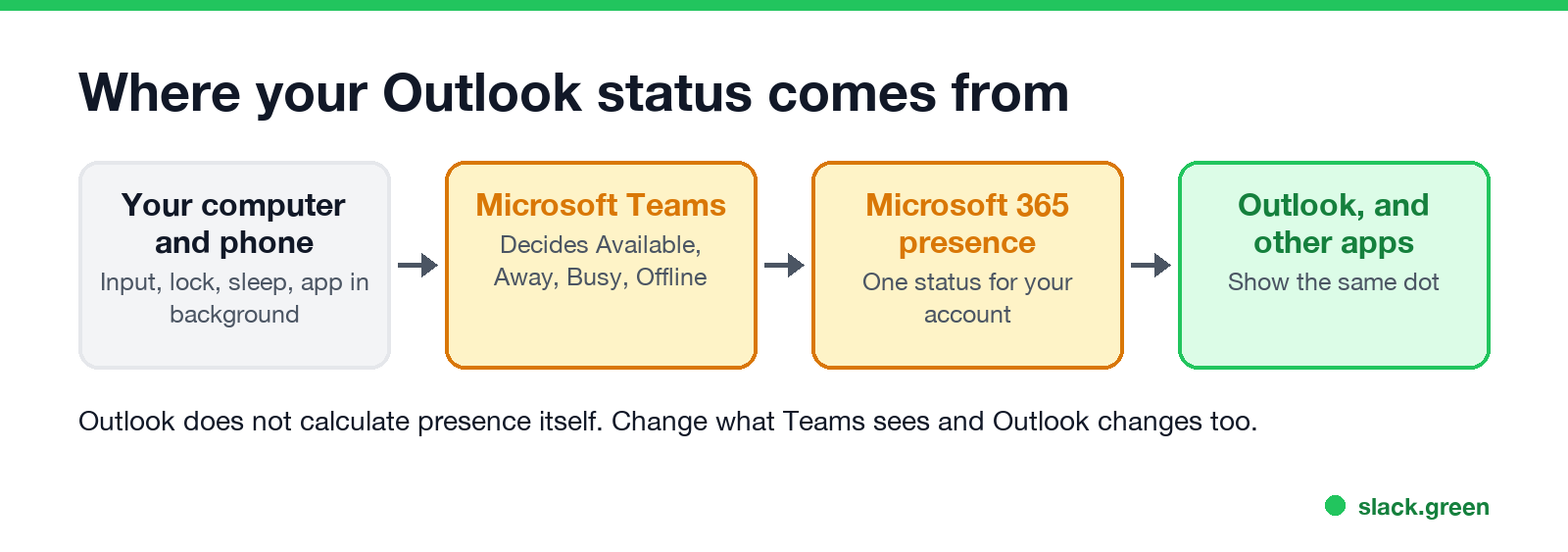
Microsoft Learn describes presence as part of your profile throughout Microsoft 365. Teams calculates it from your activity, what you are doing in Teams, and your Outlook calendar. Outlook shows the result. If Teams is not running or you are signed out of it, other apps show you as Offline or Away.
How to keep your Outlook status green
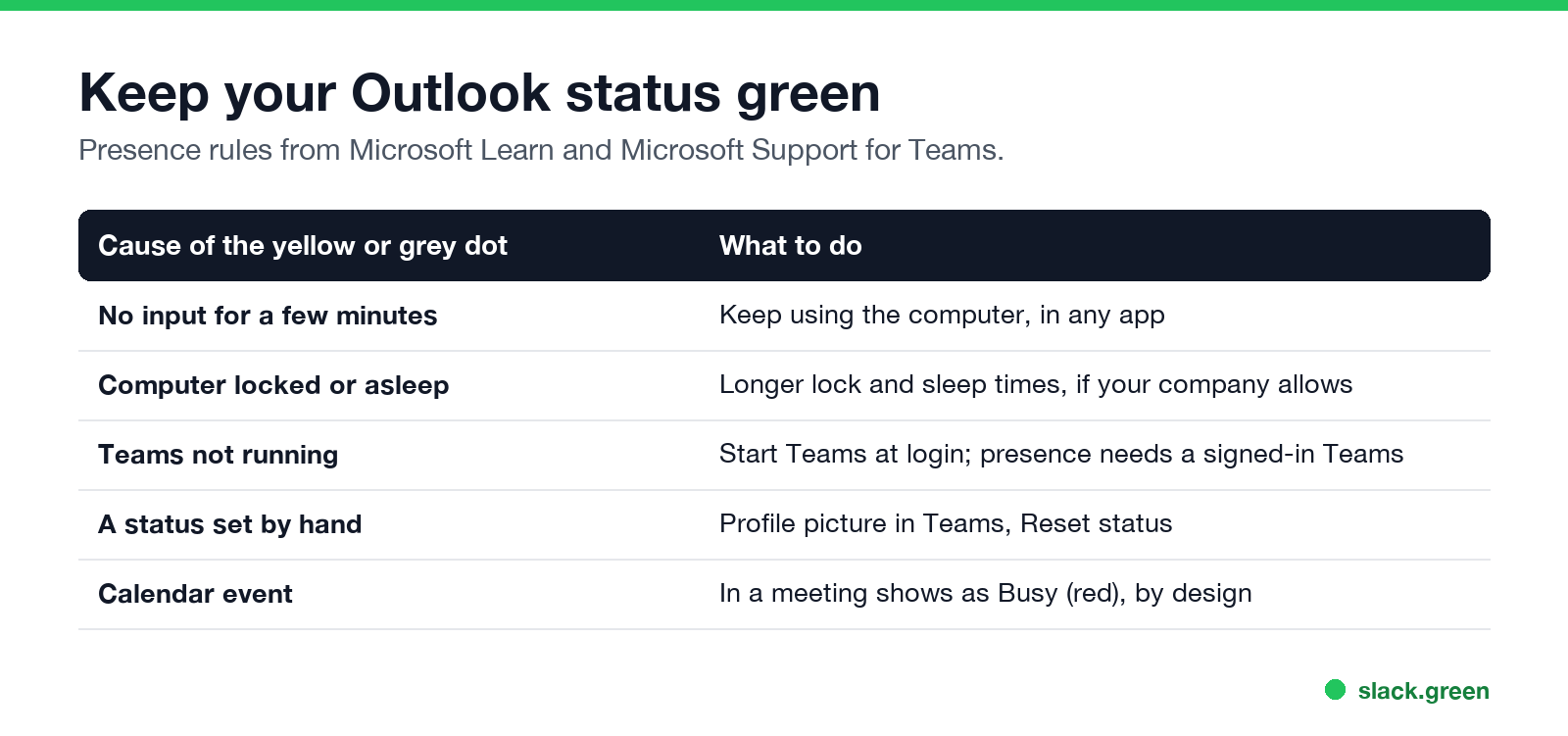
| Cause | What to do |
|---|---|
| No input for a few minutes | Keep using the computer, in any app |
| Computer locked or asleep | Longer lock and sleep times, if allowed |
| Teams not running | Start Teams at login |
| A status set by hand | In Teams, reset your status |
| Calendar event | In a meeting shows as Busy, by design |
- Start Teams and stay signed in. Set Teams to start with Windows or macOS.
- Reset your status. In Teams, select your profile picture, your status, and Reset status.
- Lengthen lock and sleep times in your system settings, if your company allows. Methods without admin rights are in keep a work computer awake without admin rights.
- Keep working on the computer. Any keyboard or mouse input keeps Teams, and Outlook, Available.
The Teams-specific details are in how to keep Teams status available and how long before Teams shows you as Away.
How to appear online on Outlook
Nie wieder "abwesend" auf Slack erscheinen
Cloud-basiert. Keine Downloads. Funktioniert 24/7 auch wenn Ihr Laptop aus ist.
Appear online the same way you appear Available in Teams: be signed in to Teams and active on the computer. You cannot set Available in Outlook separately. You can set a status with a duration in Teams, for example Busy until 5 pm, but Microsoft notes that a more available status does not override a less available one such as Away.
Outlook status away when idle
Away after a few minutes without input is Teams' idle rule, not an Outlook setting. Microsoft's support page suggests changing your device's sleep or idle settings so it takes longer before your status switches to Away. If you are active and still show Away, see Teams status stuck on Away.
What each Outlook status colour means
Green is Available, red Busy or Do not disturb, yellow Away, grey Offline, and purple Out of office. Details in Microsoft Teams status icons meaning.
FAQ
Nie wieder "abwesend" auf Slack erscheinen
Cloud-basiert. Keine Downloads. Funktioniert 24/7 auch wenn Ihr Laptop aus ist.
Why is my Outlook status yellow?
Teams set you to Away: no input for a few minutes, a locked computer, or Teams in the background on your phone.
Can I set my Outlook status to always Available?
No. Teams replaces Available with Away when you are idle or locked.
Why is my Outlook status offline?
Teams is not running or signed in, or the computer is asleep.
Does Outlook show Out of office automatically?
Yes, when you turn on automatic replies or have an out-of-office calendar event.
Does my Outlook status affect Slack?
No. Slack has its own presence; see how long does Slack stay active.
Hör auf, die Maus zu Bewegen.
Hunderte Remote-Arbeiter sorgen sich nicht mehr um ihren Slack-Status. Einmal einrichten, für immer grün bleiben.
Related Articles
How to Connect Slack and Microsoft Teams: Calls, Messages and Status
Slack and Teams do not connect natively for chat. You can start Teams calls from Slack with the free Microsoft Teams Calls app, relay messages with a paid bridge such as Mio, and sync your Teams status to Slack with a short script. Every option, what it costs, and the setup steps.
Slack vs Teams: Prices, Limits, Calls and Which to Pick
Teams is cheaper if your company already pays for Microsoft 365. Slack is better when most work happens in chat, threads and apps. Prices, free plan limits, calls, apps and how each app decides you are away, side by side.
Microsoft Teams Status Icons Meaning: Every Colour and Symbol
In Microsoft Teams, a green check means Available, red means Busy, In a meeting or In a call, red with a white bar means Do not disturb or Presenting, a yellow clock means Away or Be right back, a grey circle with an x means Offline, and a purple arrow means Out of office. Which ones Teams sets for you, and which wins.