
Slack Status Etiquette: What to Set, When to Clear It, and What Grey Means
Good Slack status etiquette is short: set a status when people cannot reach you the usual way, say when you will be back or who to ask, and set Clear after so it never goes stale. A grey dot on its own needs no explanation. What to set for meetings, focus, lunch, sick days and holidays, the do's and don'ts, and how a team can agree norms.
Good Slack status etiquette comes down to three habits. Set a status when coworkers cannot reach you the usual way: a meeting, focus time, lunch, a sick day, a holiday. Say when you will be back, or who to ask instead. And set Clear after every time, so the status disappears on its own and never goes stale. You do not need a status to explain a grey dot. Slack turns everyone grey after 10 minutes without input in the Slack window, and most teams treat that as normal.
Slack has two things called status. The custom status is the emoji and up to 100 characters of text you set. The dot is presence, which Slack sets from your activity. Etiquette is mostly about the first. The dot is where teams get into trouble, because people read a grey dot as "not working". If your team does read it that way, Slack Green keeps your dot green during the working hours you set, from the cloud. The two are explained in Slack status.
What should my Slack status be?
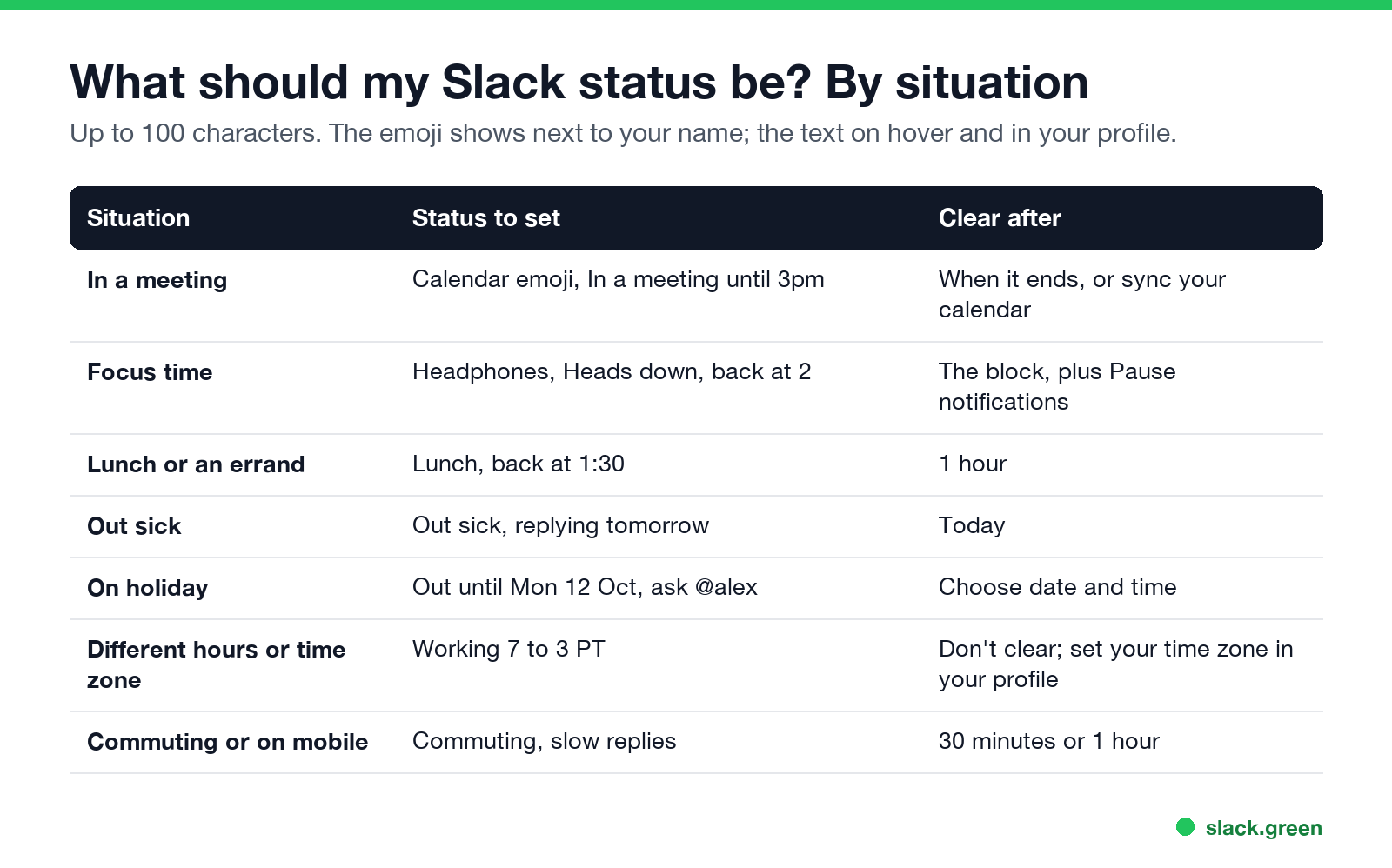
| Situation | Status to set | Clear after |
|---|---|---|
| In a meeting | 📆 In a meeting until 3pm | When it ends, or let your calendar set it |
| Focus time | 🎧 Heads down, back at 2 | The block, and pause notifications |
| Lunch or an errand | 🥪 Lunch, back at 1:30 | 1 hour |
| Out sick | 🤒 Out sick, replying tomorrow | Today |
| On holiday | 🌴 Out until Mon 12 Oct, ask @alex | Choose date and time |
| Different hours or time zone | 🕖 Working 7 to 3 PT | Don't clear |
| Commuting or on your phone | 🚌 Commuting, slow replies | 30 minutes or 1 hour |
Each status answers the question a coworker has when they look at your name: can I expect a reply, and when? "Back at 2" answers it. "Busy" does not.
For ready-made lines, see Slack status examples; for sick days, Slack status for sick days; for lighter ones, funny Slack status ideas.
Slack status do's and don'ts
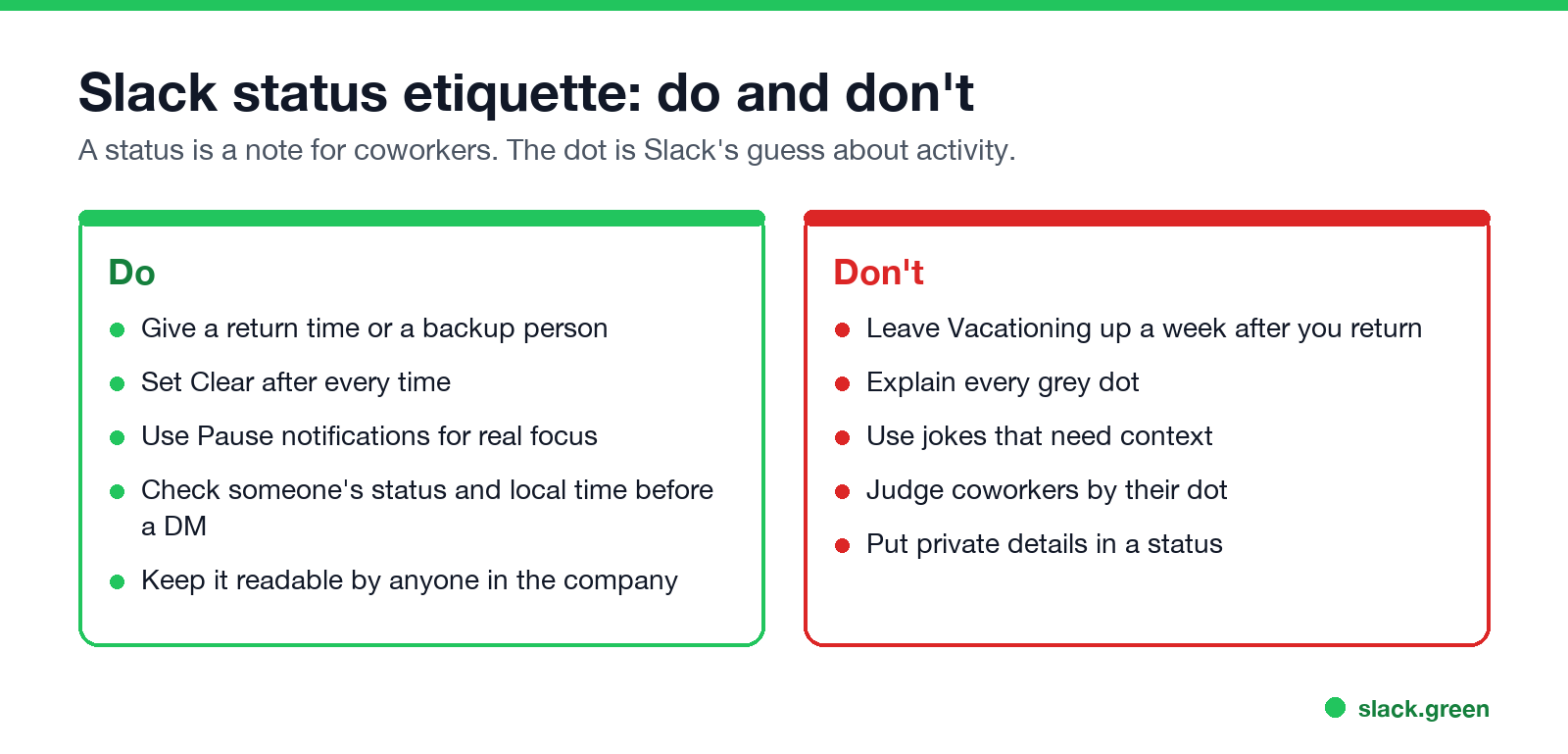
Do:
- • Give a return time or a backup person. "Out until Monday, ask @alex for billing" saves a DM.
- • Set Clear after every time. Slack offers 30 minutes, 1 hour, 4 hours, Today, This week, or a date and time. How each option behaves is in Slack status clear after.
- • Use Pause notifications for real focus, and say so in the status. Paused notifications show a small z on your dot.
- • Check someone's status and local time before you DM them. Slack shows local time on their profile.
- • Write statuses that anyone in the company can read, including people outside your team.
- • Leave "🌴 Vacationing" up a week after you return. A stale status makes people doubt every status you set later.
- • Explain every grey dot. Stepping away is part of a work day.
- • Use in-jokes that need context, or statuses that read as passive-aggressive ("🙃 in yet another meeting").
- • Judge coworkers by their dot. It shows Slack activity, not work. Someone writing a document in another app turns grey after 10 minutes.
- • Put private details in a status. Your whole workspace can see it, and so can people in shared channels from other companies.
Don't:
Slack away etiquette
Never appear "away" on Slack again
Cloud-based. No downloads. Works 24/7 even when your laptop is off.
The grey dot causes more worry than the custom status. The facts:
If your manager does read the dot, that is a team norm problem first. Raise it, and agree what grey means. If it stays a rule, use a tool that keeps the dot green during your working hours rather than sitting at the keyboard; the options, from settings to Slack Green, are in how to keep Slack active.
Slack status for remote work and time zones
Remote teams depend on statuses more, because nobody can see you at your desk.
Agree Slack status norms as a team
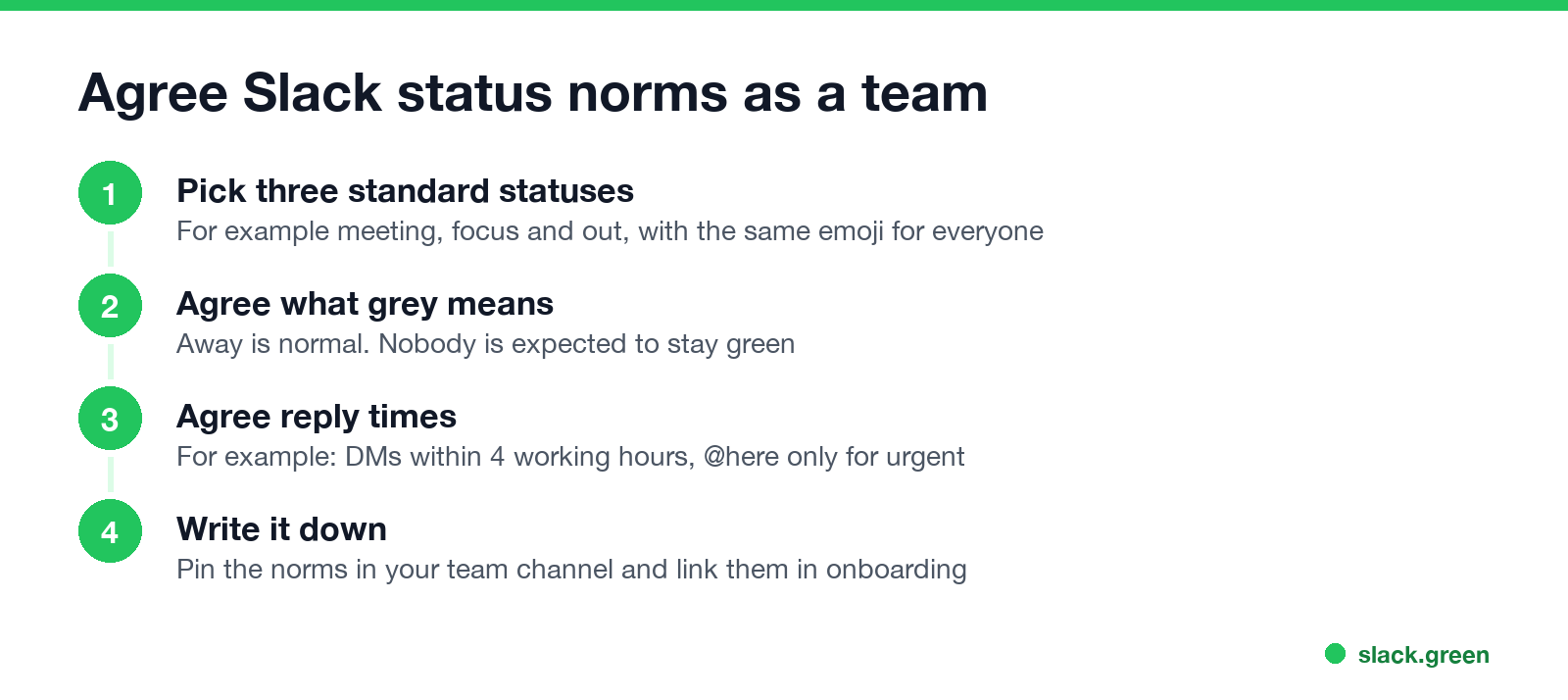
Most status friction comes from unspoken rules. Fifteen minutes in a team meeting fixes it:
Quick answers
Never appear "away" on Slack again
Cloud-based. No downloads. Works 24/7 even when your laptop is off.
Is it rude to not set a Slack status? No. A status helps when you are unreachable for longer than a coffee. Day to day, most people have none.
Should I set a status for lunch? For a normal lunch, no; the grey dot says enough. For a long one, or if your team expects quick replies, set "Lunch, back at 1:30" with Clear after 1 hour.
How long should a Slack status be? One short line with a time or a name. Slack allows 100 characters, and the emoji is what most people see.
What is a professional Slack status? One that says where you are and when you are back, with a plain emoji: "📆 In a meeting until 3pm", "🎧 Heads down, back at 2".
Stop Jiggling Your Mouse.
Join hundreds of remote workers who never worry about their Slack status. Set it up once, stay green forever.
Related Articles
Can My Employer See My Browsing If I Use a VPN? It Depends Whose
A personal VPN hides the sites you visit from the office network, but not from monitoring software, a managed browser or IT on a work laptop. The company VPN shows your employer every site it carries. What each setup hides.
Teams Status on Multiple Devices: The Last Device You Used Wins
Signed in to Teams on a computer and a phone? Your status comes from the device you used most recently. That is why a quick look at your phone can turn you Away, and why a phone in your pocket shows Away instead of Offline at night.
Zoom Do Not Disturb: How to Turn It On, Schedule It, and What It Blocks
To turn on Do not disturb in Zoom, click your profile picture, point at your status and choose Do not disturb, then a time from 20 minutes to 24 hours, or Custom for a daily schedule. It blocks pop-up notifications for Zoom Team Chat and Zoom Phone calls. Busy, by contrast, mutes nothing. How the two differ, and how to keep a Zoom meeting free of pop-ups.