
Slack Do Not Disturb: How to Pause, Schedule, and Override It
Slack Do Not Disturb pauses every notification until you resume them. How to turn it on and off on desktop and mobile, set quiet hours, use /dnd, and who can still reach you.
Slack Do Not Disturb (Slack now calls it "pause notifications") stops every Slack notification on your desktop and phone until the time you pick, then turns them back on. To turn it on, click your profile picture in the sidebar, hover over Notifications, and choose how long. Or type /dnd until 5pm in any message box. Messages still arrive while it is on. You only stop getting the banners, sounds, and push alerts.
Two things surprise people. First, teammates can see it: a small snooze icon (a Z) appears next to your name. Second, it does not change your presence. Your dot stays green if you are active and goes grey if you are idle, the same as without Do Not Disturb.
That split matters if you want quiet focus time and still want to look available. Do Not Disturb handles the quiet part. Slack Green handles the other part: it is a cloud service that keeps your Slack presence active on the working-hours schedule you set, with nothing installed on your computer. The two work side by side, and this guide shows how.
What Slack Do Not Disturb does and does not do
Slack's help center describes paused notifications in three sentences, and each one matters:
- • You get no notifications. No desktop banners, no sounds, no mobile push alerts. Messages still arrive, and you can read them when you resume.
- • Other people see a snooze icon next to your name. This is the Z that people search for. The full meaning of every icon combination is in our guide to the Slack green dot with a Z.
- • A sender can override it. When someone sends you a direct message, they can choose to notify you about an urgent message, once per day.
- • It does not hide you or make you look offline. For that, use Away. We cover the steps in can you appear offline on Slack.
- • It does not block or delay messages. People can still DM you and @mention you.
- • It does not stop the idle timer. Slack counts only input inside its own window. On desktop you go away after 10 minutes without input in the Slack window, with or without Do Not Disturb. The details are in how Slack decides when you're away.
- Click your profile picture in the sidebar.
- Hover over Notifications.
- Choose a time frame from the menu, or select Custom to set your own end time.
- Tap your profile picture at the top of the screen.
- Tap Pause notifications.
- Select a time frame from the list, or tap Custom.
What it does not do:
How to turn on Do Not Disturb in Slack
On desktop (Mac, Windows, Linux, or the browser):
On mobile (iPhone or Android):
From your status: when you set a custom status, check the box next to Pause notifications. Your notifications then stay paused until the status clears. This works well for "Lunch" or "In a workshop", where the status and the quiet period should end together.
How to turn off Do Not Disturb
Ne jamais plus apparaître "absent" sur Slack
Basé sur le cloud. Sans téléchargement. Fonctionne 24/7 même avec votre PC éteint.
On desktop, click your profile picture, hover over Notifications, and select Resume notifications. On mobile, tap your profile picture, tap Pause notifications, then tap Resume notifications or choose a new time frame. The fastest way on any device is to type /dnd off.
If Do Not Disturb keeps coming back at the same time every day, you did not leave it on. A notification schedule turns it on for you. The six things that pause notifications on their own are in why Slack pauses my notifications. The next section shows where that setting is.
Slack /dnd commands
Slack has a slash command for Do Not Disturb. Type it in any message box and press Enter. These examples come from Slack's help center:
| What you want | Type this |
|---|---|
| Pause for a set amount of time | /dnd for 15 mins or /dnd 15 minutes |
| Pause until a clock time | /dnd until 17:00 or /dnd until 5pm |
| Pause until a time of day | /dnd until tonight or /dnd until tomorrow morning |
| Resume notifications | /dnd off |
A /dnd until tomorrow morning that you forgot about is a common reason for a Z you did not expect the next day.
How to set a Slack Do Not Disturb schedule
For the hours you are always offline, such as evenings and weekends, set a notification schedule once instead of pausing by hand every day. With a schedule in place, Slack only sends notifications on the days and hours you allow. Outside those hours, notifications pause on their own and the Z appears.
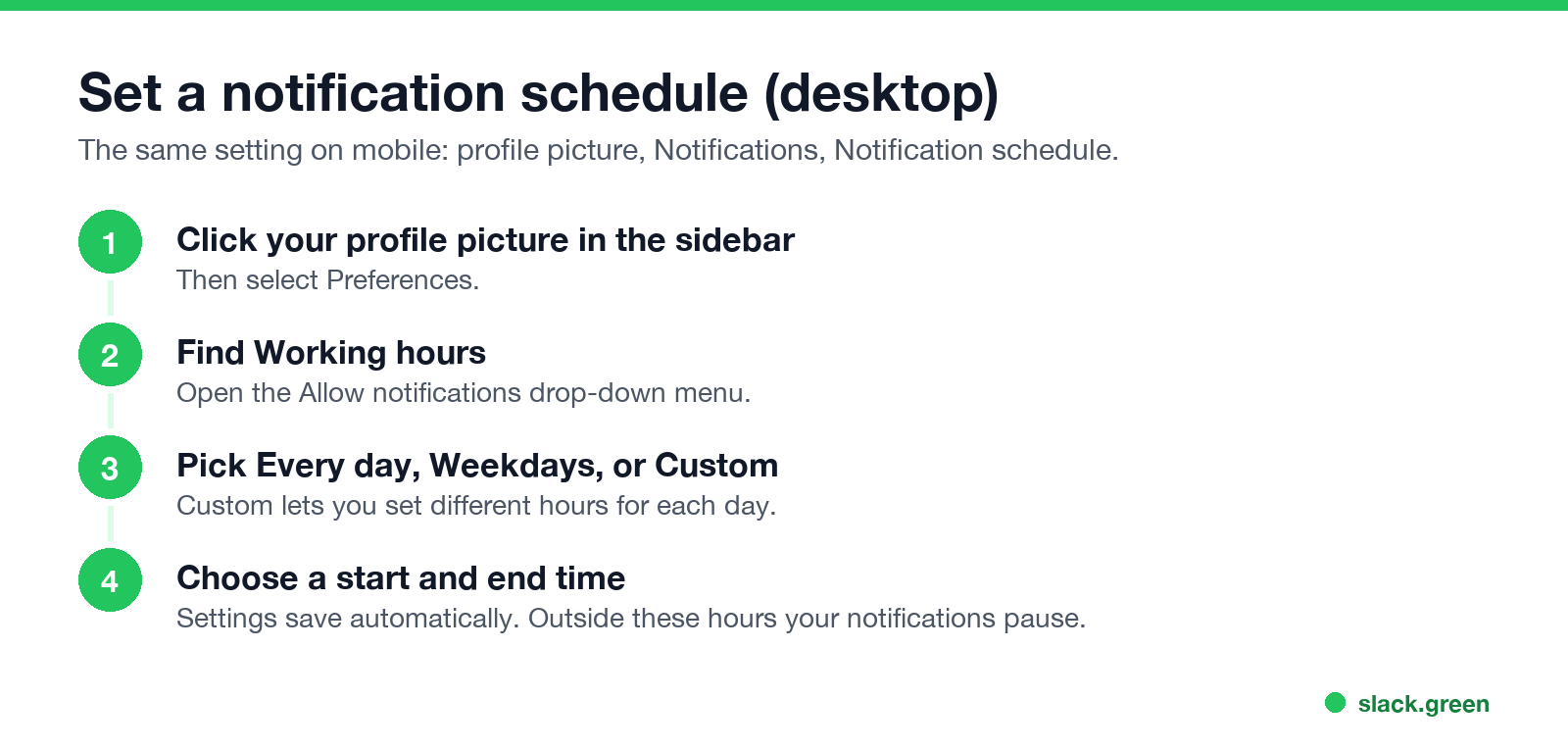
On desktop:
On mobile: tap your profile picture, tap Notifications, then below Notification schedule tap Allow notifications and pick the same options. With Custom, tap any day to give it its own start and end time.
A notification schedule is one of three things you can schedule in Slack. The other two are your status text and, with an outside tool, your green dot. Our guide on how to schedule a Slack status compares all three.
Default Do Not Disturb hours set by an admin
Workspace owners and admins can set default Do Not Disturb hours for everyone. On Free, Pro, and Business+ plans the path is Admin in the sidebar, then Workspace settings, Settings, and Expand next to Do Not Disturb. On Enterprise plans, org owners can add an org policy instead. Two rules apply to members:
If you never set a schedule and still see a Z every evening, your admin probably set a default.
Who can reach you during Do Not Disturb
Ne jamais plus apparaître "absent" sur Slack
Basé sur le cloud. Sans téléchargement. Fonctionne 24/7 même avec votre PC éteint.
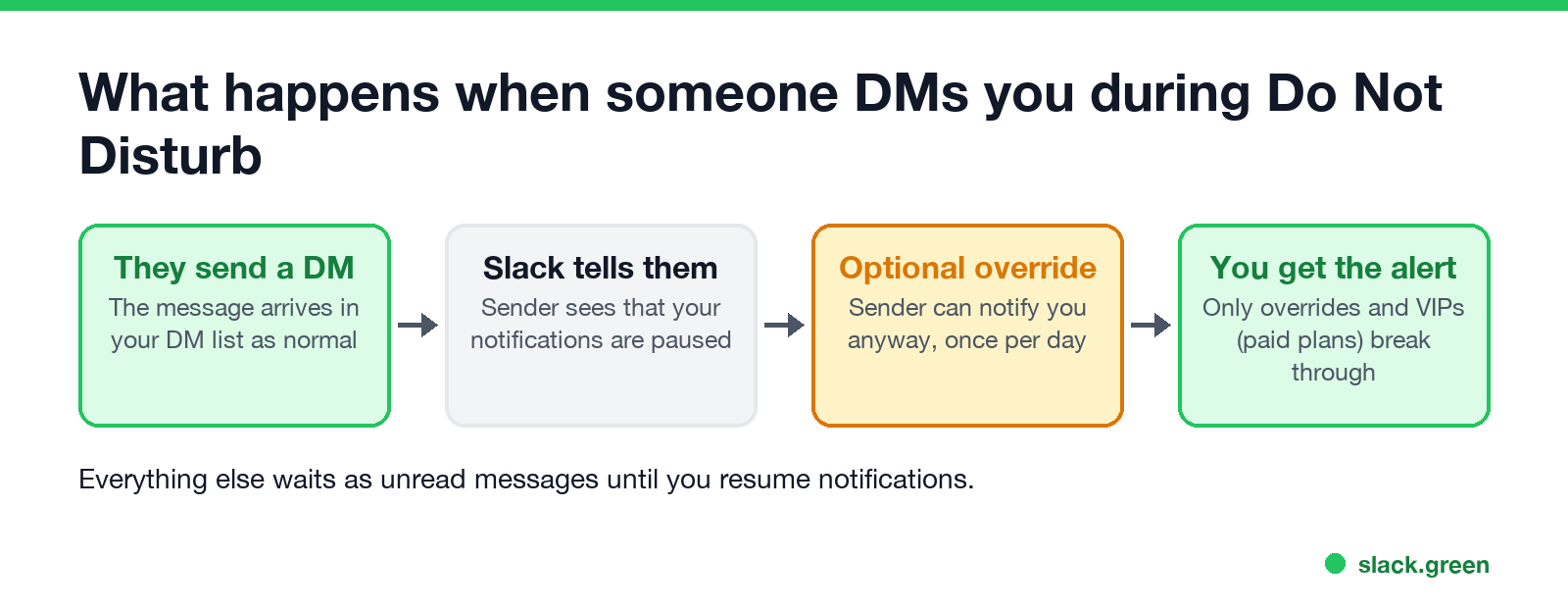
Do Not Disturb has two ways through, and both are on purpose:
Everything else waits until you resume. Nothing is lost. The messages sit in your unreads when you come back.
If you want notifications on but they still do not arrive, that is a different problem. Check that your notification schedule and a leftover /dnd are not the cause first, then work through why Slack notifications are not working.
Do Not Disturb vs away vs custom status
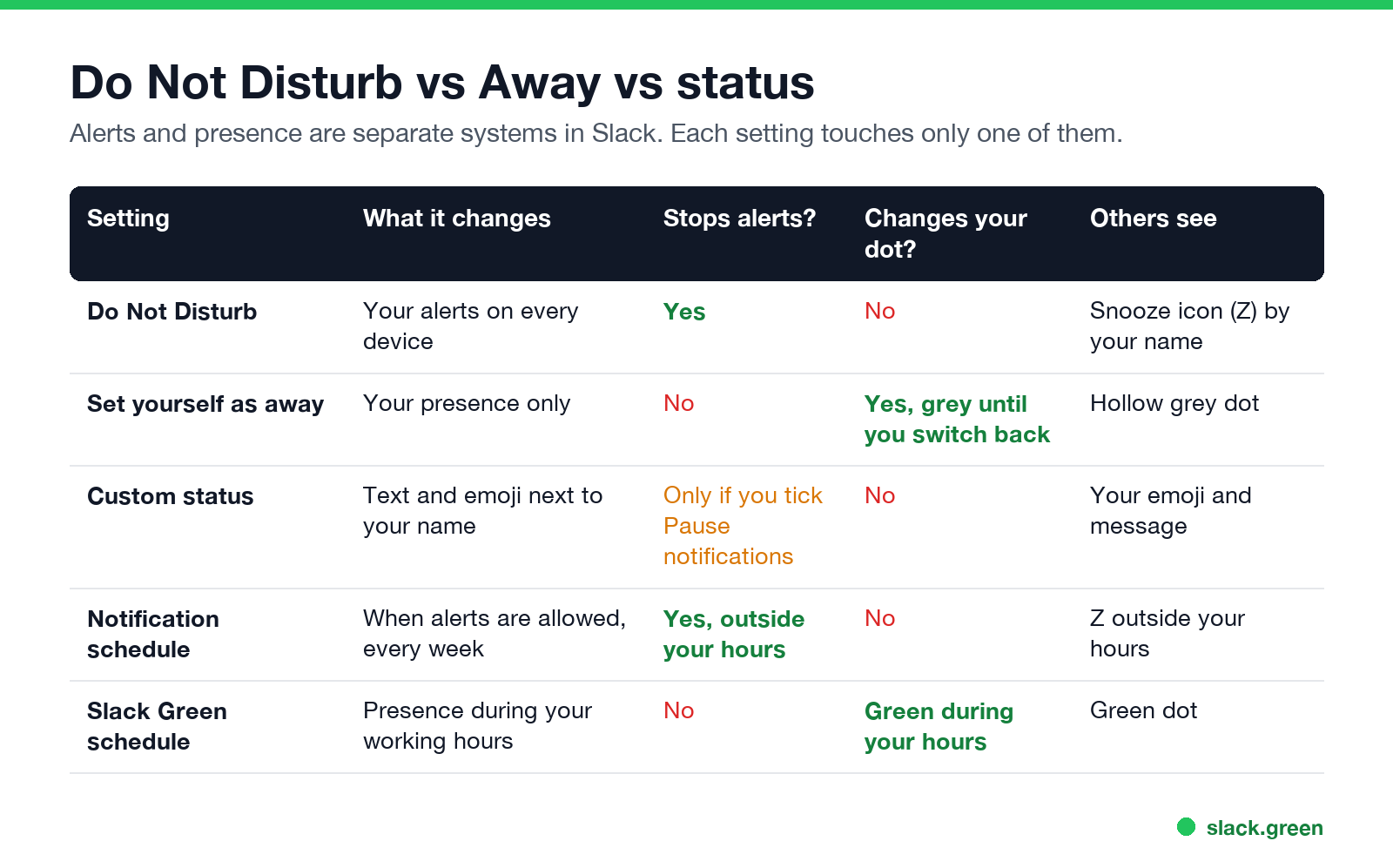
Slack keeps two systems apart. Notifications decide whether you get alerts. Presence decides whether your dot is green or grey. Slack's help center says your dot shows coworkers whether you are active or away and whether you have paused notifications. Each setting changes only one of those:
| Setting | What it changes | Stops your alerts | Changes your dot |
|---|---|---|---|
| Do Not Disturb | Notifications, for a time you pick | Yes | No |
| Notification schedule | Notifications, every week outside your hours | Yes, outside your hours | No |
| Set yourself as away | Presence, until you switch back | No | Yes, to grey |
| Custom status | Text and emoji next to your name | Only if you check Pause notifications | No |
| Slack Green schedule | Presence, during your working hours | No | Yes, green during your hours |
This is why "Do Not Disturb keeps me active" is a myth. If you read a long document in another window, Slack sees no input in its window and your dot goes grey after 10 minutes. The Z stays on top of the grey dot. To learn what each dot and icon means, read Slack active status explained.
For focus time, many people want both things: no pings, and a green dot so the team knows they are working. Pause notifications in Slack for the quiet. For the dot, Slack Green keeps your presence active during the hours you set, from the cloud, with your laptop open or closed. Outside your hours, normal Slack behavior returns. For the other ways to stay green, see how to keep Slack active.
Do Not Disturb on mobile
The Slack app on your phone uses the same account-level setting. If you pause notifications on your laptop, your phone goes quiet too, and the reverse. The notification schedule is also shared. That is why a phone often shows a Z in the evening when you did not touch anything.
Your phone's own Do Not Disturb or Focus mode is a separate setting. It silences Slack on that phone only, and Slack does not know about it, so teammates see no snooze icon. If you want teammates to know you are off, use Slack's pause, not the phone setting.
Presence on mobile follows its own rule. Slack shows you as active while the app is open, and sets you to away when you leave or close the app. Pausing notifications does not change that. Our guide to keeping Slack active on your iPhone covers the details.
FAQ
Ne jamais plus apparaître "absent" sur Slack
Basé sur le cloud. Sans téléchargement. Fonctionne 24/7 même avec votre PC éteint.
What does Do Not Disturb look like to others on Slack?
Teammates see a small snooze icon, a Z, next to your name and on your profile dot. The dot under it still shows your real presence: green if you are active, grey if you are away. For every combination, read what a Slack green dot with a Z means.
Does Slack Do Not Disturb keep you active?
No. Do Not Disturb only pauses notifications. Your dot follows your activity. On desktop you go away after 10 minutes without input in the Slack window, with or without Do Not Disturb.
Can someone override Do Not Disturb in Slack?
Yes. A person who sends you a DM while your notifications are paused can choose to notify you anyway, once per day. On paid plans, people on your VIP list also get through.
Do I still get messages when Do Not Disturb is on?
Yes. Every message arrives. Only the alerts are paused. When you resume, you can read everything in your unreads.
How do I stop Slack from turning on Do Not Disturb every night?
Open Preferences, find Working hours, and change the Allow notifications hours, or widen them to cover the time you want alerts. If you never set a schedule, your workspace admin may have set default Do Not Disturb hours. Your own schedule overrides that default.
Is pause notifications the same as Do Not Disturb?
Yes. "Pause notifications" is the current name in Slack's menus, and the /dnd command still works. Focus mode is a related option. Slack describes it as pausing notifications while also reducing sidebar distractions.
Arrêtez de Bouger la Souris.
Des centaines de télétravailleurs ne se soucient plus de leur statut Slack. Configurez une fois, restez vert pour toujours.
Related Articles
Slack Saved for Later: Where the Later Tab Is and How It Works
Saved messages in Slack live in the Later tab, which replaced stars and Saved items in 2023. Hover a message and click Save for later, or press A. Add a reminder, mark items complete, and find them with is:saved. Where Later is on desktop and mobile, and what changed.
Slack Multiple Workspaces: Use, Switch and Stay Active in Each
You can sign in to several Slack workspaces in one app and switch with Ctrl+Tab or Cmd/Ctrl plus a number. Each workspace has its own account, status, presence and Do Not Disturb, so you can be active in one and away in another. How to add, switch and manage them.
Microsoft Teams Status Icons Meaning: Every Colour and Symbol
In Microsoft Teams, a green check means Available, red means Busy, In a meeting or In a call, red with a white bar means Do not disturb or Presenting, a yellow clock means Away or Be right back, a grey circle with an x means Offline, and a purple arrow means Out of office. Which ones Teams sets for you, and which wins.