
The Teams Spoon Trick: Why It Works and When It Fails
The Teams spoon trick puts an optical mouse on a shiny spoon. The curved metal confuses the mouse sensor, the cursor jitters, and Teams counts that as input, so it does not set you to Away. Why it works, why it often stops working, and why it does little for Slack.
The Teams spoon trick is a way to keep your Microsoft Teams status green without touching the computer. You put an optical mouse on top of a shiny metal spoon. The curved metal confuses the mouse sensor, so it reports small movements that are not there. The cursor jitters, your computer counts that as mouse input, and Teams does not switch you to Away after its idle timer of about 5 minutes. It fails when the screen locks, when the computer sleeps, and on many trackpads. It does little for Slack, because Slack counts only input inside its own window.
We build Slack Green, which keeps your Slack status active from a server during the hours you set, with no spoon and no cursor movement. It does not control Teams. We wrote this page because many of our users run both apps and see the spoon trick on TikTok and Reddit.
How to do the Teams spoon trick
The version that went viral uses an optical or laser mouse, the kind with a red or invisible light under it.
- Take a metal spoon with a shiny, curved bowl. Stainless steel works best. A dull or scratched spoon often does nothing.
- Put the spoon on the desk, bowl side up or down.
- Rest the mouse on the spoon so the sensor window sits over the bowl.
- Watch the cursor for 10 to 20 seconds. If it drifts or twitches, the trick is working. If it stays still, move the mouse a few millimetres along the bowl or turn the spoon over.
- Check your Teams status after 6 or 7 minutes. It should still be green.
There is also a trackpad version, where you lay the bowl of the spoon flat on a laptop trackpad. That one works on far fewer laptops, for reasons covered below.
Why a spoon under an optical mouse moves the cursor
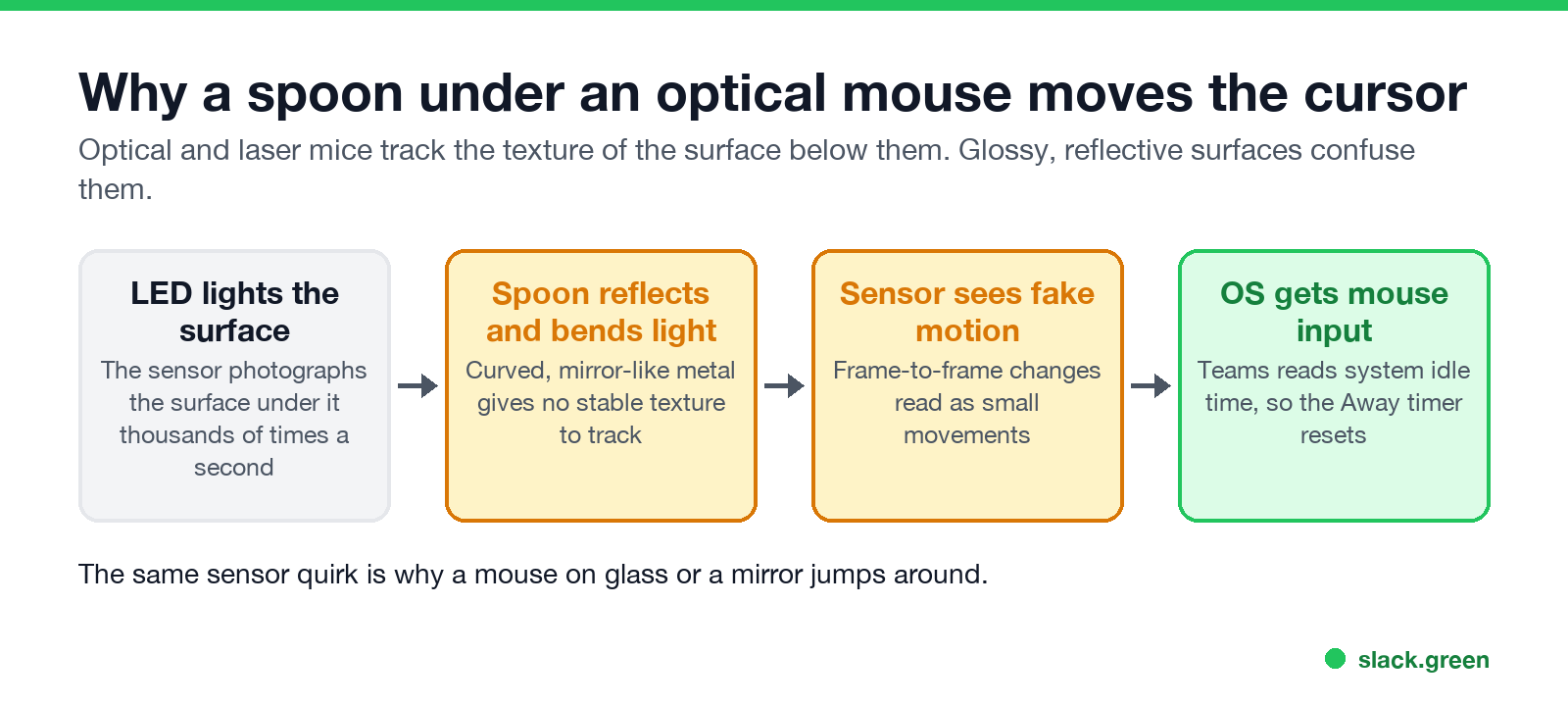
An optical mouse has a small camera and a light. The camera takes pictures of the surface under the mouse thousands of times a second and compares each picture with the last one. When the pattern shifts, the mouse reports that it moved, and by how far.
A spoon gives the camera a bad picture. Polished metal reflects most of the light, and the curved bowl bends the reflection. The sensor sees bright spots and texture that change from frame to frame, even when nothing moves. It reads those changes as motion. That is why the cursor jitters, and it is the same reason a mouse jumps around on glass or a mirror.
For Windows and macOS, that jitter is real mouse input. Teams decides your status from how long the computer has gone without keyboard or mouse input in any app. Every twitch resets that count, so Teams keeps you Available. Teams does not know or care that a spoon made the movement. The full list of Teams timers is in how long before Teams shows you as Away.
Why the spoon trick stops working
Never appear "away" on Slack again
Cloud-based. No downloads. Works 24/7 even when your laptop is off.
Most "teams spoon trick not working" reports come down to one of these:
Does the spoon trick work for Slack?
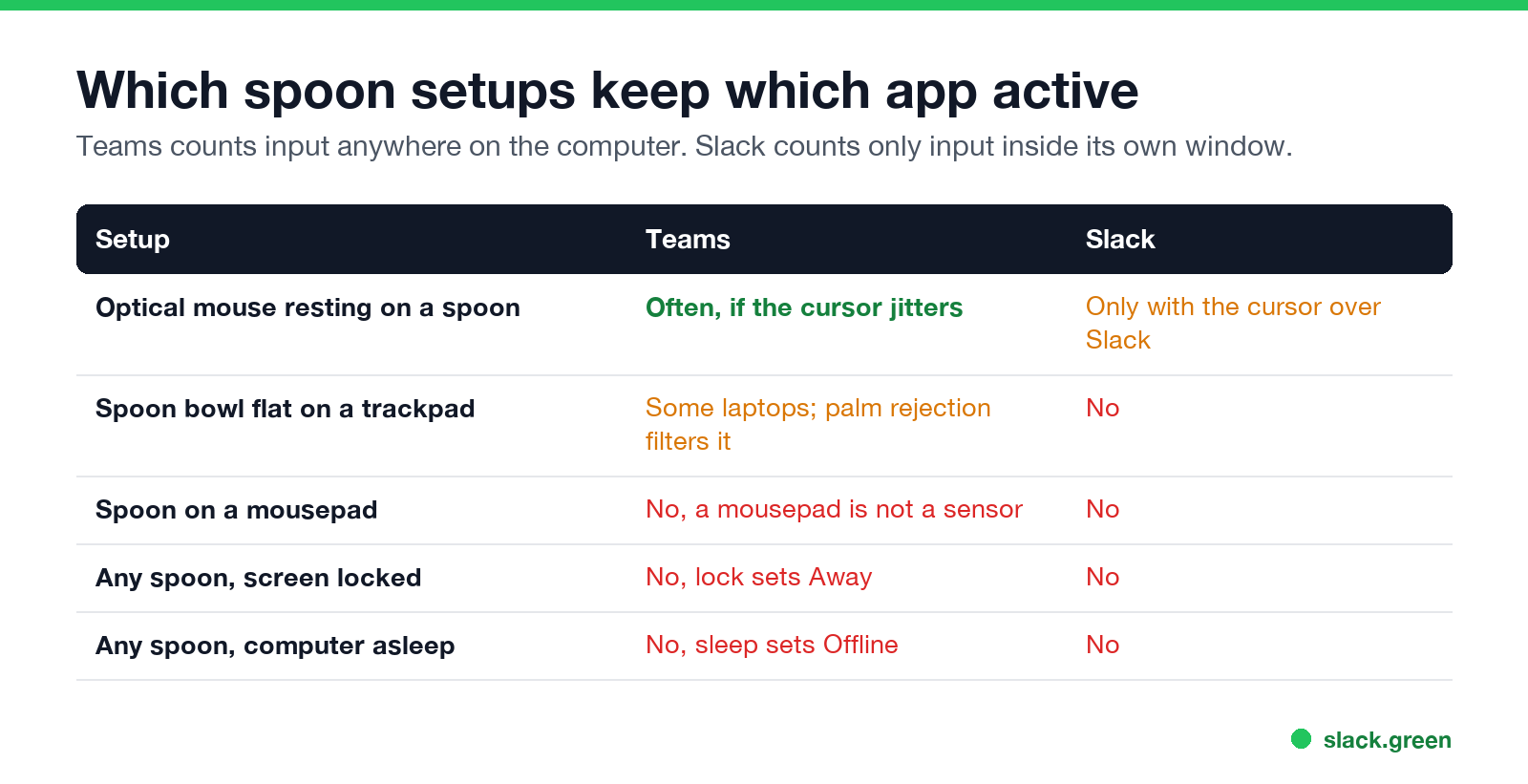
Mostly no. Teams and Slack read input in different ways:
| Microsoft Teams | Slack | |
|---|---|---|
| What counts as activity | Keyboard or mouse input in any app | Input inside the Slack window only |
| Idle time before Away | About 5 minutes | 10 minutes |
| Spoon jitter over another app | Counts | Does not count |
| Locked screen | Away | Away |
Slack counts clicks, keys and scrolling inside its own window. A cursor that twitches over your email or a browser keeps the computer awake, but Slack still turns your dot grey after 10 minutes. The jitter helps only if the cursor sits over the Slack window, and even then it stops when the screen locks. How Slack makes that call is in how Slack decides when you are away, and the same problem with USB and software jigglers is in Slack Green vs a mouse jiggler.
Can your employer tell you used the spoon trick?
Teams itself cannot. It only sees that input arrived. There is no Teams report that shows how the mouse moved.
Monitoring software on a company laptop is a different matter. Some employee monitoring tools look for mouse movement with no keyboard input, or for a cursor that moves in tiny repeated steps, and flag it as idle or suspicious. A spoon produces exactly that pattern, the same as a mouse jiggler. What those tools can see is in can a mouse jiggler be detected.
The larger risk is plain. A green dot that never changes while you do not answer messages is easy for a manager to notice.
Spoon trick alternatives that are more reliable
Never appear "away" on Slack again
Cloud-based. No downloads. Works 24/7 even when your laptop is off.
Every Teams method side by side is in how to keep your Teams status Available. For Slack, the methods are different, because Slack ignores input outside its window. How to keep Slack active lists them, and Slack Green does it from the cloud with your laptop closed.
FAQ
Does the spoon trick work on Teams?
Often, with an optical mouse and a shiny curved spoon. The mouse sensor misreads the reflection as movement, and Teams counts it as input. It does not stop a screen lock or sleep.
Why does a spoon keep Teams active?
The mouse camera cannot track polished, curved metal. It sees the reflection change and reports small movements. Teams sees mouse input and resets its idle timer.
Why is the spoon trick not working for me?
The most common causes are a dull spoon, a mouse lifted too high to track, a trackpad instead of a mouse, or a screen lock policy. Try a shinier spoon and move the mouse a few millimetres along the bowl.
Does the spoon trick work on a laptop trackpad?
Rarely. Trackpads sense electrical charge, and palm rejection ignores a large object that does not move.
Does the spoon trick work for Slack?
Only while the cursor sits over the Slack window, and not after the screen locks. Slack counts input inside its own window only.
Can Teams detect the spoon trick?
Teams cannot tell a spoon from a hand. Employee monitoring software may flag mouse movement with no keyboard input.
Stop Jiggling Your Mouse.
Join hundreds of remote workers who never worry about their Slack status. Set it up once, stay green forever.
Related Articles
Can My Employer See My Browsing If I Use a VPN? It Depends Whose
A personal VPN hides the sites you visit from the office network, but not from monitoring software, a managed browser or IT on a work laptop. The company VPN shows your employer every site it carries. What each setup hides.
Teams Status on Multiple Devices: The Last Device You Used Wins
Signed in to Teams on a computer and a phone? Your status comes from the device you used most recently. That is why a quick look at your phone can turn you Away, and why a phone in your pocket shows Away instead of Offline at night.
Zoom Do Not Disturb: How to Turn It On, Schedule It, and What It Blocks
To turn on Do not disturb in Zoom, click your profile picture, point at your status and choose Do not disturb, then a time from 20 minutes to 24 hours, or Custom for a daily schedule. It blocks pop-up notifications for Zoom Team Chat and Zoom Phone calls. Busy, by contrast, mutes nothing. How the two differ, and how to keep a Zoom meeting free of pop-ups.