
Mouse Jiggler for Mac: Free Apps, USB Jigglers and a Terminal Script
The working ways to jiggle the mouse on a Mac: the free Jiggler app, App Store movers, a USB jiggler, and a one-line cliclick script. What each needs, what IT can see, and why a jiggler keeps Teams green but not always Slack.
A mouse jiggler for Mac moves your pointer every so often so macOS, and apps like Microsoft Teams, see input and do not mark you idle. The free options that work on current macOS are Jiggler from Stick Software (open source, brew install --cask jiggler), Mouse Jiggler - Mouse Mover from the Mac App Store, a USB hardware jiggler, or a one-line Terminal script with cliclick. Every software option needs Accessibility permission. None of them work with the lid closed or the screen locked.
Keep-awake apps such as Amphetamine, KeepingYouAwake, and the built-in caffeinate are a different tool. They stop your Mac from sleeping, but they do not move the pointer, so your status still goes idle.
We build Slack Green, a cloud service that keeps Slack presence green on a schedule without anything running on your Mac. Many of our users tried a jiggler first, so this page compares the Mac options, including where a jiggler fails for Slack.
Mac mouse jigglers compared
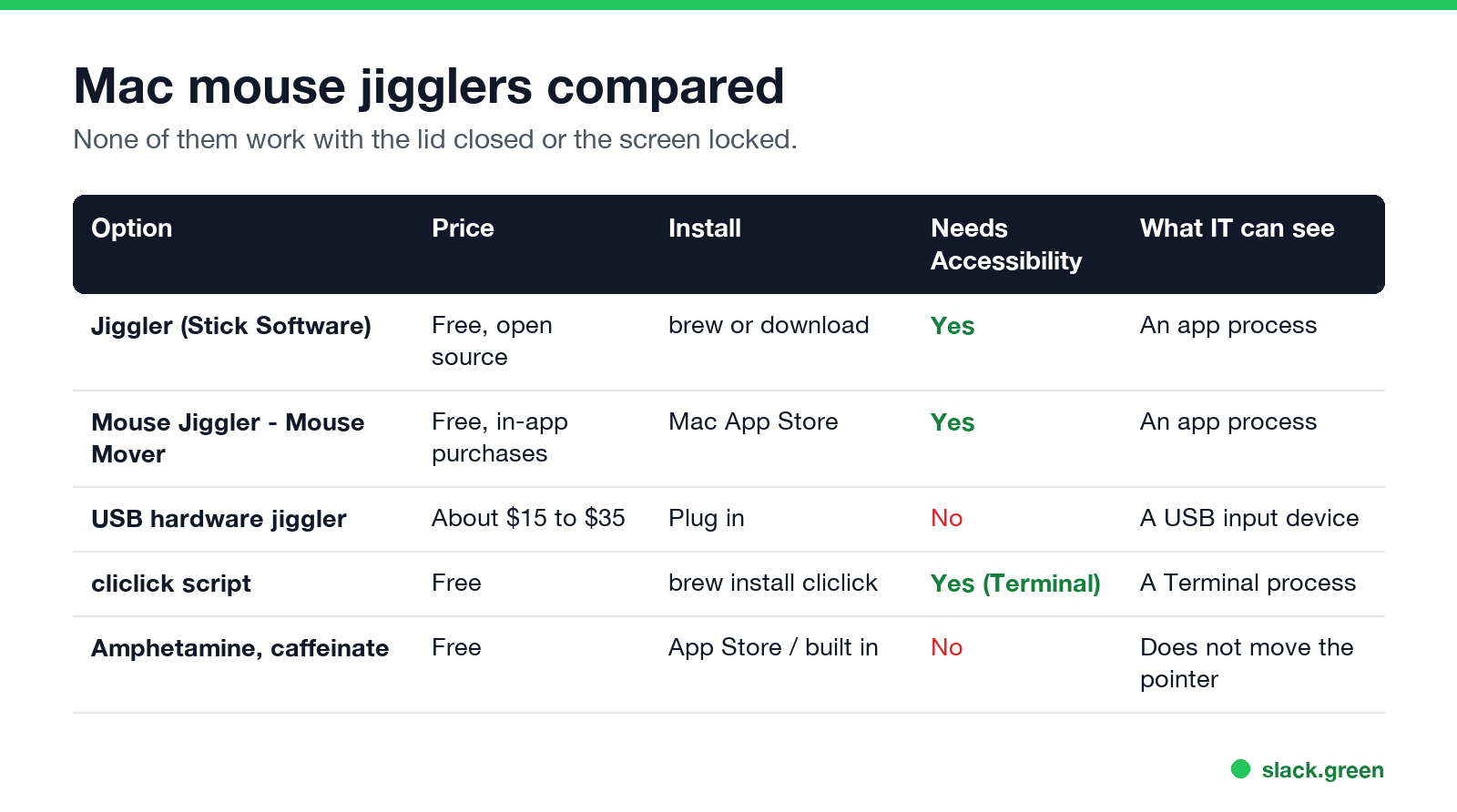
| Option | Price | Install | Needs Accessibility | What IT can see |
|---|---|---|---|---|
| Jiggler (Stick Software) | Free, open source (GPL) | brew install --cask jiggler or download | Yes | An app process |
| Mouse Jiggler - Mouse Mover | Free, with in-app purchases | Mac App Store | Yes | An app process |
| USB hardware jiggler | About $15 to $35 | Plug it in | No | A USB input device |
cliclick script | Free | brew install cliclick | Yes, for Terminal | A Terminal process |
Amphetamine, KeepingYouAwake, caffeinate | Free | App Store, Homebrew, or built in | No | Nothing moves the pointer |
Jiggler is the long-standing free choice. Its developer describes it as "a little freeware app with one purpose: to keep your Mac awake". It can jiggle only after the Mac has been idle for a set time, only while a chosen app runs, or only while the machine is busy. Version 1.10 added support for macOS 26 Tahoe. The source is on GitHub at bhaller/Jiggler.
Mouse Jiggler - Mouse Mover is a free App Store app with movement styles and a schedule. Buy from the App Store if your work Mac only allows App Store installs.
A USB jiggler is a small device that shows up as a mouse and moves the pointer by a pixel or two. No software, no permission prompt. On a Mac without USB-A ports you need a USB-C model or an adapter.
Set up Jiggler
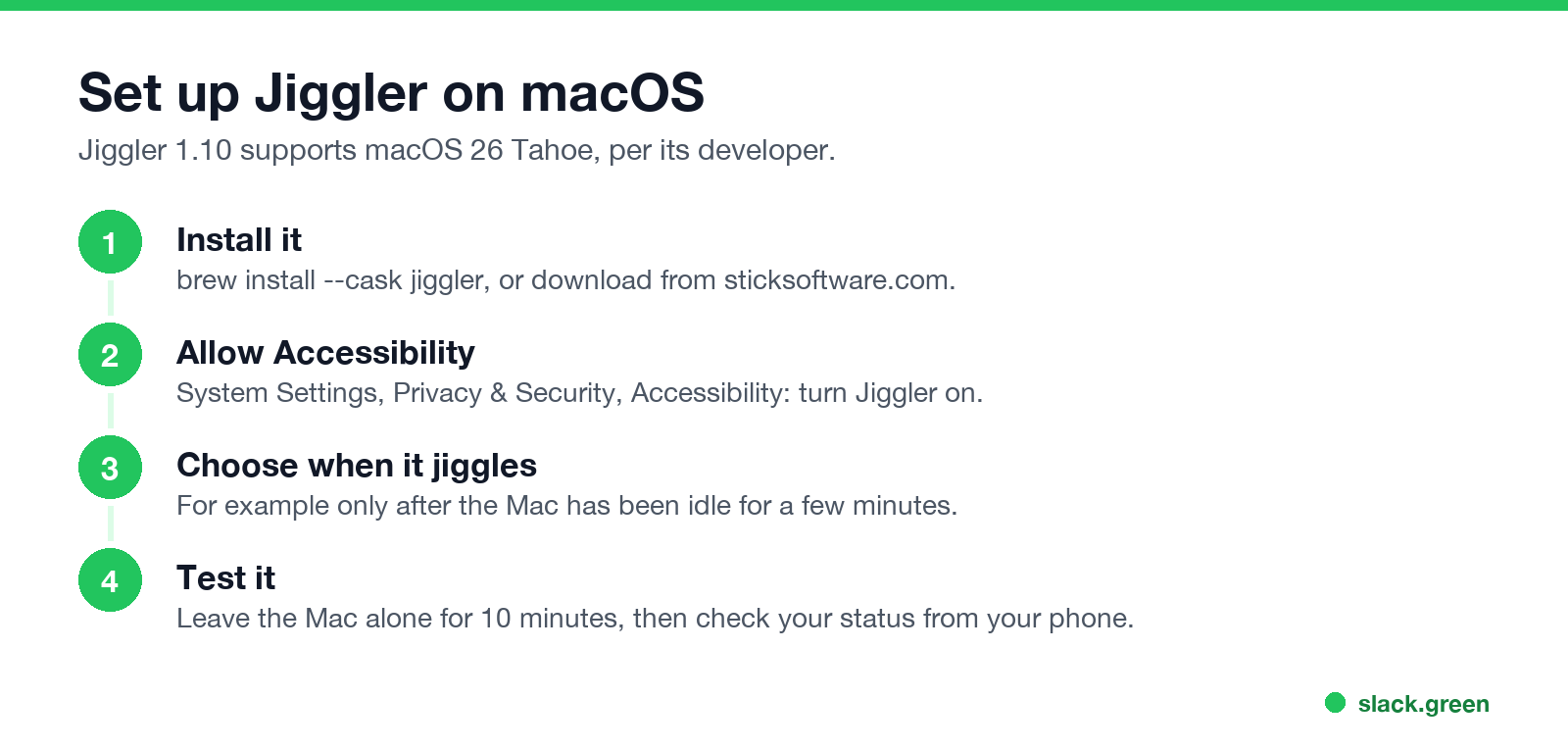
- Install it with Homebrew, or download it from sticksoftware.com:
brew install --cask jigglerA free Mac jiggler in one line of Terminal
Slack에서 다시는 '자리 비움'으로 표시되지 마세요
클라우드 기반. 다운로드 불필요. 노트북이 꺼져 있어도 24시간 작동.
If you would rather not install an app, cliclick moves the pointer from the command line. This loop moves the pointer one pixel right and back every 60 seconds:
brew install cliclick
while true; do cliclick m:+1,+0 m:-1,+0; sleep 60; done
Press Ctrl + C to stop it. The first run asks you to allow Terminal (or iTerm) in Accessibility. A C version of the same idea is on GitHub as joiellantero/macos-mouse-jiggler-c.
To keep the Mac awake as well, run it under caffeinate, which ships with macOS:
caffeinate -d -i sh -c 'while true; do cliclick m:+1,+0 m:-1,+0; sleep 60; done'Jiggler vs keep-awake app
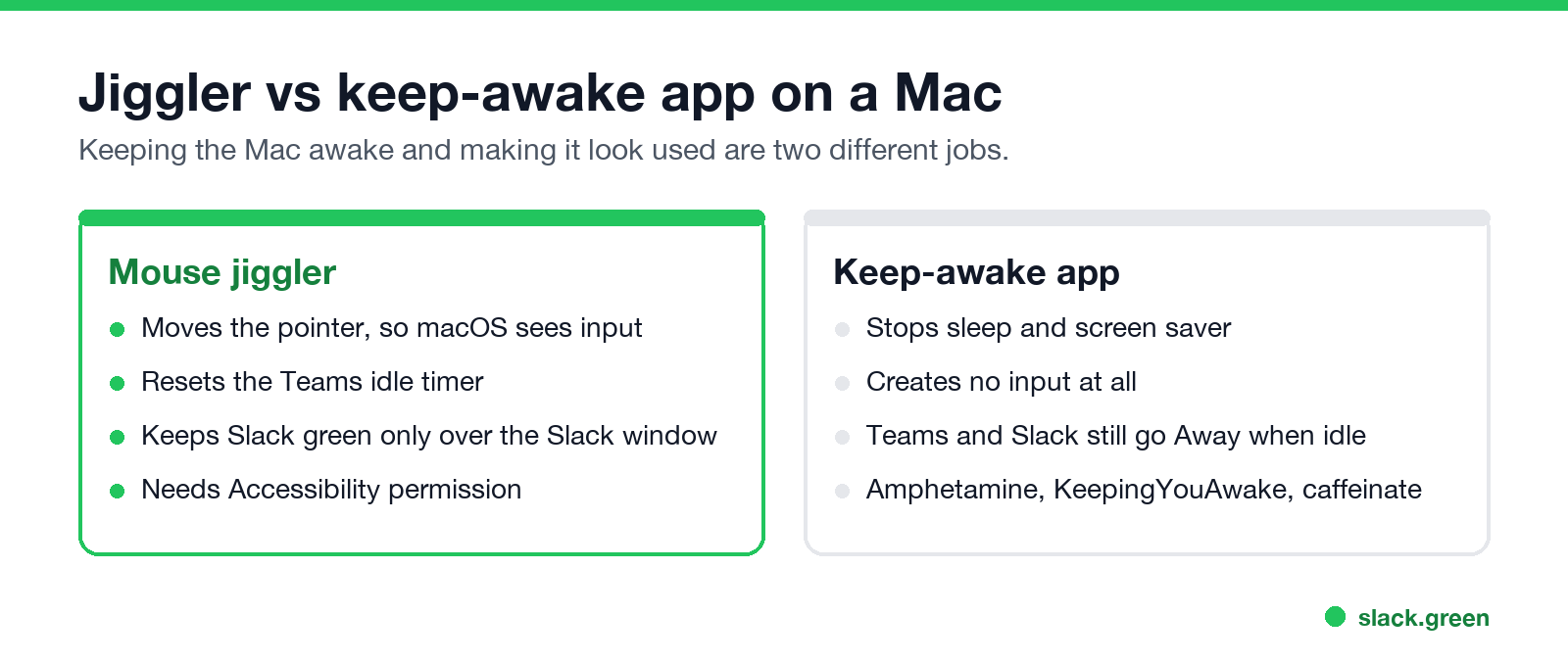
Keeping the Mac awake and making it look used are two jobs:
If you only want to keep the Mac awake without a jiggler, caffeinate -d in Terminal or KeepingYouAwake from the menu bar does that.
Does a Mac jiggler keep Slack green?
Only in one case. Slack counts input inside the Slack window, not anywhere on the Mac. A jiggler that moves the pointer over your browser or your editor keeps the Mac awake and lets Slack go grey after 10 minutes. It helps only when the pointer sits over the Slack window, and only until the screen locks or the lid closes. The rules are in how Slack decides when you are away.
Some guides say every presence app reads macOS idle time. For Teams that holds. For Slack it does not, which is why a jiggler is often the wrong tool for Slack.
Slack Green keeps your Slack session active from a server during the hours you set, so it works with the lid closed and nothing runs on your Mac. The full comparison is in Slack Green vs mouse jigglers, and every other method is in how to keep Slack active on Mac.
Can your employer see a Mac jiggler?
Slack에서 다시는 '자리 비움'으로 표시되지 마세요
클라우드 기반. 다운로드 불필요. 노트북이 꺼져 있어도 24시간 작동.
On a managed Mac, IT tools can list running apps, so a software jiggler shows up by name. A USB jiggler shows up as an extra input device in the system report. Some monitoring tools also flag input that repeats on a perfect rhythm. What each kind of tool can see is in can a mouse jiggler be detected, and a mechanical mover, which never connects to the Mac, is compared with the other types in the best mouse jiggler.
FAQ
What is the best free mouse jiggler for Mac?
Jiggler from Stick Software. It is free, open source, installs with brew install --cask jiggler, and supports macOS 26 Tahoe as of version 1.10. If your Mac only allows App Store apps, use Mouse Jiggler - Mouse Mover.
Is there a mouse jiggler for Mac on GitHub?
Yes. Jiggler's source is at bhaller/Jiggler, and joiellantero/macos-mouse-jiggler-c is a small C program that moves the pointer every 60 seconds.
Does a mouse jiggler work with the lid closed?
No. A closed lid or a locked screen stops input from reaching apps, and Slack and Teams set you to Away.
Is there an online mouse jiggler?
A web page cannot move your Mac's pointer. Browser "jiggler" pages can at most keep the screen on while their tab is open. They do not reset idle time in Slack or Teams.
How do I keep my Mac awake without a mouse jiggler?
Run caffeinate -d in Terminal, or use KeepingYouAwake or Amphetamine. They stop sleep but do not keep your Slack or Teams status active.
Why does my Mac jiggler not work anymore?
Check Privacy & Security, Accessibility. After an app update, macOS may ask you to allow it again. Without the permission the app runs but cannot move the pointer.
Related Articles
Slack User Groups: How to Create, Mention and Manage Them
A Slack user group is a named list of people with one @handle, like @designers, that notifies all of them and can add them to up to 100 default channels. How to create one, who can, how to mention it, and how it differs from a channel.
How to Contact Slack Support: Form, Chat, Email and /feedback
To contact Slack support, open slack.com/help/requests/new and click Contact support, or use Help > Contact us inside Slack, or type /feedback in any message box. Email feedback@slack.com if you cannot sign in. Slack lists no support phone line. Response times by plan and what to include.
How to Make a Private Slack Channel Public, and Who Can
Open the channel, click its name, go to Settings, and choose Change to a public channel. By default only Workspace Owners, Org Owners and Org Admins can do it. The whole history and every file become visible to the workspace.