
How to Add a GIF in Slack: Picker, /giphy and Uploads
Slack has a built-in GIF picker: click the smiley face in the message field, click GIFs, search, pick one and press Send. It works on desktop and mobile with no app. The /giphy command, uploading your own GIF, and animated GIF emoji are the other ways, plus what to check when GIFs are missing.
To add a GIF in Slack, click the smiley face icon in the message field, click GIFs, search for a GIF, click the one you want, and press Send. On iPhone or Android, tap the message field, tap the smiley face, then GIFs. The GIF picker is built into Slack and powered by GIPHY, so you do not need to install anything. If you do not see GIFs, an owner or admin has turned the picker off; you can still upload a GIF file.
Slack also has the older /giphy command, which needs the GIPHY app, and you can upload your own GIF or turn one into an animated emoji. All five ways are below.
We build Slack Green, which keeps your Slack status green from our servers during the hours you set, so we spend a lot of time in the Slack message field. For emoji made from GIFs, our free Slack emoji maker and Slack emoji resizer run in the browser.
Five ways to put a GIF in Slack
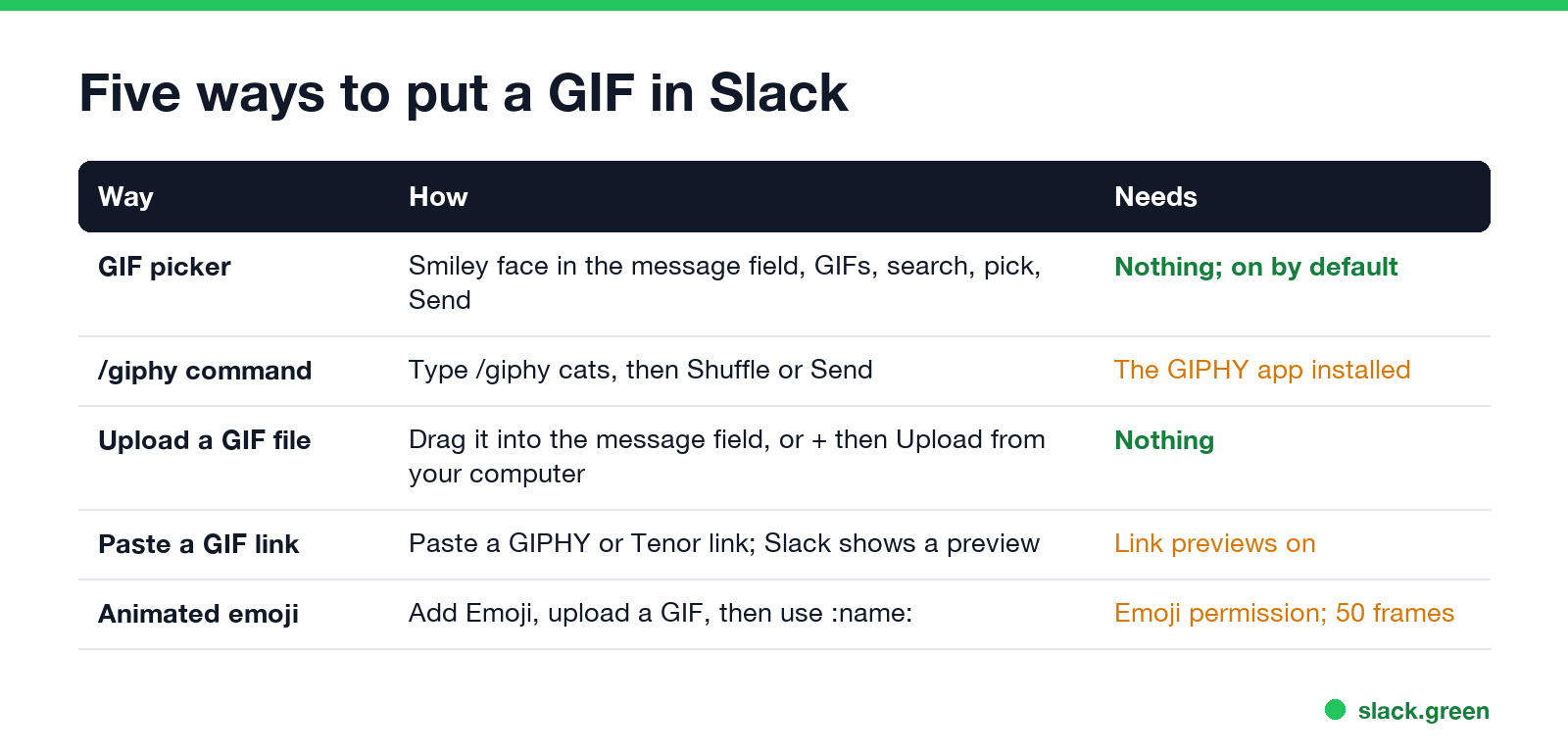
| Way | How | Needs |
|---|---|---|
| GIF picker | Smiley face in the message field, GIFs, search, pick, Send; or type /gif | Nothing; on for all members and guests by default |
/giphy command | Type /giphy cats, then Shuffle or Send | The GIPHY app added to the workspace |
| Upload a GIF file | Drag it into the message field, or click + and Upload from your computer | Nothing |
| Paste a GIF link | Paste a GIPHY or Tenor link; Slack shows the GIF under it | Link previews turned on |
| Animated emoji | Add Emoji, upload a GIF, then type :name: | Permission to add emoji |
Send a GIF with the Slack GIF picker
On desktop:
- Click in the message field of a channel or DM.
- Click the smiley face icon in the message field.
- Click GIFs at the top of the menu.
- Type a word, such as "thank you" or "coffee", and click a GIF.
- Add text if you want, then press Send or Enter.
- Tap the message field to open the keyboard.
- Tap the smiley face icon, then GIFs.
- Search, tap a GIF, and tap Send.
On iPhone or Android:
A faster way on desktop: type /gif in the message field and press Enter. It is one of Slack's built-in slash commands and opens the same picker. The full list is in Slack slash commands.
The GIF is added to your message before it goes out, so you can type a line to go with it. This is the "GIF keyboard" people ask about. Slack does not use your phone's own GIF keyboard; the picker inside Slack is the one that works in every app version.
Use the /giphy command
Never appear "away" on Slack again
Cloud-based. No downloads. Works 24/7 even when your laptop is off.
Before the picker, GIFs in Slack came from the GIPHY app and its slash command. It still works if your workspace has the app:
/giphy and a word, for example /giphy high five, and press Enter.If Slack says /giphy is not a valid command, the app is not installed. A member can request it from the GIPHY page in the Slack Marketplace, and an admin approves it. Admins can also set the app's content rating in its settings.
Upload your own GIF
Drag a .gif file from your computer into the message field, or click + in the message field and choose Upload from your computer. On a phone, tap + and pick the GIF from your photos or files. Slack plays uploaded GIFs in the conversation like picker GIFs.
To share a GIF you found on the web, copy its link from GIPHY or Tenor and paste it into the message. Slack shows the GIF under the link unless you turned off previews in Preferences, Messages & media.
Make a GIF emoji for Slack
A GIF can also become a custom emoji that anyone in the workspace can use in messages, reactions and statuses:
party-parrot, and click Save.Slack's limits for emoji apply: a square image, a small file (Slack recommends under 128 KB), and up to 50 frames for an animated GIF. Large GIFs are the usual reason an upload fails. Shrink it first with the Slack emoji resizer, or build one from a photo with the Slack emoji maker. The full steps, and who can add emoji, are in how to add custom emoji to Slack.
No GIFs option in Slack
Never appear "away" on Slack again
Cloud-based. No downloads. Works 24/7 even when your laptop is off.
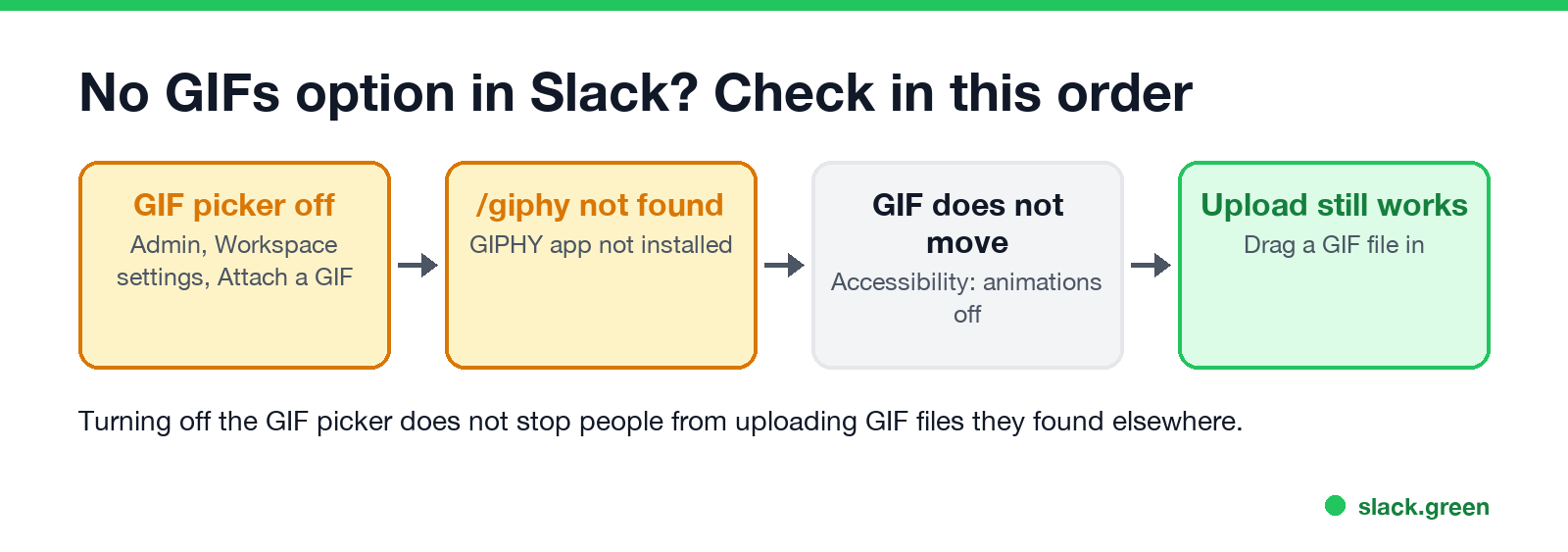
/giphy is not a valid command. The GIPHY app is not installed, or an admin removed it.FAQ
Does Slack have GIFs? Yes. The GIF picker is built in, under the smiley face icon in the message field, on all plans.
Is GIPHY free in Slack?
Yes. The built-in picker uses GIPHY, and the GIPHY app for /giphy is free.
How do I send a GIF in a Slack thread? Open the thread, click the smiley face in the thread's message field, and use GIFs the same way.
Can I add a GIF to my Slack status? Only as an animated custom emoji. Add the GIF as an emoji first, then pick it as your status emoji.
Can admins turn off GIFs in Slack? They can turn off the GIF picker and remove the GIPHY app. Uploading a GIF file still works.
Stop Jiggling Your Mouse.
Join hundreds of remote workers who never worry about their Slack status. Set it up once, stay green forever.
Related Articles
Can My Employer See What I Watch on YouTube at Work?
On a work laptop or the office network, your employer can see that you used YouTube, when, and for how long. With HTTPS inspection or monitoring software, they can see which videos, because the video address and the browser tab title both name it. On your own phone on mobile data, they see nothing.
Can My Employer See My iMessages on a Work Mac?
Not through device management or the network: Jamf or Intune cannot read Messages, and iMessage is end-to-end encrypted. But if you sign in to Messages on a work Mac, your texts are stored on that Mac, where monitoring screenshots, backups and admin access can reach them. How to check, and how to take iMessage off the Mac without deleting it from your iPhone.
Can My Boss See My Private Outlook Calendar Events?
Usually not the details. When you mark an Outlook event Private, someone who can read your calendar sees only Private appointment, the time and a lock. The exceptions are delegates you gave Can view private items, the people invited to the event, anyone with full access to your mailbox in new Outlook or the web, and compliance admins. How to check who has which access, and what Private does not hide.