
How to Refresh Slack or Clear Its Cache on Mac, Windows and Phone
Open Help, Troubleshooting, Clear Cache and Restart. In our test on Slack 4.52.171 it deleted 1.5 GB of cached files in about a second, kept the sign-in, and restarted in under 3 seconds. Reset App Data signs you out of everything.
To refresh Slack, press Cmd+R on a Mac or Ctrl+R on Windows; Cmd+Shift+R or Ctrl+Shift+R is a hard refresh (Force Reload). Neither deletes anything. To clear the Slack cache in the desktop app, open the Help menu, choose Troubleshooting, then Clear Cache and Restart. On a Mac the Help menu is in the menu bar; on Windows and Linux open the three-line menu at the top left first. Slack does not ask for confirmation: it closes, deletes its cached files and reopens, still signed in. In our test the whole cycle took under 3 seconds and cut Slack's data folder from 1.6 GB to 54 MB.
We ran the test on 3 October 2026 with Slack 4.52.171 on macOS 26.5.2. To keep our real sign-in out of it, we copied the Mac's Slack folder, removed its cookies, and started Slack on the copy with --user-data-dir. Then we clicked both Troubleshooting options and measured the folder after each one.
What Clear Cache and Restart deletes
| Folder in the Slack data folder | Before | 10 s after | What happened |
|---|---|---|---|
Cache (images, files, web code) | 824.7 MB, 7,220 files | 5.8 MB, 30 files | Deleted; the first screen after the restart refilled 5.8 MB |
Service Worker (cached copy of the Slack web app) | 735.0 MB, 3,664 files | 0.2 MB, 8 files | Deleted |
IndexedDB (local database) | 2.0 MB | 0 files | Deleted |
Local Storage (local settings) | 0.7 MB | 0.9 MB | Kept |
logs | 25.7 MB | 26.5 MB | Kept |
| GPU shader caches | 7.7 MB | 7.7 MB | Kept |
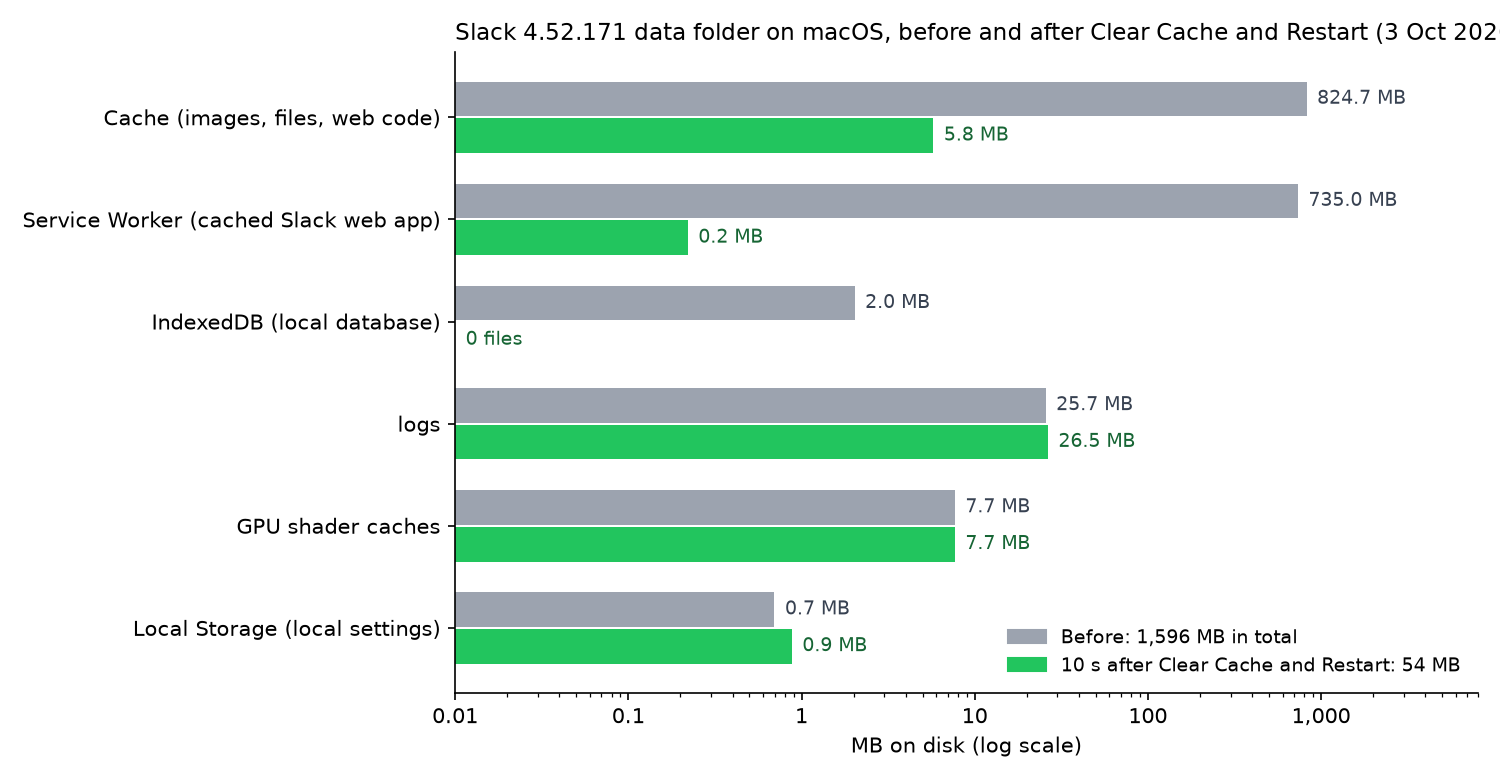
Slack's own log recorded the same sequence, about one second from click to cleared data:
16:08:56.057 warn: manageLocalAppDataEpic: User chose to clear cache data
16:08:56.084 info: clearCacheAndStorage: trying to clear session storage
16:08:57.074 info: clearCacheAndStorage: Cleared data
16:08:57.075 info: clearCacheAndStorage: Cleared service worker cache
16:08:58.451 info: initializeApplicationEpic: Welcome to Slack 4.52.171 arm64
The app code explains why you stay signed in. The menu item clears the data types backgroundFetch, cache, downloads, fileSystems, indexedDB, serviceWorkers and webSQL. Cookies and local storage are not in that list, so your sign-in and your workspace list survive. Your messages, files and settings live on Slack's servers and come back as the app reloads them. Your recent searches are stored there too, so clearing the cache does not remove them; to delete those, see how to clear Slack search history.
In the Mac App Store version the same item is called Clear Cache and Exit: it clears the same data and quits, and you open Slack again yourself.
Reset App Data signs you out of everything
Reset App Data… sits right under Clear Cache and Restart. It is the bigger reset, and it asks first:
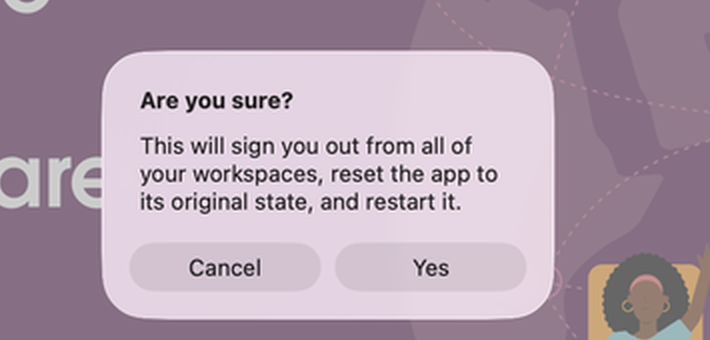
After we clicked Yes, Slack restarted in about 5 seconds. Local Storage went from 0.9 MB to 0, the saved workspace list (storage/root-state.json) was gone, and the window size went back to the default. Before the reset the sign-in screen offered our workspace by name; after it, the screen only said Sign In to Slack. Use it when Clear Cache and Restart did not help, and only if you know how to sign in to every workspace again.
Refresh or force reload Slack without clearing anything
The desktop app's View menu has two reload commands:
| Command | Mac | Windows and Linux | What it does |
|---|---|---|---|
| Reload | Cmd+R | Ctrl+R | Reloads the current window |
| Force Reload | Cmd+Shift+R | Ctrl+Shift+R | Reloads the whole app and skips the browser cache for that load |
Neither deletes files. Force Reload is the closest thing to a hard refresh: Slack's code reloads the app with reloadIgnoringCache, so stale scripts and images are fetched again. Try Reload first, then Force Reload, then Clear Cache and Restart. If the window stays blank, see Slack desktop app blank or white screen.
Never appear "away" on Slack again
Cloud-based. No downloads. Works 24/7 even when your laptop is off.
Clear the cache on a phone or in a browser
We did not test these on a phone. The steps are from Slack's help center as of 3 October 2026, which no longer uses the old Advanced menu:
| Where | Clear the cache, stay signed in | Full reset, signs you out |
|---|---|---|
| iPhone and iPad | Profile picture, Preferences, under Device & Troubleshooting tap Debug & Reset Cache, then Reset Cache | iOS Settings, Slack, turn on Reset Cache on Next Launch, then open Slack |
| Android | Profile picture, Preferences, Reset Cache | Android Settings, Apps, Slack, Storage, Clear Data |
| Browser | Force reload with Cmd+Shift+R or Ctrl+Shift+R | Clear site data for app.slack.com |
Where the Slack cache is stored
- • Mac, downloaded from slack.com:
~/Library/Application Support/Slack. On the Mac we tested, it held 1.5 GB, almost all of it inCacheandService Worker. - • Mac, App Store version:
~/Library/Containers/com.tinyspeck.slackmacgap/Data/Library/Application Support/Slack. Slack's code checks this path too. - • Windows:
%AppData%\Slack
Quit Slack before you touch these folders, and prefer the menu item. Deleting the whole folder by hand also deletes your cookies and the workspace list, which has the same effect as Reset App Data.
When clearing the cache helps
Clear it when images, emoji or files do not load, when Slack shows an old version of a message or channel, or when the app feels heavy; see why Slack uses so much memory. If only images are missing, check the display settings before you clear anything: our Slack images not showing test reproduced five causes, from Inline media being off to a collapsed file. For a badge that will not clear, press Shift+Esc to mark everything as read before you clear anything; the other causes are in Slack keeps showing unread messages.
It does not fix notifications that are off in your system settings (Slack notifications not working) or an outage (check slack-status.com).
FAQ
Does clearing the cache change my Slack status or green dot?
No. Presence is decided on Slack's servers. The dot still turns away 10 minutes after your last keyboard or mouse input on the computer; see how long Slack stays active.
Is there a keyboard shortcut for Clear Cache and Restart?
No. In Slack 4.52.171 the menu item has no shortcut, unlike Reload and Force Reload.
Stop Jiggling Your Mouse.
Join hundreds of remote workers who never worry about their Slack status. Set it up once, stay green forever.
Related Articles
Slack Keeps Opening in the Browser? How to Open the App Instead
Slack opens in the browser when the link goes to app.slack.com or the browser cannot hand off to the app. We tested both link types on a Mac and show how to check the slack:// handler.
Slack Custom Emoji Not Showing? What Each Symptom Means
When a Slack custom emoji shows as its :name: code, it was deleted or renamed, it belongs to another workspace, or your emoji display is set to plain text. A blank square means the image did not load. Fixes for each case, plus emoji missing from the picker and emoji that do not move.
Slack Formatting Toolbar Missing? How to Get It Back
The Slack formatting toolbar hides when you click Aa, and Slack remembers it. With Format messages with markup on, the toolbar and the Aa button both vanish. Tested fixes, the 10 buttons and their shortcuts.