
How to Look Busy on Teams: Busy Status, Calendar Blocks and Focus Time
To look busy on Microsoft Teams, set your status to Busy with a duration, or block time in your Outlook calendar so Teams shows In a meeting. Focus time shows Focusing, and a status message says what you are on. How long each lasts, what Teams does when you go idle, and what not to do.
To look busy on Microsoft Teams, click your profile picture, choose Busy, and set a Duration so it resets on time. Others see a red dot and "Busy". For a block that looks like work to anyone who checks, put an event in your Outlook calendar: Teams switches you to In a meeting for its length on its own. Focus time booked in Viva Insights shows Focusing, and a status message ("Writing the Q3 plan, back at 3") tells people what you are on. Microsoft's User presence in Teams page says a manual Busy lasts one day unless you set a duration. What no status does is stop the automatic states: a locked computer still turns you Away, and a sleeping one turns you Offline.
If you also use Slack, it has its own, stricter rule: grey after 10 minutes without input in the Slack window. Slack Green keeps the Slack side active during the working hours you set, from the cloud. It does not touch Teams.
Ways to show you are busy in Teams
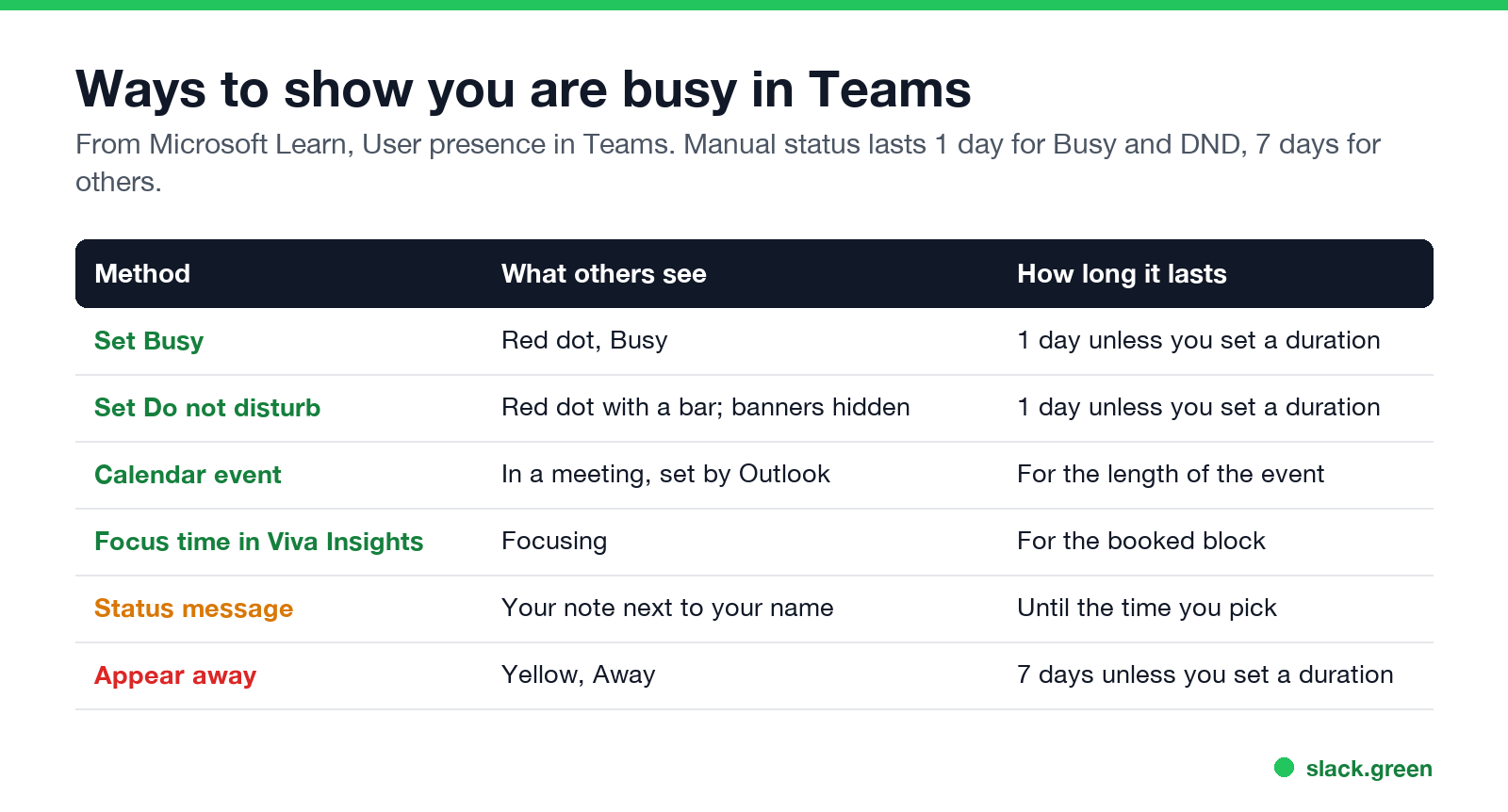
| Method | What others see | How long it lasts |
|---|---|---|
| Set Busy | Red dot, "Busy" | 1 day, unless you set a duration |
| Set Do not disturb | Red dot with a bar; your banners are hidden | 1 day, unless you set a duration |
| Outlook calendar event | "In a meeting" | The length of the event |
| Focus time in Viva Insights | "Focusing" | The booked block |
| Status message | Your note, next to your name | Until the time you choose |
| Appear away | Yellow, "Away" | 7 days, unless you set a duration |
The durations come from Microsoft's presence page: without a duration, a manual status stays for 1 day if it is Busy or Do not disturb, 7 days for any other status, and indefinitely for Appear offline.
How to set your status to Busy in Teams
- Click your profile picture at the top right of Teams.
- Click your current status under your name.
- Choose Busy.
- To end it on time, choose Duration instead, pick Busy, and set when to reset: 30 minutes, 1 hour, 2 hours, today, this week, or a custom time.
On mobile, tap your profile picture, then the status, then Busy.
Busy or Do not disturb? Busy looks occupied but lets banners and calls through. Do not disturb hides banners and sends calls to voicemail, except from people on your priority access list (Settings, Privacy). Microsoft notes that you still receive all chat messages in both states.
Look busy with your calendar
لا تظهر أبداً كـ "غائب" على Slack
يعمل على السحابة. بدون تنزيلات. يعمل 24/7 حتى عندما يكون الكمبيوتر مغلقاً.
Teams reads your Outlook calendar. Any event you are in, including one you create for yourself, sets In a meeting for its length, with no clicks at the start or end. This is how most people "look busy" on purpose: block the hours for deep work as events. Set the event's Show as to Busy. Events set to Out of Office show Out of Office instead.
Focus time from Viva Insights books recurring blocks in your calendar and shows Focusing in Teams while they run, with notifications muted. It suits the same need, with a label that tells people why you are quiet.
What Teams does when you stop using the computer
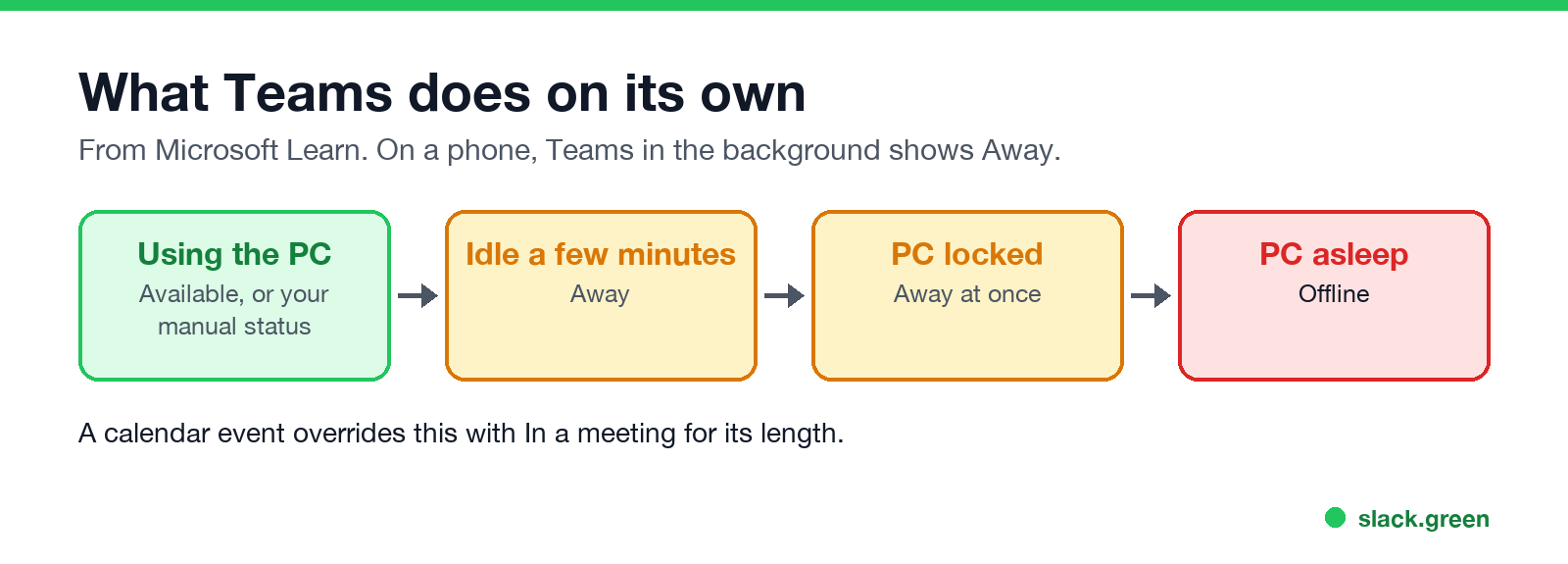
From Microsoft's presence page:
The same page says you can manually pick any status less available than the calculated one. So choosing Available by hand does not hold when you go idle; the yellow Away comes back. Why that happens, and what keeps Teams green, is in how to keep your Teams status available and how long before Teams shows Away. If you are stuck on Away while working, see Teams status stuck on Away.
Keep me online on Teams: what people try
What not to do
لا تظهر أبداً كـ "غائب" على Slack
يعمل على السحابة. بدون تنزيلات. يعمل 24/7 حتى عندما يكون الكمبيوتر مغلقاً.
Busy all day, every day, reads as a sign you do not want to be reached, and managers notice patterns more than single dots. A few calendar blocks with honest names ("Deep work: pricing model") and a status message do more for how busy you look than a red dot that never changes. If the real question is how to get a break without it showing, how to slack off at work covers what each app actually reports.
What each Teams color and icon means is in Microsoft Teams status icons meaning.
FAQ
How do I stay Busy on Teams all day?
Set Busy with a Duration of today, or block the day in your calendar. A manual Busy with no duration lasts one day.
Does Busy stop Teams from showing Away?
Not reliably. Teams still calculates Away from inactivity and a locked screen, and it shows Offline when the computer sleeps. Keep the computer awake and in use if the status matters.
Can my boss see that I set Busy manually?
Teams shows the status, not how it was set. A calendar event shows In a meeting, which comes from Outlook.
How do I make Teams show In a meeting without a meeting?
Create a calendar event for yourself and set Show as to Busy. Teams shows In a meeting for its length.
Does Busy block messages in Teams?
No. Busy still shows banners. Do not disturb hides them, but chat messages still arrive.
توقف عن تحريك الماوس.
مئات العاملين عن بعد لم يعودوا قلقين بشأن حالة Slack. قم بالإعداد مرة واحدة، ابقَ أخضر للأبد.
Related Articles
Slack Lists Tutorial: Create, Organize and Share a List
Slack lists are tables of tasks inside Slack, with fields, assignees, due dates, a board view and a comment thread on every item. How to create a list from scratch or a template, set up fields, turn it into a kanban board, add messages to it, share it, and what the plan limits are.
Slack Jira Integration: Setup, /jira Commands and Notifications
Install the Jira Cloud for Slack app, type /jira connect in a channel to send a Jira space's updates there, /jira notify for personal notifications as DMs, and create work items from any message with More actions. Every /jira command, Jira automation to Slack, and fixes when previews or notifications stop.
How to Create a Slack Workspace, on Desktop or Phone
Go to slack.com/get-started, enter your email, type the confirmation code, and click Create a Workspace. It is free to start, you become the Primary Owner, and it takes about five minutes. Steps for desktop, iPhone and Android, and what to set up next.