
How to Send a Slack Message From GitHub Actions
Add slackapi/slack-github-action@v4.0.0 as a step, give it a bot token or an incoming webhook URL from repository secrets, and write the message as YAML. Working workflows for failure alerts, threads and message updates, plus a curl version with no third-party action.
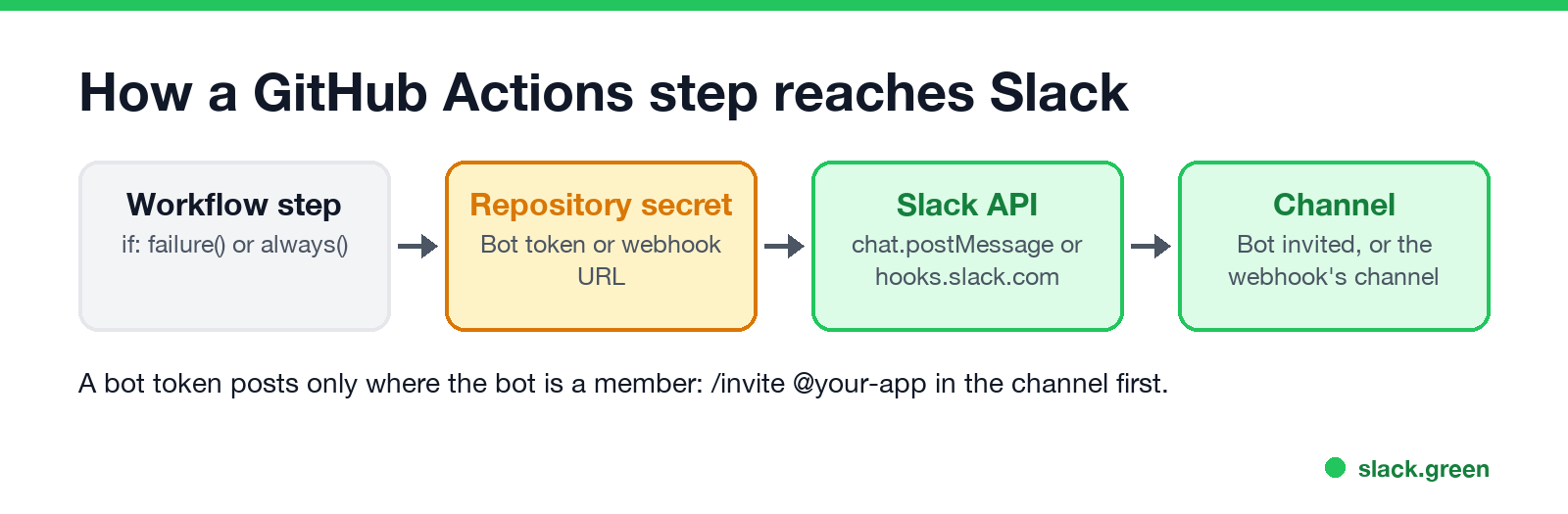
To send a Slack message from GitHub Actions, add Slack's official action, slackapi/slack-github-action@v4.0.0, as a step in your workflow. Give it either a bot token and method: chat.postMessage, or an incoming webhook URL, both stored as repository secrets, and write the message in the payload input as YAML. Add if: failure() to the step and it posts only when a build breaks. For a bot token, invite the app to the channel first. If you cannot use third-party actions, a curl step to an incoming webhook does the same job.
Slack bots and tokens also drive presence. Slack Green uses Slack's API to keep your own status green during the hours you set; how bot tokens differ from user tokens is in Slack bot token.
Four ways to post to Slack from GitHub Actions
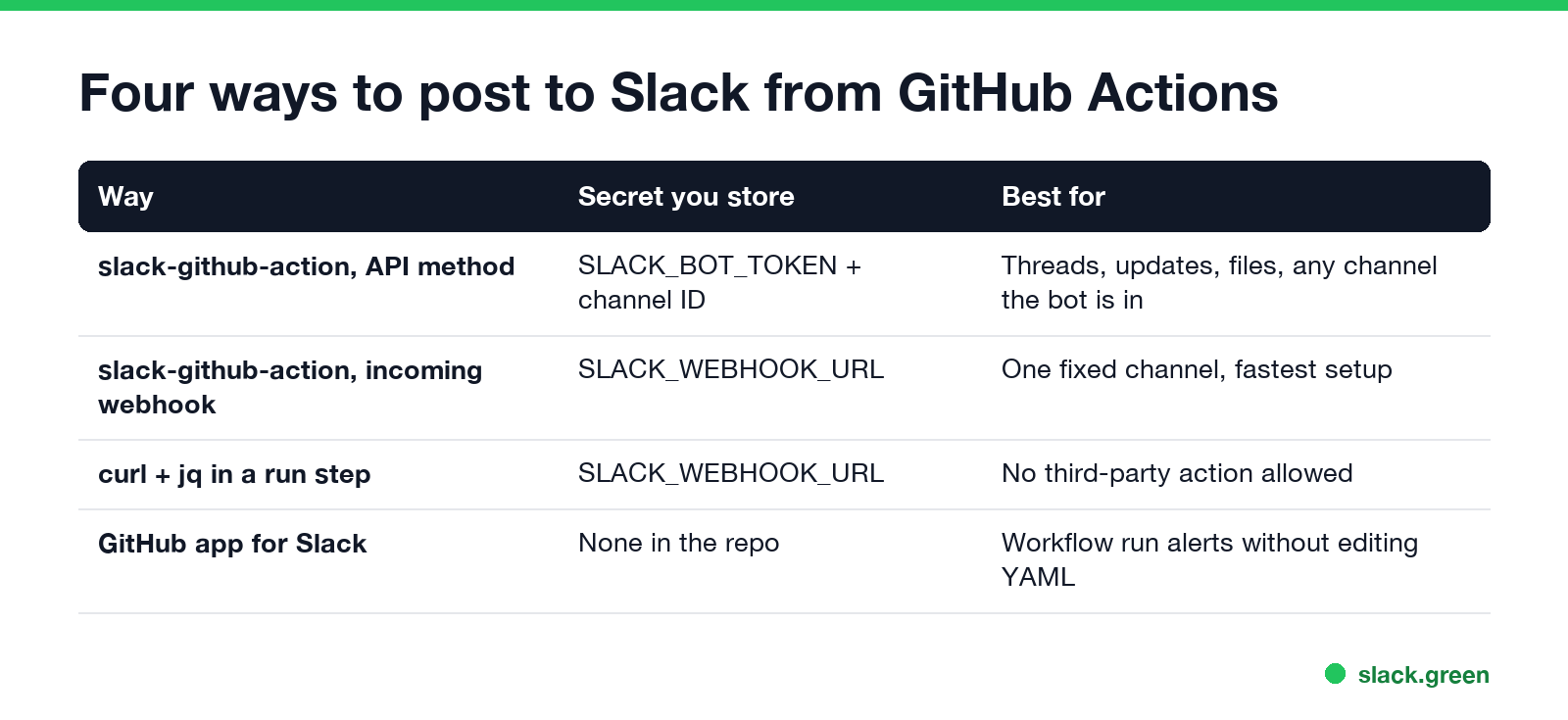
| Way | Secret you store | Best for |
|---|---|---|
| slack-github-action with an API method | SLACK_BOT_TOKEN and a channel ID | Threads, message updates, files, any channel the bot is in |
| slack-github-action with an incoming webhook | SLACK_WEBHOOK_URL | One fixed channel, quickest setup |
curl and jq in a run step | SLACK_WEBHOOK_URL | Repos that allow no third-party actions |
| The GitHub app for Slack | None in the repo | Workflow run alerts with no YAML changes |
The action is maintained by Slack. Version 4.0.0 came out on 15 July 2026; its one breaking change is stricter YAML in payload, where a value that spans several lines must be indented under its key. Version 3 moved the action to the Node.js 24 runtime, so old self-hosted runners may need an update.
Option 1: bot token and chat.postMessage
This way can post to any channel the bot is in, reply in threads and edit its own messages.
- Create a Slack app at api.slack.com/apps, or use an existing one.
- Under OAuth & Permissions, add the bot scope
chat:write. - Click Install to Workspace and copy the Bot User OAuth Token (it starts with
xoxb-). - In GitHub, open Settings > Secrets and variables > Actions and add
SLACK_BOT_TOKEN. Add the channel ID asSLACK_CHANNEL_ID; you find it at the bottom of the channel's details panel. - In Slack, run
/invite @your-appin that channel. Without it, the call fails withnot_in_channel.
Then add the step. This workflow runs tests on every push to main and posts only if they fail:
name: CI
on:
  push:
    branches: [main]

jobs:
  test:
    runs-on: ubuntu-latest
    steps:
      - uses: actions/checkout@v5
      - run: npm ci && npm test

      - name: Tell Slack the build failed
        if: failure()
        uses: slackapi/slack-github-action@v4.0.0
        with:
          method: chat.postMessage
          token: ${{ secrets.SLACK_BOT_TOKEN }}
          payload: |
            channel: ${{ secrets.SLACK_CHANNEL_ID }}
            text: ":x: ${{ github.workflow }} failed on ${{ github.ref_name }}: ${{ github.server_url }}/${{ github.repository }}/actions/runs/${{ github.run_id }}"
We parsed this file and its payload block with a YAML parser to check the indentation that v4 requires. Use if: always() to post on every run, and ${{ job.status }} in the text to say success or failure.
Option 2: incoming webhook
Never appear "away" on Slack again
Cloud-based. No downloads. Works 24/7 even when your laptop is off.
An incoming webhook posts to one channel, chosen when you create it. No channel ID or invite is needed.
https://hooks.slack.com/services/T.../B.../..., into the repository secret SLACK_WEBHOOK_URL. - name: Post the build result to Slack
if: always()
uses: slackapi/slack-github-action@v4.0.0
with:
webhook: ${{ secrets.SLACK_WEBHOOK_URL }}
webhook-type: incoming-webhook
payload: |
text: "*${{ github.workflow }}*: ${{ job.status }}\n${{ github.event.head_commit.url }}"A webhook cannot reply in threads or edit its message. For those, use Option 1. A third setting, webhook-type: webhook-trigger, starts a Slack Workflow Builder workflow instead of posting a message; ideas for those workflows are in Slack Workflow Builder examples.
Option 3: curl, with no third-party action
Some organizations allow only GitHub's own actions. A run step with jq and curl, both installed on GitHub's Ubuntu runners, posts to an incoming webhook:
      - name: Post to Slack with curl
        if: failure()
        env:
          SLACK_WEBHOOK_URL: ${{ secrets.SLACK_WEBHOOK_URL }}
          STATUS: ${{ job.status }}
        run: |
          jq -n --arg text "$GITHUB_WORKFLOW on $GITHUB_REF_NAME: $STATUS $GITHUB_SERVER_URL/$GITHUB_REPOSITORY/actions/runs/$GITHUB_RUN_ID" '{text: $text}' |
            curl -sS --fail -X POST -H 'Content-type: application/json' --data @- "$SLACK_WEBHOOK_URL"
jq builds the JSON, so quotes in a branch name or commit message do not break it. --fail makes the step fail if Slack rejects the post. We ran the command outside GitHub with the same variables: jq printed {"text": "CI on main: failure https://github.com/acme/app/actions/runs/123"}, and a made-up webhook URL made curl exit with an error on Slack's 404, as it should.
Threads, updates and files
With a bot token, each step returns the message's ts as an output, so later steps can reply in a thread or edit it. Give the first step an id:
      - name: Announce the deploy
        id: deploy_message
        uses: slackapi/slack-github-action@v4.0.0
        with:
          method: chat.postMessage
          token: ${{ secrets.SLACK_BOT_TOKEN }}
          payload: |
            channel: ${{ secrets.SLACK_CHANNEL_ID }}
            text: "Deploy of ${{ github.sha }} started :eyes:"

      - run: ./deploy.sh

      - name: Reply in the thread
        uses: slackapi/slack-github-action@v4.0.0
        with:
          method: chat.postMessage
          token: ${{ secrets.SLACK_BOT_TOKEN }}
          payload: |
            channel: ${{ secrets.SLACK_CHANNEL_ID }}
            thread_ts: "${{ steps.deploy_message.outputs.ts }}"
            text: "Deploy finished :rocket:"
Swap the second step's method for chat.update and use ts: instead of thread_ts: to edit the first message in place. method: files.uploadV2 with channel_id, file and filename uploads a test report; it needs the files:write scope.
Option 4: the GitHub app for Slack
Never appear "away" on Slack again
Cloud-based. No downloads. Works 24/7 even when your laptop is off.
If you only want to know when workflows finish, the GitHub app for Slack needs no YAML. Install it from the Slack Marketplace, then in a channel run:
/github subscribe owner/repo workflows:{event:"push" branch:"main"}It posts each workflow run and updates the message as jobs finish. It cannot send custom text; for that, use one of the options above.
Common errors
| Error | Cause | Fix |
|---|---|---|
not_in_channel | The bot is not in the channel | /invite @your-app |
channel_not_found | Wrong channel ID, or a private channel the bot cannot see | Copy the ID from channel details, invite the bot |
missing_scope | The token lacks chat:write | Add the scope and reinstall the app |
invalid_auth | Wrong or revoked token | Copy the xoxb- token again into the secret |
YAML error in payload | Multi-line value not indented (v4 rule) | Indent continuation lines under the key |
| Nothing posts on failure | The step has no if: | Add if: failure() or if: always() |
Secrets are not passed to workflows triggered by pull requests from forks, so the step fails there by design. Run it only on push or on pull requests from the same repository.
FAQ
How do I send a Slack message from GitHub Actions? Add slackapi/slack-github-action@v4.0.0 with a bot token and method: chat.postMessage, or with an incoming webhook URL.
What is the latest version of slack-github-action? v4.0.0, released 15 July 2026. It requires multi-line payload values to be indented.
How do I send a Slack notification only when a GitHub workflow fails? Add if: failure() to the Slack step. Use if: always() to post on every run.
Can I send a Slack message from GitHub Actions without a third-party action? Yes. Use curl with a Slack incoming webhook URL in a run step, with jq to build the JSON.
Why does my GitHub Action say not_in_channel? The Slack bot is not in the channel. Run /invite @your-app in that channel.
Stop Jiggling Your Mouse.
Join hundreds of remote workers who never worry about their Slack status. Set it up once, stay green forever.
Related Articles
Slack Audit Logs: What They Record, Who Sees Them, and the API
Slack audit logs record actions across an Enterprise organization, such as sign-ins with IP address, file downloads, channel joins and app installs, not message text. Where admins view and export them, what the 785 action types cover, and how to pull them with the Audit Logs API.
LinkedIn Active Status: What the Green Dot Means and How to Hide It
On LinkedIn, a solid green dot on someone's photo means they are active on LinkedIn now. A hollow green circle means they are not, but the mobile app will notify them at once. Turn yours off under Settings & Privacy, Visibility, Manage active status; with No one, you also stop seeing other people's status.
Teams Status Light: Busy Lights That Follow Your Teams Status
A Teams status light is a USB or Bluetooth busy light that copies your Microsoft Teams presence: green when Available, red in a call or on Do not disturb. Luxafor, Kuando and Embrava sell them; PresenceLight and a short Graph API script do it free with a smart bulb. The light shows your status; it cannot change it.