
Slack Channels Disappeared From the Sidebar? How to Get Them Back
Slack channels usually disappear from the sidebar because of a filter: Active only hides conversations with no new activity in 30 days, and muted channels can be hidden. Fix it from the Manage my sidebar menu. Other causes: collapsed sections, archived channels, leaving channels, the wrong workspace.
Slack channels usually disappear from the sidebar because of a sidebar filter, not because they were deleted. By default Slack shows Active only, which hides conversations with no new activity in the past 30 days. Muted channels can also be hidden. To get them back on desktop, open the Home tab, click the Manage my sidebar icon at the top, hover over Filter and sort, and choose to show all conversations. In the same menu, choose Show muted conversations. If one channel is still missing, it was archived, you left it, or you were removed.
Sorting out your sidebar is quick. Sorting out your Slack presence is not: your dot turns grey 10 minutes after your last input in Slack, whatever you do in other apps. Slack Green keeps it green during the working hours you set, from the cloud, with nothing installed on your computer.

Why Slack channels disappear from the sidebar
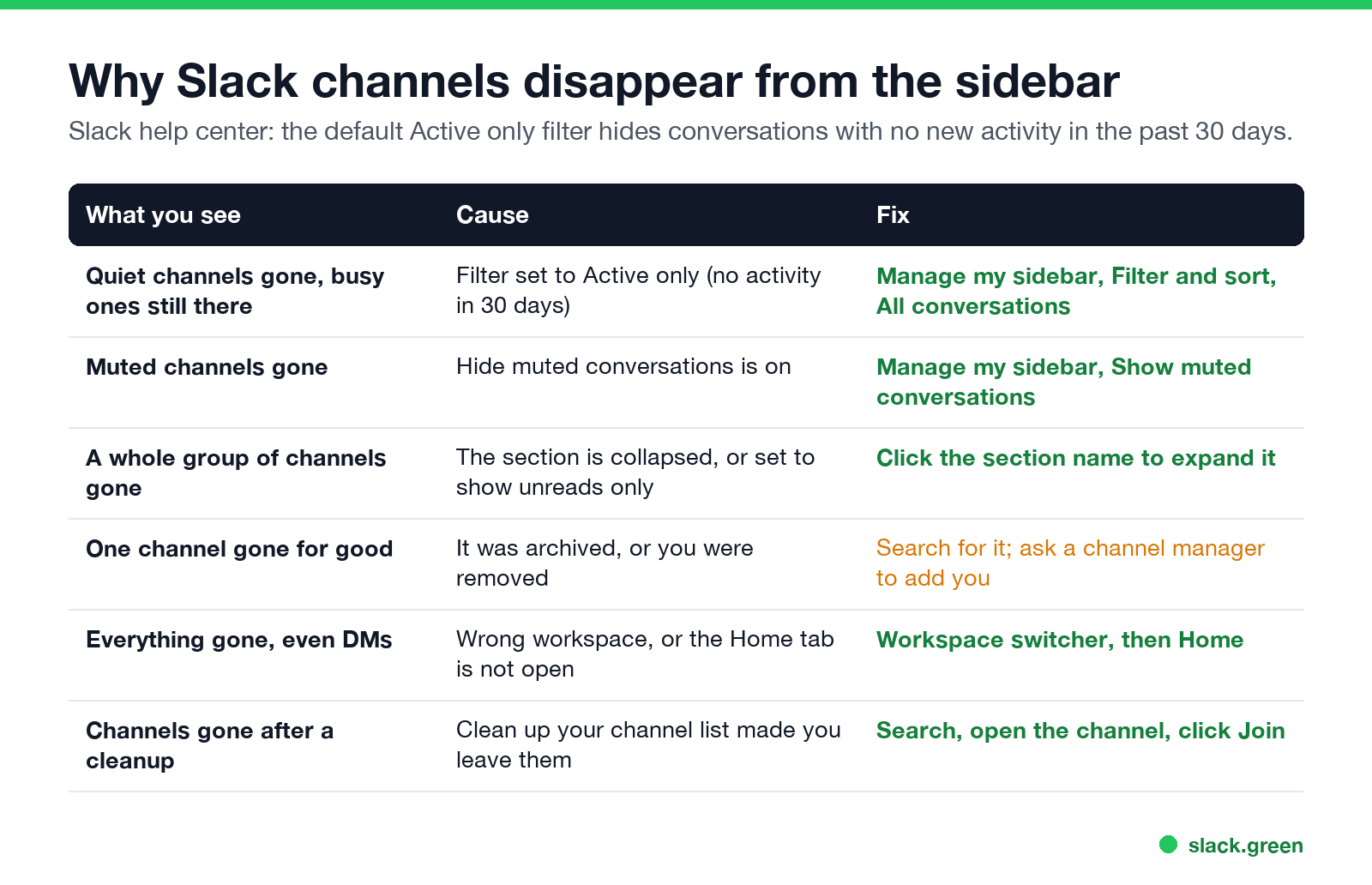
| What you see | Cause | Fix |
|---|---|---|
| Quiet channels gone, busy ones still there | Filter set to Active only | Show all conversations |
| Muted channels gone | Hide muted conversations is on | Show muted conversations |
| A whole group gone | Section collapsed or set to unreads | Click the section name |
| One channel gone for good | Archived, or you were removed | Search for it, ask to be added |
| Everything gone, even DMs | Wrong workspace, or not on Home | Switch workspace, open Home |
| Many channels gone after a cleanup | You left them with Clean up your channel list | Search, open, and Join |
How to show all channels in the Slack sidebar

- Click Home in the navigation bar.
- At the top of the Home tab, click the Manage my sidebar icon.
- Hover over Filter and sort and choose to show all conversations instead of Active only.
- Open the same menu again and select Show muted conversations if it is there.
- Expand any collapsed section by clicking its name.
Slack's help center describes the default this way: Active only hides conversations with no new activity in the past 30 days. That is why channels seem to vanish one by one over time, with no setting changed.
Slack muted channels are hidden
لا تظهر أبداً كـ "غائب" على Slack
يعمل على السحابة. بدون تنزيلات. يعمل 24/7 حتى عندما يكون الكمبيوتر مغلقاً.
If you muted a channel and then chose Hide muted conversations, every muted channel leaves the sidebar. They are still there, and you are still a member. Click Manage my sidebar and select Show muted conversations, or search for the channel and unmute it from its name menu.
One specific channel is gone
Search for it with the search bar or Ctrl+K / Cmd+K.
All my Slack channels disappeared
When the whole sidebar looks empty:
Slack channels missing on iPhone and Android
لا تظهر أبداً كـ "غائب" على Slack
يعمل على السحابة. بدون تنزيلات. يعمل 24/7 حتى عندما يكون الكمبيوتر مغلقاً.
The mobile app follows the same account settings for muted conversations and sections. Channels hidden on desktop by a filter may still appear on mobile, and the reverse. Search in the app to open a missing channel, then star it or move it to a section so it stays easy to find.
Keep important channels from disappearing
If the thing that keeps disappearing is your custom status, not a channel, see Slack keeps clearing my status. For everything about the dot and status next to your name, start at the Slack status hub. If channels show but an unread badge will not clear, see Slack keeps showing unread messages.
FAQ
Why are my Slack channels disappearing from the sidebar?
The default Active only filter hides conversations with no new activity in 30 days. Switch the filter to show all conversations under Manage my sidebar, Filter and sort.
How do I display all my channels in the Slack sidebar?
Click Manage my sidebar at the top of the Home tab, hover over Filter and sort, and choose all conversations. Then show muted conversations and expand collapsed sections.
Why can't I see a channel in Slack?
It is filtered out, muted and hidden, archived, or you are not a member. Search for it to find out which.
Why are starred channels not showing up in my Slack sidebar?
The Starred section may be collapsed, or the filter hides it when it has no recent activity. Expand the section and change the filter.
Did Slack delete my channels?
Almost never. Filters, muting and leaving hide channels from your sidebar only. Deleted channels are rare and done by admins.
توقف عن تحريك الماوس.
مئات العاملين عن بعد لم يعودوا قلقين بشأن حالة Slack. قم بالإعداد مرة واحدة، ابقَ أخضر للأبد.
Related Articles
Slack Red Dot Won't Go Away? What It Counts and How to Clear It
A red dot on the Slack icon means unread activity somewhere; a red number means DMs, mentions, keywords or followed thread replies. Press Shift+Esc to mark all read, check Threads, Activity, Later and other workspaces, then clear the cache or reset the OS badge.
How to Keep Your Outlook Status Green (It Comes From Teams)
Your Outlook status shows your Microsoft Teams presence, so to keep Outlook green you keep Teams Available: Teams signed in and running, input on the computer, no lock or sleep, and no leftover status. What sets you Away, and what you can change.
Does Microsoft Teams Track Your Activity? What Admins Can See
Teams admins can see activity counts per person: messages in channels and chats, meetings, 1:1 calls, audio, video and screen share time, and your last activity date. Your status follows keyboard and mouse activity on the whole computer. Teams does not log keystrokes, your screen, or other apps.