
How to Keep a Work Computer Awake Without Admin Rights
You can keep a work computer awake without admin rights: raise the sleep and screen timeouts in Settings, run caffeinate on a Mac, use PowerToys Awake or presentation mode on Windows, or a browser Wake Lock tab. None of them beat an IT lock policy, and none keep Slack or Teams active.
You can keep a work computer awake without admin rights in most setups. On Windows, raise the times under Settings, System, Power & battery, Screen and sleep, or run presentation mode, or install PowerToys Awake per user. On a Mac, open Terminal and run caffeinate -d, which is built in and needs no password. In any browser, a page that uses the Screen Wake Lock API keeps the screen on while the tab is visible. Two limits apply. If your IT department pushes a screen-lock policy, none of these override it. And keeping the computer awake does not keep you active in Slack or Teams: Slack still sets you away after 10 minutes without input in its window.
If Slack is why you want the laptop awake, you do not need the laptop at all. Slack Green keeps your Slack presence active from its own servers during the working hours you set, with nothing installed on your work computer, so there is nothing for IT to find.
Ways to keep a work computer awake without admin
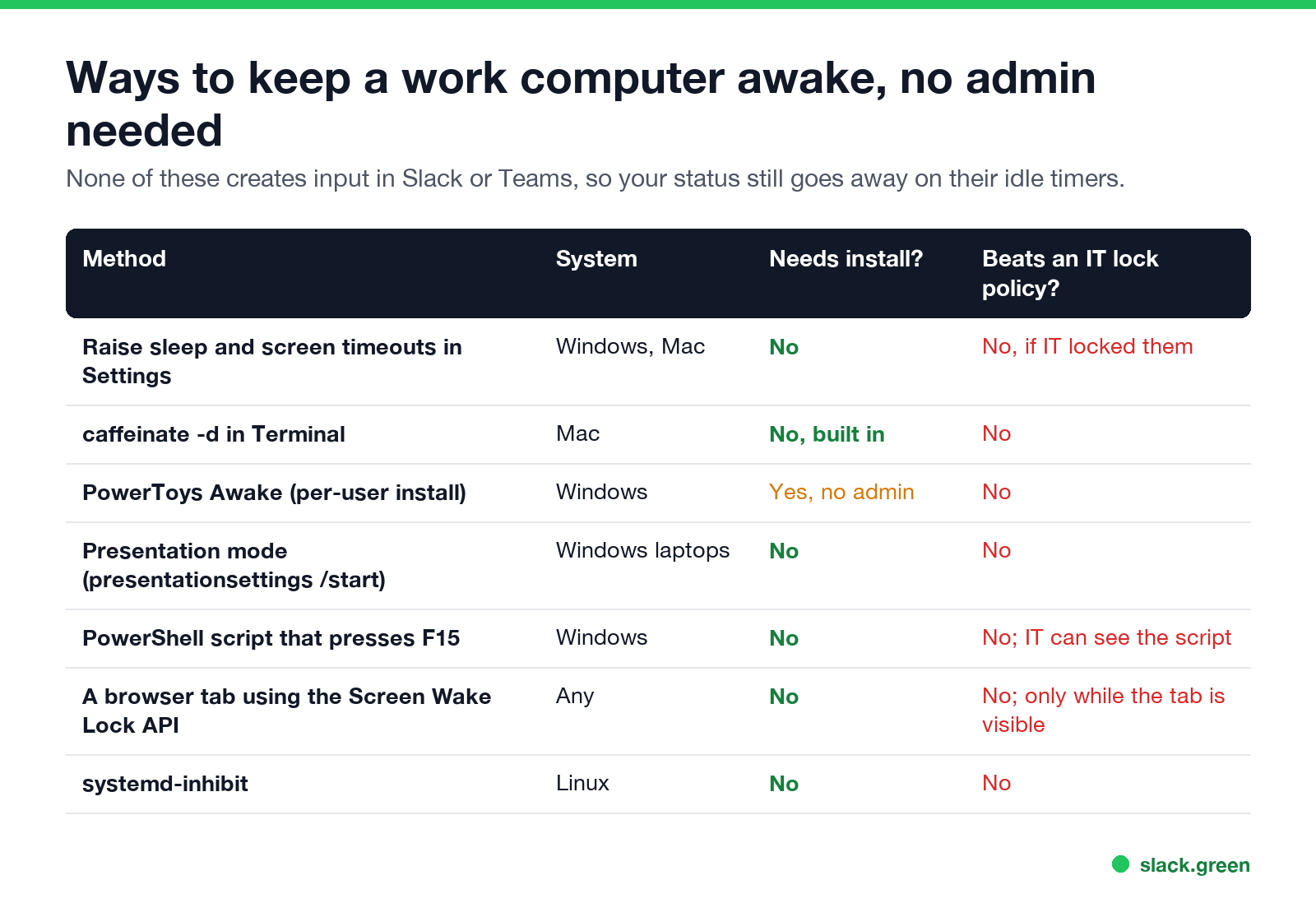
| Method | System | Install | Beats an IT lock policy |
|---|---|---|---|
| Raise sleep and screen timeouts | Windows, Mac | No | No, if IT locked them |
caffeinate -d | Mac | Built in | No |
| PowerToys Awake, per-user install | Windows | Yes, no admin | No |
| Presentation mode | Windows laptops | No | No |
| PowerShell key-press script | Windows | No | No |
| Screen Wake Lock browser tab | Any | No | No |
systemd-inhibit | Linux | No | No |
Windows: stop sleep without admin
1. Settings. Open Settings, System, Power & battery (on desktops, Power), then Screen and sleep or Screen, sleep, & hibernate timeouts. Raise the times for plugged in. If the options are greyed out, IT set them by policy and only IT can change them.
2. Presentation mode. On laptops with Windows Mobility Center, press Win+R and run:
presentationsettings /startWindows stays awake and turns off the screen saver until you run presentationsettings /stop.
3. PowerToys Awake. Microsoft's PowerToys has a per-user installer that does not need admin rights. Awake keeps the PC awake indefinitely, for a set time, or until a set time, and can keep the screen on too. Your company may block the install. Whether Awake keeps Slack or Teams active is covered in does PowerToys Awake keep Slack active.
4. A PowerShell script. This presses F15, a key most apps ignore, once a minute:
$w = New-Object -ComObject WScript.Shell
while ($true) { $w.SendKeys('{F15}'); Start-Sleep -Seconds 60 }
It keeps Windows from counting you idle. A second script that blocks sleep without sending keys is in keep a Windows PC awake with PowerShell. It sends the key to whatever window is in focus, and a running script is visible to endpoint monitoring, which is how this kind of tool gets noticed; see can a mouse jiggler be detected.
Mac: stop sleep without admin
Nie wieder "abwesend" auf Slack erscheinen
Cloud-basiert. Keine Downloads. Funktioniert 24/7 auch wenn Ihr Laptop aus ist.
Open Terminal and run:
caffeinate -d-d stops the display from sleeping; -i stops the system from idle sleep. Press Ctrl+C to stop. No password is needed. Every flag, and how to run it for a set time, is in our caffeinate guide. You can also raise the times in System Settings, Lock Screen, unless your company manages them.
Linux: stop sleep without admin
On most desktops with systemd:
systemd-inhibit --what=idle:sleep --why="keep awake" sleep infinityStop it with Ctrl+C. GNOME and KDE also let you raise blank-screen and suspend times in their settings. To keep a laptop running with the lid closed, see keep a laptop awake with the lid closed.
Keep the screen awake with a browser tab
Browsers support the Screen Wake Lock API, which lets a web page ask to keep the screen on. "Keep screen awake online" sites use it. It works only while that tab is visible and the browser window is not minimized, and it does nothing that Slack or Teams can see.
Can you stop a work laptop from locking?
Nie wieder "abwesend" auf Slack erscheinen
Cloud-basiert. Keine Downloads. Funktioniert 24/7 auch wenn Ihr Laptop aus ist.
Only if the lock is a setting you can change. Many companies push a lock after a few minutes of inactivity through Intune, Group Policy or Jamf. Keeping the display awake with the methods above usually stops the screen saver, and so the lock that follows it, but a lock enforced by policy still happens. Do not try to work around a security policy on a company device; ask IT for a longer timeout if the lock gets in the way of your work.
Awake is not active in Slack or Teams
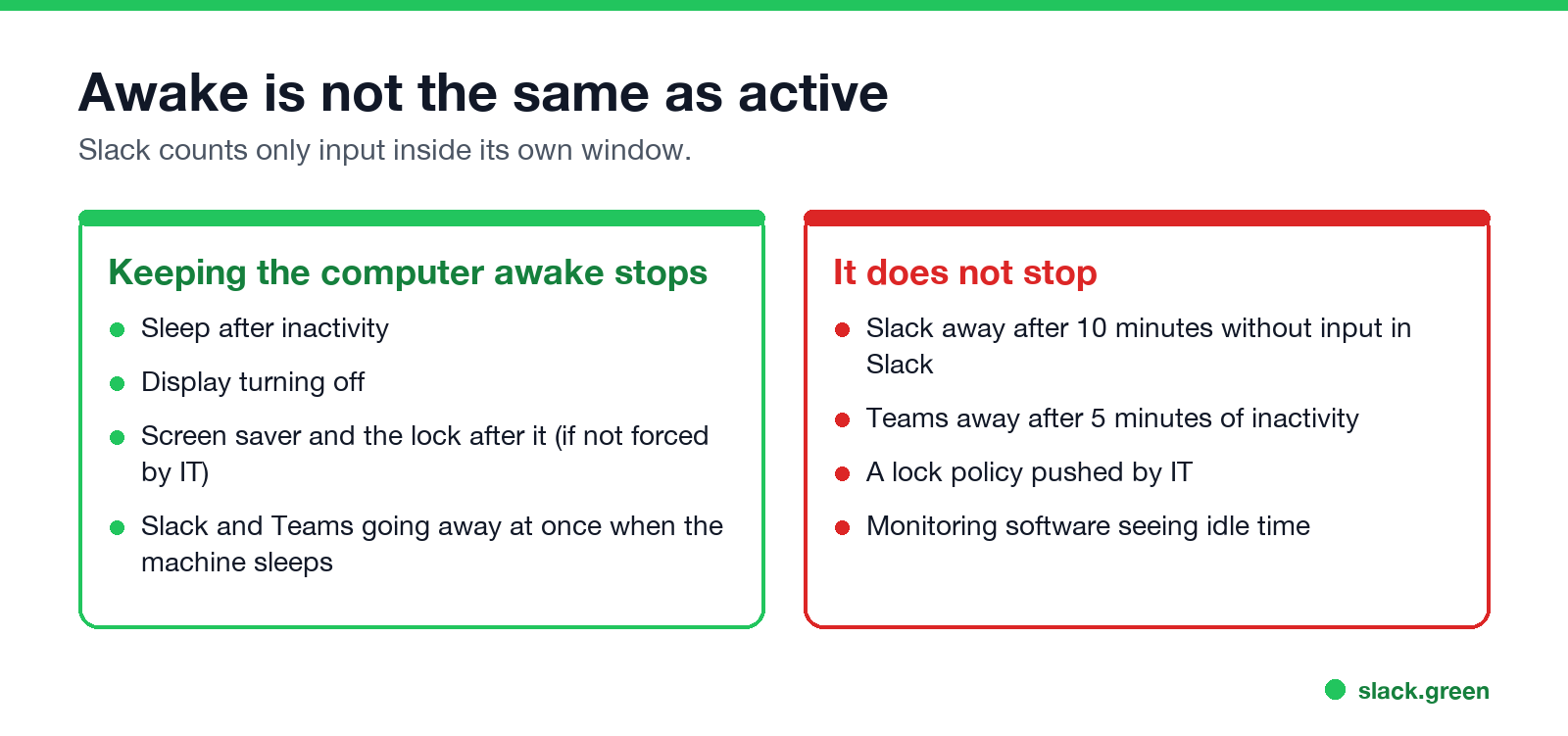
Keeping the computer awake stops one thing: the instant away that happens when the computer sleeps or locks. It does not stop Slack's idle timer. Slack counts only input inside its own window, and sets you away 10 minutes after the last one. Teams sets you away after 5 minutes of inactivity. We tested this with keep-awake apps in does Caffeine keep Slack active and does Amphetamine keep Slack active.
To keep Slack green, something has to give Slack input or hold an active session. The options are compared in how to keep Slack active. Slack Green does it from a server, so the work computer can sleep, lock and follow every IT policy while your dot stays green during your working hours. For Teams, see keep Teams and Slack active.
FAQ
How do I keep my work computer awake without admin rights?
Raise the sleep and screen times in Settings if they are not locked, run caffeinate -d on a Mac, or use presentation mode or PowerToys Awake (per-user install) on Windows.
How do I stop my work laptop from locking?
Raise the lock time if you can change it. If IT enforces the lock by policy, only IT can change it.
Does keeping my computer awake keep me active on Slack?
No. Slack sets you away 10 minutes after your last input in the Slack window, awake or not.
Is there a website that keeps my screen awake?
Yes. Pages that use the Screen Wake Lock API keep the screen on while the tab is visible. They do not keep Slack or Teams active.
Can IT see that I keep my computer awake?
Settings changes and built-in commands leave little trace. Scripts and installed apps show up as processes to endpoint monitoring.
Hör auf, die Maus zu Bewegen.
Hunderte Remote-Arbeiter sorgen sich nicht mehr um ihren Slack-Status. Einmal einrichten, für immer grün bleiben.
Related Articles
Slack Workflow Builder Examples: 12 Workflows to Copy, With Triggers and Steps
Twelve Slack Workflow Builder examples with the exact trigger and steps for each: daily standups, channel welcomes, time-off approvals, help desk requests, emoji escalations, keyword routing, incidents, list updates and webhooks from other tools. Plus where Workflow Builder lives, what it costs and how branches work.
Slack Timer: How to Set a Countdown, Pomodoro or Focus Timer in Slack
Slack has no built-in timer, but four built-in tools act like one: /remind me to ... in 25 minutes, a status that clears itself, /dnd for a focus block, and Workflow Builder for dated countdowns. For a live countdown in a channel, use a Marketplace app or a 15-line bot script.
Slack Saved for Later: Where the Later Tab Is and How It Works
Saved messages in Slack live in the Later tab, which replaced stars and Saved items in 2023. Hover a message and click Save for later, or press A. Add a reminder, mark items complete, and find them with is:saved. Where Later is on desktop and mobile, and what changed.