
Add a Workspace with the Chrome Extension
The fastest way to connect a Slack workspace. The Chrome extension grabs your tokens automatically, no DevTools needed.
Once your workspace is connected, you can remove the extension.
Sign up to Slack Green
Go to slack.green and sign up with your Google account or email. Takes about 10 seconds.
Install the Chrome extension
Install the Slack Green Chrome extension from the Chrome Web Store.
Extract the token
Open Slack in your browser (app.slack.com) and click the extension icon in your toolbar. It'll detect your Slack session and show you a short code, copy that.
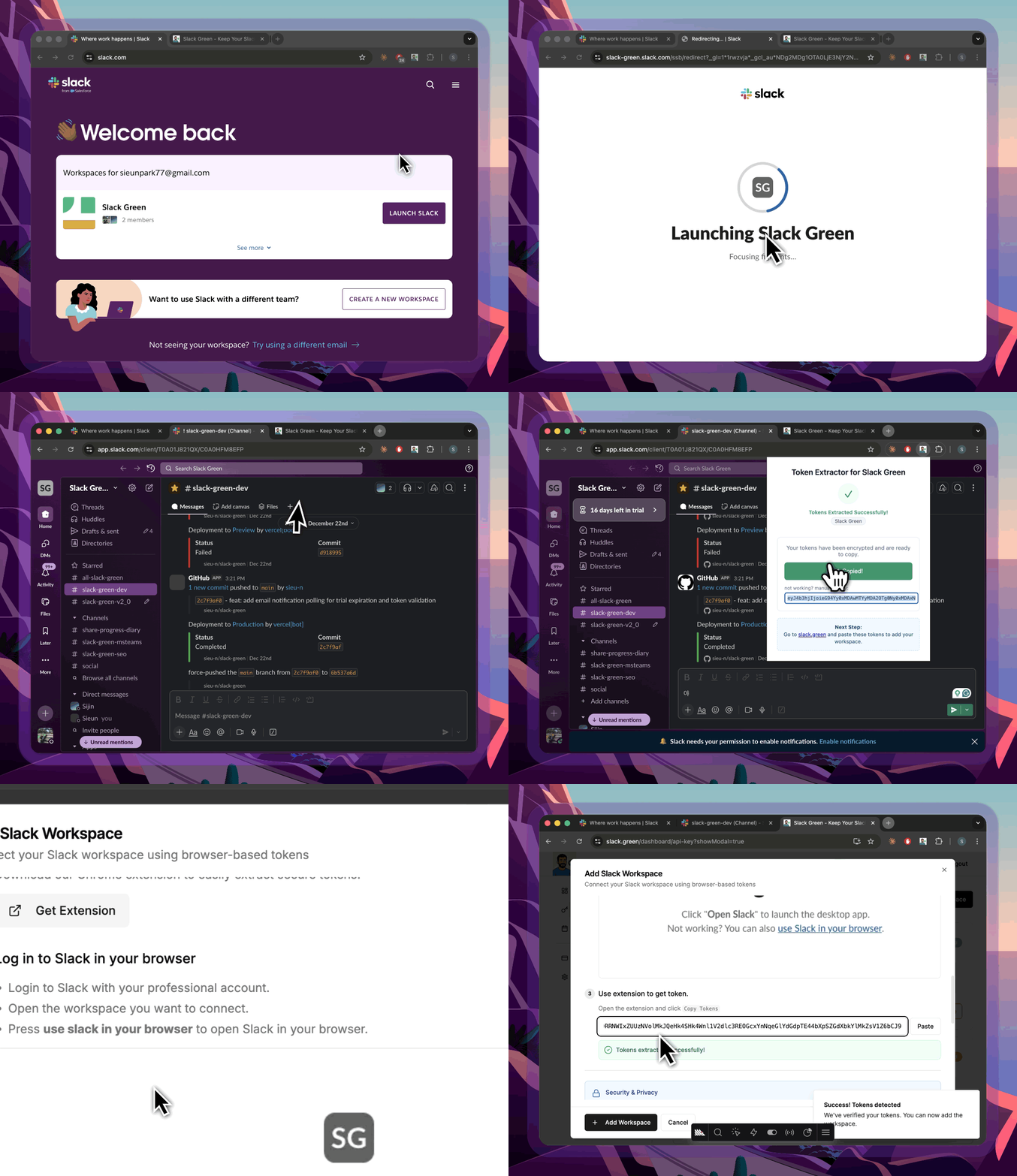
Make sure you're on the Slack web app (app.slack.com), not the desktop app. The extension needs the browser session to extract tokens.
Paste the code on the dashboard
Back on the Slack Green dashboard, click Add Workspace and select the Chrome Extension tab.
Paste the code from the extension. It auto-fills both tokens and your workspace name, no manual copying needed.
Hit Save and Slack Green will verify the tokens are valid before adding the workspace.
Set your schedule (optional)
By default, your workspace stays active 24/7. If you want it to follow a schedule, say, weekdays 9 AM to 6 PM, head to Dashboard → Schedule.
Pick your timezone, active days, and start/end times. The backend will only keep you online during those hours.
You can also use the "Keep me online" slider on the dashboard for a quick override (up to 2 hours on the free plan).
You're done
That's it. Your Slack status dot is now green. You can check the dashboard anytime to see your real-time presence, the green ring around your profile picture means it's working.
If you need to add more workspaces, just repeat the process. Free plans support up to 3 workspaces; Pro and CLI are unlimited.
You can now remove the Chrome extension, it's no longer needed and leaves no trace.
Stop Jiggling Your Mouse.
Join hundreds of remote workers who never worry about their Slack status. Set it up once, stay green forever.