
@here vs @channel vs @everyone in Slack: Who Gets Notified
@everyone notifies everyone in the general channel, @channel notifies every member of a channel, and @here notifies only members who are active right now. None of them work in threads or reach people with paused notifications. Which to use, and how admins restrict them.
To mention everyone in Slack, type @channel in a channel to notify all its members, or @everyone in the general channel to notify the whole workspace. @here notifies only the channel members who are active right now, meaning their dot is green. Slack's help center adds three rules: none of these mentions notify anyone when used in a thread, none reach people whose notifications are paused, and in channels with six or more members Slack asks you to confirm before sending.
@here is the one tied to presence. If your dot is grey because you spent 10 minutes in another app, an @here in your team channel does not notify you. Slack Green keeps your dot green during the working hours you set, from the cloud, so you count as active for @here while you work.
Slack @here vs @channel vs @everyone
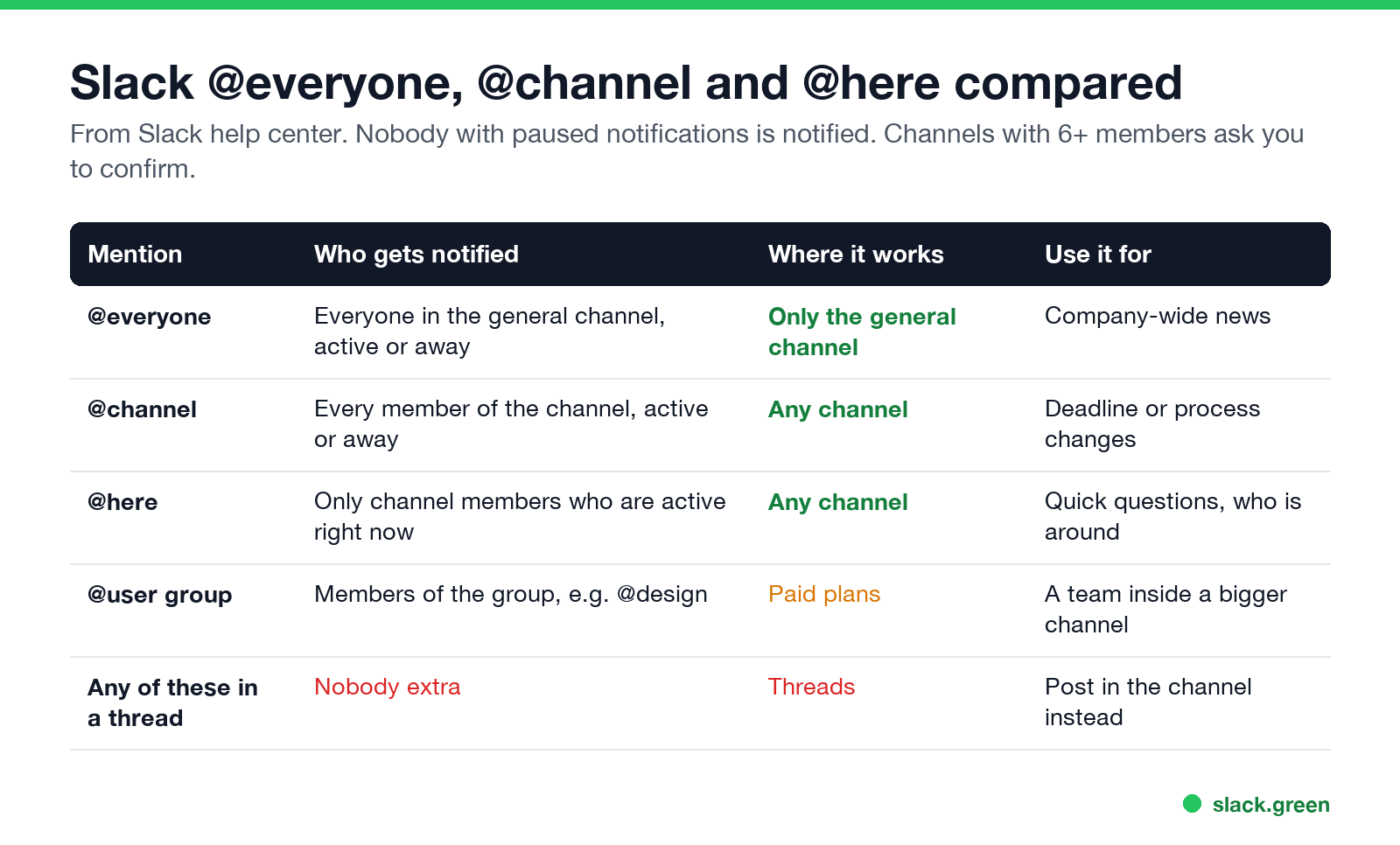
| Mention | Who gets notified | Where it works |
|---|---|---|
@everyone | Everyone in the general channel, active or away | Only the general channel |
@channel | Every member of the channel, active or away | Any channel |
@here | Only members who are active right now | Any channel |
@user-group | Members of a user group such as @design | Paid plans |
@everyone works only in the general channel, the one every member except guests joins automatically. It notifies every person there. By default guests cannot use it. Use it for company-wide news, such as a policy change or an office emergency.
@channel notifies all members of the channel you post in, whether they are active or away. Use it for timely changes that affect everyone there, such as a moved deadline.
@here notifies only members who are active. Use it for questions that need whoever is around, such as "can someone review this PR in the next 20 minutes?"
Does @here notify people who are away?
No. @here reaches only members Slack marks as active, the ones with a green dot. Everyone else sees the message as unread when they come back, with no notification.
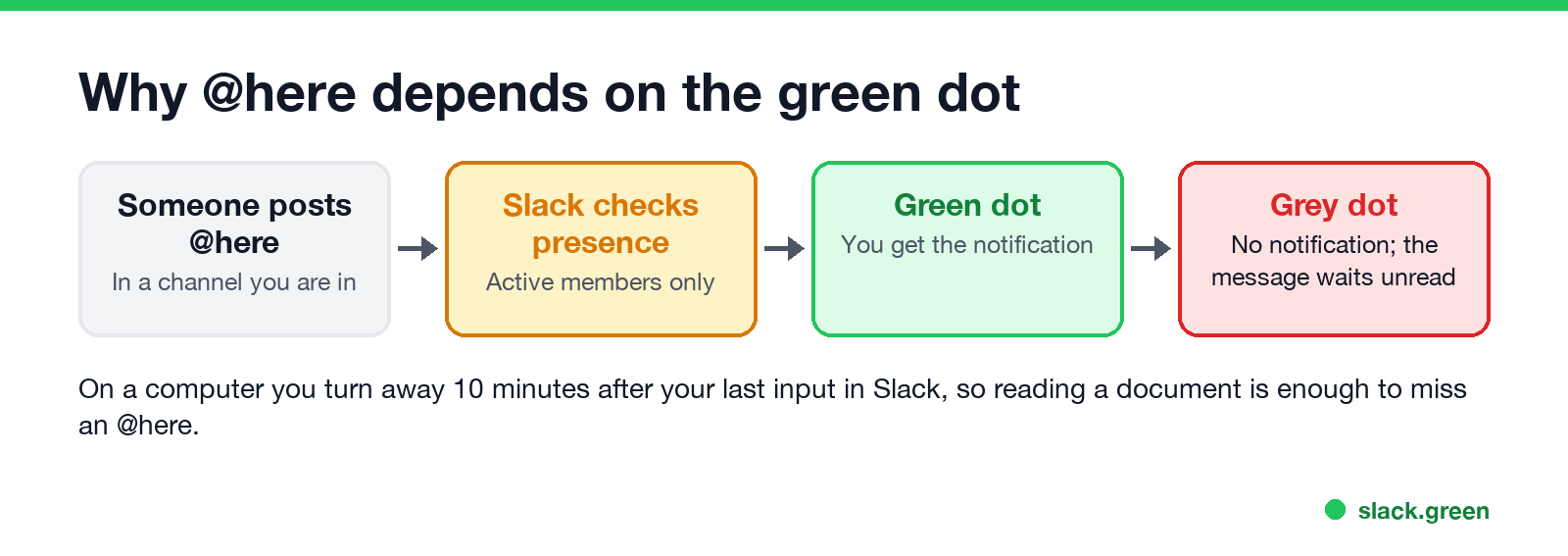
On a computer Slack marks you away 10 minutes after your last input in the Slack window. On a phone you are away as soon as you leave the app. So people at their desks, writing a document or in a video call, often miss @here. The rules are in how long does Slack stay active and how Slack decides when you are away. If @here pings matter in your team, keeping your presence active during working hours matters too; see how to keep Slack active.
Can you mention everyone in a Slack thread?
Slack पर फिर कभी "away" न दिखें
क्लाउड-आधारित। कोई डाउनलोड नहीं। लैपटॉप बंद होने पर भी 24/7 काम करता है।
Not with these mentions. Slack's help center says @everyone, @channel and @here do not notify people when used in threads. To reach everyone, post in the channel itself, or tick Also send to #channel on your thread reply so it appears in the channel. You can still mention people by name in a thread.
How to mention a group of people
On Pro, Business+ and Enterprise plans, a user group notifies a named set of people, such as @design or @oncall, in any channel. It is more precise than @channel in a big channel. Workspace owners and admins decide who can create and edit user groups.
How to disable @here and @channel in Slack
Owners and admins with permission can restrict who can use @everyone, @channel and @here, for example to admins only. The setting is in the workspace permissions under Admin, Workspace settings. They can also turn off the confirmation that appears in channels with six or more members.
On Enterprise plans, in channels with 10,000 members or more, only owners and admins can use @channel and @here.
As a member, you cannot block other people's @channel or @here from reaching you, but you can mute a channel or set its notifications to Nothing. Muting still lets direct mentions of your name through. More in Slack notifications not working and Slack Do Not Disturb.
When to use each mention
Slack पर फिर कभी "away" न दिखें
क्लाउड-आधारित। कोई डाउनलोड नहीं। लैपटॉप बंद होने पर भी 24/7 काम करता है।
- • Most of the time, none of them. Mention the one or two people who need to act.
- • @here when you need anyone available in the next few minutes.
- • @channel when every member must see it today, even if they are away.
- • @everyone for news the whole company needs.
Posting on a schedule? A channel reminder can include @channel; see Slack /remind command examples.
FAQ
Can you do @everyone in Slack?
Yes, in the general channel only. It notifies every member there. In other channels, use @channel.
What is the difference between @here and @channel?
@channel notifies every member of the channel. @here notifies only the members who are active right now.
Why can't I @channel on Slack?
Your workspace owner or admin restricted it, or you are a guest, or it is an Enterprise channel with 10,000 or more members.
Does @channel notify people with Do Not Disturb on?
No. People with paused notifications are not notified. They see the message when they resume.
Does @here work on mobile?
Yes, for people who count as active, which on a phone means the Slack app is open on screen.
माउस हिलाना बंद करें।
सैकड़ों रिमोट वर्कर्स अब Slack स्टेटस की चिंता नहीं करते। एक बार सेटअप करें, हमेशा के लिए हरे रहें।
Related Articles
Slack Workflow Builder Examples: 12 Workflows to Copy, With Triggers and Steps
Twelve Slack Workflow Builder examples with the exact trigger and steps for each: daily standups, channel welcomes, time-off approvals, help desk requests, emoji escalations, keyword routing, incidents, list updates and webhooks from other tools. Plus where Workflow Builder lives, what it costs and how branches work.
Slack Timer: How to Set a Countdown, Pomodoro or Focus Timer in Slack
Slack has no built-in timer, but four built-in tools act like one: /remind me to ... in 25 minutes, a status that clears itself, /dnd for a focus block, and Workflow Builder for dated countdowns. For a live countdown in a channel, use a Marketplace app or a 15-line bot script.
Slack Red Dot Won't Go Away? What It Counts and How to Clear It
A red dot on the Slack icon means unread activity somewhere; a red number means DMs, mentions, keywords or followed thread replies. Press Shift+Esc to mark all read, check Threads, Activity, Later and other workspaces, then clear the cache or reset the OS badge.