
How to Delay and Schedule Slack Messages
Slack can send a message later: the schedule menu sits on the arrow next to Send. What it can do, what it cannot (no undo-send), the steps on desktop and mobile, and when a reminder fits better.
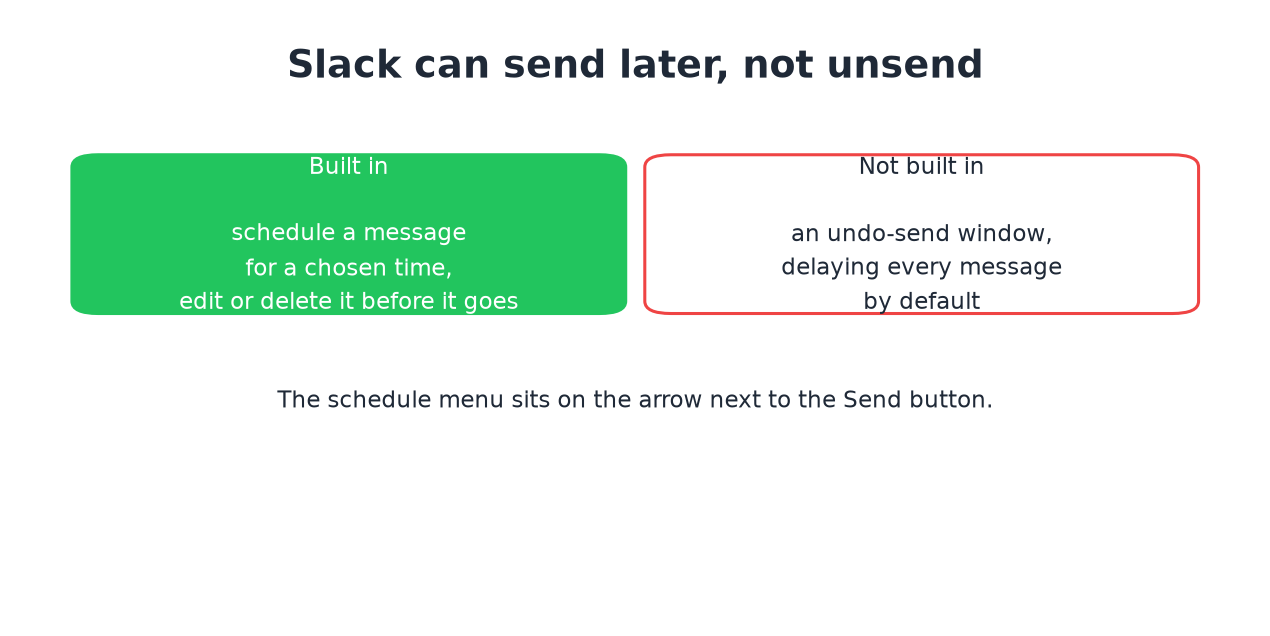
Slack can delay a message, in one specific sense: you schedule it for a chosen time, and until that time you can edit or cancel it. What Slack does not have is an undo-send window after a message leaves, or a setting that delays everything by default. Send means sent.
Scheduling a message
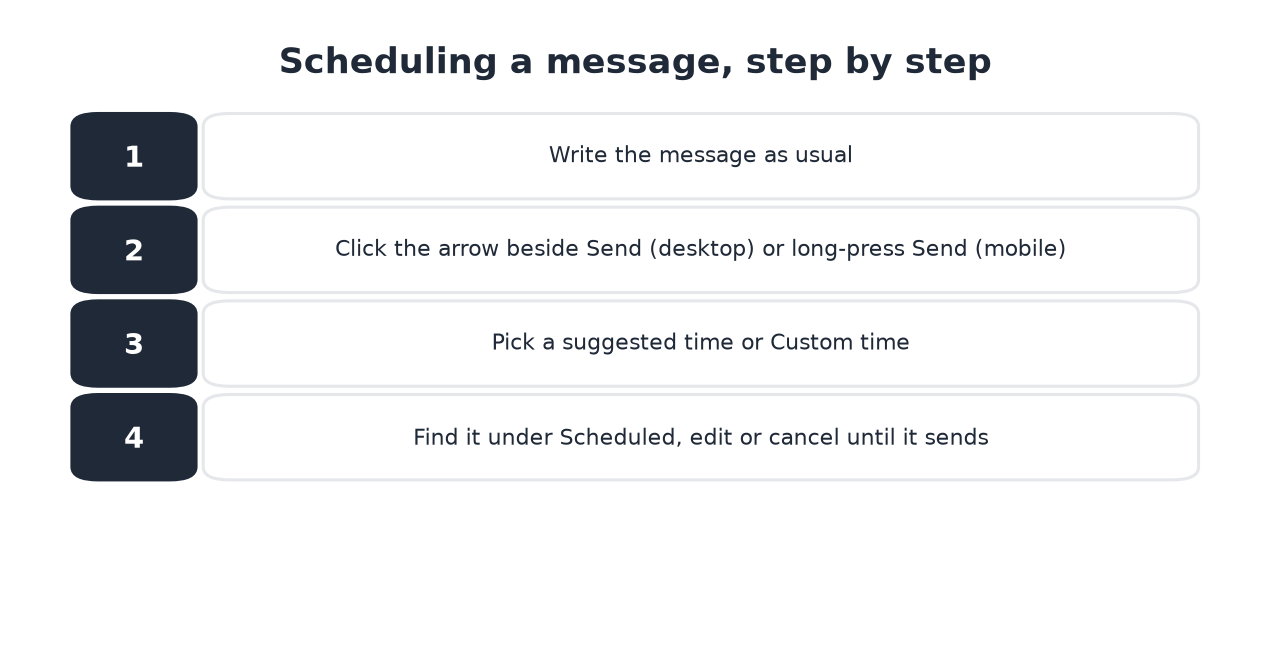
- Write the message as usual.
- On desktop, click the arrow beside the green Send button. On mobile, long-press Send.
- Pick one of the suggested times, or Custom time for anything else.
- The message waits under Scheduled in your sidebar. Open it there to edit, reschedule, or delete it before it goes.
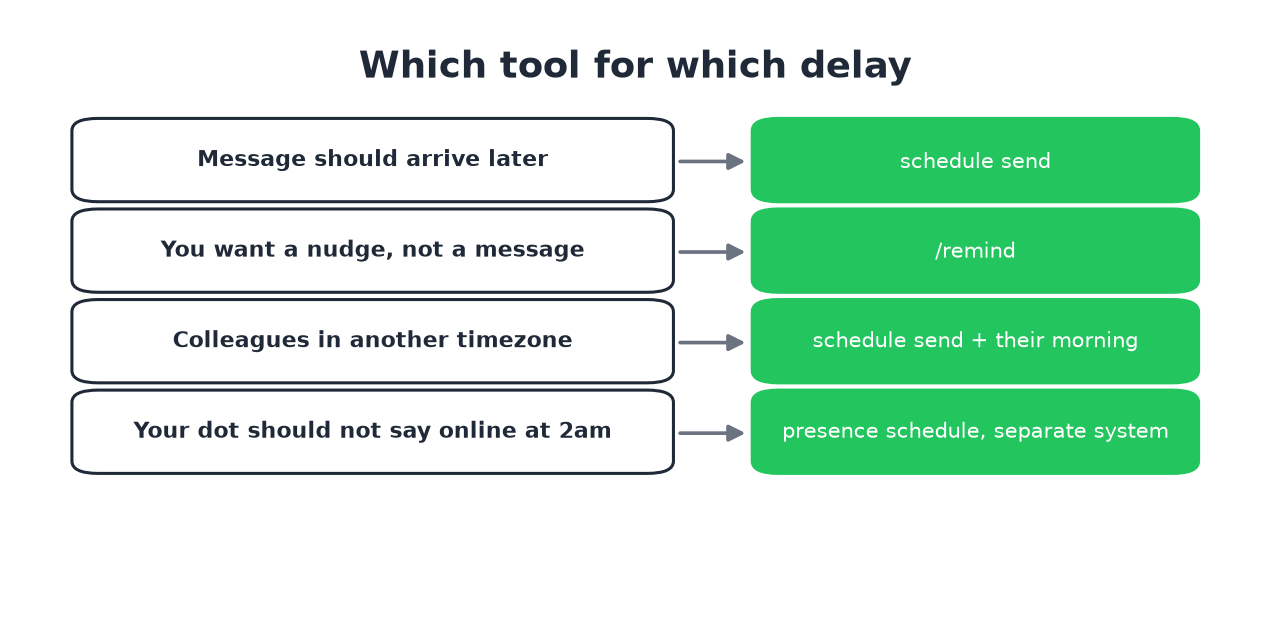
- • The content should land later: schedule the message.
- • You need a nudge to write it later:
/remind. - • Cross-timezone courtesy: schedule it into their morning instead of your evening. The timezone converter shows the overlap.
Scheduled messages send whether you are online or not. Your machine can be off; Slack's servers hold the message.
Delay versus reminder
A scheduled message arrives in the channel as a normal message. A reminder
(/remind me to review the doc at 3pm) pings only you, or the person you
aim it at, as a Slackbot nudge. The split:
What scheduling does not touch
Slack에서 다시는 '자리 비움'으로 표시되지 마세요
클라우드 기반. 다운로드 불필요. 노트북이 꺼져 있어도 24시간 작동.
Two systems people expect it to touch, and it does not:
Frequently asked questions
Can I delay a Slack message after hitting send? No. There is no undo-send window. You can edit or delete the sent message, which shows an edited mark or a removal tombstone.
Can I schedule a message from my phone? Yes. Long-press the Send button and pick a time.
Do scheduled messages send if I am offline? Yes. The server sends them. Your dot stays gray if you are actually away, which is the status text and dot split.
Is there a way to delay every message by default? Not in Slack. If you want a habit-level buffer, write in the composer and schedule for five minutes out; there is no setting that does it for you.
The short version
The arrow next to Send schedules; the Scheduled list edits and cancels; nothing unsends. Reminders nudge, messages land, and the dot plays by separate rules.
Related Articles
Slack Chrome Extensions: What Exists and What Got Removed
Most searches for a Slack Chrome extension want one of three things: a stay-active extension, a setup helper, or small workflow tweaks. The famous stay-active ones were removed in 2024. What remains, and what replaced them.
Slack Green vs 마우스 지글러: 정직한 비교
마우스 지글러와 Slack Green은 같은 문제를 서로 다른 기계에서 풉니다. 지글러는 내 기기에서 입력을 흉내 내므로 기기가 켜져 있고, 잠기지 않고, 커서가 Slack 위에 있는 동안만 통합니다. Slack Green은 서버에서 진짜 Slack 세션을 유지하므로 노트북을 닫아도 동작합니다. 이 차이 하나가 아래 비교의 거의 전부를 결정합니다.
슬랙 활성 상태 유지 방법: 2026년 기준 전부 비교
슬랙은 입력이 없으면 10분 뒤 자리비움으로 바뀌고, 이를 끄는 설정은 없습니다. 상태를 활성으로 유지하는 모든 방법과 비용, 그리고 조용히 실패하는 꼼수들을 정리했습니다.