
How to Delay and Schedule Slack Messages
Slack can send a message later: the schedule menu sits on the arrow next to Send. What it can do, what it cannot (no undo-send), the steps on desktop and mobile, and when a reminder fits better.
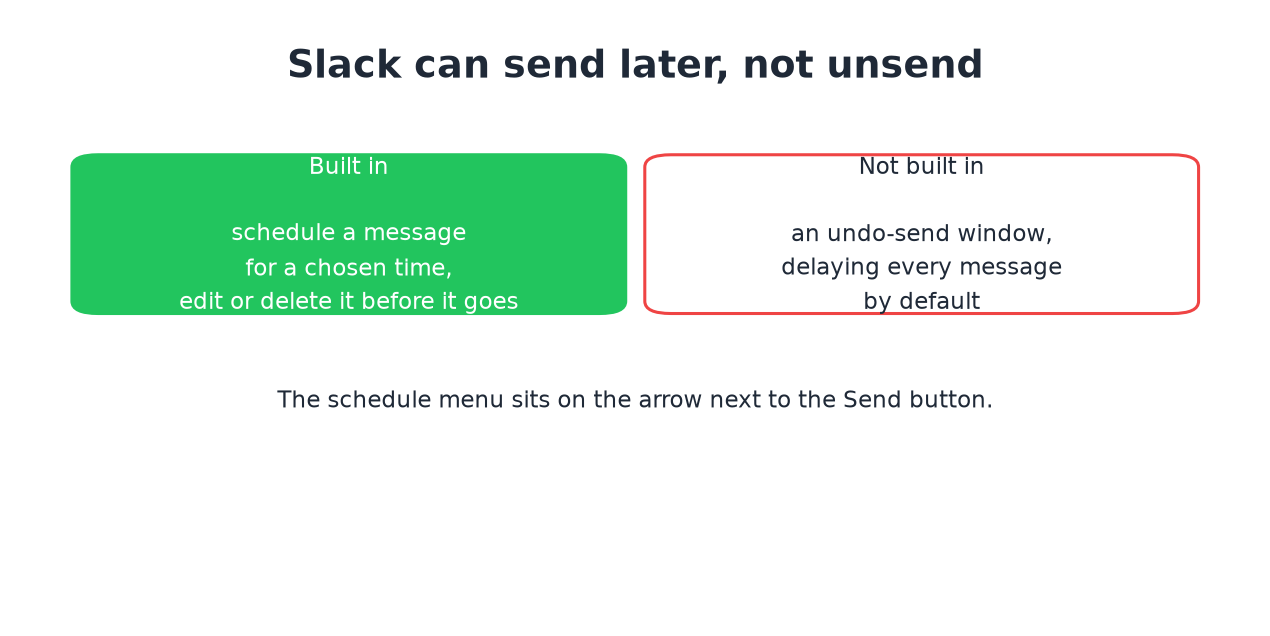
Slack can delay a message, in one specific sense: you schedule it for a chosen time, and until that time you can edit or cancel it. What Slack does not have is an undo-send window after a message leaves, or a setting that delays everything by default. Send means sent.
Scheduling a message
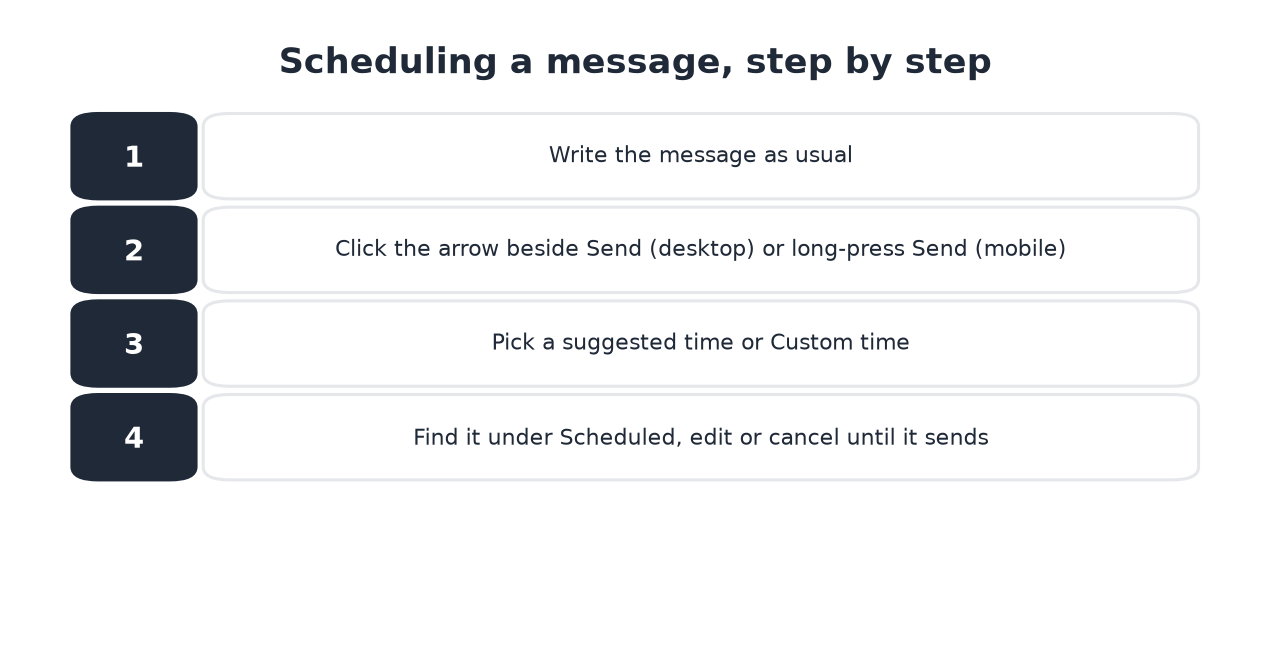
- Write the message as usual.
- On desktop, click the arrow beside the green Send button. On mobile, long-press Send.
- Pick one of the suggested times, or Custom time for anything else.
- The message waits under Scheduled in your sidebar. Open it there to edit, reschedule, or delete it before it goes.
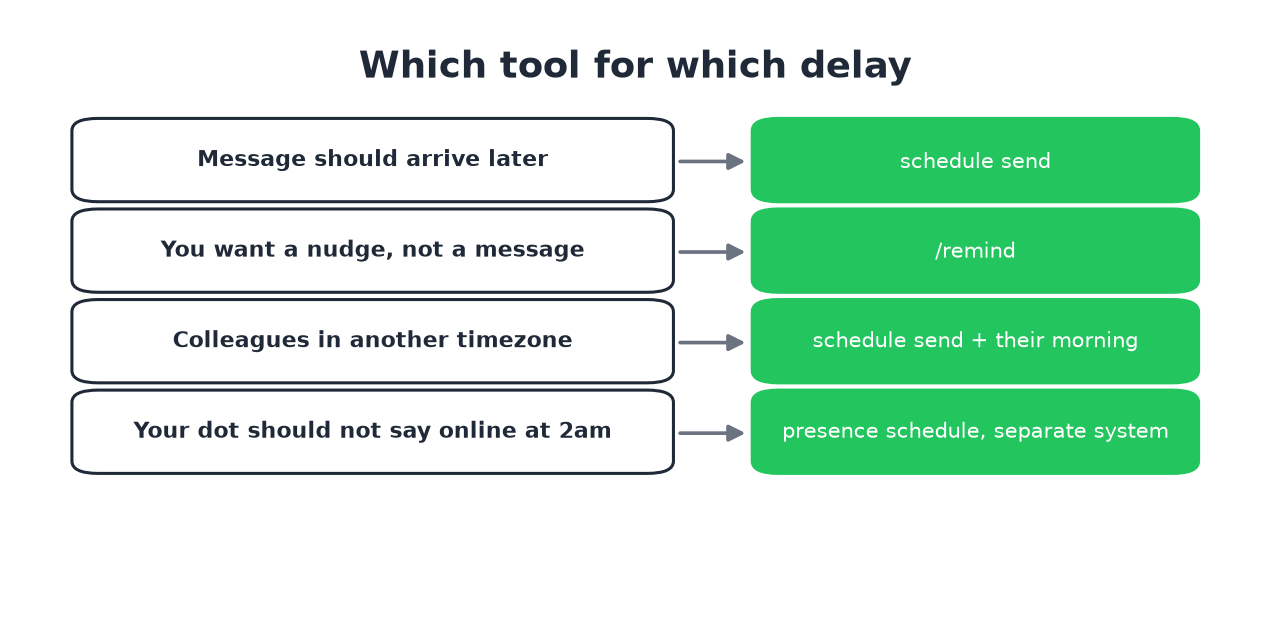
- • The content should land later: schedule the message.
- • You need a nudge to write it later:
/remind. - • Cross-timezone courtesy: schedule it into their morning instead of your evening. The timezone converter shows the overlap.
Scheduled messages send whether you are online or not. Your machine can be off; Slack's servers hold the message.
Delay versus reminder
A scheduled message arrives in the channel as a normal message. A reminder
(/remind me to review the doc at 3pm) pings only you, or the person you
aim it at, as a Slackbot nudge. The split:
What scheduling does not touch
Nunca más aparezcas como "ausente" en Slack
Basado en la nube. Sin descargas. Funciona 24/7 incluso con tu laptop apagada.
Two systems people expect it to touch, and it does not:
Frequently asked questions
Can I delay a Slack message after hitting send? No. There is no undo-send window. You can edit or delete the sent message, which shows an edited mark or a removal tombstone.
Can I schedule a message from my phone? Yes. Long-press the Send button and pick a time.
Do scheduled messages send if I am offline? Yes. The server sends them. Your dot stays gray if you are actually away, which is the status text and dot split.
Is there a way to delay every message by default? Not in Slack. If you want a habit-level buffer, write in the composer and schedule for five minutes out; there is no setting that does it for you.
The short version
The arrow next to Send schedules; the Scheduled list edits and cancels; nothing unsends. Reminders nudge, messages land, and the dot plays by separate rules.
Deja de Mover el Ratón.
Cientos de trabajadores remotos ya no se preocupan por su estado de Slack. Configúralo una vez, mantente verde para siempre.
Related Articles
Slack Chrome Extensions: What Exists and What Got Removed
Most searches for a Slack Chrome extension want one of three things: a stay-active extension, a setup helper, or small workflow tweaks. The famous stay-active ones were removed in 2024. What remains, and what replaced them.
Cómo mantener Slack activo: todos los métodos que funcionan en 2026
Slack te marca como ausente tras 10 minutos sin actividad y no hay ningún ajuste para cambiarlo. Todos los métodos que mantienen tu estado activo, lo que cuesta cada uno y los trucos que fallan en silencio.
Cómo estar activo en Slack sin tocar el ratón
Mover el ratón fuera de la ventana de Slack nunca sirvió de nada. Las tres formas de mantenerte activo sin ninguna entrada de ratón, lo que cuesta cada una y por qué falla el consejo clásico.