
How to Delay and Schedule Slack Messages
Slack can send a message later: the schedule menu sits on the arrow next to Send. What it can do, what it cannot (no undo-send), the steps on desktop and mobile, and when a reminder fits better.
Slack can delay a message, in one specific sense: you schedule it for a chosen time, and until that time you can edit or cancel it. What Slack does not have is an undo-send window after a message leaves, or a setting that delays everything by default. Send means sent.
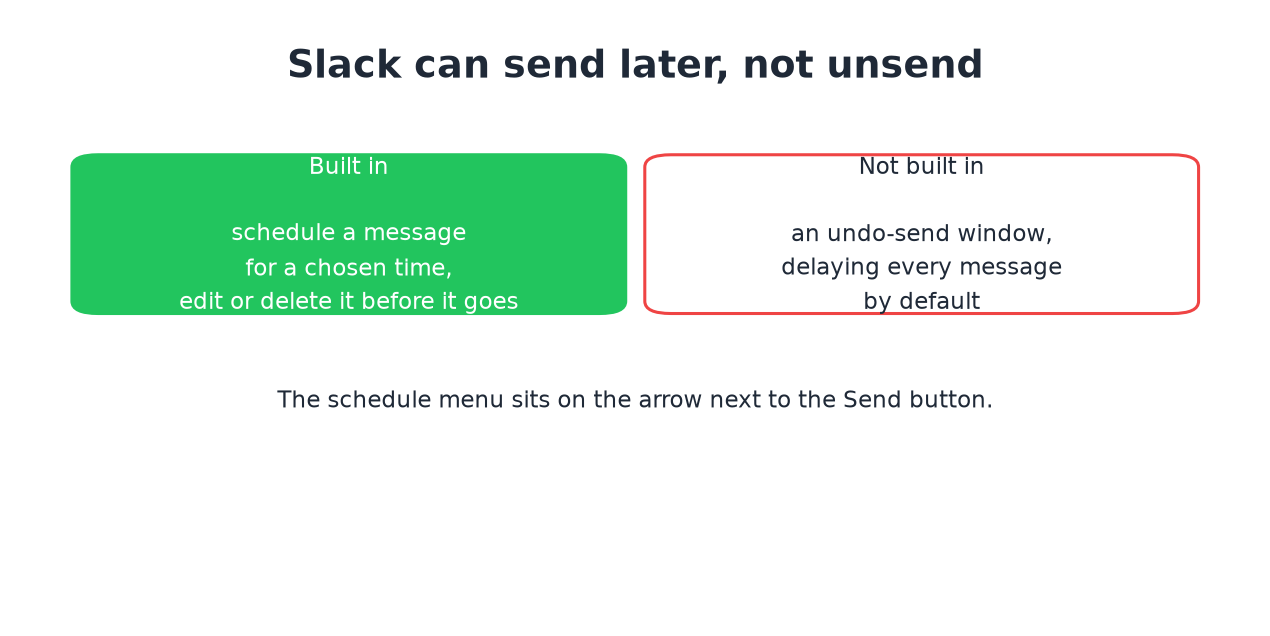
Scheduling a message
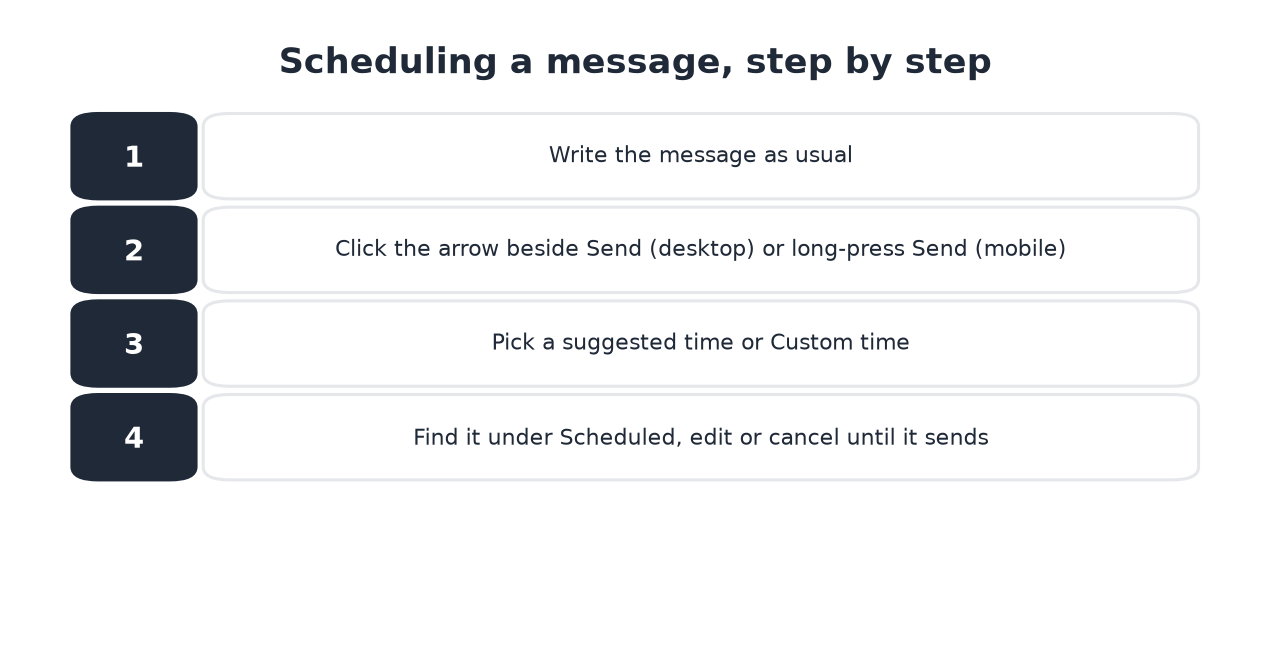
- Write the message as usual.
- On desktop, click the arrow beside the green Send button. On mobile, long-press Send.
- Pick one of the suggested times, or Custom time for anything else.
- The message waits under Scheduled in your sidebar. Open it there to edit, reschedule, or delete it before it goes.
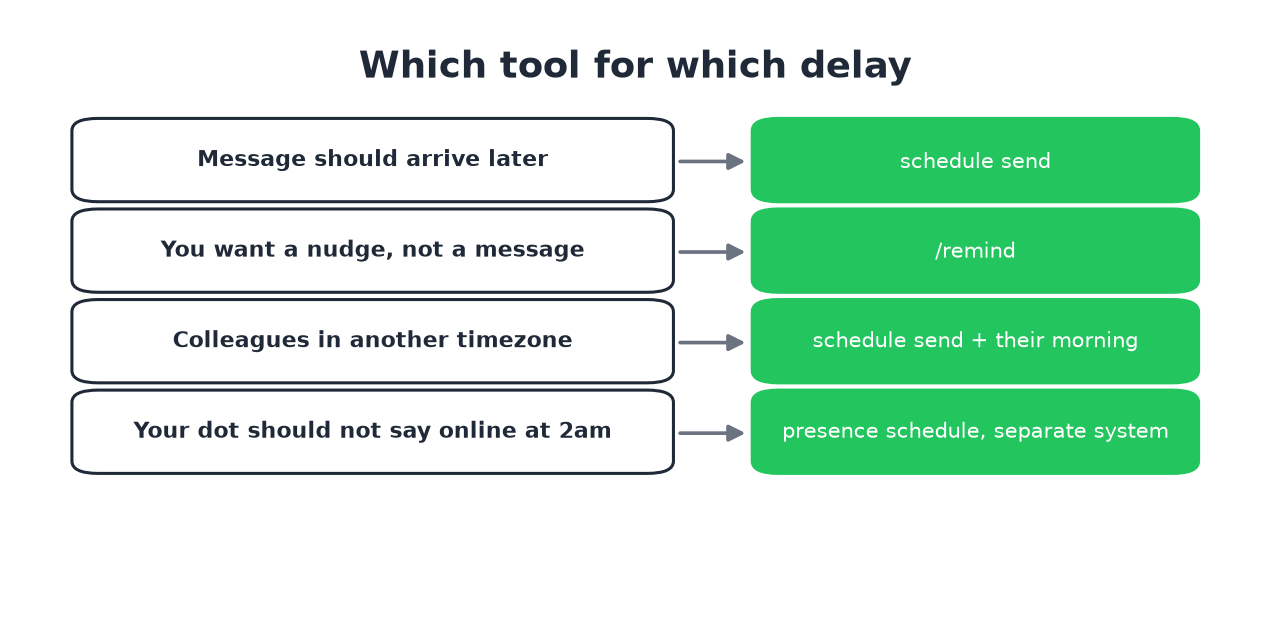
- • The content should land later: schedule the message.
- • You need a nudge to write it later:
/remind. - • Cross-timezone courtesy: schedule it into their morning instead of your evening. The timezone converter shows the overlap.
Scheduled messages send whether you are online or not. Your machine can be off; Slack's servers hold the message.
Delay versus reminder
A scheduled message arrives in the channel as a normal message. A reminder
(/remind me to review the doc at 3pm) pings only you, or the person you
aim it at, as a Slackbot nudge. The split:
What scheduling does not touch
Two systems people expect it to touch, and it does not:
Frequently asked questions
Can I delay a Slack message after hitting send? No. There is no undo-send window. You can edit or delete the sent message, which shows an edited mark or a removal tombstone.
Can I schedule a message from my phone? Yes. Long-press the Send button and pick a time.
Do scheduled messages send if I am offline? Yes. The server sends them. Your dot stays gray if you are actually away, which is the status text and dot split.
Is there a way to delay every message by default? Not in Slack. If you want a habit-level buffer, write in the composer and schedule for five minutes out; there is no setting that does it for you.
The short version
The arrow next to Send schedules; the Scheduled list edits and cancels; nothing unsends. Reminders nudge, messages land, and the dot plays by separate rules.
Related Articles
Slack Chrome Extensions: What Exists and What Got Removed
Most searches for a Slack Chrome extension want one of three things: a stay-active extension, a setup helper, or small workflow tweaks. The famous stay-active ones were removed in 2024. What remains, and what replaced them.
Slackをアクティブに保つ方法:2026年版・全手段の比較
Slackは入力が10分ないと自動的に離席中になり、これを止める設定はありません。実際に効く方法とコスト、静かに失敗する小技をまとめました。
Funny Slack Status Ideas That Survive a Work Channel
Copy-paste funny Slack statuses sorted by situation: deep work, meetings, lunch, Friday, and out of office. The two rules that keep a joke work-safe, and why the status never touches your green dot.