
How to Delay and Schedule Slack Messages, Tested
To schedule or delay a Slack message, click the arrow next to Send (long-press on mobile) and pick a time or Custom time. Scheduled messages wait in Drafts & sent > Scheduled. We tested the menu, the custom time, where they wait and whether Slack labels them.
To schedule or delay a Slack message, write it, click the arrow next to the green Send button (on a phone, long-press Send), and pick a suggested time or Custom time. The message waits in Drafts & sent, on the Scheduled tab, where you can edit, reschedule, send now or delete it until it goes. Slack has no undo-send window after a message leaves and no setting that delays everything by default, so a scheduled send is the only way to delay one.
We scheduled a message in our own Slack workspace on 3 October 2026 and watched it go out. The screenshots below are from that test.
How to schedule a Slack message
- Write the message as usual.
- On desktop, click the arrow beside the green Send button. On mobile, long-press Send.
- Pick one of the suggested times, or Custom time for anything else.
- The message now waits under Drafts & sent, on the Scheduled tab. Open it there to edit, reschedule, send now or delete it before it goes.
The menu offers two suggestions and a custom option. We opened it on a Saturday morning, so the suggestions were Tomorrow at 9:00 AM and Monday at 9:00 AM:
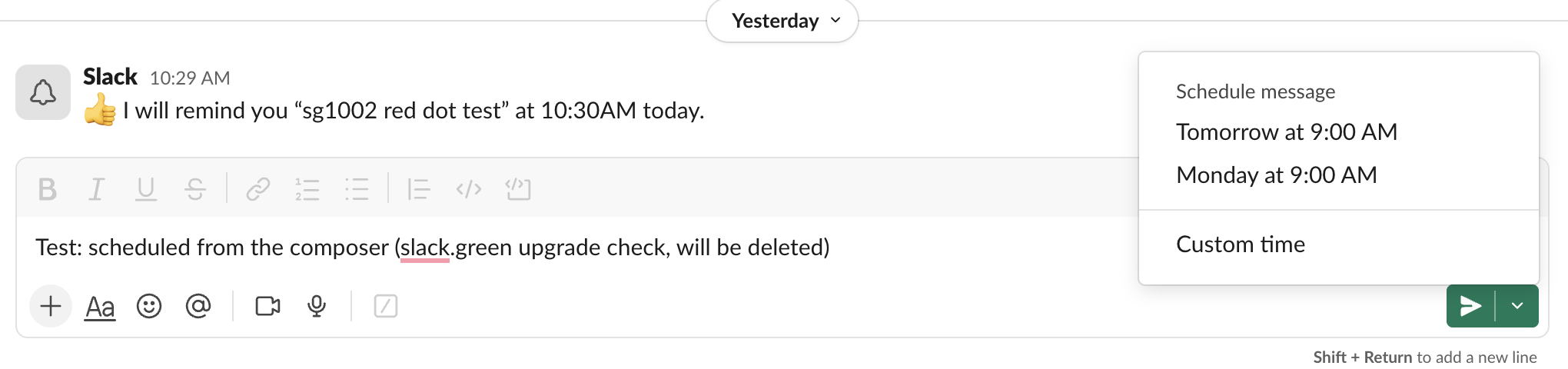
Schedule a Slack message for an exact time
Custom time opens a date and a time field, in your own time zone (ours said "Time zone: Seoul"). The time list only offers 15-minute steps, and for today it hides times that have passed. You can still type any minute into the time field. We typed 10:48 AM, 4 minutes ahead. Slack kept the odd minute but moved it to 10:49 AM, showed "Your message will be sent today at 10:49 AM", and sent it at 10:49:00.
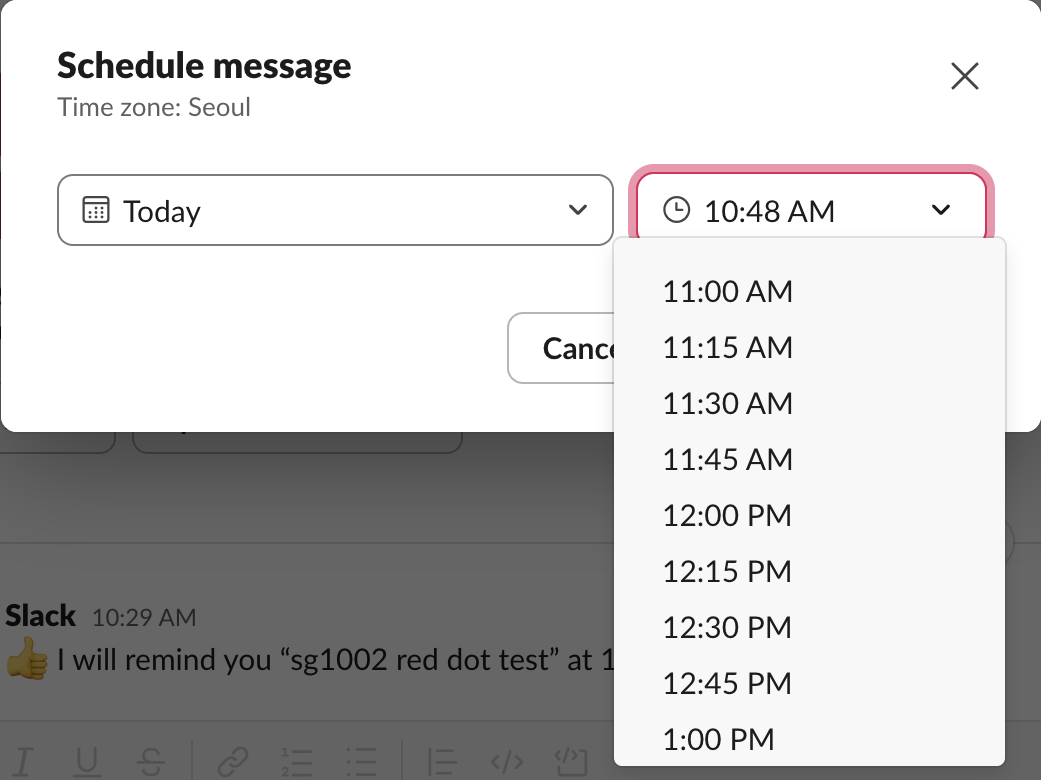
So the shortest delay you can set this way is about a minute or two. For a recipient in another time zone, pick the time in your zone that matches their morning; the Slack timezone converter shows the overlap, and their profile shows their local time, see how to see someone's time zone in Slack.
Where to see scheduled messages in Slack
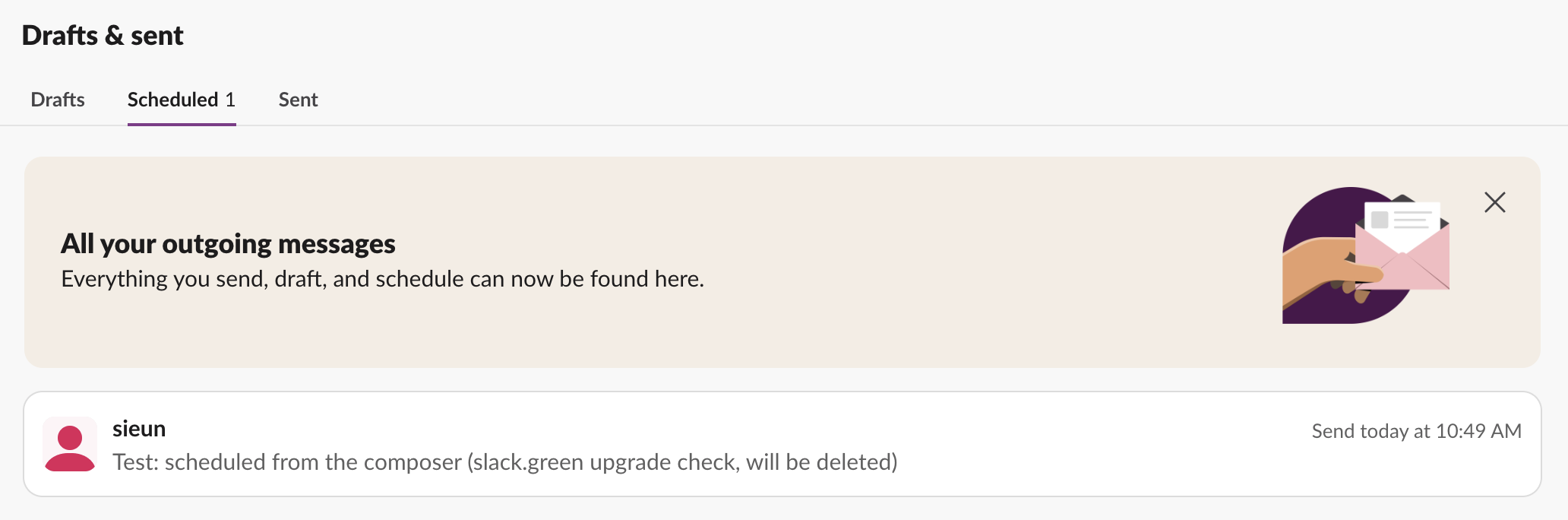
Scheduled messages no longer have their own sidebar item. They sit in Drafts & sent, on the middle tab, Scheduled, with a count next to it. The sidebar row also shows a small clock with the number of messages waiting. After you schedule, the composer also shows a line with a See all scheduled messages link that opens the same tab.
Scheduled messages send whether you are online or not. Your machine can be off; Slack's servers hold the message. Apps and scripts schedule through the API instead, and their messages do not show in your Scheduled tab; see Slack chat.scheduleMessage. A script that posts from your own machine on a timer works differently, because it needs the machine awake; our cron and launchd test shows four ways such a job fails. A scheduled message that never went out usually lost its channel or thread first; we tested five cases in Slack scheduled message didn't send.
Never appear "away" on Slack again
Cloud-based. No downloads. Works 24/7 even when your laptop is off.
Does Slack show that a message was scheduled?
No. Our scheduled message arrived as an ordinary message with your name and the send time, 10:49 AM, and no label. The API returned the same fields as a message typed live: a client_msg_id, the text and its blocks, and no subtype or flag that marks it as scheduled.

Schedule a message or set a reminder?
A scheduled message arrives in the channel as a normal message. A reminder (/remind me to review the doc at 3pm) pings you when it is due, or posts in a channel if you aim it at one. When we set one for ourselves on 8 October 2026, the fired reminder waited in the To-dos tab under In progress, marked Overdue, until we cleared it:

/remind. Copy-paste lines for channels, yourself and repeats are in Slack /remind command examples, and the Slack /remind builder writes the command for you.Scheduling does not change your notifications or your presence dot. Sending at 9am does not make you look online at 9am; the dot follows its own rules.
FAQ
Can I delay a Slack message after hitting send?
No. There is no undo-send window. You can edit or delete the sent message, which shows an edited mark, or removes it.
Can I schedule a message from my phone?
Yes. Long-press the Send button and pick a time.
Stop Jiggling Your Mouse.
Join hundreds of remote workers who never worry about their Slack status. Set it up once, stay green forever.
Related Articles
Slack Status for Limited Availability: 30 Statuses to Copy
A Slack status for limited availability says you are around but slow, until when, and how to reach you if it is urgent, such as ⏳ 'Limited availability today, replies after 3 PM. Urgent: @mention me.' 30 statuses for busy days, slow replies and catching up, the emoji to use, and when to pause notifications too.
How to Change Your Status on Slack: Message, Emoji and Away Dot
Profile picture (bottom left), Update your status, Duration, Save. We tested every step, the emoji Slack fills in from your words, and how the away switch behaves.
Funny Slack Status Ideas That Survive a Work Channel
Copy-paste funny Slack statuses sorted by situation: deep work, meetings, lunch, Friday, and out of office. The two rules that keep a joke work-safe, and why the status never touches your green dot.