
Slack Status Examples for Work: 50 Lines to Copy
Professional Slack status examples you can copy, grouped by situation: focus time, meetings, lunch, commuting, sick days, vacation, time zones, and on-call. Each one says when you will reply, with the emoji code and the clear time to pick.
A good Slack status tells coworkers two things: what you are doing and when you will reply. "In meetings until 4, replies after" works. "Busy" does not. Below are 50 work Slack status examples grouped by situation, each with an emoji code and the clear time to pick, so the status disappears when it stops being true.
To set one, click your profile picture, click Update your status, pick an emoji, paste the text, and choose Remove status after. A status can be up to 100 characters.
We build Slack Green, a cloud service that keeps your Slack presence dot green during your working hours. The status text next to your name is a separate thing. It does not keep you active, and the dot does not change it. For lighter lines, see funny Slack status ideas, and for a sortable list, the free Slack status ideas tool.
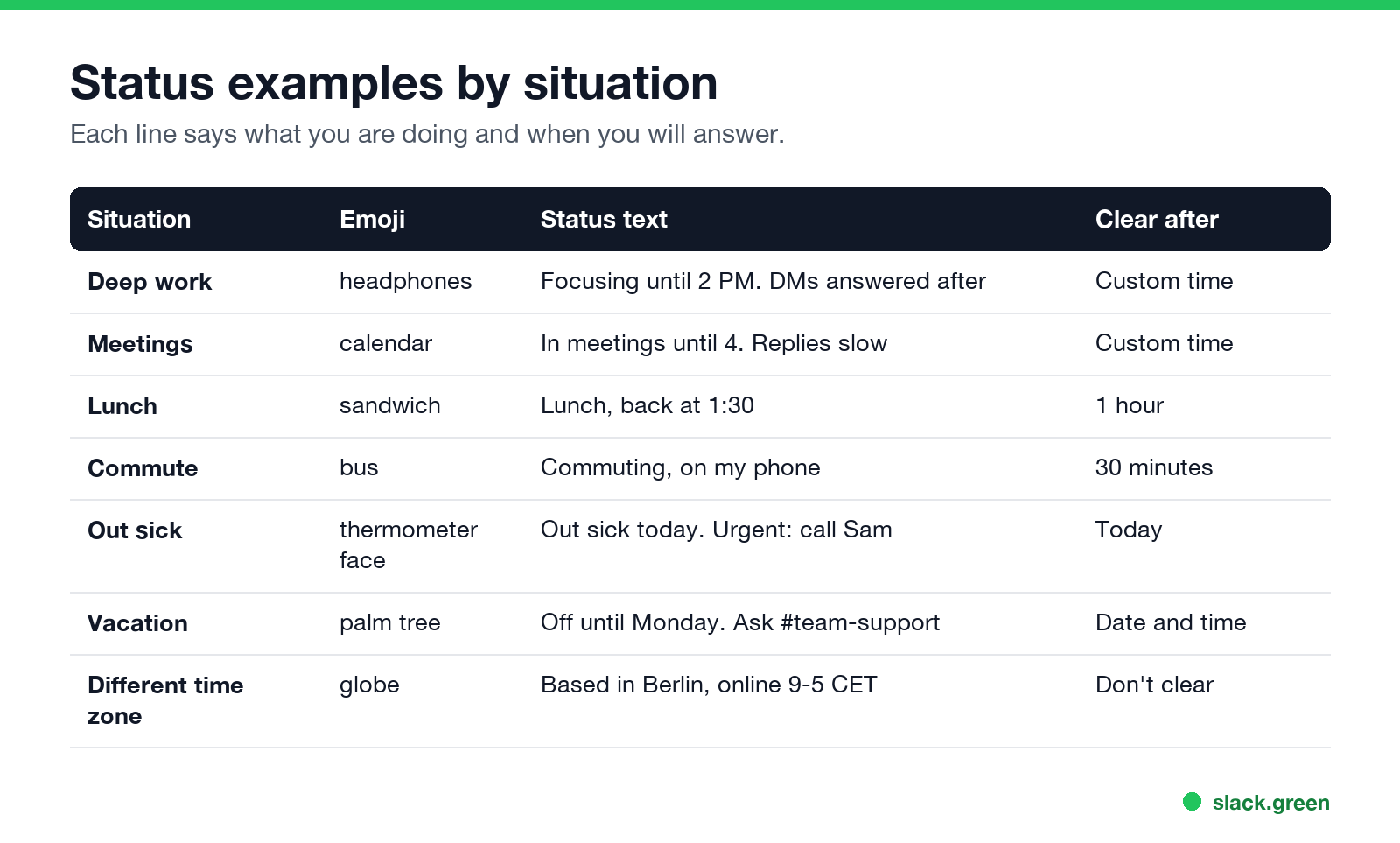
Status examples by situation
Focus and deep work
Clear after: a custom time, the end of your focus block.
- •
:headphones:Heads-down until 2 PM. DMs answered after - •
:headphones:Focus block until 11. Urgent? Call me - •
:no_bell:Notifications off until 3. Checking Slack at 3 - •
:pencil2:Writing the Q4 plan. Back on Slack at 4 - •
:brain:Deep work mornings. Slack after 12 - •
:hourglass_flowing_sand:Deploy in progress. Replies after 5 PM - •
:eyes:Reviewing PRs, replies within the hour - •
:mute:Quiet hours 9 to 11 on Tuesdays and Thursdays - •
:calendar:In meetings until 4. Replies slow - •
:spiral_calendar_pad:Back-to-back until 3:30, then free - •
:telephone_receiver:On a customer call until 2:15 - •
:video_camera:In a workshop until 3 PM CET - •
:microphone:Presenting. Back at 11 - •
:handshake:Interviewing until 1. Messages after - •
:busts_in_silhouette:Offsite today. Checking Slack at lunch and 5 PM - •
:sandwich:Lunch, back at 1:30 - •
:coffee:Coffee break, 15 minutes - •
:walking:Walking meeting, on my phone - •
:stethoscope:Doctor's appointment, back at 3 - •
:school:School run, back online at 4 - •
:shopping_trolley:Out for an hour, back at 2 - •
:bus:Commuting, on my phone (30 minutes) - •
:train:On the train, patchy signal until 9:30 - •
:airplane:Flying today. Offline until 6 PM ET - •
:luggage:Travelling this week. Slower replies - •
:car:Driving, can't reply for 40 minutes - •
:face_with_thermometer:Out sick today. Urgent: @sam - •
:face_with_thermometer:Sick but online for urgent things only - •
:pill:Half day, back tomorrow morning - •
:house:Family matter, offline this afternoon - •
:baby:Parental leave until March. Ask @priya - •
:palm_tree:Off until Monday. Ask #team-support - •
:palm_tree:On vacation, not checking Slack. Back on the 21st - •
:beach_with_umbrella:PTO this week. @jordan covers my accounts - •
:christmas_tree:Holiday break. Back on January 5 - •
:no_entry:Out of office. Urgent: email ops@company.com - •
:earth_africa:Based in Berlin, online 9 to 5 CET - •
:earth_americas:Pacific time. Online 8 to 4:30 PT - •
:sunrise:Early shift: online 6 AM to 2 PM - •
:crescent_moon:Evening hours this week, online after 6 PM - •
:alarm_clock:Working 4 days. Off on Fridays - •
:clock9:Replies within 4 working hours - •
:rotating_light:On call this week. Page me for incidents - •
:fire_engine:Handling an incident. Updates in #incidents - •
:sos:Support rotation today, first reply within 15 min - •
:wrench:Maintenance window until 11 PM UTC - •
:house_with_garden:Working from home today - •
:office:In the office Tuesday and Thursday - •
:round_pushpin:At the London office this week - •
:computer:Remote, same hours as usual - •
:signal_strength:Bad internet today. Call me if a reply is urgent - •
:headphones:Working from a café, in calls by 10 - Give a time. "Back at 2" beats "Busy". "Replies after 4" beats "In meetings".
- Give a fallback when you are away for long. A name or a channel stops people from waiting on you.
- Set it to clear. A "Lunch" status that is still there at 5 PM makes people ignore your status altogether.
Meetings and calls
Clear after: the end of the meeting, or 1 hour. A calendar app can set these for you.
Breaks, lunch and errands
Clear after: 30 minutes or 1 hour.
Commuting and travel
Sick days and personal time
Clear after: Today. For more, see our guide to Slack status for sick days.
Vacation and out of office
Clear after: a date and time, the morning you are back. You can also schedule these in advance, as shown in how to schedule a Slack status.
The auto-reply side of time off is in Slack out-of-office messages.
Time zones and working hours
Clear after: Don't clear.
On call and support
Remote and hybrid work
What makes a status useful
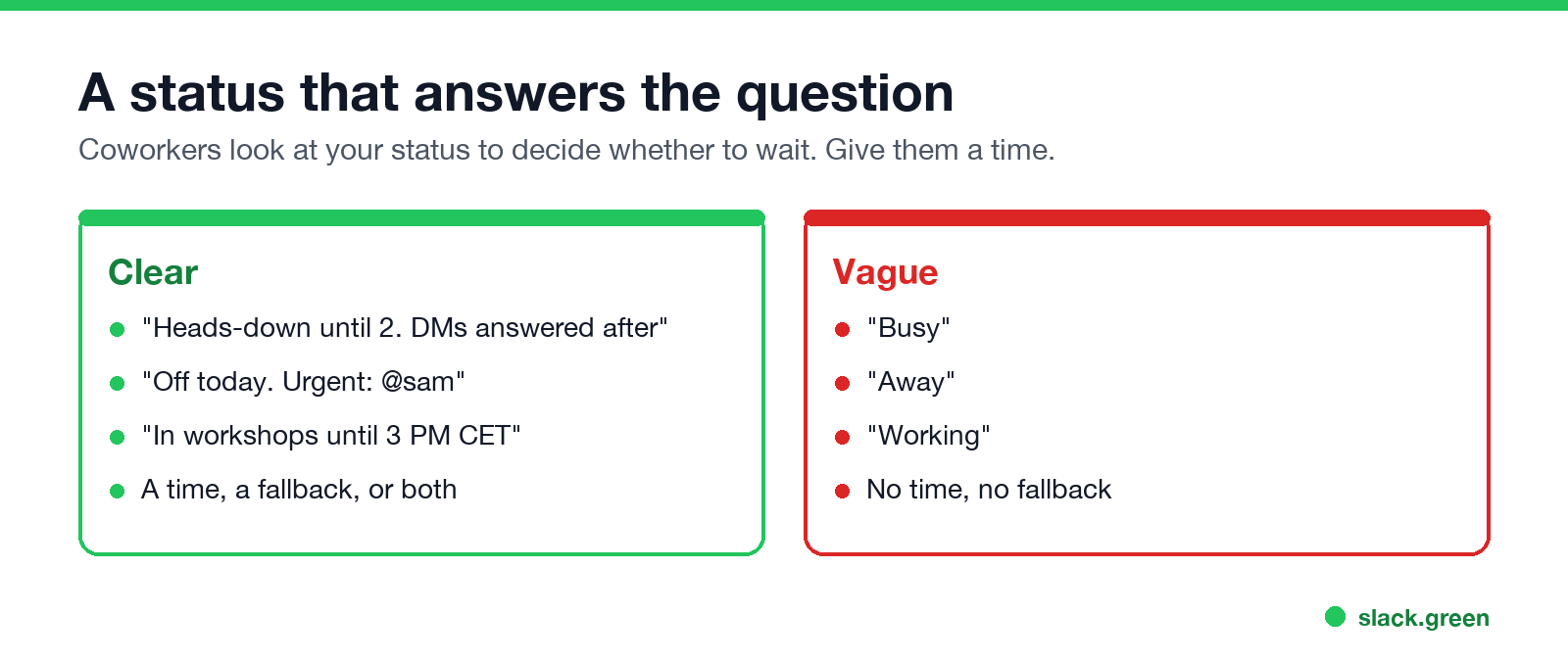
People check your status to decide whether to wait, ping, or ask someone else. Three rules cover it:
How to set a status that clears on time
لا تظهر أبداً كـ "غائب" على Slack
يعمل على السحابة. بدون تنزيلات. يعمل 24/7 حتى عندما يكون الكمبيوتر مغلقاً.
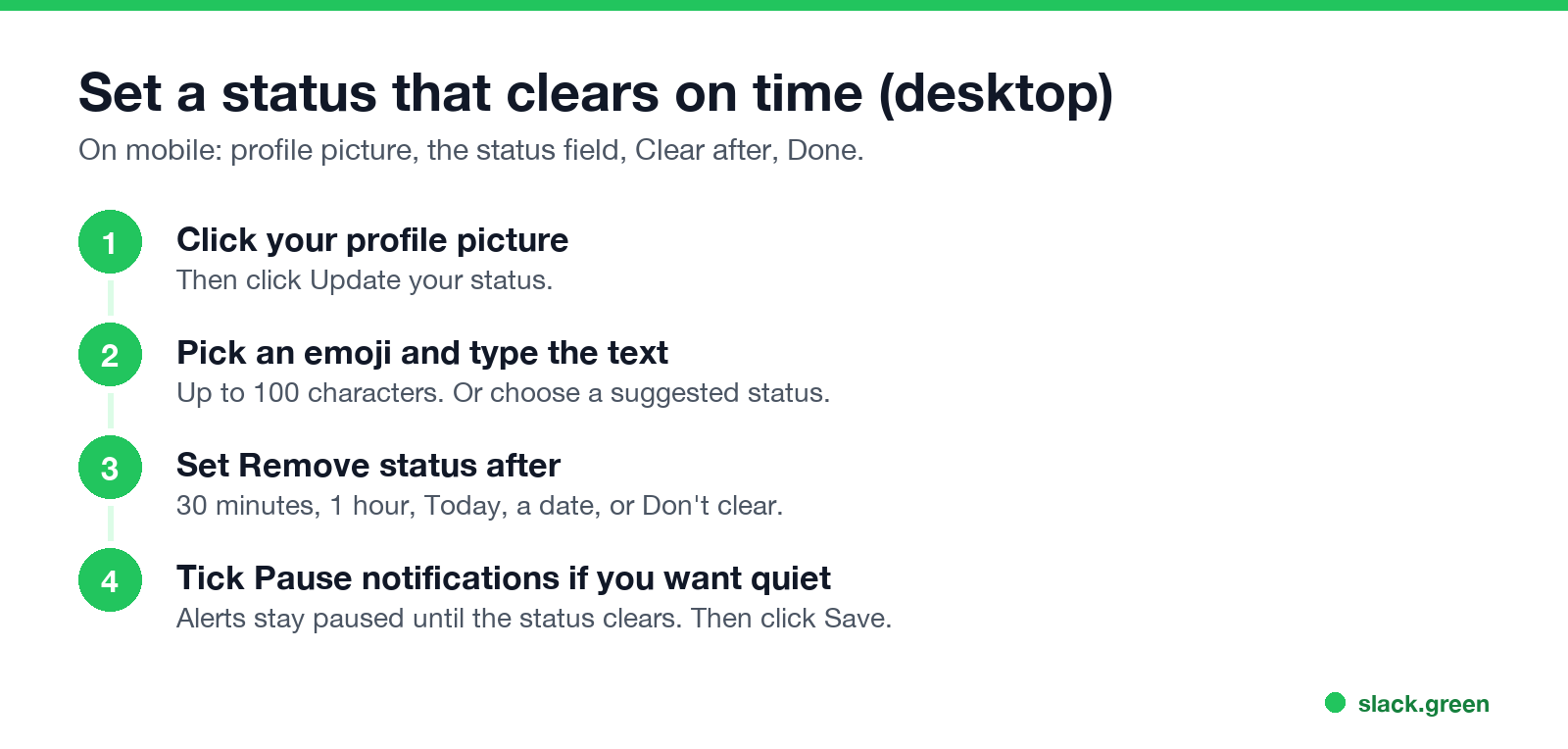
The full menu, on desktop and mobile, is in how to change your status on Slack. If your status disappears sooner than you expect, see Slack keeps clearing my status.
A status does not keep you active
"Working" or "Available" as your status text does not change your presence dot. Slack still sets you away after 10 minutes without input in the Slack window. The dot and the text are separate, as Slack active status explained shows. If you want the dot green during your working hours, Slack Green keeps it active from a server on the schedule you set.
FAQ
What are the Slack statuses?
Slack has presence, which is active or away (the dot), and a custom status, which is an emoji plus up to 100 characters of text. Slack's suggested statuses are In a meeting, Commuting, Out sick, Vacationing, and Working remotely. Your admin can change that list.
What is a good professional Slack status?
One that says what you are doing and when you will reply, such as "In meetings until 4, replies after". Add a fallback contact when you are out for a day or more.
How long can a Slack status be?
Up to 100 characters. The emoji shows next to your name, and the full text shows when someone hovers over it or opens your profile.
Can my boss see my Slack status?
Yes. Everyone in your workspace sees your status emoji next to your name and the text on hover or in your profile.
What does 👀 mean in Slack?
As a reaction, it means "I am looking at this". As a status, it usually means you are reviewing something, such as code or a document.
Should my status say when I am online?
For time zones and part-time schedules, yes. A line like "Pacific time, online 8 to 4:30 PT" saves people from guessing why you do not answer at 9 AM their time.
توقف عن تحريك الماوس.
مئات العاملين عن بعد لم يعودوا قلقين بشأن حالة Slack. قم بالإعداد مرة واحدة، ابقَ أخضر للأبد.
Related Articles
Slack Active on Multiple Devices: Which One Sets Your Status?
When you use Slack on a phone and a computer at once, one active device is enough to keep you green, and a manual away on any device sets you away on all of them. The rule, common cases, and how notifications pick a device.
Slack Huddles vs Zoom: Which to Use for Team Calls
Slack huddles are quick calls inside Slack: 1:1 on the free plan, up to 50 people on paid plans, no recording. Zoom is built for scheduled, recorded and large meetings, with a free plan of 100 people for 40 minutes. Limits, cost, recording and privacy side by side.
How to Work Two Remote Jobs at the Same Time
Working two remote jobs at once takes four things: contracts that allow it, fully separate devices and accounts, a calendar that protects both jobs, and a chat status that stays believable in both. The practical setup, and the risks.