
Slack Slash Commands List: Every Built-in Command
Every built-in Slack slash command from the Slack help center, from /status and /dnd to /remind, /msg and /huddle, with what each does, which are desktop-only, and what /status and /dnd really change about your presence.
Slack's built-in slash commands run actions from the message box: type / and a command, then press Enter. The most used are /status to set yourself away or active, /dnd to pause notifications, /remind for reminders, /msg to send a DM, /huddle to start a huddle, and /search to search. The full list from the Slack help center is below. Older commands /away and /active are not on Slack's current list; use /status instead.
None of these keep you green. /status can set you away, and setting yourself active only undoes a manual away; Slack still sets you away 10 minutes after your last input in its window. Slack Green keeps your presence active during the working hours you set, from the cloud.
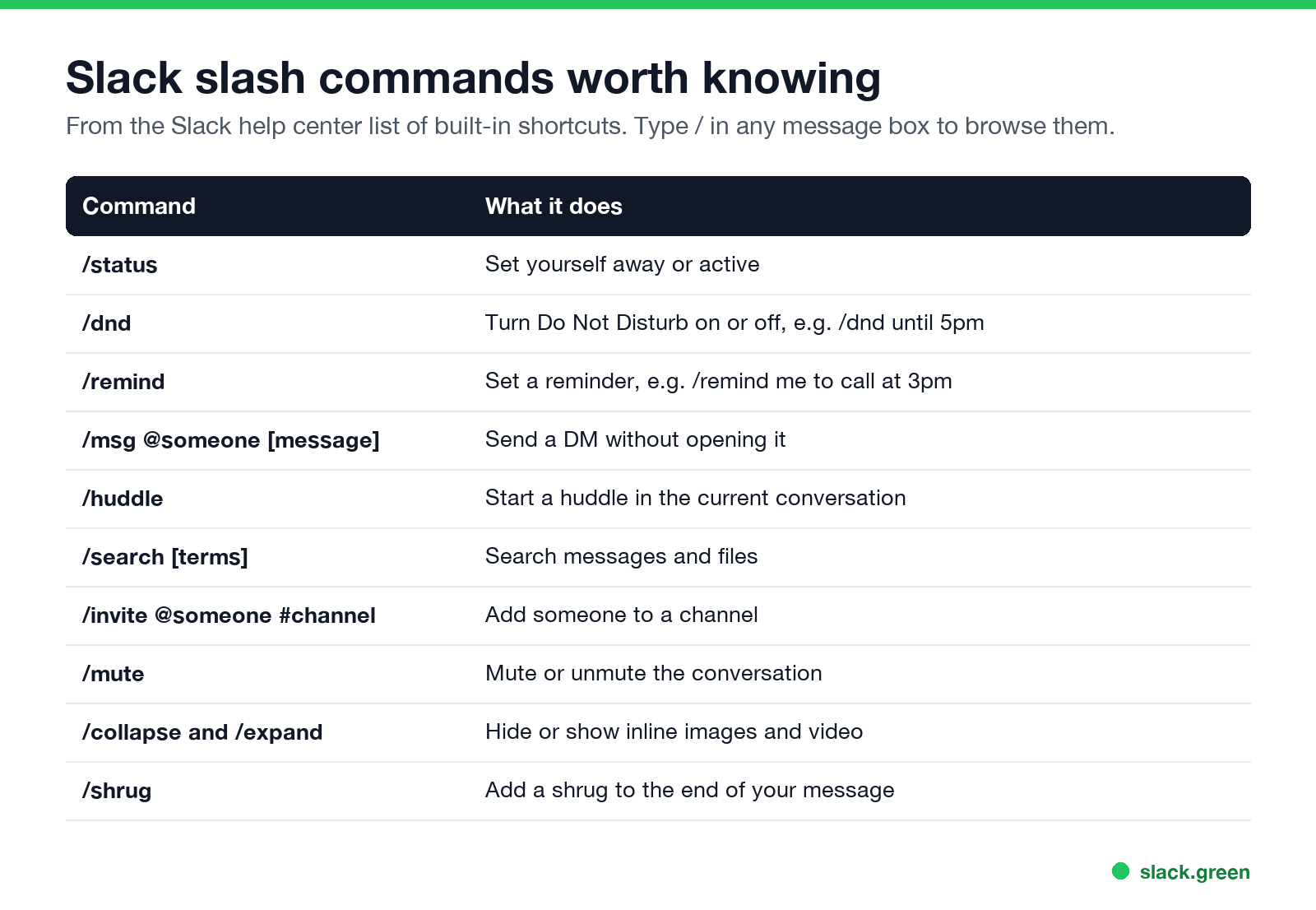
Slack slash commands worth knowing
- •
/status: set yourself away or active. - •
/dnd until 5pm,/dnd off: pause or resume notifications. More in Slack Do Not Disturb. - •
/remind #team to post updates every Friday at 3pm: examples in Slack /remind command examples. - •
/msg @maria are you free at 2?: send a DM without opening it. - •
/huddle: start a huddle in the current conversation. - •
/search budget from:@maria: search messages and files. Every search modifier is in Slack search operators.
More habits that save time are in Slack tips and tricks.
Full list of built-in Slack slash commands
| Command | What it does |
|---|---|
/invite [@someone] [#channel] | Add someone to a channel |
/shrug | Add the shrug emoticon to the end of your message |
/archive | Archive the current channel (may be owners and admins only) |
/browse channels | Browse channels (desktop) |
/browse files | Browse files |
/collapse | Collapse inline images and video |
/people | Browse people and user groups |
/snippet | Create a code or text snippet (desktop) |
/create channel | Create a channel (may be restricted) |
/create workflow | Create a workflow (paid plans) |
/description | Edit the channel description |
/expand | Expand inline images and video |
/gif | Add a GIF |
/leave | Leave the current channel |
/notifications | Manage notifications for this conversation |
/mute [#channel] | Mute or unmute a conversation |
/workflow | Open Workflow Builder (desktop) |
/remove @someone | Remove someone from the channel (also /kick; may be restricted) |
/rename [new name] | Rename the channel (may be restricted) |
/search [terms] | Search messages and files |
/send | Start a new message |
/msg [@someone or #channel] [message] | Send a DM or a channel message |
/feedback | Send feedback to Slack |
/remind | Set a reminder |
/topic | Set the channel topic |
/status | Set yourself away or active |
/huddle | Start a huddle |
/darkmode | Turn dark mode on or off (desktop) |
/dnd | Turn Do Not Disturb on or off |
/dm | View your DMs (desktop) |
/downloads | View downloaded files (desktop) |
/drafts | View drafts (desktop) |
/mentions | View mentions and reactions (desktop) |
/saved | View saved items |
/shortcuts | View keyboard shortcuts |
Commands marked desktop are not available in the Slack mobile apps. Channel management commands may be limited to owners and admins in your workspace. Apps add their own slash commands; type / to browse everything installed, or press Cmd+/ or Ctrl+/ for keyboard shortcuts, listed in our Slack keyboard shortcuts cheat sheet.
What /status and /dnd really change
Nunca mais apareça como "ausente" no Slack
Na nuvem. Sem downloads. Funciona 24/7 mesmo com seu notebook desligado.
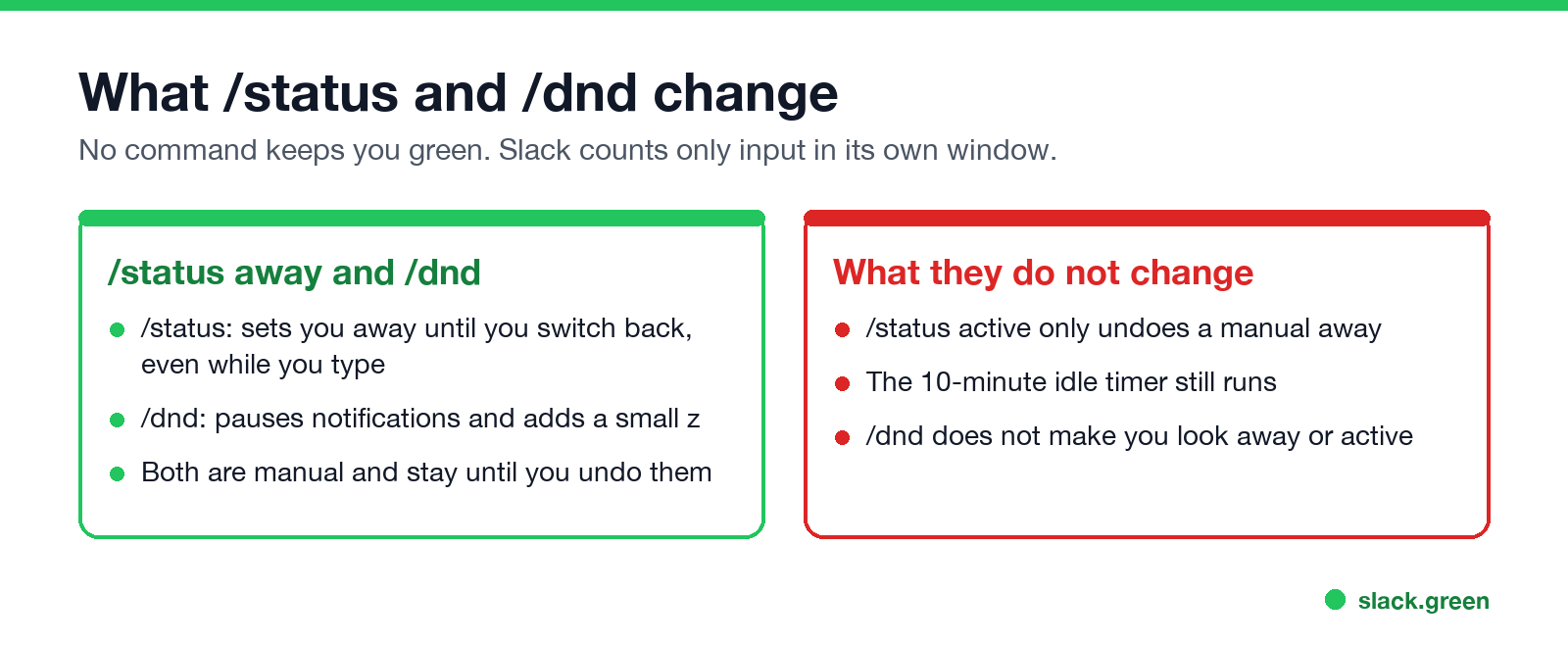
/status set to away marks you away until you switch back, even while you type. It is the command version of Set yourself as away; see how to appear offline on Slack./status set to active only removes a manual away. Slack's automatic rules apply again right away, so you go away 10 minutes after your last input in Slack. The rules are in how Slack decides when you are away./dnd pauses notifications and puts a small z on your dot. It does not change whether you look active or away.For your custom status text, use Cmd+Shift+Y or Ctrl+Shift+Y; see how to change your status on Slack.
Is there a Slack /away or /active command?
Not in Slack's current built-in list. Use /status to set yourself away or active, or click your profile picture and choose Set yourself as away or Set yourself as active. Neither keeps you active over time.
FAQ
How do I see all slash commands in Slack?
Type / in the message box, or click the slash icon next to it, to open the shortcuts menu.
What does /status do in Slack?
It sets you away or active. Active only undoes a manual away.
How do I use /dnd?
Type /dnd until 5pm, /dnd for 30 minutes, or /dnd off.
Do slash commands work on mobile?
Most do. Commands marked desktop in the list above do not.
Can I make my own slash command?
Yes, by building a Slack app, or run a workflow from the shortcuts menu. Twelve workflows to copy are in Slack Workflow Builder examples. App commands such as /jira are covered in Slack Jira integration.
Pare de Mexer o Mouse.
Centenas de trabalhadores remotos não se preocupam mais com o status do Slack. Configure uma vez, fique verde para sempre.
Related Articles
Slack Jira Integration: Setup, /jira Commands and Notifications
Install the Jira Cloud for Slack app, type /jira connect in a channel to send a Jira space's updates there, /jira notify for personal notifications as DMs, and create work items from any message with More actions. Every /jira command, Jira automation to Slack, and fixes when previews or notifications stop.
How to Create a Slack Workspace, on Desktop or Phone
Go to slack.com/get-started, enter your email, type the confirmation code, and click Create a Workspace. It is free to start, you become the Primary Owner, and it takes about five minutes. Steps for desktop, iPhone and Android, and what to set up next.
Slack Sidebar Sections: Create, Sort, Share and Fix Them
Slack sidebar sections are custom groups of channels, DMs and apps in your sidebar. Only you see them, and they need a paid plan. How to create one on desktop and mobile, move many channels at once, sort and filter each section, share a section with your team, and get disappeared sections back.