
How to Schedule a Slack Status, Once or Every Week
Schedule a Slack status from the status editor: Duration, then Choose a start and end time. Slack holds up to five, each runs once. How to make a status repeat, and what scheduling cannot change.
To schedule a Slack status, click your profile picture, click Update your status, write the status, open the Duration drop-down, choose Choose a start and end time, pick both, and save. Slack turns the status on and off at those times, even if your computer is off. You can queue up to five scheduled statuses, and each one runs once. Slack has no built-in repeat, so "Lunch" every day at noon needs calendar sync, a Marketplace app or a small script.
"Slack status" can mean three things, and Slack schedules them differently:
- • Status text and emoji next to your name. Schedulable once natively, repeatable with apps.
- • Notification hours, Slack's notification schedule. Repeats natively.
- • The green dot, your presence. Slack has no setting to schedule it.
- Click your profile picture in the sidebar.
- Click Update your status.
- Type the status, up to 100 characters, and pick an emoji. You can also pick a suggested status.
- Open the Duration drop-down and click Choose a start and end time…. The other choices are Don't clear, 30 minutes, 1 hour, 4 hours, Today and This week.
- Pick the start and end, then click Save.
- • Repeat. Each scheduled status runs once. There is no "every weekday".
- • Pause notifications by itself. The Pause notifications until status is cleared box in the same dialog does that, and it is off by default.
- • Change your dot. You can show "On vacation" and still be green, or "Available" and be gray.
- • Automatic statuses. In Preferences, under Automatic statuses, Slack can set a status while you are in a huddle, in focus mode, or after your working hours. Tick the ones you want. What people see after hours, and status wording for it, is in Slack after hours status.
- • Calendar sync. Install the Google Calendar or Outlook Calendar app for Slack and turn on status sync. During each event Slack shows "In a meeting" and clears it when the event ends. Setup and fixes are in sync your Slack status with Google Calendar and Slack Outlook Calendar integration; other calendar apps are compared in best calendar app for Slack. If the sync overwrites a status you set, see Slack keeps clearing my status.
The first two are free in Slack, and the steps are below. If you need wording rather than timing, the status ideas library has lines for meetings, focus blocks and leave.
How to schedule a status in Slack
On desktop:
Slack fills in the start as the current minute and the end as noon tomorrow. The time fields take any minute you type, not only the times in the list. This is the dialog from our test on 3 October 2026:
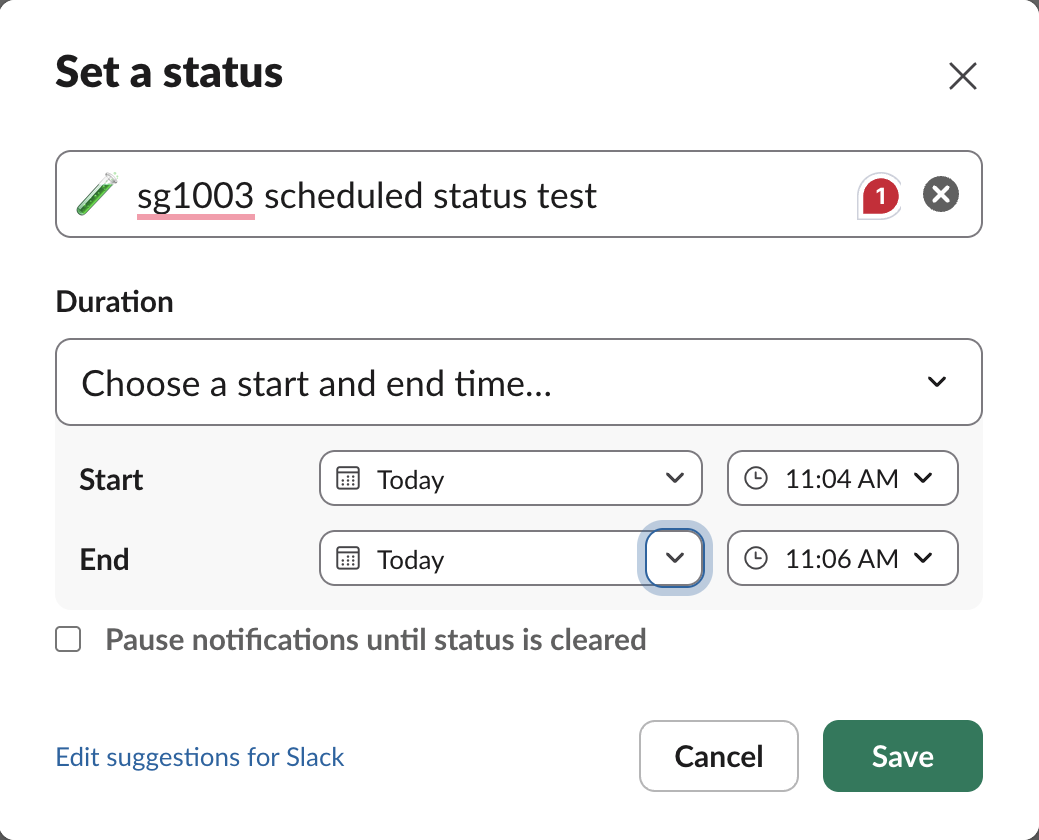
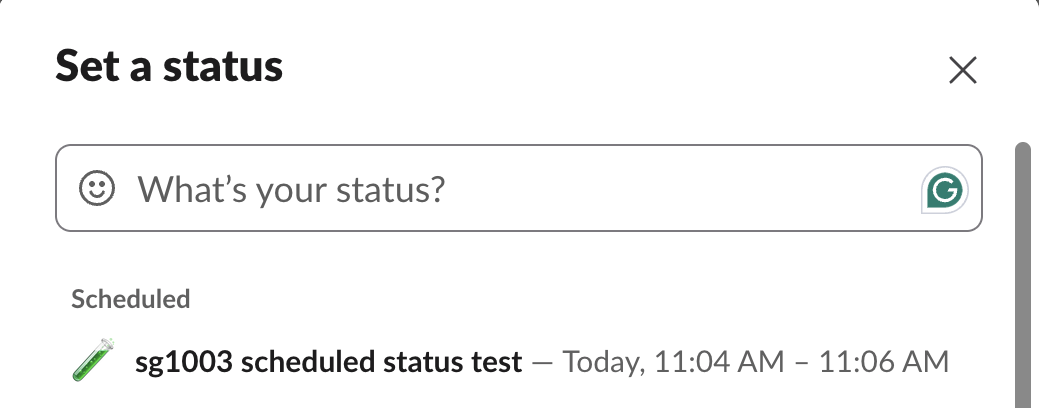
After you save, the status waits at the top of the same Set a status dialog, under Scheduled. To change or cancel one before it starts, open Update your status again and click it there.
When a scheduled status starts and ends
We scheduled two 2-minute statuses and read the profile through the API every 5 to 8 seconds:
| Run | Scheduled window | Status appeared | Status cleared | status_expiration while it showed |
|---|---|---|---|---|
| 1 | 11:04 to 11:06 | Between 11:03:51 and 11:04:00 | Between 11:04:55 and 11:05:03 | 11:06:00 |
| 2 | 11:08 to 11:10 | Between 11:07:57 and 11:08:02 | Between 11:09:00 and 11:09:06 | 11:10:00 |
The start was on time to within a few seconds. The end came about one minute early both times, even though the profile kept saying it would clear at the full end time. Nobody else changed the status during either run. A minute rarely matters for a vacation, but for a short block such as a 15-minute call, set the end a minute later than you need.
Slack keeps up to five scheduled statuses: when we tried a sixth on 1 October 2026, Slack refused it with too_many_scheduled_statuses. A slot frees when its status starts, not when it ends.
What the native scheduler does not do:
If you only need a status to disappear at a set time, that is the clear-after setting, covered in Slack status clear after. For vacations, pair the scheduled status with the auto-reply steps in Slack out-of-office messages, and for the emoji people recognise, see Slack emoji for OOO and PTO.
Statuses Slack sets for you
Two built-in features set a status without you scheduling anything:
Calendar sync is the one native way to get a repeating status: create a recurring calendar event called "Lunch" or "Deep work", and Slack follows it every time.
How to make a Slack status repeat
For a repeating status that is not tied to your calendar, use one of these:
| Option | Setup | Repeats | Cost |
|---|---|---|---|
| Recurring calendar event plus calendar sync | 5 minutes | Yes, per event | Free |
| Status Scheduler app (Slack Marketplace) | Install, then set rules | Yes, recurring and one-time | Free tier, paid plans |
| Zapier "set Slack status on an automatic daily schedule" | Build a zap | Yes | Zapier plan |
A script calling users.profile.set from cron | 15 minutes if you code | Yes | Free |
| Slack status scheduler, a week plan pasted into your Slack tab | 2 minutes, then one paste a week | The next 5 times, Slack's limit | Free |
The Status Scheduler app in the Slack Marketplace lists more than 2,000 installed workspaces and offers presets such as Lunch, Working remotely and OOO. Zapier has a ready template with the same name as the table row. Our scheduler uses Slack's own scheduled statuses, so nothing is installed: its script added 5 statuses to a test workspace in one paste on 1 October 2026, and a second paste added none.
The script route is short, and the same call runs from the launchd and app-launch triggers we timed. With a user token that has the users.profile:write scope:
# Set "Lunch" for one hour. Run from cron at 12:00 on weekdays:
# 0 12 * * 1-5 /path/to/lunch-status.sh
curl -s https://slack.com/api/users.profile.set \
  -H "Authorization: Bearer $SLACK_USER_TOKEN" \
  -H "Content-Type: application/json; charset=utf-8" \
  -d "{\"profile\":{\"status_text\":\"Lunch\",\"status_emoji\":\":sandwich:\",\"status_expiration\":$(( $(date +%s) + 3600 ))}}"
status_expiration is a Unix timestamp, so Slack clears the status an hour later on its own. Field limits and error codes are in set a Slack status with the API.
Every option in this table writes status text and emoji. None of them changes presence.
Never appear "away" on Slack again
Cloud-based. No downloads. Works 24/7 even when your laptop is off.
How to schedule Do Not Disturb hours
The notification schedule is Slack's only fully repeating native schedule:
Outside those hours Slack pauses notifications and a small Z appears on your dot. The Z means notifications are paused; it does not mean away. Admins can also set a default schedule for the whole workspace. The rest, including /dnd and who can still reach you, is in the Slack Do Not Disturb guide.
Can you schedule your green dot?
Not in Slack. The dot follows presence rules: it turns gray after 10 minutes without input on desktop, and as soon as you leave the app on a phone, whatever your status says. How Slack decides when you're away has the full logic. The API cannot do it either: users.setPresence accepts only auto or away. So a scheduled "Available 9 to 5" status can sit next to a gray dot at 2 PM because you spent 15 minutes reading a document. Keeping the dot green on a weekly schedule is what Slack Green does.
Which scheduling method to use
| Method | What it schedules | Repeats? | Changes the green dot? | Computer on? |
|---|---|---|---|---|
| Native scheduled status | Status text and emoji | No, once (up to 5 queued) | No | No |
| Automatic statuses | Huddle, focus, after-hours status | Yes, by trigger | No | No |
| Calendar sync | "In a meeting" status | Per event | No | No |
| Notification schedule | Notification hours | Yes | No (adds a Z) | No |
| Status Scheduler app, Zapier, API | Status text and emoji | Yes | No | No |
Most people combine them: calendar sync for meetings, a notification schedule for quiet hours.
Appointment statuses ready to schedule are in Slack status for a doctor appointment.
FAQ
Can you schedule an away status on Slack?
Not natively. "Set yourself as away" is a manual toggle with no timer. The manual version is in how appearing offline on Slack works.
Stop Jiggling Your Mouse.
Join hundreds of remote workers who never worry about their Slack status. Set it up once, stay green forever.
Related Articles
Slack Calls API: calls.add, the Call Block and calls.end, Tested
The Slack Calls API shows a call from your own video or phone service as a card in Slack. We ran calls.add, the call block, participants and calls.end in a test workspace and list every response and error.
Export a Slack Canvas to PDF or Markdown: What Works, Tested
Slack has no download or export button for canvases. We checked every menu on a test canvas, used Print canvas for PDF, and turned the API's HTML download into clean Markdown with a script we ran.
Slack Forward Multiple Messages: No Multi-Select, 3 Workarounds Tested
Slack forwards one message at a time. We checked the message menu, shift-click and the forward dialog, then tested three ways to move 10 messages at once: a thread, a copied range, and a script that posts links.