
Slack Notifications Not Working? Six Checks, in Order
Missing Slack notifications almost always come from one of six places: a pause in Slack, what you told Slack to notify you about, the mobile timing rule, your operating system, your browser, or a stale app. Here is how to check each one, fastest first.
If Slack notifications are not working, check six things in this order: whether notifications are paused in Slack, what Slack is set to notify you about, the mobile timing rule, your operating system's notification permission and Focus mode, your browser's site permission, and finally the app cache. The first three live inside Slack and cause most cases. The mobile timing rule is the one people do not know about: by default Slack holds back phone alerts while it thinks you are at your desk.
We build Slack Green, which keeps your Slack presence active on a schedule. That makes presence and notifications our daily subject, and the two are more connected than they look. This guide covers every check, with the exact menu paths for Mac, Windows, iPhone, Android and the browser.
Find the cause from what you see
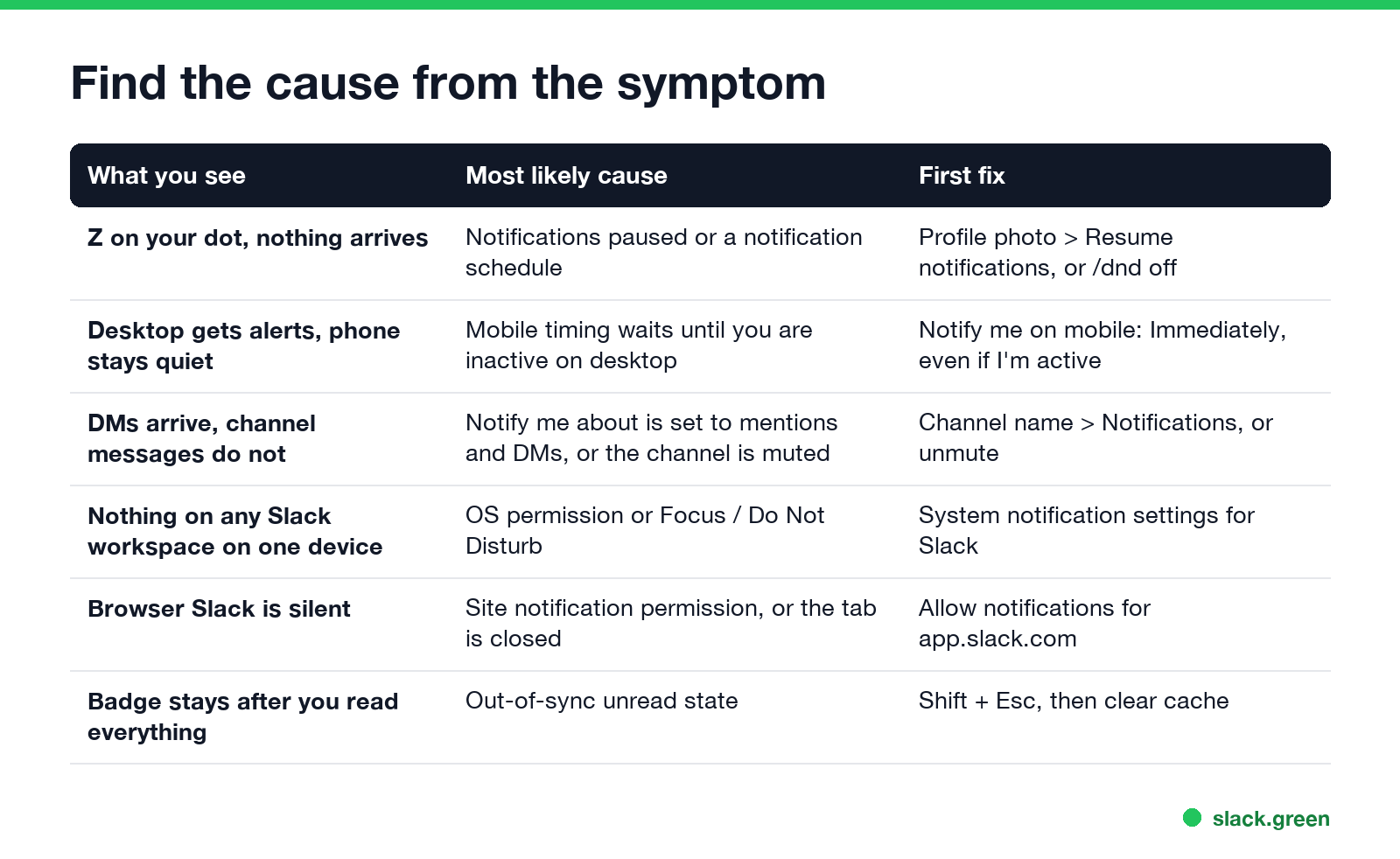
Start with the symptom. Each one points to a different setting, so you can often skip straight to the right section.
If you want a test before you change anything, the Slack mobile app has a built-in one: tap your profile picture, tap Notifications, then Troubleshoot notifications. It checks permissions, the connection to Apple or Google push, and sends a test alert.
Check 1: notifications are paused in Slack
Look at the dot next to your name. A small Z means notifications are paused. Nothing banners, buzzes or plays a sound until the pause ends, and the Z does not change whether you show as active. The green dot with a Z guide explains the icon in detail.
A pause comes from three places:
- • A manual pause. Profile picture, then Pause notifications. To undo it, open the same menu and choose Resume notifications, or type
- • A notification schedule. Slack pauses you outside the hours set in Preferences > Notifications > Notification schedule. If alerts stop at the same time every evening, widen the hours or pick Every day. The status scheduling guide covers how the schedule works with your status text.
- • A pause you set for leave. An out-of-office setup usually includes a pause with an end date. If you came back early, resume by hand.
/dnd off in any message box.
If the pause keeps coming back and none of these fit, the full list of automatic causes is in why Slack pauses my notifications.
Check 2: what Slack is set to notify you about
Slack only alerts you for what you asked for. Open Preferences > Notifications on desktop, or Notifications in the mobile app, and read the Notify me about setting:
| Setting | You get alerts for | You do not get alerts for |
|---|---|---|
| All new messages | Every message in every channel you are in | Muted channels |
| Direct messages, mentions and keywords | DMs, @you, @channel, your keywords | Normal channel messages |
| Nothing | Nothing | Everything |
Then check the exceptions, because they override the default:
Check 3: the mobile timing rule
This is the cause behind "my desktop gets alerts but my phone stays quiet". Slack does not send every alert to every device at once. By default, Slack's help center says it sends mobile notifications one minute after you lock your desktop screen, or ten minutes after Slack stops detecting activity on your desktop. While your desktop looks active, the phone waits.
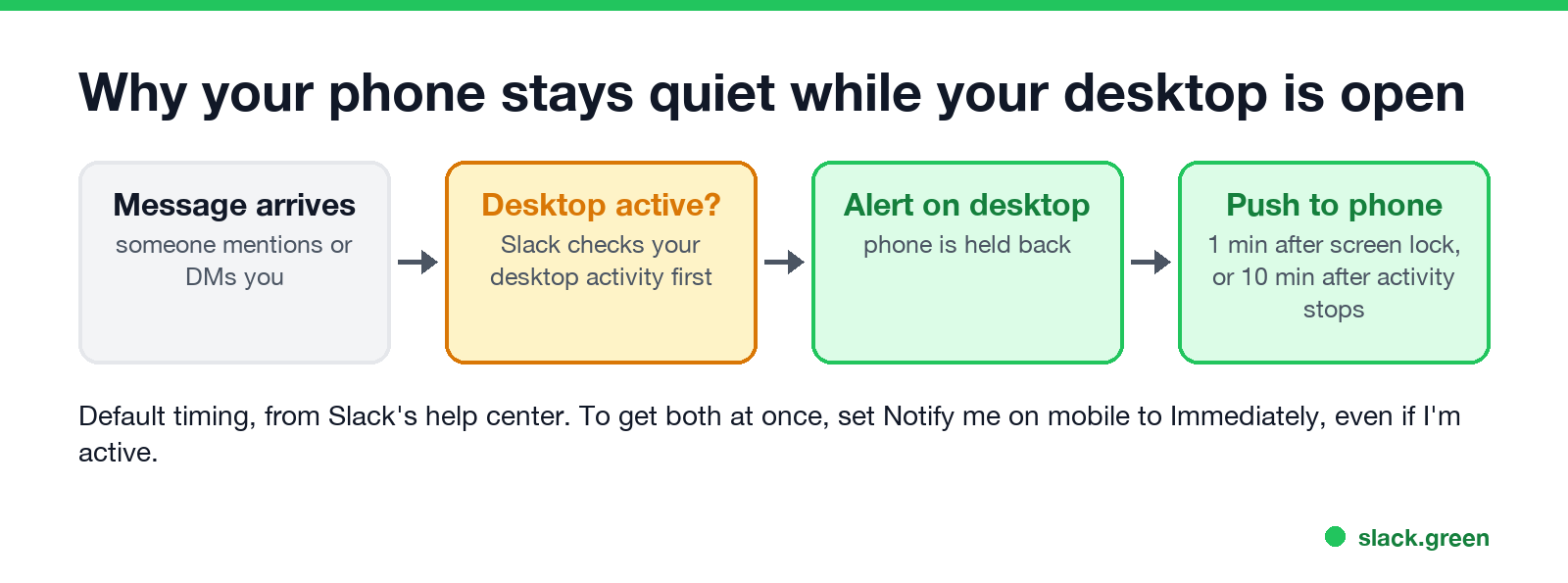
You can change it on desktop under Preferences > Notifications > When I'm not active on desktop, or on mobile under Notifications > Notify me on mobile. The options are:
The ten minutes is the same timer that turns your dot grey, which is why how long Slack stays active and notifications are linked. Slack counts input inside its own window, so a laptop where you are working in other apps can look inactive to Slack while you are busy. If you keep your presence active with any tool, a mouse jiggler or Slack Green, choose Immediately, even if I'm active so your phone keeps alerting you while you are away from the desk.
Check 4: your operating system
If Slack is set up correctly and nothing arrives on one device, the device is blocking it. Every system has two layers: a permission for Slack, and a quiet mode that silences everything.
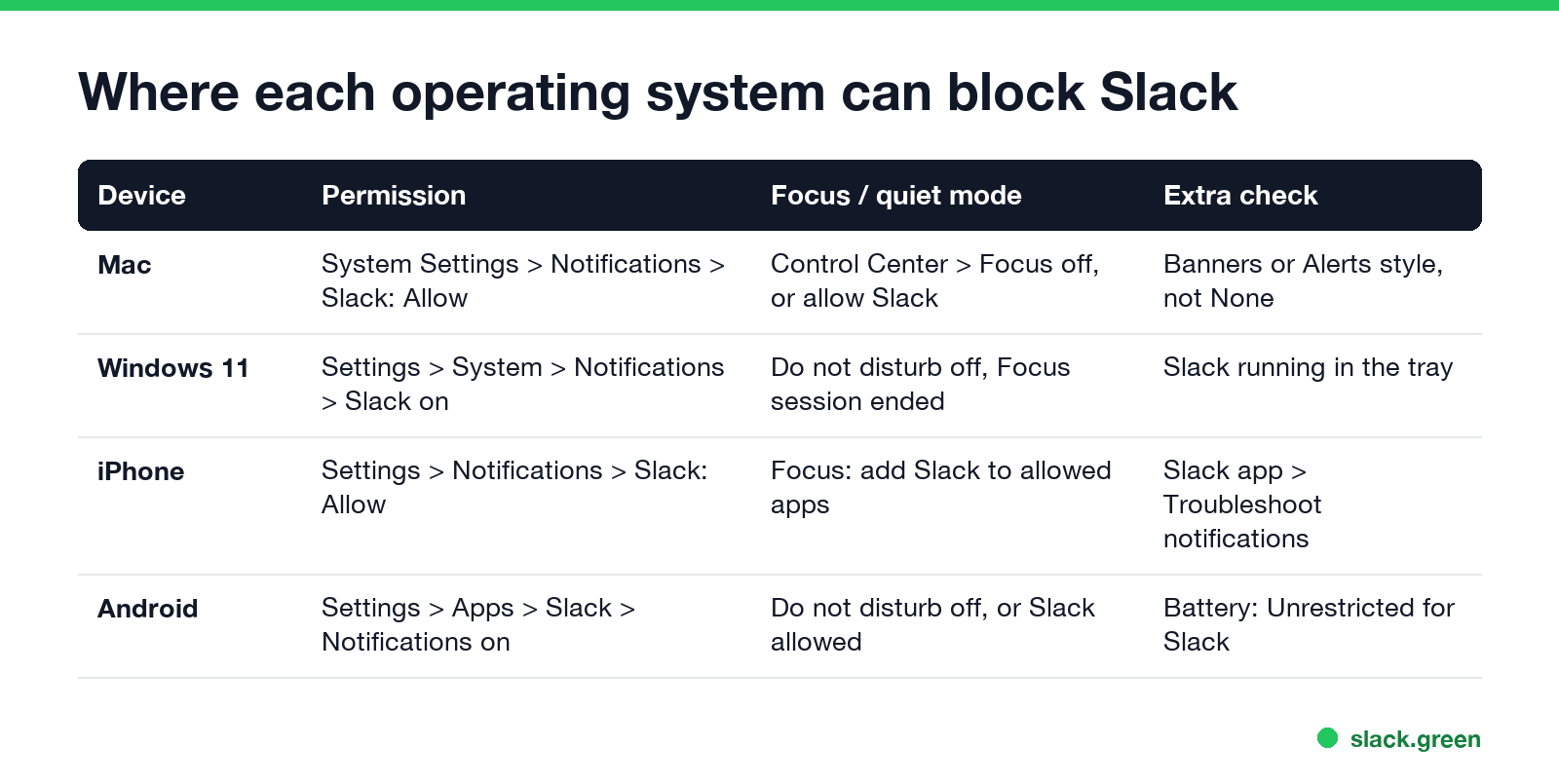
Mac. Open System Settings > Notifications > Slack and turn on Allow notifications. Set the alert style to Banners or Alerts; None delivers silently to Notification Center. Then check Focus in Control Center. A Focus mode blocks Slack unless you add it to the allowed apps.
Windows 11. Open Settings > System > Notifications and make sure notifications are on and Slack is enabled in the app list. Turn off Do not disturb, and end any Focus session. Slack must be running, including in the system tray, to alert you.
iPhone. Open Settings > Notifications > Slack and turn on Allow Notifications. Check any Focus mode under Settings > Focus and add Slack to its allowed apps if you want work alerts during it. The phone side of presence is covered in keeping Slack active on iPhone.
Android. Open Settings > Apps > Slack > Notifications and turn them on, including the categories for messages and mentions. Set battery usage for Slack to Unrestricted. On Android this changes how fast pushes arrive, though it does not keep you green, as the Android guide explains. Slack also needs Google Play Services to deliver pushes.
Check 5: Slack in a browser
Browser Slack can only alert you while its tab is open. If the tab is closed, nothing arrives, whatever the settings say.
Your operating system's permission for the browser itself also applies. If Chrome cannot send notifications on your Mac, no website in Chrome can.
Check 6: stale state, cache and updates
When the settings are right and alerts are still wrong, reset the app state in this order:
Shift + Esc in the desktop app orNo sound, but the banner shows
A banner without a sound is a separate setting. In Preferences > Notifications, check that Mute all sounds from Slack is off and pick a notification sound. On Mac and Windows, the system volume and the sound permission for Slack in the system notification settings also apply. On a phone, a silent ring mode or a Focus mode can deliver the alert with no sound.
Frequently asked questions
Why do I get Slack notifications on my computer but not my phone? Slack's mobile timing rule. By default the phone waits until you have been inactive on desktop, one minute after a screen lock or ten minutes after activity stops. Set Notify me on mobile to Immediately, even if I'm active to get both.
Why did my Slack notifications stop at the same time every day? A notification schedule. Outside the hours you allow, Slack pauses alerts and shows a Z on your dot. Widen the hours in the notification preferences.
Does pausing notifications make me look away? No. A pause adds a Z but does not change your active or away status. Away is a separate control, covered in how to appear offline on Slack.
Do notifications keep me active on Slack? No. Receiving a push notification does not make you active. Only use of the app on screen does, as explained in how Slack decides when you are away.
Why do I get notifications for some channels and not others? Per-channel settings and mutes override your default. Open the channel name, then Notifications, for each channel that stays silent.
The short version
Look for the Z first, then read Notify me about, then the mobile timing setting. Those three cover most missing Slack alerts. After that, check the operating system and browser permissions, and reset the cache last. If you also want your presence to stay green while you are away from the desk, that is a separate problem with its own fix: how to keep Slack active.
Related Articles
Slack Saved for Later: Where the Later Tab Is and How It Works
Saved messages in Slack live in the Later tab, which replaced stars and Saved items in 2023. Hover a message and click Save for later, or press A. Add a reminder, mark items complete, and find them with is:saved. Where Later is on desktop and mobile, and what changed.
Slack Multiple Workspaces: Use, Switch and Stay Active in Each
You can sign in to several Slack workspaces in one app and switch with Ctrl+Tab or Cmd/Ctrl plus a number. Each workspace has its own account, status, presence and Do Not Disturb, so you can be active in one and away in another. How to add, switch and manage them.
Microsoft Teams Status Icons Meaning: Every Colour and Symbol
In Microsoft Teams, a green check means Available, red means Busy, In a meeting or In a call, red with a white bar means Do not disturb or Presenting, a yellow clock means Away or Be right back, a grey circle with an x means Offline, and a purple arrow means Out of office. Which ones Teams sets for you, and which wins.